Introduction
This manual provides detailed instructions for the Kisnt KN34 Mechanical Number Pad and the Kisnt KN85 Wireless Mechanical Keyboard. Please read this manual thoroughly before using your devices to ensure proper setup and operation.
Product Overview
Kisnt KN34 Mechanical Number Pad
The KN34 is a mechanical number pad designed for enhanced data entry and productivity. It features hot-swappable Gateron Blue switches and is compatible with both Mac and Windows operating systems.
Kisnt KN85 Wireless Mechanical Keyboard
The KN85 is a 75% compact wireless mechanical keyboard offering versatile connectivity options (Bluetooth 5.0, 2.4G wireless, wired USB-C). It comes with pre-lubed Bsun linear switches, a gasket-mounted structure for improved acoustics, and programmable software support for Windows.

Image: The Kisnt KN34 Mechanical Number Pad (right) and the Kisnt KN85 Wireless Mechanical Keyboard (left) shown together.
Setup
KN34 Mechanical Number Pad Connection
The KN34 number pad connects via a wired USB connection. Simply plug the USB cable into an available USB port on your computer. The device is plug-and-play and does not require additional drivers for basic functionality.
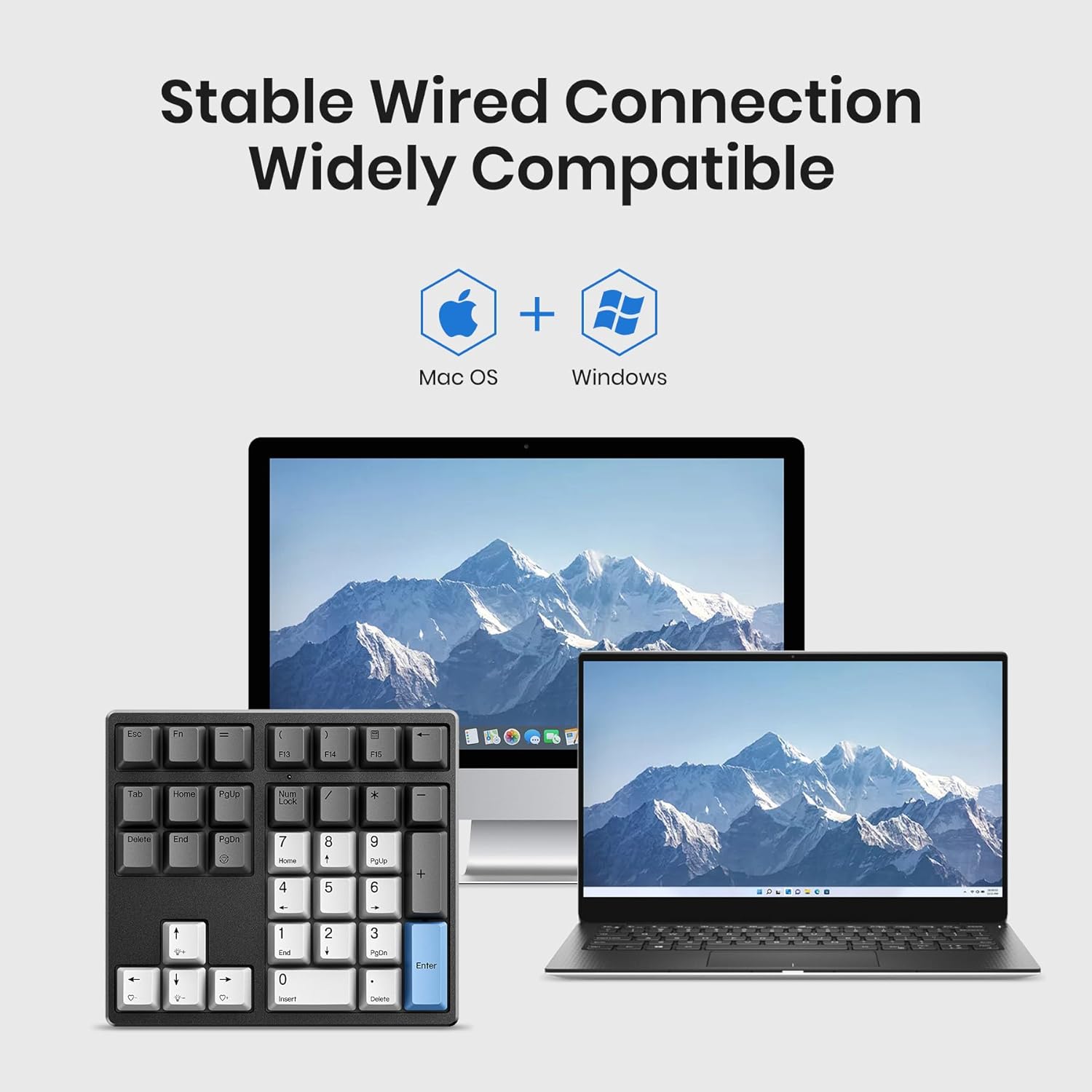
Image: The KN34 number pad connected to both Mac and Windows operating systems, demonstrating its compatibility.
KN85 Wireless Mechanical Keyboard Connection
The KN85 keyboard offers three connection modes:
- Wired Mode (USB-C): Connect the keyboard to your computer using the provided USB-C cable. This mode offers the most stable connection and charges the keyboard's internal battery.
- 2.4G Wireless Mode:
- Locate the 2.4G USB receiver, typically stored in a compartment on the keyboard.
- Plug the receiver into an available USB port on your computer.
- Switch the keyboard to 2.4G mode (refer to the keyboard's function key combinations for mode switching, usually Fn+Q).
- The keyboard should automatically connect.
- Bluetooth 5.0 Mode:
- Switch the keyboard to Bluetooth mode (refer to the keyboard's function key combinations for mode switching, usually Fn+W/E/R for different Bluetooth channels).
- On your computer or device, open Bluetooth settings and search for new devices.
- Select "Kisnt KN85" (or similar) from the list of available devices to pair.
- If prompted, enter the pairing code displayed on your screen.

Image: The Kisnt KN85 keyboard illustrating its three connection options: Bluetooth 5.0, 2.4G wireless, and wired USB-C.
Operating Instructions
KN34 Number Pad Key Functions
The Kisnt KN34 mechanical number pad is compatible with both Mac and Windows operating systems. It automatically adjusts key functions to match your system. For Mac users, F13-F15 keys can be customized.

Image: Close-up of the KN34 number pad, highlighting its combination of numerical and function keys such as Esc, Backspace, Calculator, Tab, and Delete.
KN34 Number Pad LED Lighting
The KN34 features white LED lighting with various options:
- Backlight Preset Mode: Cycle through different lighting effects (Fn + PgDn).
- Backlight Brightness Adjustment: Increase or decrease brightness (Fn + Up/Down Arrow).
- Backlight Effect Speed Adjustment: Control the speed of dynamic lighting effects (Fn + Left/Right Arrow).

Image: The KN34 number pad demonstrating its white LED lighting options and key combinations for control.
KN85 Keyboard Layout and Keys
The KN85 keyboard features an 85-key, 75% compact layout. This design saves desktop space while retaining essential arrow keys and full-size function keys. Users new to a 75% layout may require a short adjustment period.

Image: The Kisnt KN85 keyboard showcasing its 85-key compact layout, including dedicated arrow keys.
KN85 Programmable Software (Windows Only)
The KN85 keyboard supports custom software for advanced customization, including lighting modes, key remapping, and macro creation. This software is compatible only with Windows operating systems.
- Download the software from the official Kisnt website.
- Install and launch the application.
- Follow the on-screen instructions to customize your keyboard settings.

Image: Screenshot of the Kisnt KN85 programmable software interface, showing options for lighting modes, brightness, and speed adjustments.
Maintenance
Cleaning
- Disconnect the device from your computer before cleaning.
- Use a soft, lint-free cloth slightly dampened with water or a mild cleaning solution to wipe the surface.
- For cleaning between keycaps, use compressed air to remove dust and debris.
- Avoid spraying liquids directly onto the keyboard or number pad.
Hot-Swappable Switches
Both the KN34 number pad and KN85 keyboard feature hot-swappable switches, allowing for easy replacement without soldering. They support most 3-pin and 5-pin MX style mechanical switches.
- Removing Switches: Use a switch puller tool to gently grip the switch and pull it straight up.
- Installing Switches: Align the pins of the new switch with the holes on the PCB. Gently press the switch down until it clicks into place. Ensure pins are not bent.

Image: The Kisnt KN85 keyboard with several keycaps and switches removed, demonstrating its hot-swappable switch sockets.
Troubleshooting
- Device not responding:
- Ensure the USB cable is securely connected for wired devices.
- For wireless devices, check battery level and ensure it's in the correct connection mode (2.4G or Bluetooth).
- Try connecting to a different USB port or restarting your computer.
- Wireless connection issues:
- Ensure the 2.4G receiver is plugged in or Bluetooth is enabled on your device.
- Re-pair the Bluetooth connection.
- Move the device closer to the receiver/computer to reduce interference.
- Keys not registering:
- Check if the switch is properly seated in its socket.
- If a specific switch is faulty, consider replacing it with a new one.
- Backlight not working:
- Ensure the device is powered on.
- Adjust brightness settings using the function key combinations.
Specifications
| Model | KN34 |
| Switch Type | Hot-swappable Gateron Blue (3-pin/5-pin MX style compatible) |
| Connectivity | Wired USB |
| Compatibility | Mac, Windows |
| Lighting | White LED |
| Model | KN85 |
| Layout | 75% Compact (85 keys) |
| Switch Type | Hot-swappable Bsun Linear (pre-lubed, 3-pin/5-pin compatible) |
| Connectivity | Bluetooth 5.0, 2.4G Wireless, Wired USB-C |
| Battery | 4000mAh rechargeable |
| Structure | Gasket Mounted |
| Software Support | Windows only |
ASIN: B0F4QJ8GK2
Date First Available: April 14, 2025

Image: Exploded view diagram of the Kisnt KN85 keyboard, detailing its gasket-mounted structure components such as PBT keycaps, mechanical switches, silicone pad, and lithium battery.
Warranty and Support
For warranty information and technical support, please refer to the official Kisnt website or contact Kisnt customer service directly. Keep your purchase receipt for warranty claims.
Official Kisnt Store: Kisnt Store on Amazon


