
Introduction
This manual provides essential information for setting up, operating, and maintaining your TracFone Samsung Galaxy A16 5G smartphone. The Samsung Galaxy A16 5G offers a 6.7-inch FHD+ Super AMOLED Infinity-V Display with a 90Hz refresh rate, a 50MP triple-camera system, and a long-lasting 5000mAh battery. This device is locked to Tracfone and requires a Tracfone calling plan for activation.
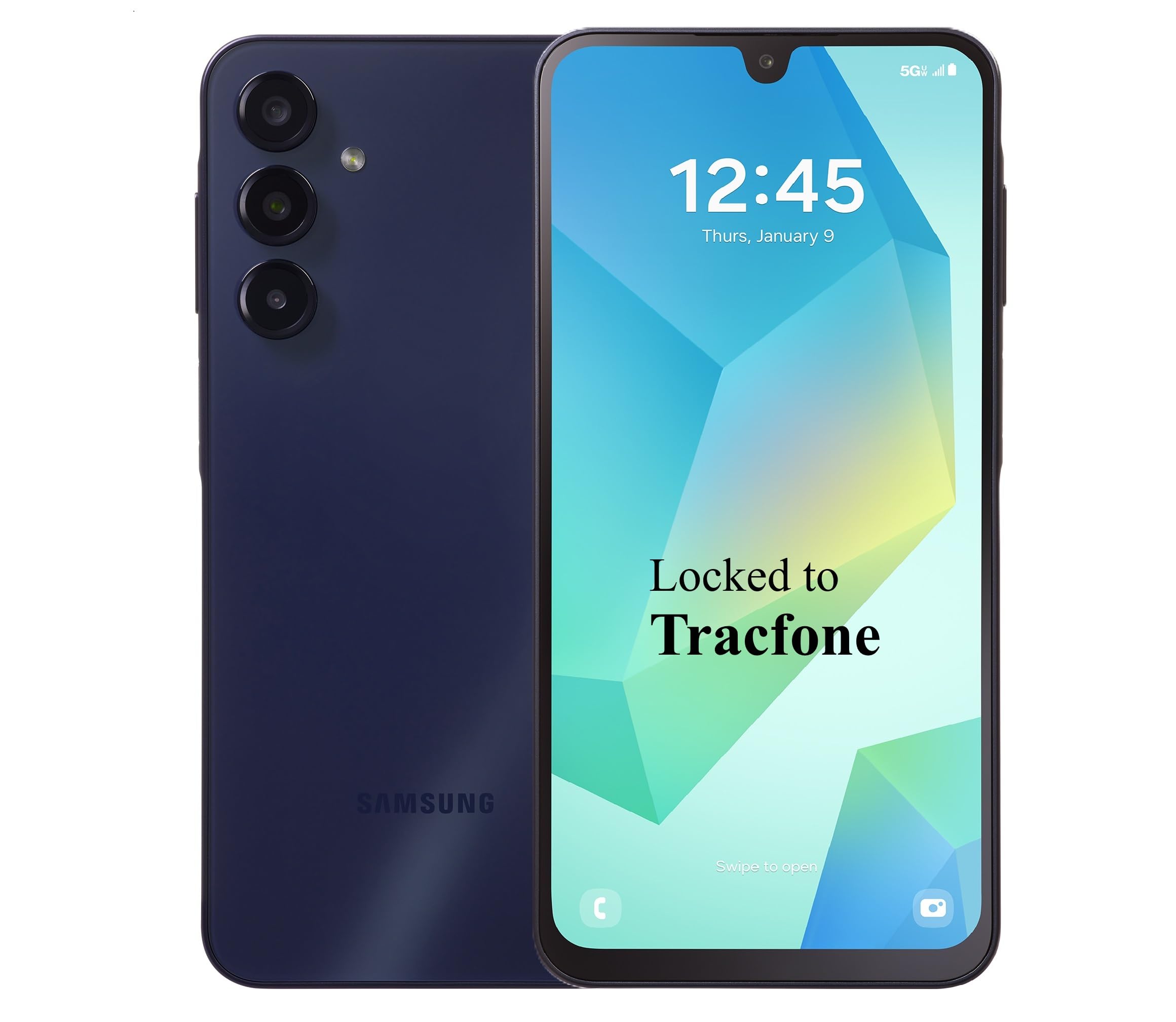
Figure 1: TracFone Samsung Galaxy A16 5G smartphone.
What's in the Box
- Samsung Galaxy A16 5G Device
- USB Cable (Type-C to Type-C)
- Quick Start Guide
Please note that a power adapter is not included and must be purchased separately.

Figure 2: Contents of the TracFone Samsung Galaxy A16 5G retail box.
Setup
1. SIM Card and MicroSD Card Installation
Locate the SIM/MicroSD card tray on the side of your device. Use the provided SIM ejector tool to open the tray. Insert your Tracfone SIM card into the designated slot. If desired, insert a MicroSD card (up to 1TB) into the secondary slot for expanded storage. Ensure the tray is securely closed.
2. Device Activation
Your TracFone Samsung Galaxy A16 5G is locked to the Tracfone Wireless network. To activate your device, visit the Tracfone Website and select “Activate” or call the customer service number provided in the Quick Start Guide. Follow the on-screen prompts or instructions from the representative to complete the activation process. A Tracfone calling plan is required.
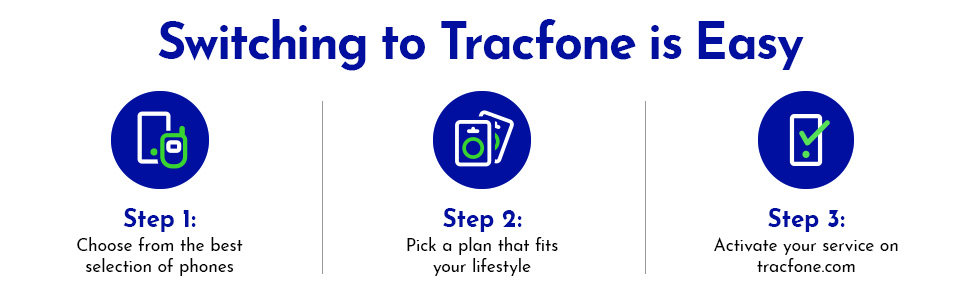
Figure 3: Tracfone activation process overview.
Operating
1. Power On/Off and Fingerprint Sensor
The Power/Lock button is located on the side of the device. Press and hold to power on or off. This button also integrates a fingerprint sensor for secure and quick unlocking. Simply place your registered finger on the button when the screen is off to unlock and activate the display simultaneously.
2. Volume Controls
Volume buttons are located adjacent to the Power/Lock button. Use them to adjust media volume, call volume, and notification sounds.
3. Display Navigation
Navigate through the Android 14 interface using touch gestures. Swipe up from the bottom for the app drawer, swipe down from the top for quick settings and notifications, and tap icons to open applications.

Figure 4: Front view of the Samsung Galaxy A16 5G, highlighting the display.
Camera Features
The Samsung Galaxy A16 5G features a versatile triple-camera system on the rear and a high-resolution front camera.
- Rear Camera System: Capture crisp, detailed photos with the 50MP main camera. The ultrawide lens allows you to fit more into your frame, while the macro camera is designed for capturing tiny details.
- Front Camera: A 13MP front-facing camera is ideal for selfies and video calls.
Access the camera app from your home screen or lock screen to explore various modes and settings.

Figure 5: Rear camera module of the Samsung Galaxy A16 5G.
Specifications
| Model Name | Galaxy A16 5G |
| Model Number | S166V |
| Display Size | 6.7 Inches |
| Display Type | FHD+ Super AMOLED Infinity-V |
| Resolution | 1080 x 2340 pixels |
| Refresh Rate | 90Hz |
| Brightness | 800 nits |
| Processor | Octa-core (Exynos) |
| RAM | 4 GB |
| Internal Storage | 128 GB |
| Expandable Storage | MicroSD up to 1 TB |
| Rear Camera | 50MP (Main) + Ultrawide + Macro |
| Front Camera | 13MP |
| Battery Capacity | 5000mAh |
| Charging | Super Fast Charging (wired) |
| Operating System | Android 14 |
| Connectivity | 5G, Bluetooth, Wi-Fi, GPS |
| Dimensions | 3.07 x 0.31 x 6.47 inches |
| Weight | 10.7 ounces |
Battery Life & Charging
The Samsung Galaxy A16 5G is equipped with a 5000mAh battery, designed to provide extended usage. With moderate to heavy use, the device can last at least a full day. Lighter usage may extend battery life to up to two days.
The device supports Super Fast Charging. Use a compatible USB-C to USB-C cable and a Super Fast Charging adapter (sold separately) to quickly recharge your phone.
Connectivity
Your Galaxy A16 5G supports a range of connectivity options:
- 5G Network: Experience fast download and upload speeds on the Tracfone 5G network.
- Wi-Fi: Connect to wireless networks for internet access.
- Bluetooth: Pair with compatible accessories like headphones and smartwatches.
- GPS: Utilize location services for navigation and mapping.
Software & Updates
The device comes pre-installed with Android 14. Samsung typically provides multiple years of Android operating system updates and security patches for its Galaxy A series devices, ensuring your phone remains secure and up-to-date with the latest features.
Maintenance
- Cleaning: Use a soft, lint-free cloth to clean the screen and body of the phone. Avoid harsh chemicals.
- Software Updates: Regularly check for and install software updates to ensure optimal performance and security.
- Storage Management: Periodically review and manage your device's storage to free up space and maintain performance.
Troubleshooting
- Device Not Responding: Press and hold the Power/Lock button for about 10 seconds to force a restart.
- Battery Drain: Check background app usage and adjust screen brightness. Consider using power-saving modes.
- Connectivity Issues: Toggle Wi-Fi or Bluetooth off and on. Restart your device if the issue persists.
- Activation Problems: Contact Tracfone customer support directly for assistance with activation or service plans.
Warranty & Support
Your TracFone Samsung Galaxy A16 5G comes with a manufacturer's warranty. Please refer to the warranty card included in your product packaging for specific terms and conditions. For technical support, service inquiries, or warranty claims, please contact Tracfone customer service or visit their official website.
