
Introduction
This manual provides essential information for setting up, operating, maintaining, and troubleshooting your new paitanry 8.7-inch Android 15 Tablet. Please read this guide thoroughly to ensure proper use and to maximize your device's performance and longevity.
The paitanry 8.7-inch Android 15 Tablet is designed for adults seeking a compact yet powerful device. It features the Android 15 operating system, an RK3562 Quad-Core processor, 8GB RAM, 64GB internal storage (expandable up to 512GB), and a 1340x800 in-cell display. It supports 5G Wi-Fi, Bluetooth 5.0, and GPS, and is GMS L1 certified for full Google Play access.
Setup
1. Unboxing and Package Contents
Carefully unpack your tablet and check for the following items:
- 1 × paitanry 8.7-inch Android 15 Tablet
- 1 × 5V/2A Charger
- 1 × Type-C USB Cable
- 1 × User Manual (this document)
2. Initial Charging
Before first use, fully charge the tablet. Connect the Type-C USB cable to the tablet's charging port and the other end to the 5V/2A charger. Plug the charger into a power outlet. The charging indicator will show the charging status.
3. Powering On and Initial Configuration
Press and hold the Power button until the screen turns on. Follow the on-screen prompts to complete the initial setup:
- Select your preferred language.
- Connect to a Wi-Fi network.
- Sign in with your Google account or create a new one. This is necessary for accessing Google Play Store and other Google services.
- Review and accept the terms and conditions.
- Set up screen lock (PIN, pattern, or password) for security.
Operating Your Tablet
1. Android 15 Operating System
Your tablet runs on Android 15, offering an intuitive interface, enhanced privacy features, and improved performance. The GMS L1 certification ensures full compatibility with Google services like YouTube, Gmail, and Google Maps.

Image: The paitanry 8.7-inch tablet showcasing the Android 15 operating system interface.
2. Performance and Processor
The tablet is equipped with a Rockchip RK3562 Quad-Core processor (up to 2.0GHz) and an ARM G52 GPU, providing smooth performance for daily tasks, browsing, and light gaming. It includes 8GB RAM (with 5GB extended virtual memory) for efficient multitasking.
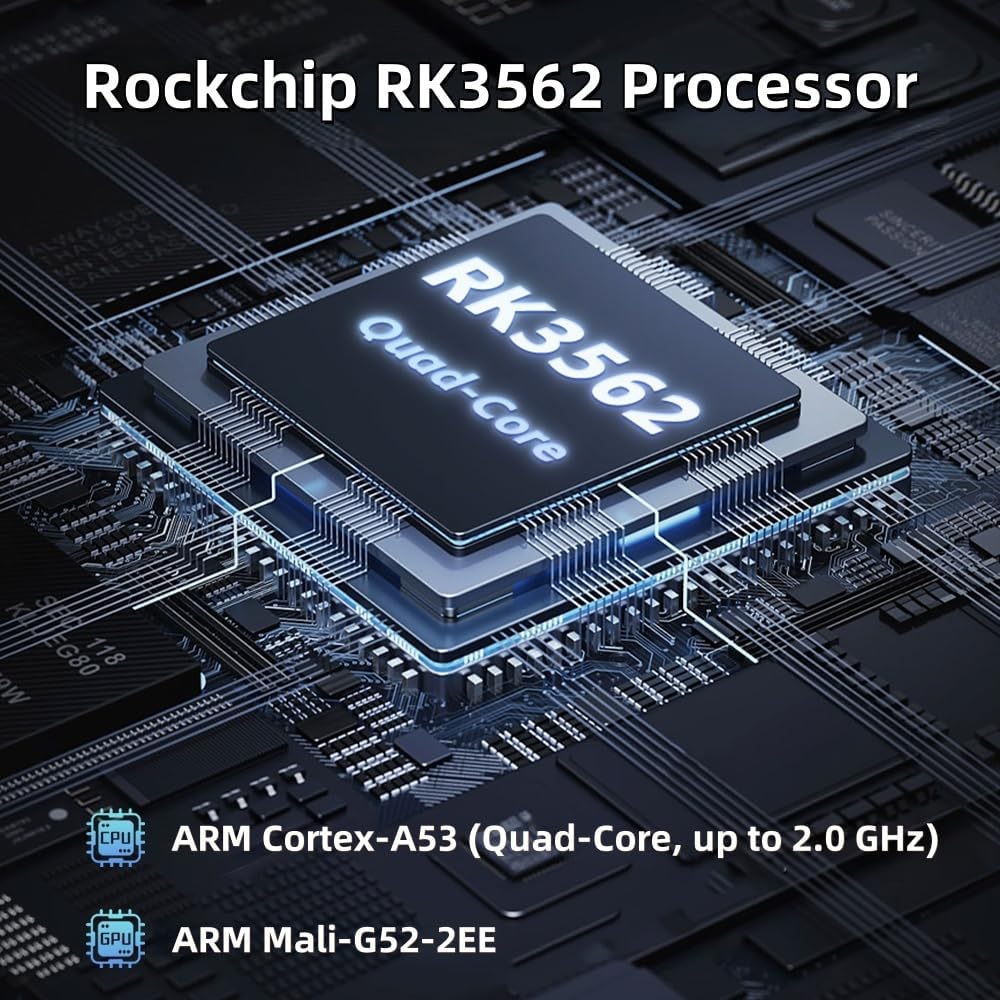
Image: A detailed view of the Rockchip RK3562 Quad-Core processor, highlighting its architecture.
3. Storage Management
The tablet comes with 64GB of internal storage. You can expand this storage up to 512GB using a microSD card (sold separately). To insert a microSD card, locate the card slot on the side of the tablet and gently push the card in until it clicks into place. To remove, push the card again to eject it.

Image: The tablet screen illustrating the available 8GB RAM and 64GB ROM, with an option for 512GB expandable storage via an SD card.
4. Connectivity
- Wi-Fi: Supports dual-band Wi-Fi (2.4G+5G) for fast and stable internet access. To connect, go to Settings > Network & internet > Wi-Fi, then select your network and enter the password.
- Bluetooth 5.0: Connect wireless headphones, speakers, and other Bluetooth-enabled devices. Go to Settings > Connected devices > Connection preferences > Bluetooth to pair devices.
- GPS: The tablet includes GPS for navigation and location-based services. Ensure location services are enabled in Settings > Location.

Image: Two individuals interacting with the paitanry tablet, symbolizing its Wi-Fi and Bluetooth 5.0 connectivity features.
5. Camera Functionality
The tablet features a 2MP front camera for video calls and a 5MP rear camera for capturing photos and videos. Open the Camera app to access these functions. Tap to focus and press the shutter button to take a picture or start/stop video recording.
6. Audio
Enjoy immersive sound with dual stereo speakers. For private listening, connect headphones via the 3.5mm audio jack.

Image: Two paitanry tablets displaying sound waves, representing the dual stereo speaker audio experience.
Maintenance
1. Battery Care
- Use only the provided charger and cable to prevent damage.
- Avoid exposing the tablet to extreme temperatures, as this can affect battery life.
- For optimal battery health, avoid frequently draining the battery completely or keeping it at 100% charge for extended periods.
2. Cleaning Your Tablet
Use a soft, lint-free cloth to clean the screen and body of the tablet. Avoid using harsh chemicals or abrasive materials, which can damage the display or finish.
3. Software Updates
Regularly check for and install system updates to ensure your tablet has the latest features, security patches, and performance improvements. Go to Settings > System > System update.
Troubleshooting
If you encounter issues with your tablet, refer to the following common solutions:
- Tablet does not power on: Ensure the tablet is charged. Connect it to the charger and wait a few minutes before attempting to power it on again. If it still doesn't turn on, try holding the power button for 10-15 seconds.
- Slow performance or freezing: Close unnecessary background applications. Clear cache from apps in Settings > Apps > [App Name] > Storage & cache > Clear cache. Restarting the tablet can also resolve temporary performance issues.
- Short battery life: Adjust screen brightness, disable Wi-Fi/Bluetooth when not in use, and close power-intensive applications. Check battery usage in Settings > Battery to identify apps consuming the most power.
- Wi-Fi or Bluetooth connectivity issues: Ensure Wi-Fi/Bluetooth is enabled. Try restarting your tablet and your router/Bluetooth device. Forget the network/device in settings and reconnect.
- GPS not working: Ensure Location services are enabled in Settings > Location. Check if any apps are blocking location access. Try restarting the tablet.
- Tablet gets hot: It is normal for the tablet to warm up during intensive use (e.g., gaming, video streaming, or charging). If it becomes excessively hot, close demanding applications and allow it to cool down. Avoid using it in direct sunlight or hot environments.
Specifications
The paitanry 8.7-inch Android 15 Tablet offers the following technical specifications:
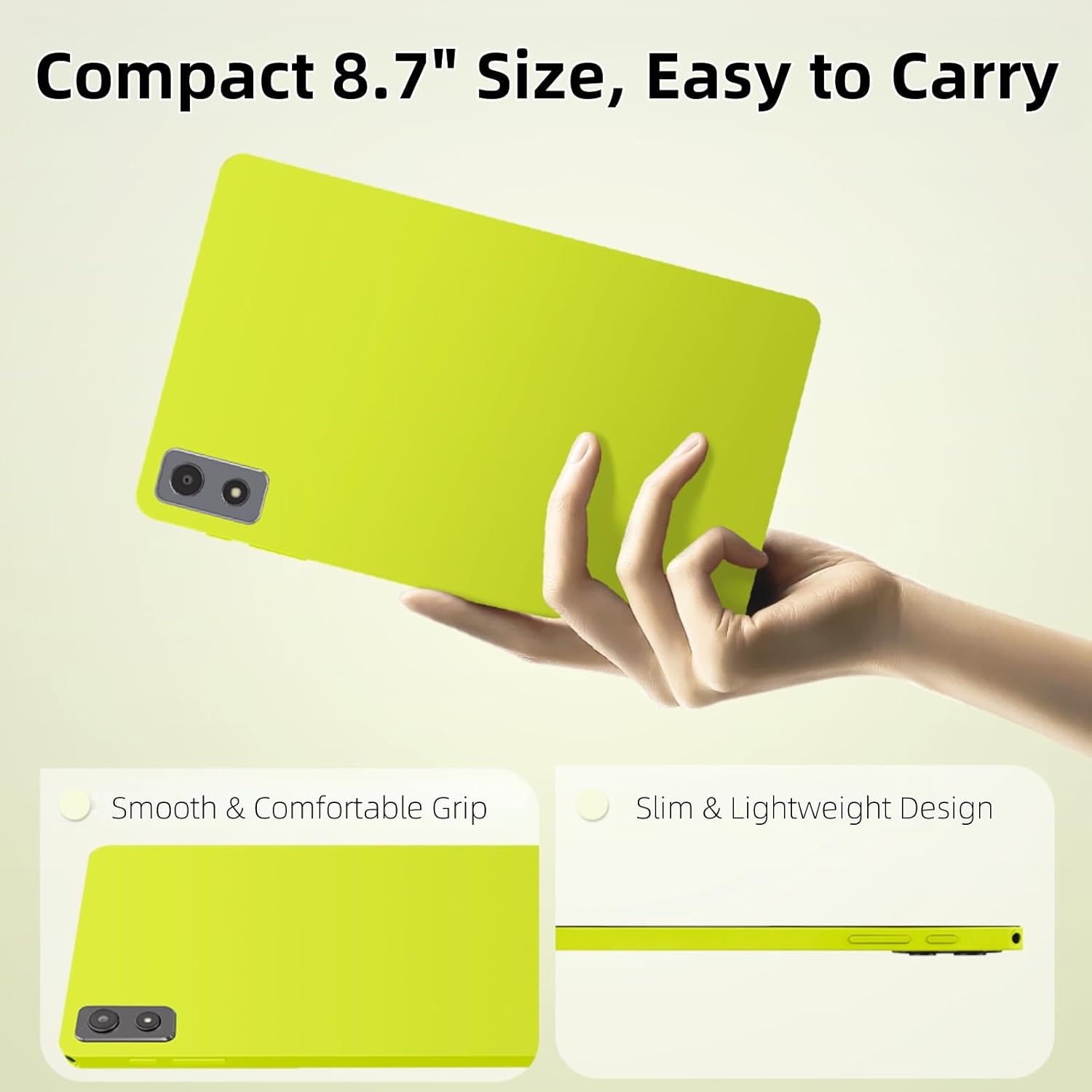
Image: A hand holding the compact paitanry 8.7-inch tablet, emphasizing its portability and sleek design.
| Feature | Detail |
|---|---|
| Brand | paitanry |
| Model Name | 8.68 inch Tablet |
| Operating System | Android 15 |
| Processor | Rockchip RK3562 Quad-Core (up to 2 GHz) |
| Graphics Coprocessor | Mali-G52 |
| RAM Size | 8 GB |
| Memory Storage Capacity | 64 GB |
| Expandable Storage | Up to 512 GB via microSD |
| Screen Size | 8.68 inches |
| Display Type | LCD In-Cell |
| Display Resolution | 1340x800 pixels |
| Wireless Technology | Wi-Fi (2.4G+5G, 802.11ac), Bluetooth 5.0 |
| Rear Camera | 5 MP |
| Front Camera | 2 MP |
| Battery Capacity | 5000 mAh (Lithium Polymer) |
| Battery Average Life | 5 hours (usage dependent) |
| Item Weight | 330 g |
| Dimensions (L x W x Thickness) | 8.3" x 4.9" x 0.3" |
| Included Components | Tablet, 5V/2A Charger, Type-C USB Cable, User Manual |
| Other Features | GPS, Dual Stereo Speakers, 3.5mm Audio Jack, USB OTG Support |
Warranty Information
Your paitanry 8.7-inch Android 15 Tablet comes with a 1-year limited warranty from the date of purchase. This warranty covers manufacturing defects and workmanship under normal use. It does not cover damage caused by misuse, accidents, unauthorized repairs, or normal wear and tear.
Please retain your proof of purchase for warranty claims.
Support
For further assistance, technical support, or warranty inquiries, please contact paitanry customer service through the retailer where you purchased the product or visit the official paitanry website for contact information.
You can also refer to the online support resources and FAQs available on the paitanry brand store on Amazon: paitanry Store