
1. Introduction
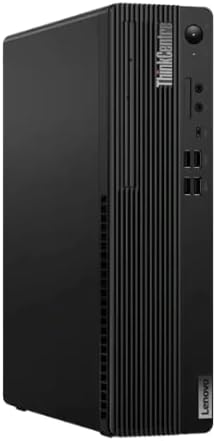
This manual provides essential information for setting up, operating, maintaining, and troubleshooting your Lenovo ThinkCentre M75s Gen 5 Desktop. Please read this manual thoroughly before using your device to ensure proper functionality and safety.
2. Package Contents
Verify that all items are present in your package:
- Lenovo ThinkCentre M75s Gen 5 Desktop
- Power Adapter/Cable
- USB Keyboard
- USB Mouse
- Documentation (Quick Start Guide, Warranty Information)
3. Setup
3.1 Unpacking and Placement
Carefully remove the desktop from its packaging. Place the desktop on a stable, flat surface with adequate ventilation. Ensure no vents are obstructed.
3.2 Connecting Peripherals
- Connect Monitor(s): Use the DisplayPort or HDMI ports on the rear of the desktop to connect your monitor(s).
- Connect Keyboard and Mouse: Plug the USB keyboard and mouse into any available USB-A ports on the front or rear of the desktop.
- Connect Network (Optional): For a wired connection, connect an Ethernet cable to the RJ45 LAN port on the rear. For wireless, ensure the Wi-Fi antenna (if external) is connected or that the internal Wi-Fi is enabled.
- Connect Power: Plug the power cable into the desktop's power input and then into a grounded electrical outlet.

3.3 Initial Power-On
Press the power button located on the front of the desktop. The system will boot up, and you will be guided through the Windows 11 Pro initial setup process. Follow the on-screen instructions to configure your operating system, user accounts, and network settings.
4. Operating Instructions
4.1 Power On/Off
- To Power On: Press the power button on the front panel.
- To Shut Down: Click the Start button in Windows, then select Power > Shut down.
- To Restart: Click the Start button in Windows, then select Power > Restart.
- To Sleep: Click the Start button in Windows, then select Power > Sleep.
4.2 Using USB Ports
The desktop features multiple USB ports for connecting external devices such as external hard drives, USB flash drives, printers, and other peripherals. The front USB-C port and one front USB-A port support faster data transfer.
4.3 Wireless Connectivity
Your ThinkCentre M75s Gen 5 supports Wi-Fi 6 and Bluetooth 5.3. To connect to a Wi-Fi network, click the network icon in the Windows taskbar, select your desired network, and enter the password if prompted. For Bluetooth devices, go to Windows Settings > Bluetooth & devices to pair new devices.
5. Maintenance
5.1 Cleaning the Desktop
Regularly clean the exterior of your desktop with a soft, dry, lint-free cloth. For stubborn marks, slightly dampen the cloth with water. Avoid using harsh chemicals or abrasive cleaners. Ensure vents are clear of dust and debris to maintain optimal airflow.
5.2 Software Updates
Keep your operating system and drivers updated. Windows 11 Pro automatically checks for updates, but you can manually check by going to Settings > Windows Update. Regularly updating your system ensures security and performance improvements.
5.3 Data Backup
It is recommended to regularly back up your important data to an external drive or cloud storage to prevent data loss.
6. Troubleshooting
6.1 No Power
- Ensure the power cable is securely connected to both the desktop and the electrical outlet.
- Verify the electrical outlet is functional by plugging in another device.
- Check the power adapter for any visible damage.
6.2 No Display
- Confirm the monitor is powered on and connected correctly to the desktop's video output port (DisplayPort or HDMI).
- Try connecting the monitor to a different video output port on the desktop, if available.
- Test the monitor with another device or use a different cable if possible.
6.3 Network Connectivity Issues
- For wired connections, ensure the Ethernet cable is properly connected and the router/modem is working.
- For Wi-Fi, check if Wi-Fi is enabled in Windows settings and if you are connected to the correct network. Restart your router/modem.
- Run the Windows Network Troubleshooter (Settings > Network & internet > Advanced network settings > Network troubleshooter).
6.4 System Slowdown or Freezing
- Close unnecessary applications running in the background.
- Check Task Manager (Ctrl+Shift+Esc) for processes consuming high CPU, memory, or disk resources.
- Ensure your system has sufficient free storage space.
- Perform a system scan for malware or viruses.
7. Specifications
| Feature | Description |
|---|---|
| Processor | AMD Ryzen 7 PRO 8700GE (4.20 GHz, up to 5.10 GHz Max Boost, 8 Cores, 16 Threads, 16 MB Cache) |
| Operating System | Windows 11 Pro |
| Graphics | Integrated AMD Radeon 780M Graphics |
| Memory (RAM) | 16GB DDR5 (Configurable up to 64GB) |
| Storage | 1TB PCIe SSD (Configurable up to 2TB) |
| Wireless Connectivity | WiFi 6 (RTL8852BE 802.11AX), Bluetooth 5.3 |
| Front Ports | 1x USB-C (USB 5Gbps), 4x USB-A (USB 5Gbps, 1 always on), Headphone/mic combo, Optional Card Reader (3-in-1) |
| Rear Ports | 2x DisplayPorts, 1x HDMI 2.1, 4x USB-A (Hi-speed USB), 1x RJ45 LAN (1G Full DASH), Audio-out, Optional Serial Port, Optional Parallel Port |
| Dimensions (H x W x D) | 13.4 x 3.6 x 11.7 inches (340.36 x 91.44 x 297.18 mm) |
| Weight | Approximately 11.7 lbs (5.3 kg) |
| Color | Raven Black |
8. Warranty and Support
Your Lenovo ThinkCentre M75s Gen 5 Desktop comes with a standard manufacturer's warranty. For detailed warranty terms and conditions, please refer to the warranty documentation included with your product or visit the official Lenovo support website.
For technical assistance, driver downloads, or further support, please visit the Lenovo Support website:
When contacting support, please have your product's serial number readily available. The serial number is typically located on a sticker on the desktop chassis.