
1. Introduction
This manual provides essential information for the proper setup, operation, and maintenance of your SANSUI 27-inch WQHD 300Hz Fast IPS Gaming Monitor. Please read this manual thoroughly before using the product to ensure optimal performance and safety.
Key Features:
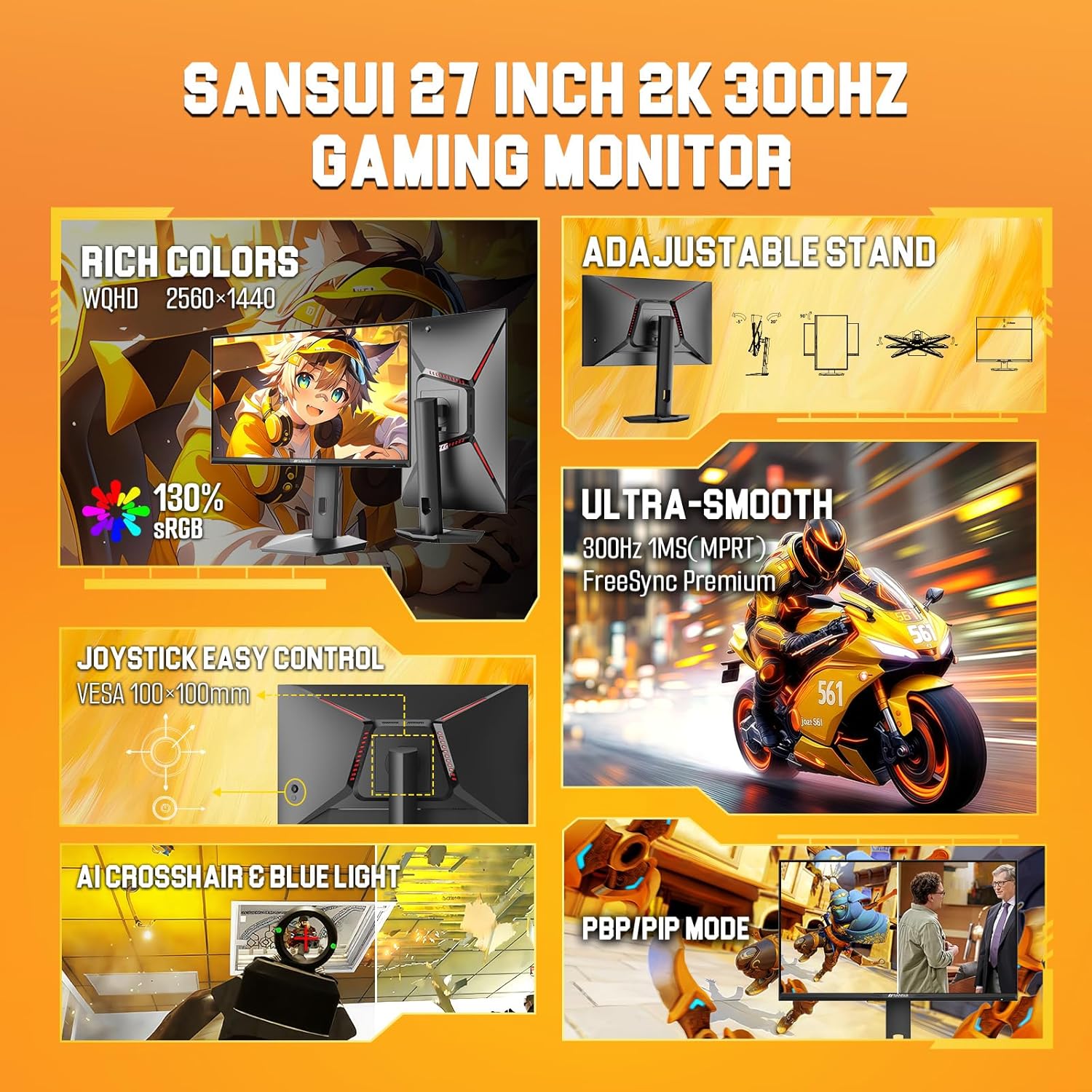
- 27-inch WQHD (2560 x 1440P) resolution with up to 300Hz/240Hz refresh rates.
- Fast IPS panel with 1ms MPRT response time.
- Supports FreeSync Premium for smooth, tear-free gaming.
- Vibrant color reproduction with 400 Nits brightness, 10-bit color, 95% DCI-P3, and 130% sRGB.
- HDR support for enhanced visual detail.
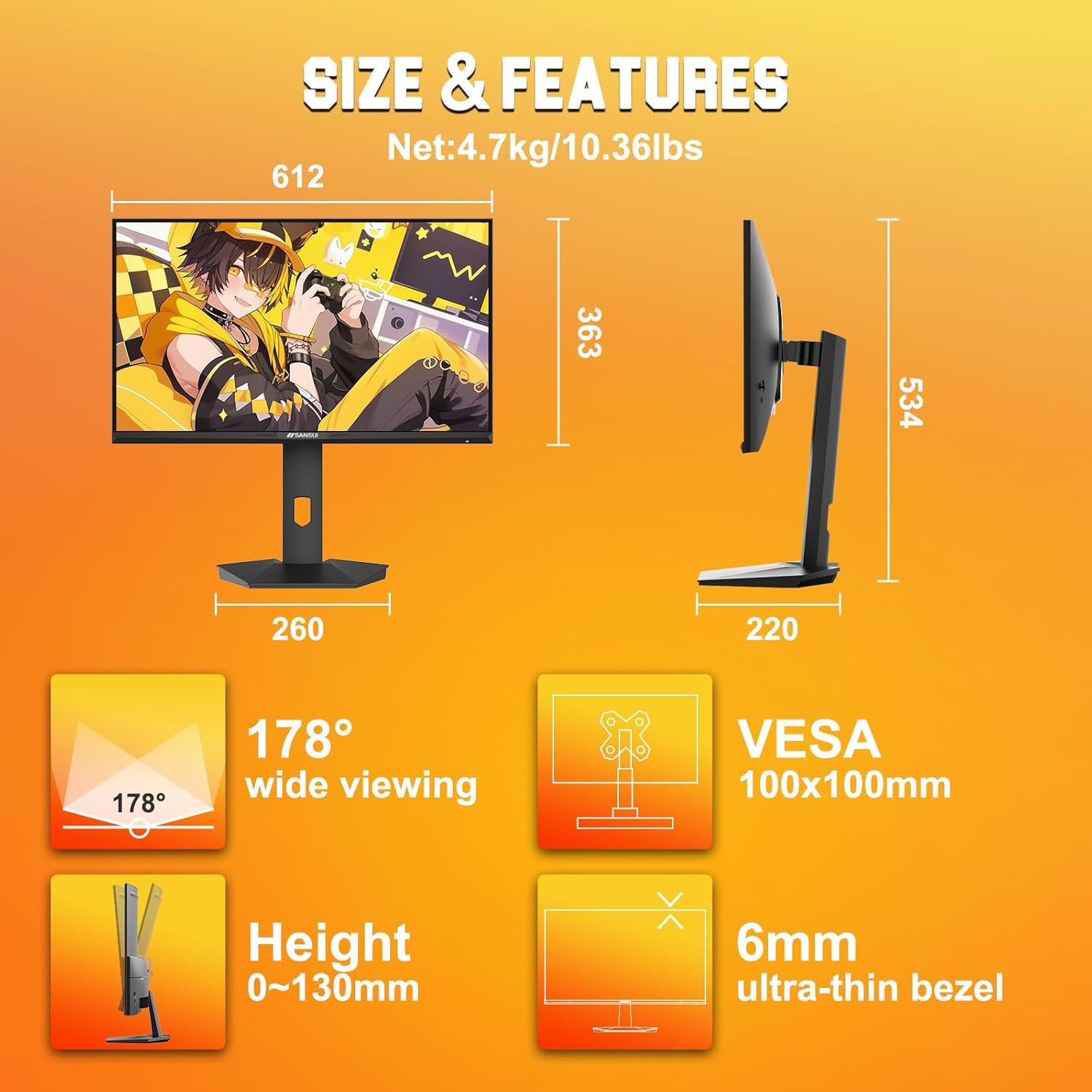
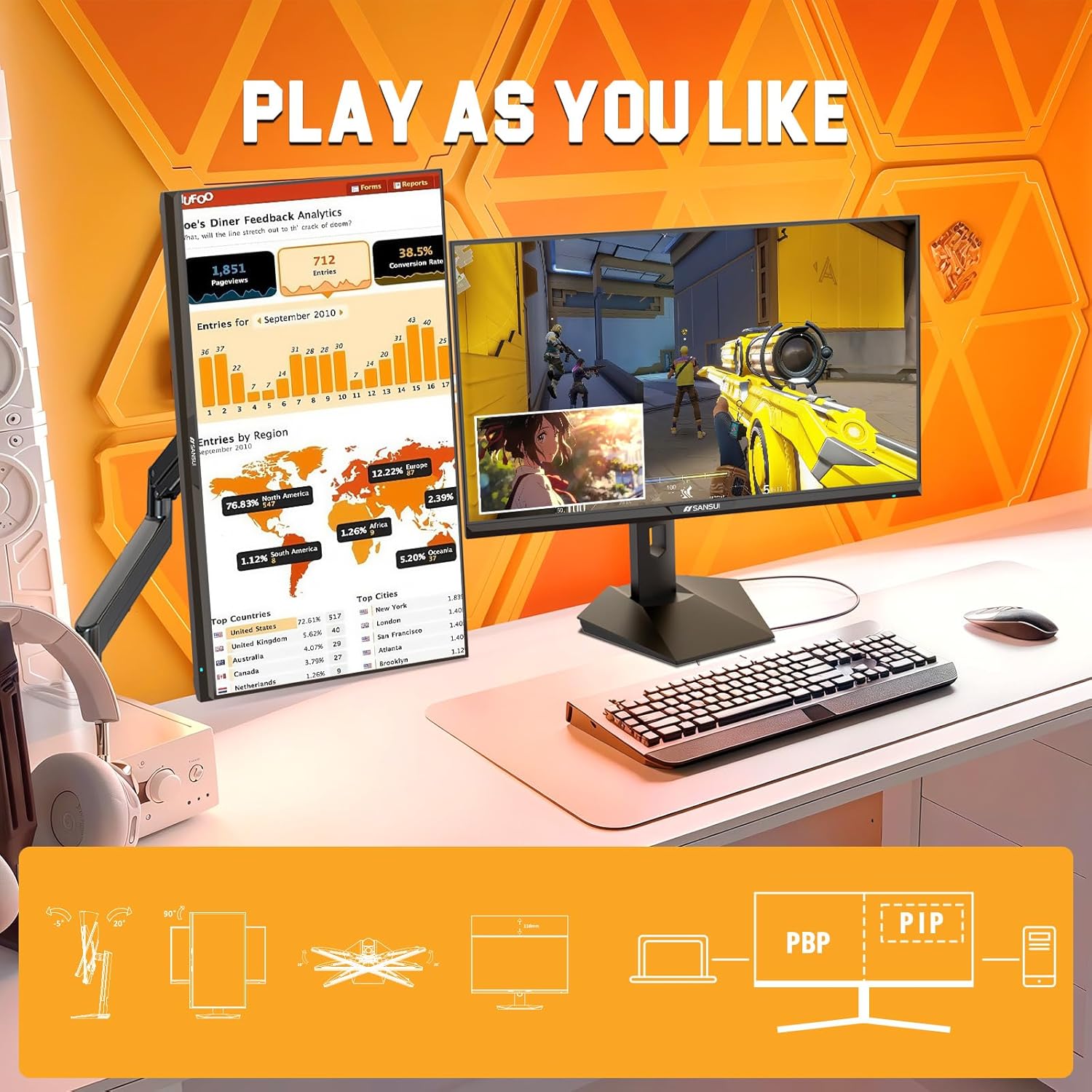
- Ergonomic stand with pivot, swivel, height, and tilt adjustments.
- VESA mount compatible (100x100mm).
- Multiple connectivity options: 2x DisplayPort 1.4 and 2x HDMI 2.1.
2. Safety Information
Observe the following safety precautions to prevent damage to the monitor and ensure user safety:
- Do not expose the monitor to rain, moisture, or extreme temperatures.
- Ensure proper ventilation around the monitor to prevent overheating.
- Use only the power adapter and cables provided by the manufacturer.
- Avoid placing heavy objects on the power cord or the monitor itself.
- Disconnect the power plug from the outlet if the monitor will not be used for an extended period.
- Do not attempt to disassemble or repair the monitor yourself. Refer all servicing to qualified personnel.
3. Setup
3.1 What's in the Box
- SANSUI 27-inch Gaming Monitor
- Monitor Stand (Base and Neck)
- DP Cable ×1
- Power Cable
- Power Adapter ×1
- User Manual (Quick Installation Guide)
3.2 Stand Assembly
- Carefully remove the monitor from its packaging, keeping it protected on a soft, flat surface.
- Attach the stand neck to the monitor panel.
- Secure the stand base to the stand neck using the provided screws.
3.3 VESA Mounting
The monitor supports VESA 100x100mm mounting. If you prefer to use a VESA-compatible arm or wall mount, remove the stand neck from the monitor panel and attach your VESA mount according to its instructions.
3.4 Connecting to Devices
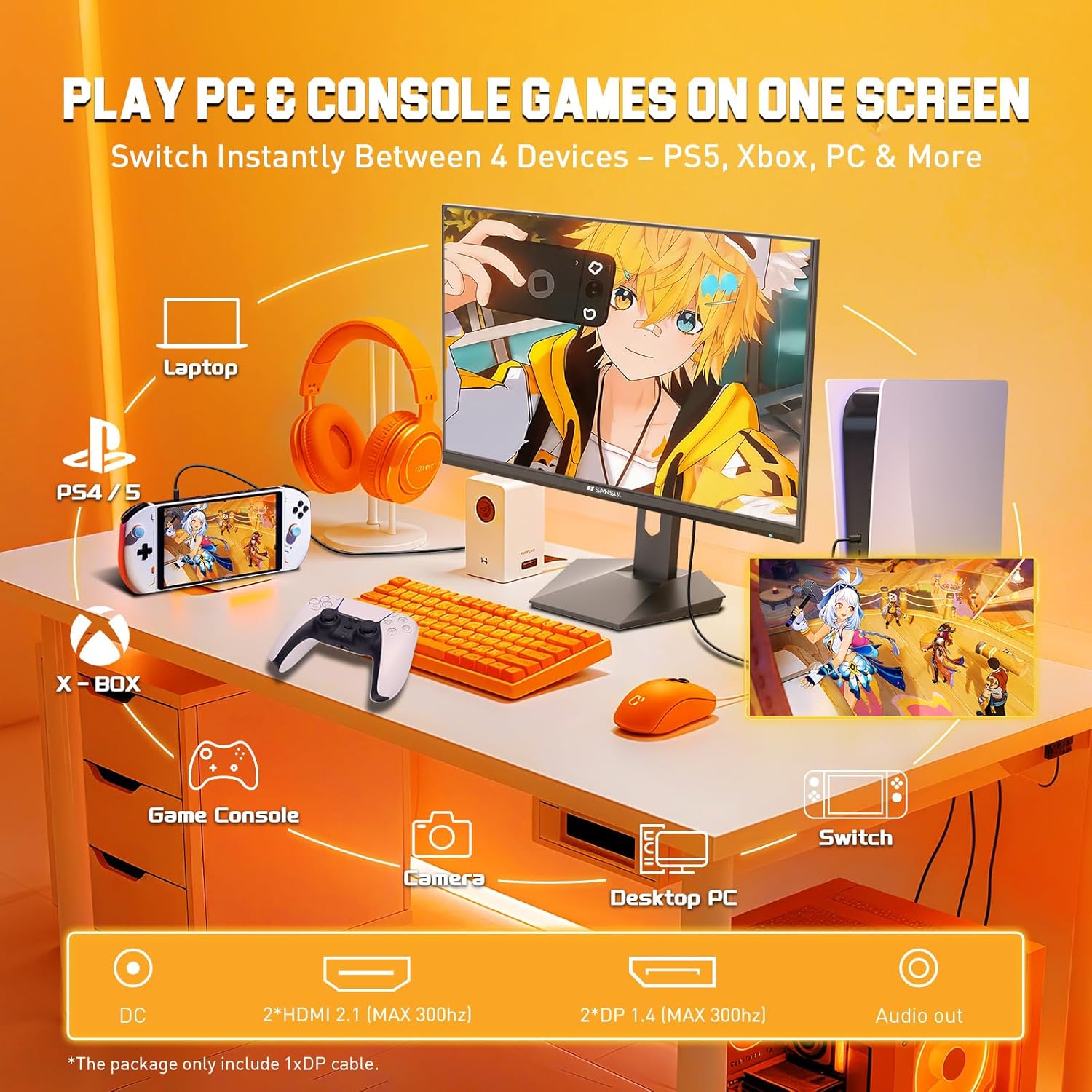
Connect your computer or gaming console to the monitor using the appropriate cables. For optimal performance, especially for 300Hz refresh rates, use the included DisplayPort (DP) cable or a high-quality HDMI 2.1 cable.
- DisplayPort (DP): Connect one end of the DP cable to your computer's graphics card and the other end to one of the DP 1.4 ports on the monitor.
- HDMI: Connect one end of the HDMI cable to your device (PC, PS5, Xbox, Switch) and the other end to one of the HDMI 2.1 ports on the monitor.
- Audio: Connect headphones or external speakers to the 3.5mm Earphone Jack on the monitor.
- Power: Connect the power adapter to the monitor's DC IN port and then plug the power cable into a power outlet.
3.5 Initial Power On
Press the power button located on the back of the monitor. The power indicator light will illuminate, and the SANSUI logo will appear, followed by your connected device's display.
4. Operating
4.1 On-Screen Display (OSD) Navigation
The monitor features a joystick control on the back for navigating the On-Screen Display (OSD) menu. Press the joystick inward to open the main menu. Move the joystick up/down/left/right to navigate through options and adjust settings.
4.2 Adjusting Display Settings
From the OSD menu, you can customize various display parameters:
- Brightness/Contrast: Adjust the overall luminance and contrast levels.
- Color Temperature: Select from preset modes or customize RGB values.
- Sharpness: Enhance or soften image details.
- HDR: Enable or disable High Dynamic Range for compatible content.
- AI Low Blue Light: Reduce blue light emission to minimize eye strain.
- Anti-Flicker: Technology to reduce screen flickering for comfortable viewing.

4.3 Gaming Features
The monitor includes several features designed to enhance your gaming experience:
- Game Mode: Optimized presets for different game genres (e.g., FPS, RTS, RPG).
- FreeSync Premium: Synchronizes the monitor's refresh rate with your GPU's frame rate to eliminate screen tearing and stuttering.
- MPRT 1ms Response Time: Minimizes motion blur for fast-paced action.
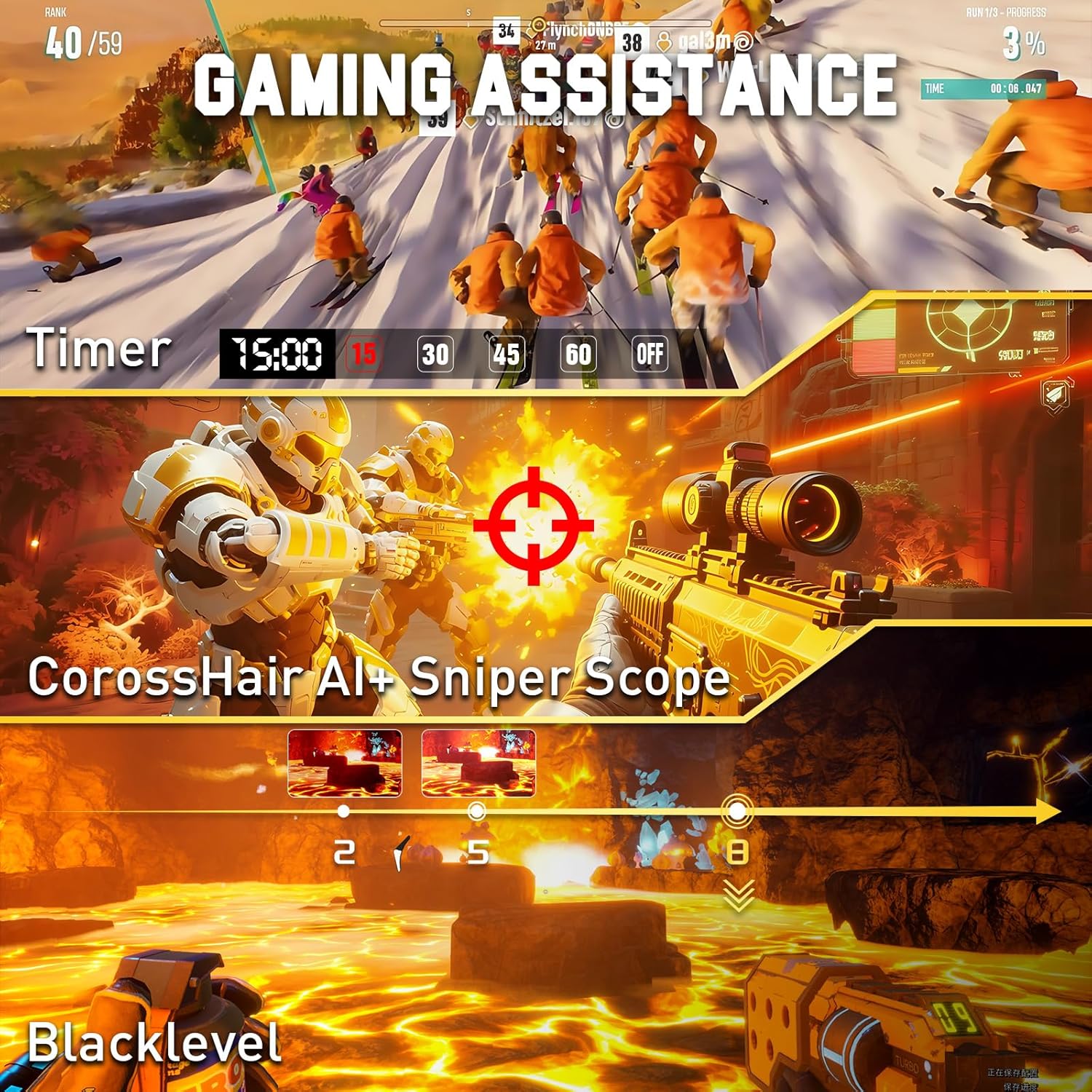
- AI Crosshair: Provides an on-screen crosshair for improved aiming accuracy.
- FPS Sniper Scope: Enlarges the center of the screen for detailed viewing in FPS games.
- Timer: Display an on-screen timer for in-game events or personal tracking.
- Blacklevel: Adjust black levels for better visibility in dark game areas.

4.4 Picture-in-Picture (PIP) / Picture-by-Picture (PBP)
The monitor supports PIP and PBP modes, allowing you to display content from multiple input sources simultaneously. This is useful for multitasking or monitoring different applications at once.
4.5 Switching Input Sources
Use the OSD joystick to select the desired input source (DP1, DP2, HDMI1, HDMI2) when multiple devices are connected.
5. Maintenance
5.1 Cleaning the Monitor
- Always unplug the monitor before cleaning.
- Use a soft, lint-free cloth lightly dampened with water or a mild, non-abrasive screen cleaner.
- Do not spray cleaner directly onto the screen.
- Wipe the screen gently to avoid scratching.
5.2 Storage
If storing the monitor for an extended period, ensure it is powered off, unplugged, and stored in a cool, dry place away from direct sunlight and extreme temperatures. Use the original packaging for best protection.
6. Troubleshooting
If you encounter issues with your monitor, refer to the following common problems and solutions:
- No Power: Ensure the power cable and adapter are securely connected to both the monitor and the power outlet. Check if the power outlet is functioning.
- No Signal: Verify that the input cable (DP/HDMI) is correctly connected to both the monitor and your device. Select the correct input source via the OSD menu. Ensure your device is powered on and outputting a signal.
- Flickering/Tearing: Ensure FreeSync Premium is enabled in both the monitor's OSD and your graphics card settings. Check that your display cable supports the selected refresh rate and resolution.
- Image Quality Issues (e.g., washed out colors): Adjust brightness, contrast, and color settings in the OSD. Ensure HDR is correctly configured in both the monitor and your operating system settings.
- Buttons Not Responding: Power cycle the monitor by unplugging it for a few minutes and then plugging it back in.
If the problem persists after trying these solutions, please contact SANSUI customer support.
7. Specifications
| Feature | Specification |
|---|---|
| Brand | SANSUI |
| Model Number | ES-G27F6Q Pro |
| Screen Size | 27 Inches |
| Panel Type | Fast IPS |
| Resolution | WQHD (2560 x 1440 Pixels) |
| Refresh Rate | Up to 300Hz/240Hz |
| Response Time | 1ms MPRT |
| Brightness | 400 Nits |
| Color Gamut | 10-Bit, 95% DCI-P3, 130% sRGB |
| HDR Support | Yes |
| Viewing Angle | 178° (Horizontal/Vertical) |
| Aspect Ratio | 16:9 |
| Connectivity | 2x DisplayPort 1.4, 2x HDMI 2.1, 1x 3.5mm Earphone Jack |
| VESA Compatibility | 100x100mm |
| Product Dimensions | 24.09 x 8.66 x 21.02 inches |
| Item Weight | 10.36 pounds |
| Screen Surface | Matte |
| Date First Available | April 12, 2025 |
8. Warranty & Support
SANSUI provides comprehensive support for your monitor:
- Money-Back & Free Replacement: Eligible within 30 days from the order date.
- Lifetime Technical Support: SANSUI offers lifetime technical assistance for your product.
For warranty claims, technical assistance, or any other inquiries, please refer to the contact information provided on the SANSUI official website or your purchase documentation.


