
Introduction
Thank you for purchasing the Dinosoo Wireless Controller. This manual provides detailed instructions for setting up, operating, and maintaining your controller. This controller is designed for use with Xbox Series X/S, Xbox One, PC (Windows 10 and above), Android, and iOS devices.
Product Overview
Familiarize yourself with the various components and buttons of your Dinosoo Wireless Controller.

Image: Front and back view of the Dinosoo Wireless Controller with labels for USB-C port, Pairing Key, PR/PL buttons, SET button, HOME button, View button, Menu button, Left Joystick, Right Joystick, Direction-Pad, A/B/X/Y buttons, and TURBO button.
- USB-C Port: For charging and wired connection.
- Pairing Key: Used to initiate wireless pairing.
- PR/PL Buttons: Programmable rear paddles (PR: Right Paddle, PL: Left Paddle).
- SET Button: Used for programming functions.
- HOME Button: Powers on the controller and accesses system menus.
- View Button: Accesses context-specific menus.
- Menu Button: Accesses game or app menus.
- Left Joystick: For movement and navigation.
- Right Joystick: For camera control and aiming.
- Direction-Pad (D-Pad): For precise directional input.
- A/B/X/Y Buttons: Standard action buttons.
- TURBO Button: Activates turbo function for rapid input.
Setup and Connection
Important Firmware Upgrade
Due to initial factory software versions, an upgrade is required to ensure full compatibility and prevent the controller from being blocked by Xbox systems. This process typically takes 2-3 minutes.

Image: Illustration of the controller connected via USB-C to a Windows PC, with a screen displaying "Upgrading..." indicating the firmware update process.
- Download the upgrade program from the official source: we.tl/t-QpFRxal2Mc (Note: This URL is case-sensitive).
- Connect your Dinosoo Wireless Controller to a Windows PC using a USB-C cable.
- Run the downloaded upgrade program and follow the on-screen instructions.
- Once the upgrade is complete, disconnect the controller.
Compatibility Overview

Image: Visual representation of the controller's wide compatibility, including Xbox One, Xbox One S/X, Xbox Series S/X, PC (Windows 10 and above), and Android/iOS devices.
Connecting to Xbox Consoles (Xbox Series X/S, Xbox One)
- Ensure your Xbox console is powered on.
- Press and hold the HOME button on the controller for 3 seconds to turn it on. The HOME button light will flash slowly.
- Press the Pairing Key on the top edge of the controller (near the USB-C port) for 3 seconds. The HOME button light will flash rapidly.
- On your Xbox console, press the Pair button (usually located on the front or side of the console).
- The HOME button light on the controller will become solid when successfully paired.
Connecting to PC (Windows 10 and above)
The controller can be connected to a PC via Bluetooth or a USB-C cable.
Bluetooth Connection:
- Ensure your PC has Bluetooth enabled.
- Press and hold the HOME button on the controller for 3 seconds to turn it on.
- Press the Pairing Key on the top edge of the controller for 3 seconds. The HOME button light will flash rapidly.
- On your PC, go to Settings > Devices > Bluetooth & other devices.
- Select Add Bluetooth or other device, then choose Bluetooth.
- Select "Dinosoo Controller" or similar from the list of available devices.
- The HOME button light on the controller will become solid when successfully paired.
Wired Connection:
- Connect the controller to your PC using a USB-C cable. The PC should automatically recognize the controller.
Connecting to Android/iOS Devices
- Ensure Bluetooth is enabled on your Android or iOS device.
- Press and hold the HOME button on the controller for 3 seconds to turn it on.
- Press the Pairing Key on the top edge of the controller for 3 seconds. The HOME button light will flash rapidly.
- On your mobile device, go to Bluetooth settings.
- Select "Dinosoo Controller" or similar from the list of available devices.
- The HOME button light on the controller will become solid when successfully paired.
Operation and Features
Dual Vibration
The controller features dual vibration motors that provide tactile feedback, enhancing immersion during gameplay. The intensity of the vibration is typically controlled by the game.

Image: Top panel illustrates the dual vibration feature with blue waves emanating from the controller grips during an action scene. The bottom panel shows the 6-axis gyro sensor in action during a racing game.
6-Axis Gyro Sensor
Equipped with a 6-axis gyro sensor, the controller can detect motion and orientation, allowing for precise motion control in supported games. This feature enables responsive interaction based on the controller's physical movement.
Programmable Buttons (PR/PL)
The Dinosoo Wireless Controller includes two programmable rear paddles (PR and PL) for highly personalized configurations. These buttons can be mapped to replicate other button inputs, providing quick access to complex actions.

Image: Rear view of the Dinosoo Wireless Controller highlighting the PR and PL programmable buttons, with icons below indicating various buttons (R3, L3, RT, LT, RB, LB, Y, X, B, A) that can be mapped to them.
How to Program:
- Press and hold the SET button on the back of the controller.
- While holding SET, press the paddle (PR or PL) you wish to program.
- Press the button you want to map to the paddle (e.g., A, B, X, Y, R3, L3, etc.).
- Release the SET button. The paddle is now programmed.
- To clear a programmed button, repeat the process without pressing a mapping button in step 3, or consult the full manual for specific reset instructions.
Turbo Function
The Turbo function allows for rapid, repeated input of a button press by holding down the assigned button. This can be advantageous in games requiring fast, continuous actions.
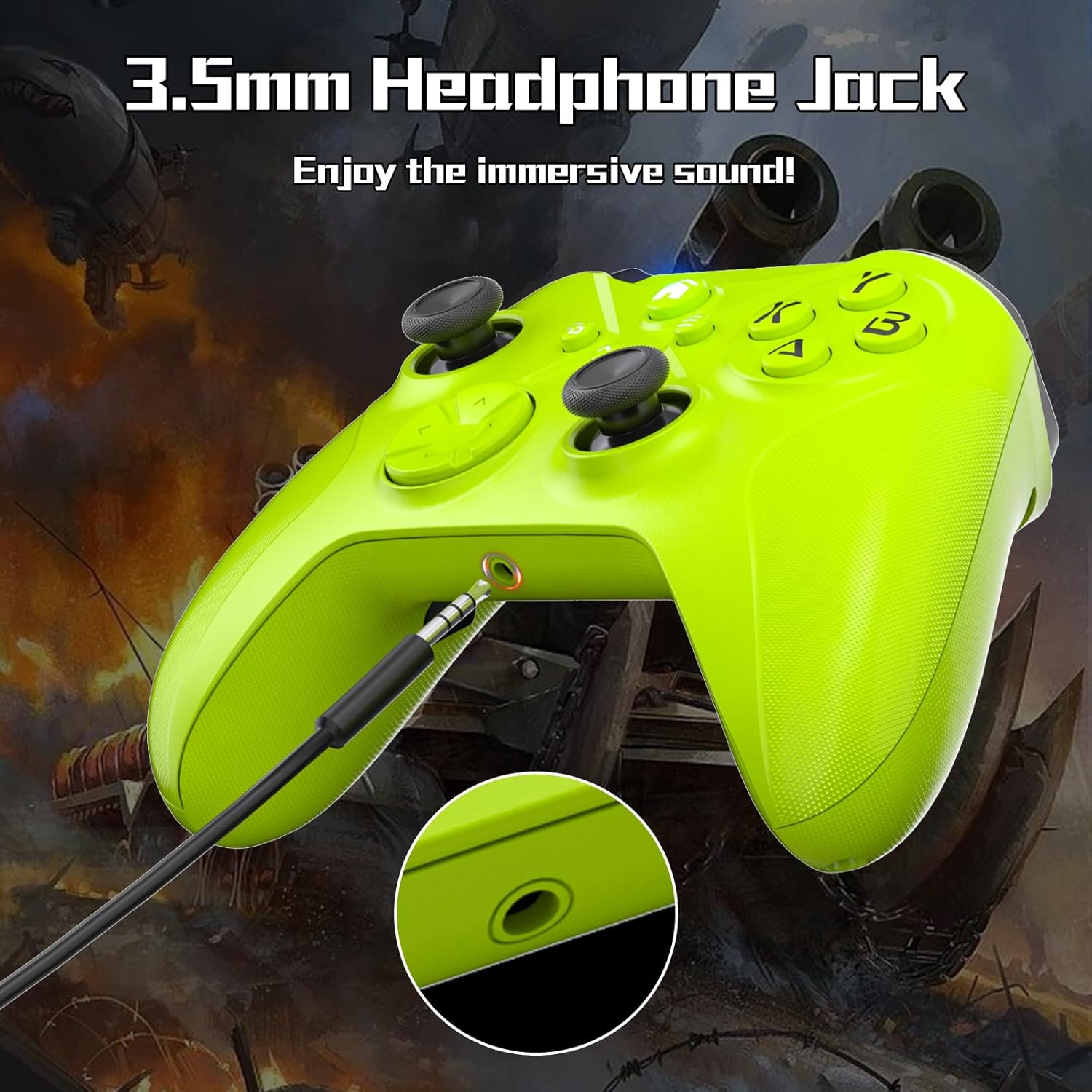
Image: The Dinosoo Wireless Controller shown in a gaming context, with a swirling effect around the HOME button and action buttons, symbolizing the rapid input of the Turbo function.
How to Use Turbo:
- Press and hold the TURBO button.
- While holding TURBO, press the action button (e.g., A, B, X, Y, LB, RB, LT, RT) you wish to apply the turbo function to.
- Release both buttons. Now, when you hold down the assigned action button, it will rapidly repeat its input.
- To deactivate Turbo for a button, repeat steps 1 and 2.
3.5mm Headphone Jack
The controller includes a 3.5mm audio jack, allowing you to connect a headset for in-game audio and voice chat (where supported by the connected device and game).

Image: The Dinosoo Wireless Controller with a 3.5mm headphone jack visible at the bottom, and a headset cable plugged into it, emphasizing the audio connectivity feature.
Maintenance
- Keep the controller clean by wiping it with a soft, dry cloth. Avoid using harsh chemicals or abrasive materials.
- Store the controller in a cool, dry place away from direct sunlight and extreme temperatures.
- Avoid dropping the controller or subjecting it to strong impacts.
- Do not attempt to disassemble the controller, as this may void any warranty.
- Charge the controller regularly to maintain battery health, even if not in frequent use.
Troubleshooting
- Controller not recognized by Xbox / Blocked by Xbox: Ensure you have performed the mandatory firmware upgrade as detailed in the "Important Firmware Upgrade" section. This is crucial for compatibility.
- Controller not pairing:
- Ensure the controller is charged.
- Make sure the device you are trying to connect to has Bluetooth enabled (for wireless connections).
- Ensure the controller is in pairing mode (HOME button flashing rapidly after pressing the Pairing Key).
- Try restarting both the controller and the device you are connecting to.
- If connecting to Xbox, ensure the console's pair button is pressed.
- Input lag or disconnection:
- Ensure there are no obstructions or excessive distance between the controller and the connected device.
- Minimize interference from other wireless devices.
- Try a wired connection if available (for PC).
- Buttons not responding:
- Ensure the controller is properly connected.
- Test the controller on another device or game to isolate the issue.
- A factory reset (if available, consult Dinosoo support) might resolve software glitches.
- Charging issues:
- Use the provided USB-C cable or a certified alternative.
- Ensure the charging port on the controller and the cable are clean and free of debris.
- Try a different USB power source or port.
Specifications
| Model | Wireless Controller |
| Brand | Dinosoo |
| Compatibility | Xbox Series X/S, Xbox One, PC (Windows 10+), Android, iOS |
| Connectivity | Wireless (Bluetooth), Wired (USB-C) |
| Special Features | Dual Vibration, 6-Axis Gyro Sensor, Programmable Buttons, Turbo Function, 3.5mm Headphone Jack |
| ASIN | B0F4N59PQM |
| Date First Available | April 12, 2025 |
Warranty and Support
For warranty information, technical support, or any inquiries regarding your Dinosoo Wireless Controller, please refer to the official Dinosoo website or contact their customer service directly. Keep your proof of purchase for warranty claims.
Manufacturer: Dinosoo