
BESUS J12c Max
BESUS J12c Max Smart Projector User Manual
Model: J12c Max
Introduction
This manual provides detailed instructions for the setup, operation, and maintenance of your BESUS J12c Max Smart Projector. Designed for an immersive viewing experience, this portable projector features 5G WiFi, Bluetooth 5.1, 1080P Full HD support, and built-in stereo speakers.
Please read this manual thoroughly before using the projector to ensure proper operation and to maximize its lifespan.
What's in the Box
Upon unpacking, please verify that all items listed below are included:
- BESUS J12c Max Smart Projector
- Power Cord
- Remote Control
- Mini Stand
- User Manual (this document)

Image: The BESUS J12c Max Smart Projector shown with its included accessories: a user manual, a mini tripod stand, and a remote control.
Setup Guide
1. Placement
Place the projector on a stable, flat surface. Ensure there is adequate ventilation around the device. For optimal viewing, position the projector directly in front of the projection surface (screen or wall).

Image: A close-up view of the BESUS J12c Max projector's lens, highlighting its optical components.
2. Power Connection
- Connect the power cord to the projector's power input port.
- Plug the other end of the power cord into a power outlet.
- Press the power button on the projector or remote control to turn on the device.
3. Focus Adjustment
Rotate the focus ring on the projector lens until the projected image appears clear and sharp.
4. Adjusting Projection Size and Distance
The projector can display an image from 40 inches to 230 inches with projection distances between 1.3 to 6 meters. Adjust the distance from the screen to achieve your desired image size.

Image: A visual representation showing how the projected screen size changes with distance, illustrating 20-inch, 40-inch, and 220-inch projections.
5. Connectivity Options
The BESUS J12c Max offers multiple connectivity options:
- HDMI: Connect to TV boxes, laptops, gaming consoles.
- USB: Connect USB flash drives for media playback.
- AV: Connect to older devices using an AV cable.
- Headphone Jack: Connect external speakers or headphones.
- 5G WiFi: For wireless screen mirroring and built-in app access.
- Bluetooth 5.1: For connecting external Bluetooth speakers or headphones.
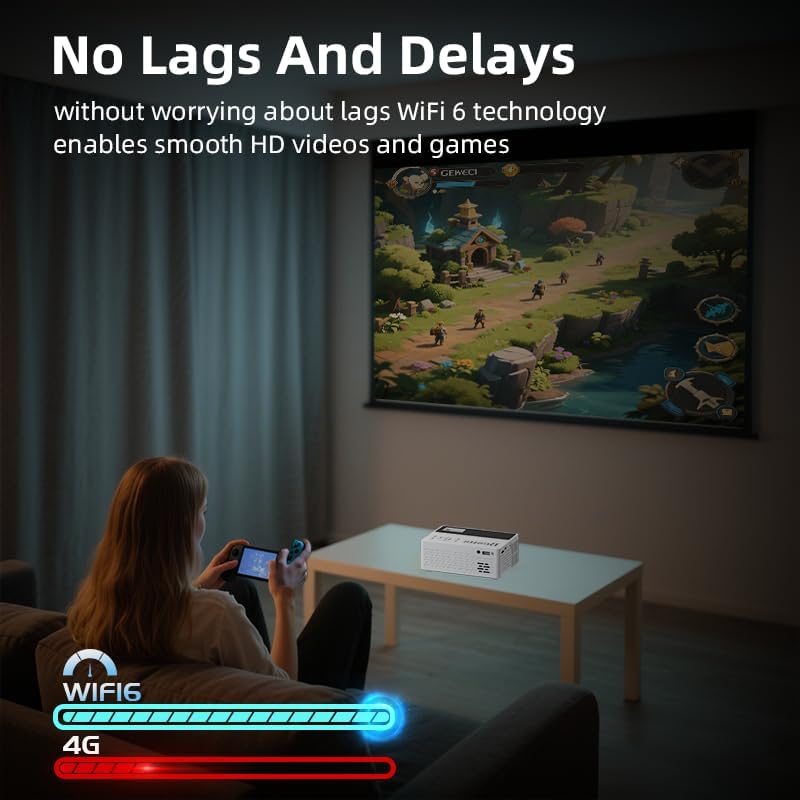
Image: A side view of the BESUS J12c Max projector, showcasing its various input and output ports including HDMI, USB, and AV.
Operating Instructions
1. Basic Controls
The projector can be controlled using the included remote control or the buttons on the device itself. Common functions include power on/off, volume adjustment, source selection, and navigation.
2. Navigating the Interface and Built-in Apps
The projector comes with built-in applications. Use the remote control to navigate the on-screen menu. Select the desired app to stream content directly.

Image: A person playing a video game projected onto a large screen by the BESUS J12c Max projector, demonstrating smooth performance with WiFi 6.

Image: The BESUS J12c Max projector displaying logos of popular streaming applications and icons representing various connectivity options like AUX, USB, HDMI, and Type-C.
3. Wireless Connectivity (WiFi & Bluetooth)
- WiFi Connection: Go to the projector's settings menu, select "Network" or "WiFi," and connect to your desired 5G or 2.4G wireless network. This enables access to built-in apps and screen mirroring.
- Bluetooth Connection: In the settings menu, select "Bluetooth." Turn on Bluetooth and pair with your Bluetooth-enabled speakers or headphones for enhanced audio.
4. Screen Mirroring
To mirror your smartphone or PC screen:
- Ensure your device and the projector are connected to the same WiFi network.
- Select the "Screen Mirroring" or "Wireless Projection" option on the projector's interface.
- On your smartphone (iOS/Android) or PC (Windows), activate the screen mirroring function (e.g., AirPlay, Miracast, Smart View).
- Select the projector from the list of available devices.

Image: The BESUS J12c Max projector displaying options for wireless screen mirroring from iOS, Android, and Windows devices.

Image: The BESUS J12c Max projector highlighting its key features: 1080P Full HD, 5G Wi-Fi, Bluetooth 5.2, and LED light source, surrounded by examples of diverse content.

Image: The BESUS J12c Max projector being used in different settings, including as a gift, for karaoke, at home, and outdoors, demonstrating its versatility.
Maintenance
Regular maintenance ensures optimal performance and extends the lifespan of your projector.
1. Cleaning the Lens
Use a soft, lint-free cloth specifically designed for optical lenses. Gently wipe the lens surface to remove dust or smudges. Avoid using abrasive cleaners or excessive force.
2. Cleaning the Vents
Periodically check the air vents for dust accumulation. Use a soft brush or compressed air to clear any blockages. Proper airflow is crucial for the projector's cooling system.

Image: An internal diagram of the BESUS J12c Max projector, illustrating its advanced cooling system designed for efficient heat dissipation.
3. Storage
When not in use for extended periods, store the projector in a cool, dry, dust-free environment. Use the original packaging or a protective case to prevent damage.
4. Lamp Life
The projector's LED lamp has an estimated lifespan of 62,000 hours, providing many years of use under normal operating conditions.
Troubleshooting
If you encounter issues with your projector, refer to the following common problems and solutions:
| Problem | Possible Cause | Solution |
|---|---|---|
| No Power | Power cord not connected; Power outlet faulty; Projector off. | Ensure power cord is securely connected. Test the outlet. Press the power button. |
| No Image | Incorrect input source; Device not connected; Lens cap on. | Select the correct input source (HDMI, USB, etc.). Check cable connections. Remove lens cap. |
| Blurry Image | Focus not adjusted; Projector too far/close. | Adjust the focus ring on the lens. Adjust projection distance. |
| No Sound | Volume too low; Muted; External audio device not connected/selected. | Increase volume. Unmute. Check external audio connections or Bluetooth pairing. |
| WiFi/Bluetooth Connectivity Issues | Incorrect password; Out of range; Interference. | Verify password. Move projector closer to router/device. Reduce interference. |
Specifications
| Feature | Detail |
|---|---|
| Brand | BESUS |
| Model | J12c Max |
| Display Resolution | 1920 x 1080 (Full HD Support) |
| Connectivity Technology | Bluetooth 5.1, HDMI, USB, AV, 5G Wi-Fi |
| Special Features | Built-In Cooling System, Built-In Speaker, Lightweight, Portable, Wi-Fi Ready |
| Item Weight | 1.4 pounds |
| Product Dimensions | 5.63 x 4.3 x 2.28 inches |
| Lamp Lifetime | 62,000 hours |
| Contrast Ratio | 5000:1 |
| Aspect Ratio | 4:3/16:9 |
| Projection Size | 40" to 230" |
| Projection Distance | 1.3 - 6 meters |
Warranty and Support
For information regarding the product warranty, please refer to the warranty card included in your product packaging or visit the official BESUS website. For technical support, troubleshooting assistance beyond this manual, or service inquiries, please contact BESUS customer support through their official channels.
Keep your purchase receipt as proof of purchase for warranty claims.
Ask a question about this manual
Ask about setup, troubleshooting, compatibility, parts, safety, or missing instructions. Manuals+ will review the question and use this page’s manual context to help answer it.