Lemorele Wireless HDMI Transmitter and 4 Receivers User Manual
Model: HDMI TX+4 RX
1. Introduction
This manual provides detailed instructions for the setup, operation, maintenance, and troubleshooting of your Lemorele Wireless HDMI Transmitter and 4 Receivers. This system is designed for wireless transmission of high-definition video and audio signals, offering flexibility and convenience for various applications including presentations, home entertainment, and professional video monitoring.
- Ensure the device is powered by a stable 5V2A power supply to prevent connection issues or damage.
- Do not expose the device to water, moisture, or extreme temperatures.
- Avoid disassembling or modifying the device, as this will void the warranty and may cause harm.
- Keep the device away from strong electromagnetic interference sources.
- Use only the accessories provided or recommended by Lemorele.
3. Package Contents
Verify that all items are present in your package:
- 1 x Lemorele Wireless HDMI Transmitter (TX)
- 4 x Lemorele Wireless HDMI Receivers (RX)
- Power Adapters (for TX and RX units)
- User Manual (this document)
4. Product Overview
The Lemorele Wireless HDMI system consists of one transmitter (TX) and four receivers (RX), designed for seamless wireless video and audio transmission.
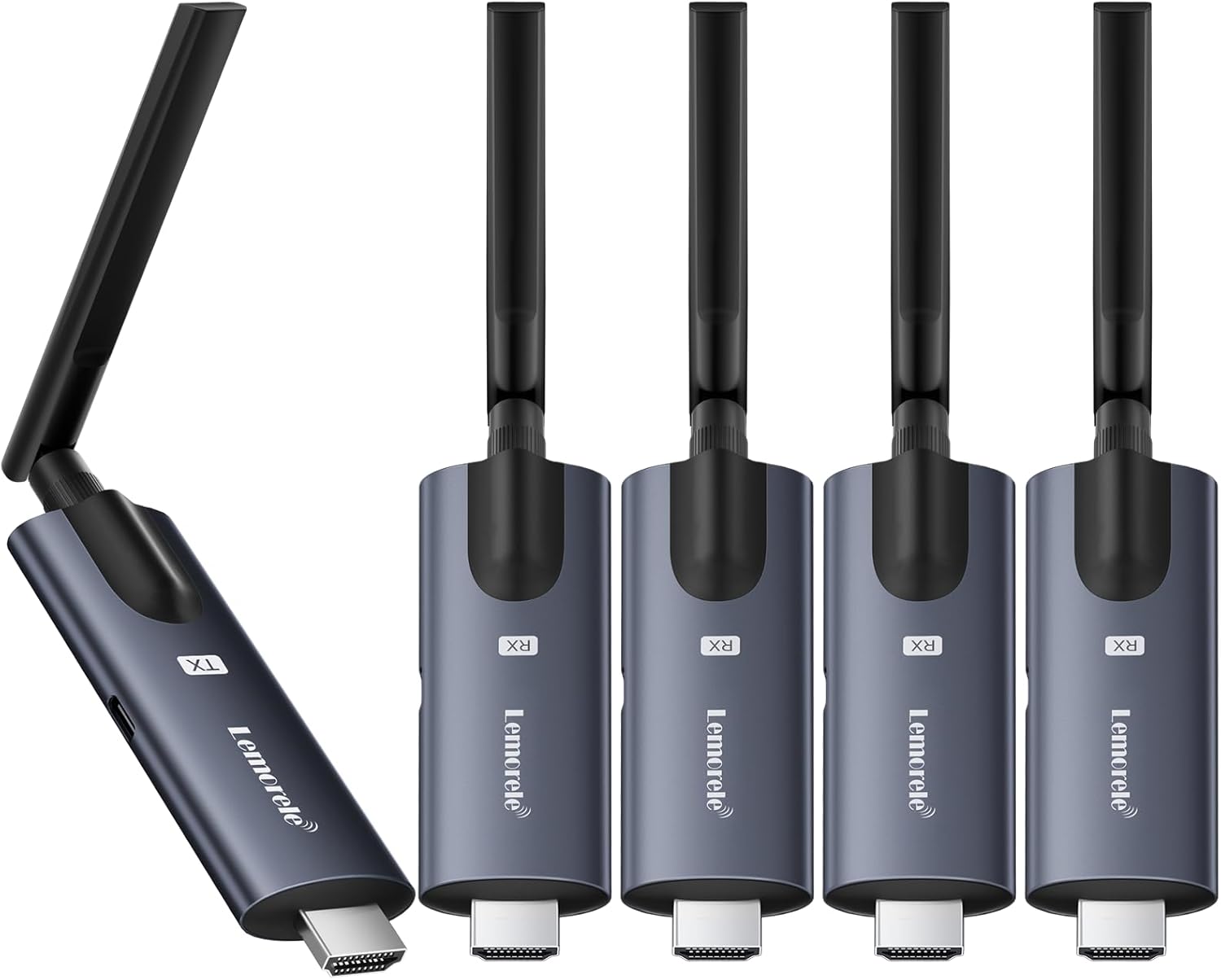
Image: The Lemorele Wireless HDMI Transmitter (left) and four Receivers (right), showcasing their compact design and integrated antennas.
4.1 Transmitter (TX)
The transmitter unit connects to your video source (e.g., PC, camera, TV-Box) via its HDMI output. It wirelessly sends the video and audio signals to the connected receivers.
4.2 Receiver (RX)
Each receiver unit connects to a display device (e.g., TV, projector, monitor) via its HDMI input. It receives the wireless signal from the transmitter and outputs the video and audio.
5. Setup Instructions
Follow these steps to set up your Lemorele Wireless HDMI system:
- Connect the Transmitter (TX): Plug the HDMI connector of the transmitter into the HDMI output port of your source device (e.g., laptop, PC, camera, TV-Box). Ensure the transmitter is also connected to a stable 5V2A power supply using the provided cable.
- Connect the Receivers (RX): Plug the HDMI connector of each receiver into an available HDMI input port on your display devices (e.g., TV, projector, monitor). Connect each receiver to a stable 5V2A power supply.
- Power On: Power on your source device and all display devices.
- Automatic Connection: The transmitter and receivers are designed for plug-and-play operation. After powering on, the devices will automatically attempt to establish a connection. This typically takes 5-10 seconds. Once connected, the indicator lights on the units will show a stable status, and the video will appear on your display(s).

Image: A visual representation of one transmitter supporting up to four receivers, demonstrating a multi-display setup in a large venue.
5.1 APP Monitoring Setup (TuTuPlay)
For mobile monitoring using the TuTuPlay APP (Android & iOS), follow these steps:
- Download TuTuPlay: Go to your device's App Store (iOS) or Google Play Store (Android) and search for "TuTuPlay" to download and install the application.
- Connect to Wi-Fi: Open the TuTuPlay APP. Follow the prompts to connect to the Wi-Fi network broadcast by the Lemorele transmitter. The Wi-Fi name will typically start with "TuTuXXXXX" and the default password is "88888888".
- Start Monitoring: Once connected, you can view the transmitted video feed on your mobile phone or tablet through the TuTuPlay APP.

Image: Step-by-step guide for connecting to the Lemorele system via the TuTuPlay mobile application.
6. Operating Instructions
6.1 Basic Operation
Once the transmitter and receivers are properly connected and powered on, the system operates automatically. The video and audio from your source device will be mirrored or extended to the connected displays.
6.2 Multi-Receiver Support
The Lemorele system supports one transmitter broadcasting to up to four receivers simultaneously, allowing for multiple display outputs from a single source.

Image: Depiction of multi-scenario applications, including professional film production, where the wireless HDMI system facilitates real-time monitoring across various devices.
6.3 Transmission Range and Latency
The system offers a transmission range of up to 656 feet (200 meters) in optimal conditions, with an ultra-low latency of approximately 50 milliseconds. This ensures minimal delay between the source and the display, crucial for real-time applications.

Image: Transmission range capabilities of the system, indicating distances for various configurations from one transmitter to one, two, three, or four receivers.

Image: Visual representation emphasizing the system's 656-foot transmission range and 50-millisecond low latency for real-time monitoring.
7. Maintenance
To ensure the longevity and optimal performance of your Lemorele Wireless HDMI system:
- Cleaning: Use a soft, dry cloth to clean the exterior of the devices. Do not use liquid cleaners or aerosols.
- Storage: When not in use for extended periods, store the devices in a cool, dry place, away from direct sunlight and extreme temperatures.
- Cable Management: Ensure HDMI and power cables are not kinked or strained to prevent damage to the ports or cables themselves.
8. Troubleshooting
If you encounter issues with your device, refer to the following common problems and solutions:
| Problem | Possible Cause | Solution |
|---|
| No signal on display | Insufficient power supply; Loose HDMI connection; Devices not paired; Out of range. | Ensure both TX and RX units receive stable 5V2A power. Check all HDMI connections. Re-pair the devices (see 8.1). Reduce distance between TX and RX. |
| Flickering or unstable image | Interference; Weak signal; Insufficient power. | Move devices away from other wireless equipment. Ensure clear line of sight. Verify stable 5V2A power. |
| No audio | Audio settings on source/display; HDMI cable issue. | Check audio output settings on your source device. Ensure display audio is not muted. Try a different HDMI cable. |
| APP (TuTuPlay) not connecting | Incorrect Wi-Fi password; Mobile device not connected to TX Wi-Fi. | Verify Wi-Fi password (default: 88888888). Ensure your phone/tablet is connected to the TX's Wi-Fi network. |
8.1 Re-pairing Transmitter and Receiver
If a receiver loses connection or you need to pair a new receiver, follow these steps:
- On the Receiver (RX): Press and hold the receiver's function button for over 5 seconds. A prompt will appear on the interface, indicating it has entered pairing mode.
- On the Transmitter (TX): Press and hold the transmitter's function button for over 5 seconds. The indicator light will flash rapidly to indicate that pairing has started.
- Confirmation: Wait for the transmitter's indicator light to remain steady, confirming a successful connection.

Image: Instructions for re-pairing the receiver and transmitter units, showing the button press sequence.
9. Specifications
| Feature | Specification |
|---|
| Model Number | HDMI TX+4 RX |
| Product Dimensions | 10.8 x 3.3 x 1.3 inches |
| Item Weight | 1.32 pounds |
| Connectivity Technology | HDMI (Wireless) |
| Video Encoding | H.264 |
| Resolution Support | 1080P @ 60Hz |
| Transmission Range | Up to 656ft (200m) |
| Latency | ~50ms |
| Power Supply | 5V2A (required for stable operation) |
| Compatible Devices | Laptop, PC, Camera, Game Console, TV Box, HDTV, Projectors, Monitors, Smartphones, Tablets, iPads |
| Audio Output Mode | Stereo, Surround (5.1) |
| Controller Type | App Control (TuTuPlay) |
10. Warranty and Support
Lemorele products are designed for reliability and performance. For any technical support or warranty inquiries, please contact Lemorele customer service through the official channels provided at the point of purchase or on the Lemorele website. Please retain your proof of purchase for warranty claims.
