Introduction
This manual provides detailed instructions for the installation, operation, and maintenance of your iWagon Diamond 2K Car Android System, model IWD-09. Please read this manual thoroughly before using the product to ensure proper function and safety. This system is designed to enhance your driving experience with its high-resolution display, versatile connectivity, and advanced features.
Package Contents
Before installation, please verify that all items listed below are present in your package:
- 1N Car Android Unit (10.1 Inch)
- 1N LED Rear View Camera
- 1N GPS Connector
- 2N USB Connectors
- 1N Audio Output Harness
- 1N Power Cable
- 1N Reversing Video Adapter Cable
- 1N External Microphone
- 1N RCA Cable
- 1N Reversing Control Cable
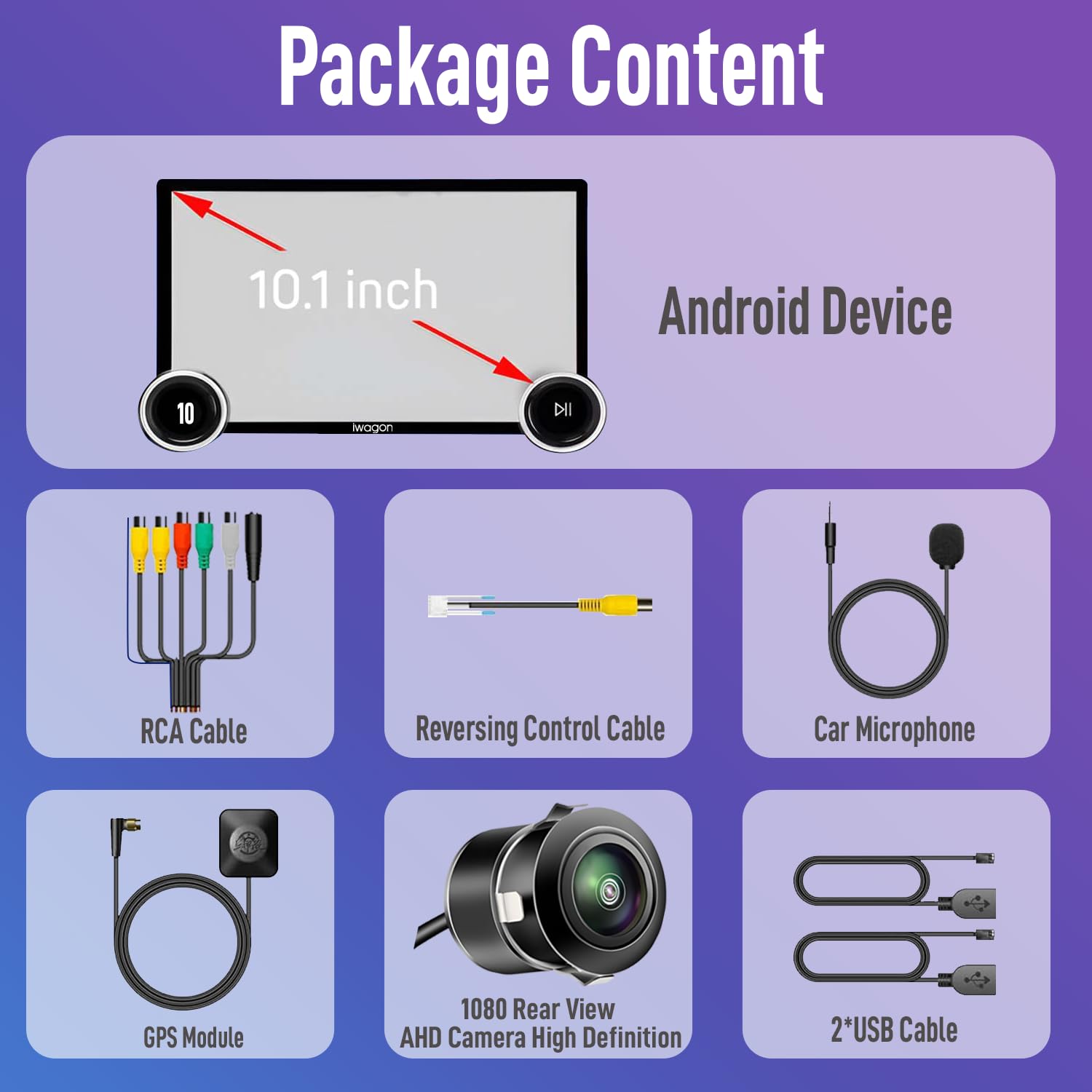
Figure 1: Contents of the iWagon Diamond 2K Car Android System package.
Setup and Installation
Professional installation is recommended for this product. Incorrect wiring can damage the unit or your vehicle's electrical system. Ensure the vehicle's battery is disconnected before beginning installation.
1. Wiring Connections
- Power Connection: Connect the main power cable to your vehicle's power supply according to the wiring diagram provided with the unit. Ensure correct positive and negative terminals.
- Speaker Connections: Connect the audio output harness to your vehicle's speakers. Pay attention to polarity for optimal sound quality.
- GPS Antenna: Connect the GPS connector and mount the GPS antenna in a location with a clear view of the sky, typically on the dashboard or under the windshield.
- USB Connections: Connect the two USB cables for external storage or device charging. Route them to an accessible location.
- Rear View Camera: Connect the LED Rear View Camera using the reversing video adapter cable and reversing control cable. Ensure the camera is mounted securely and provides a clear view.
- External Microphone: Connect the external microphone for improved call quality and voice commands. Position it near the driver for best performance.

Figure 2: Example of connection cables for the iWagon Diamond 2K Car Android System.
2. Mounting the Unit
Carefully integrate the 10.1-inch Android unit into your vehicle's dashboard. Ensure it is securely fastened and does not obstruct any vehicle controls or airbags. Some vehicles may require an additional mounting frame (not included) for a perfect fit.
Operating Instructions
1. Initial Power On and System Setup
After installation, reconnect the vehicle's battery. The unit will power on automatically or by pressing the power button. Follow the on-screen prompts for initial setup, including language selection, time zone, and Wi-Fi connection.
2. Display Features
The system features a 10.1-inch 2K resolution touchscreen (1920x1024P QLED) for clear and vibrant visuals. The full capacitance touch screen allows for easy operation. Adjust brightness and volume settings via the on-screen menu or physical knobs.

Figure 3: High-definition 2K display showcasing multimedia content.
3. Wireless CarPlay and Android Auto
Connect your Apple or Android smartphone wirelessly to access CarPlay or Android Auto features. This allows for seamless integration of navigation, music, messages, and calls directly on the car stereo display.
- Ensure Bluetooth and Wi-Fi are enabled on your smartphone.
- On the car stereo, select the CarPlay or Android Auto application.
- Follow the on-screen instructions to pair your device.
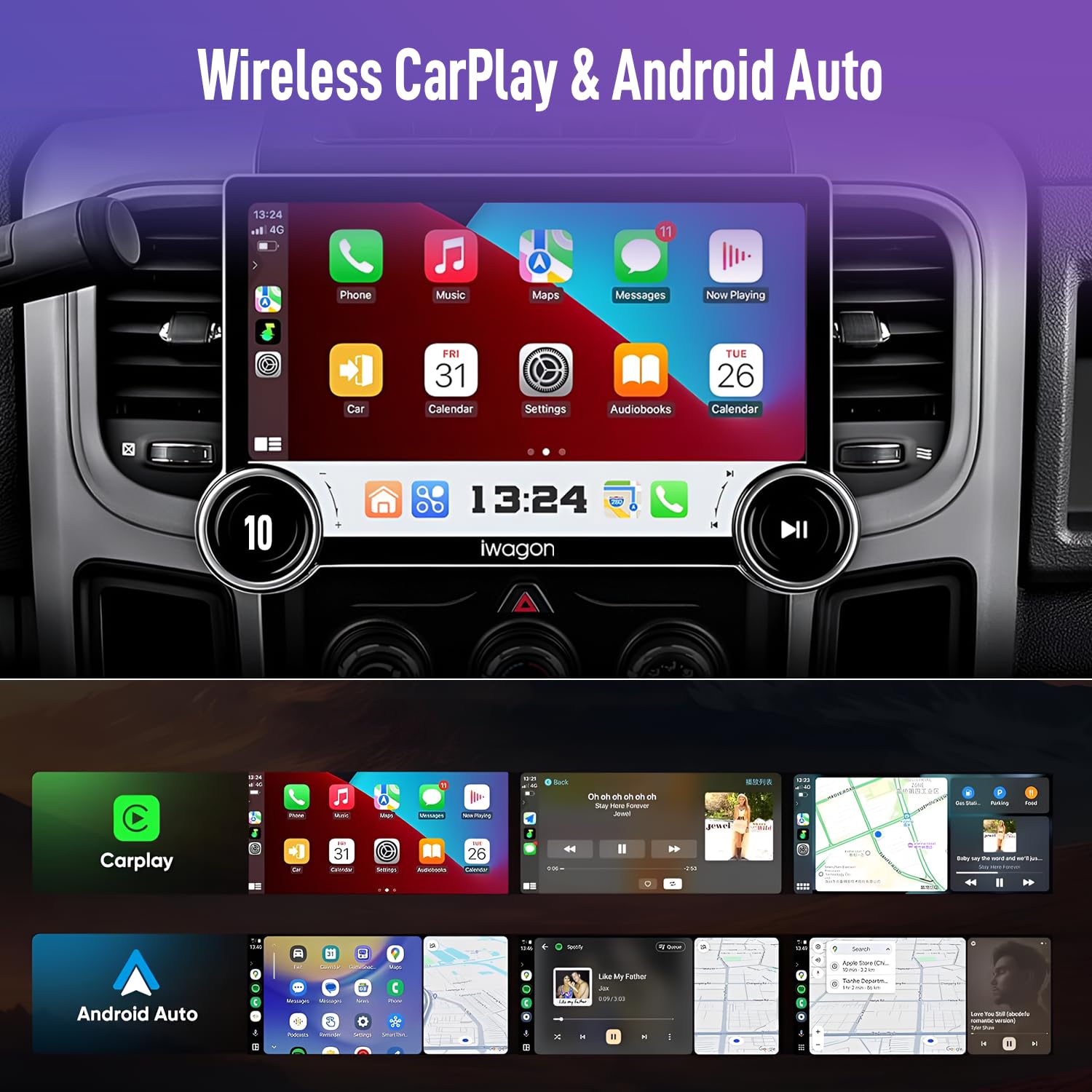
Figure 4: Wireless CarPlay and Android Auto interface.
4. Bluetooth Connectivity
Pair your phone via Bluetooth for hands-free calling and audio streaming.
- Go to the Bluetooth settings on the car stereo.
- Enable Bluetooth on your phone and search for available devices.
- Select the car stereo from the list and confirm pairing.
5. Steering Wheel Control
The system supports steering wheel controls, allowing you to manage audio playback, volume, and other functions without taking your hands off the wheel. This feature enhances safety and convenience.
- Access "Steering Learn" in the system settings.
- Follow the on-screen instructions to map your vehicle's steering wheel buttons to the stereo functions.
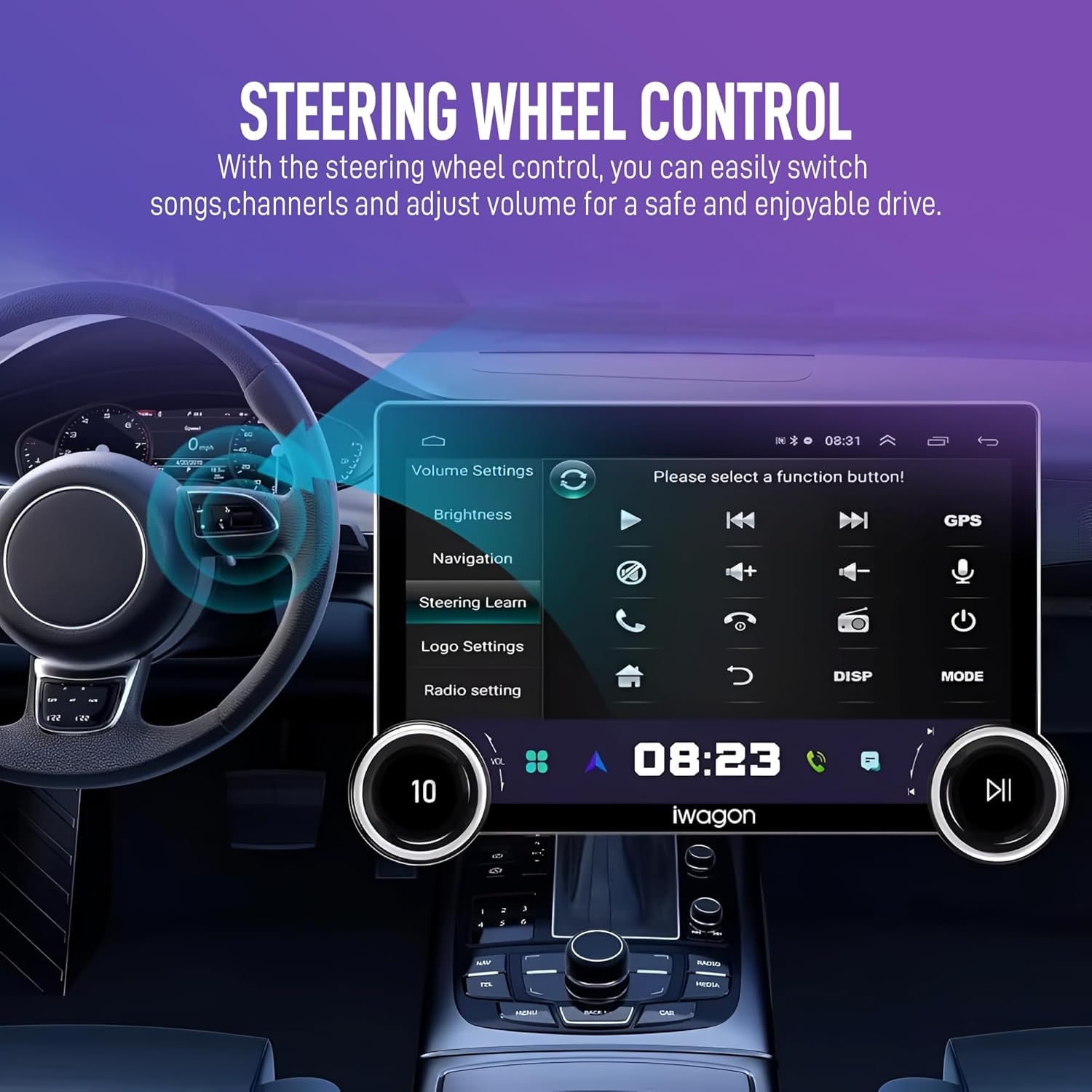
Figure 5: Steering wheel control integration.
6. Dual Knobs Control
The unit features dual physical knobs for quick access to volume control, mute, previous/next track, and play/pause functions. These provide tactile feedback for ease of use while driving.

Figure 6: Dual knobs for intuitive control.
7. Split Screen Functionality
Utilize the split-screen feature to run two applications simultaneously, such as navigation on one side and music playback on the other. This enhances multitasking capabilities.
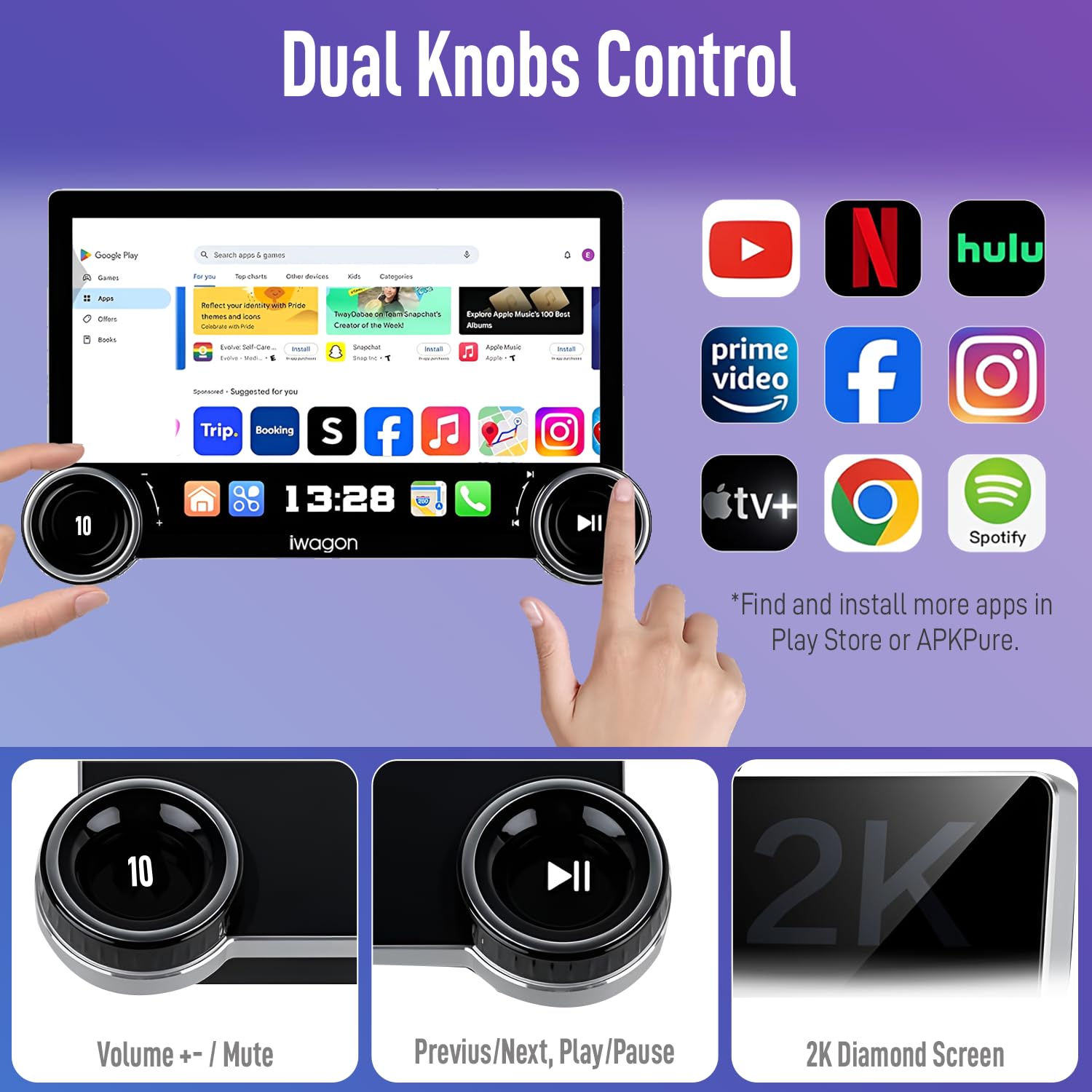
Figure 7: Split screen mode for enhanced multitasking.
8. Digital Sound Processor (DSP)
The built-in DSP allows for advanced audio customization. You can adjust delay, cut frequencies, and fine-tune the volume of each channel to achieve optimal sound quality tailored to your vehicle's acoustics.
9. App Installation
Access the Google Play Store (requires Wi-Fi connection) to download and install additional applications such as navigation apps, streaming services, and other utilities to further customize your system.
Maintenance
- Screen Cleaning: Use a soft, lint-free cloth to gently wipe the touchscreen. For stubborn smudges, slightly dampen the cloth with water or a screen-safe cleaner. Avoid harsh chemicals or abrasive materials.
- Software Updates: Periodically check for system software updates via the settings menu. Updates can improve performance, add new features, and enhance security. Ensure a stable Wi-Fi connection during updates.
- General Care: Keep the unit free from dust and debris. Avoid exposing it to extreme temperatures or direct sunlight for prolonged periods.
Troubleshooting
If you encounter issues with your iWagon Diamond 2K Car Android System, refer to the following common problems and solutions:
| Problem | Possible Cause | Solution |
|---|---|---|
| Unit does not power on. | Incorrect power wiring, blown fuse, vehicle battery issue. | Check all power connections and fuses. Ensure vehicle battery is charged. Consult a professional installer. |
| No sound or poor sound quality. | Incorrect speaker wiring, volume too low, DSP settings misconfigured. | Verify speaker connections. Adjust volume. Check DSP and equalizer settings. |
| Bluetooth/CarPlay/Android Auto not connecting or disconnecting frequently. | Interference, incorrect pairing, software glitch, phone compatibility. | Ensure Bluetooth/Wi-Fi is enabled on both devices. Re-pair the device. Restart both the stereo and phone. Check for system updates. |
| Display blinking or freezing. | Software issue, overheating, power fluctuation. | Restart the unit. Ensure proper ventilation. Check power connections. Perform a factory reset if necessary (note: this will erase all user data). |
| System lags or is unresponsive. | Too many apps running, low memory, outdated software. | Close unnecessary applications. Clear cache. Check for system updates. Consider a factory reset if performance does not improve. |
| Rear view camera not displaying. | Incorrect camera wiring, faulty camera, system setting. | Verify camera connections (video input, power, reverse trigger). Check camera settings in the system menu. |
Specifications
| Feature | Detail |
|---|---|
| Model Number | IWD-09 |
| Display Size | 10.1 inches |
| Display Resolution | 2K (1920x1024P QLED) |
| Processor | Octa-Core |
| RAM | 4GB |
| Internal Storage (ROM) | 64GB |
| Operating System | Android |
| Connectivity | Bluetooth, USB, Wi-Fi |
| Special Features | Android Auto, Apple CarPlay (Wireless), Built-In Bluetooth, Built-In Wi-Fi, Screen Mirroring, Rear View Camera Input, Volume Control, Compact Design, Cooling Fan, DSP, Touchscreen |
| Audio Output Mode | Stereo |
| Output Power | 240 Watts |
| Product Dimensions | 22 x 20 x 18 cm |
| Item Weight | 1.3 kg |
| Manufacturer | Ws Mart, Delhi, India |
| Country of Origin | China |
Warranty Information
The iWagon Diamond 2K Car Android System comes with a 2-year warranty from the date of purchase. This warranty covers manufacturing defects and malfunctions under normal use. Please retain your proof of purchase for warranty claims. The warranty does not cover damage caused by improper installation, misuse, accidents, or unauthorized repairs.
Customer Support
For technical assistance, warranty claims, or any other inquiries regarding your iWagon Diamond 2K Car Android System, please contact your retailer or the manufacturer's customer service. Refer to your purchase documentation for specific contact details.