
1. Introduction
Thank you for choosing QCOQ Air Tracker Tags. This manual provides essential information for setting up, operating, and maintaining your device. The QCOQ Air Tracker Tag is an MFi-certified Bluetooth tracker designed to work exclusively with Apple's Find My network, allowing you to locate your belongings with ease.
Package Contents
Your package includes:
- 3 x QCOQ Air Tracker Tags
- 3 x Protective Silicone Cases (Mint Cyan)
- 3 x Lanyards (White)
- 3 x Key Rings
- 1 x User Manual

Image: Contents of the QCOQ Air Tracker Tags package, including three tracker tags, silicone cases, lanyards, and key rings.

Image: Diagram illustrating the structure and dimensions of the QCOQ Air Tracker Tag, showing its compact size.
2. Setup
Compatibility
The QCOQ Air Tracker Tags are MFi-certified and designed to work exclusively with Apple's Find My app. They are compatible with iOS, iPadOS, and macOS devices. Note: Android devices are not supported.
Pairing Your Air Tracker Tag
Follow these steps to pair your QCOQ Air Tracker Tag with your Apple device:
- Open the 'Find My' application on your iOS device.
- Ensure Bluetooth and network functions are enabled on your device.
- In the 'Items' tab, tap 'Add New Item' and then 'Other Supported Item'.
- Hold the button on the Air Tracker Tag for 2 seconds until you hear a 'Di' sound to turn it on and activate pairing mode.
- Place the Air Tracker Tag close to your iPhone. The app will search for and display 'Diamond tag'.
- Tap 'Connect' and follow the on-screen prompts until the pairing process is complete.
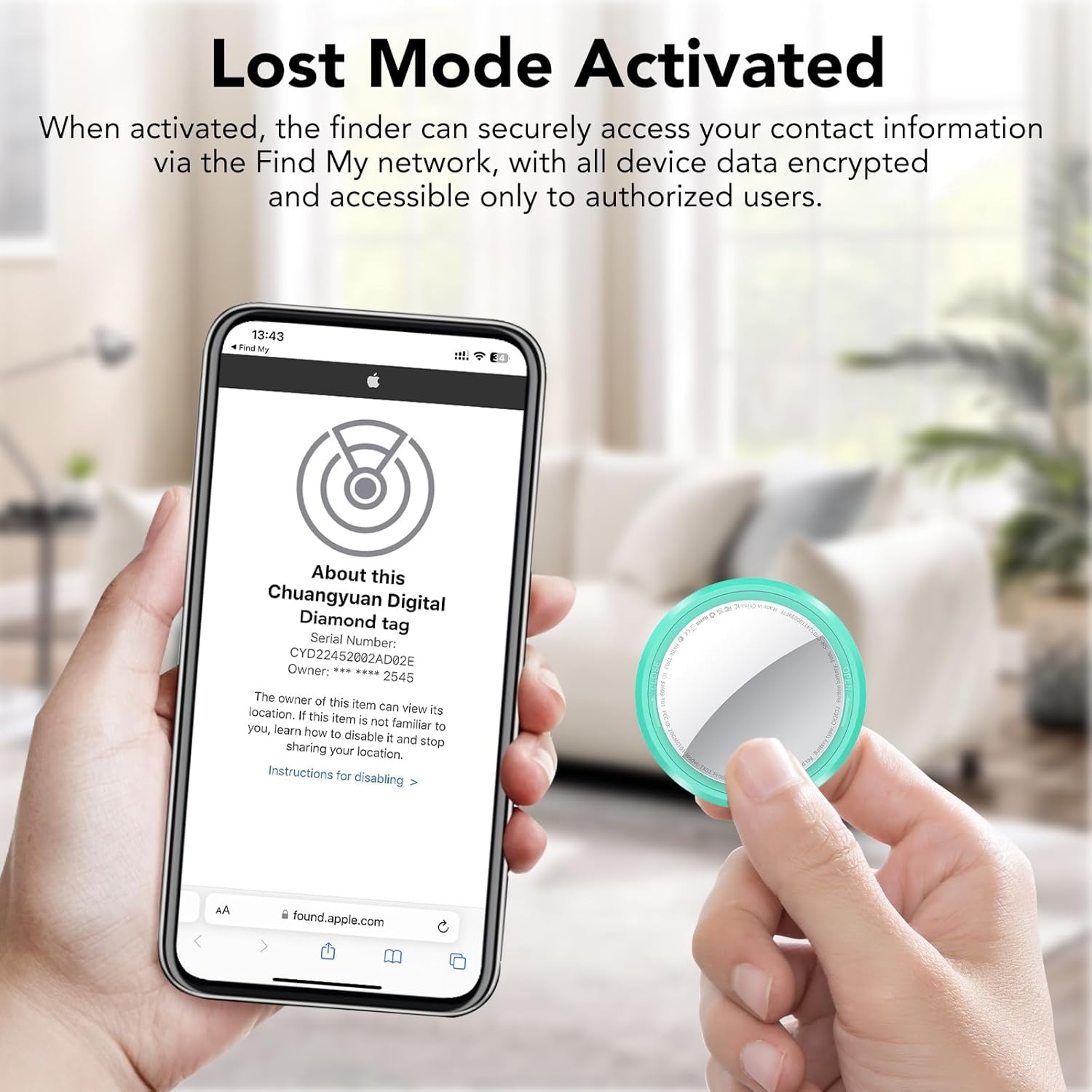
Image: Visual guide showing how to open the Find My app, add a new item, and connect the tracker tag.

Image: Detailed instructions for turning on, connecting, turning off, and resetting the QCOQ Air Tracker Tag.
Product Overview Video
Video: An official product showcase of the QCOQ Air Tracker Tags, demonstrating their features and use cases.
3. Operating Instructions
Nearby Tracking (Play Sound)
When your item is nearby, use the 'Find My' app to play a sound on your QCOQ Air Tracker Tag. The built-in speaker can emit a sound up to 100dB, helping you locate items within Bluetooth range.
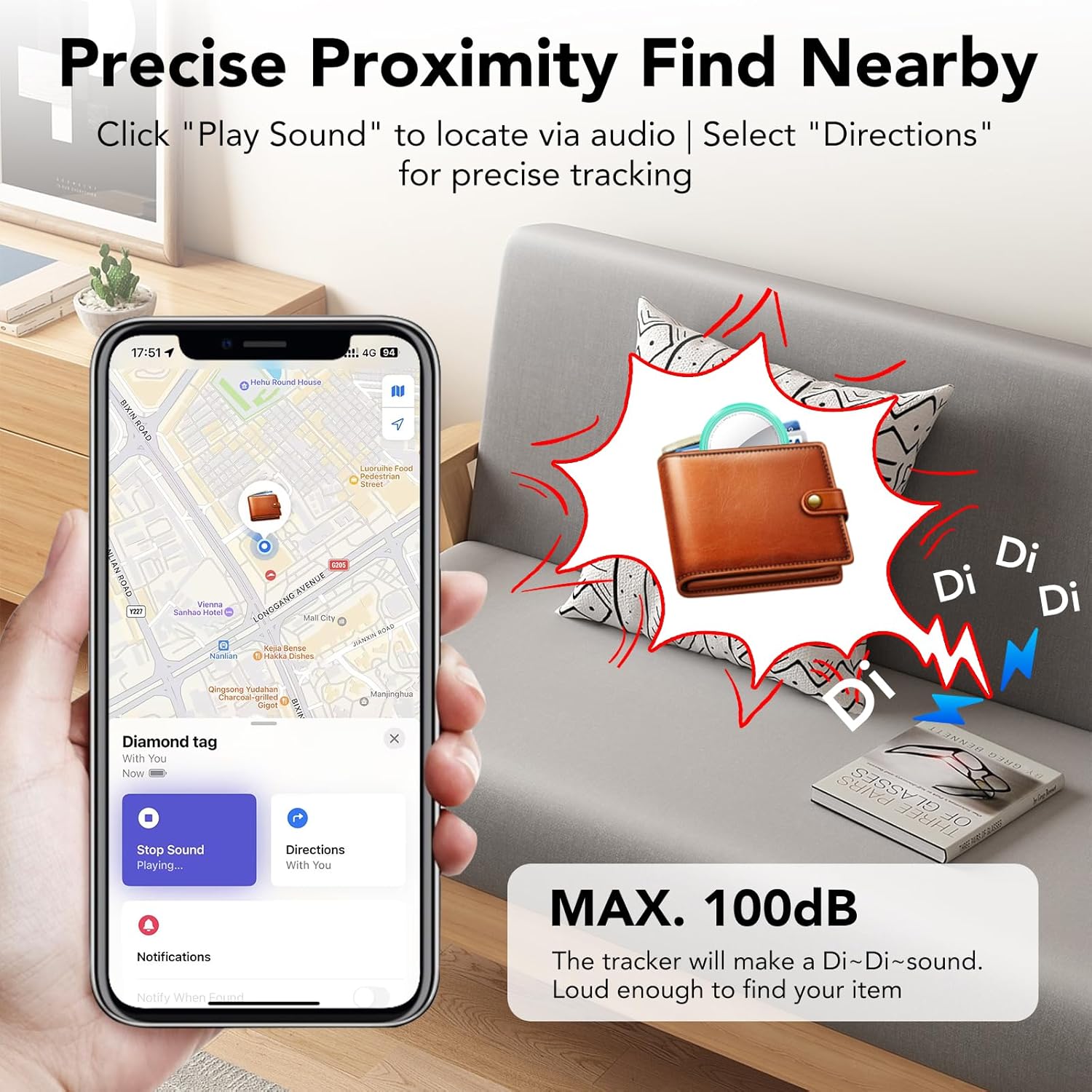
Image: A smartphone screen showing the Find My app with a 'Play Sound' option, indicating a wallet being located by sound.

Image: An illustration of the QCOQ Air Tracker Tag ringing loudly to help locate keys hidden on a sofa, with a phone displaying the Find My app.
Cross-Region Tracking (Find Far Away)
Leveraging Apple's vast Find My network, your QCOQ Air Tracker Tag can be located even when it's far beyond Bluetooth range. The network uses crowd-sourced location data from Apple devices to provide dynamic location updates. All location data is end-to-end encrypted, ensuring your privacy.

Image: A world map showing various items being tracked globally, demonstrating the wide reach of the Find My network.

Image: A smartphone displaying map navigation to find a lost wallet, indicating the 'Find Far Away' feature.
Forget Reminder
If you leave an item with an Air Tracker Tag behind, your device will send a pop-up notification with the item's last known location. To enable this feature, ensure 'Notify When Left Behind' is activated in the Find My app. You can also customize a geofence radius to prevent alerts when the tag remains within a specific safe area.
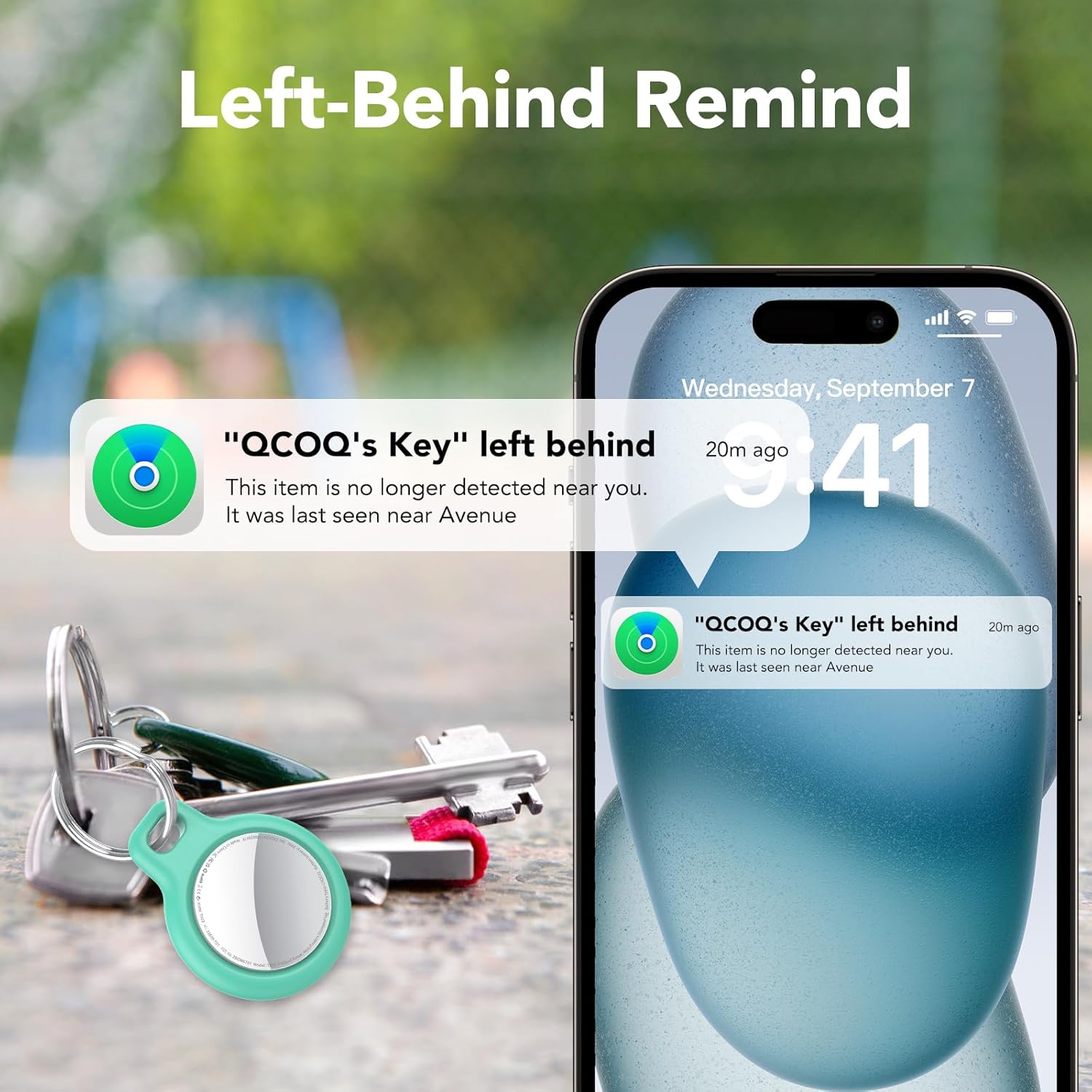
Image: A smartphone displaying a 'Left Behind' notification for a QCOQ Air Tracker Tag, showing the last known location.

Image: A visual representation of the 'Left-Behind Remind' feature, showing a notification on a phone when the tracker tag is left behind.
Lost Mode
Activate Lost Mode in the Find My app if your item is missing. You can preset contact details (e.g., phone number or email address). Any compatible Apple device that comes into contact with your lost item will display a 'Lost Mode' message, allowing the finder to contact you. When Lost Mode is enabled, 'Notification When Found' is automatically enabled, and your Item Locator is locked, preventing it from being paired to a new device.

Image: A smartphone screen showing the 'Lost Mode Activated' interface within the Find My app, displaying information about a lost item.

Image: A sequence of smartphone screens demonstrating how to activate 'Lost Mode' in the Find My app and how a finder can view contact information.
Item Sharing Feature
You can share the location of your QCOQ Air Tracker Tag with up to 5 other users through the 'Find My' app. All shared users can track the item's location in real-time. This feature requires iOS 17, iPadOS 17, macOS 14, or later.

Image: An illustration showing multiple users sharing the location of an item on a map via the Find My app.
Siri Integration
If your item is nearby, you can ask Siri to help you find your QCOQ Air Tracker Tag. Simply say, for example, "Hey Siri, where are my keys?" and the tag will play a sound.

Image: A smartphone displaying Siri's interface, demonstrating how to use voice commands to locate items with the tracker tag.
Privacy Protection
As an Apple MFi-certified device, the QCOQ Air Tracker Tag adheres to Apple's strict privacy standards. All location data is transmitted anonymously and is end-to-end encrypted. No third party, including Apple or QCOQ, can access your identity or location information.

Image: An illustration emphasizing the privacy protection features, showing the tracker tag's encrypted communication with a smartphone.
Usage Scenarios

Image: Various scenarios demonstrating the versatility of the QCOQ Air Tracker Tag, attached to luggage, a backpack, a bicycle, and a camcorder.

Image: Examples of the QCOQ Air Tracker Tag being used with keys, a backpack, luggage, and a bicycle.
4. Maintenance
Battery Replacement
The QCOQ Air Tracker Tag uses a replaceable CR2032 coin cell battery, offering up to 365 days of battery life. To replace the battery:
- Turn the stainless steel battery cover counter-clockwise to remove it.
- Insert a new CR2032 battery with the positive (+) side facing up.
- Align the battery cover and press it gently.
- Rotate the battery cover clockwise to tighten it.

Image: A four-step visual guide demonstrating how to replace the CR2032 battery in the QCOQ Air Tracker Tag.
5. Troubleshooting
Refer to the table below for common issues and their solutions:
| Functionality | Operation | Alert Tone | Note |
|---|---|---|---|
| Power On | Press and hold the button for 2 seconds | Beep | |
| Power Off State | Press and hold the button for approximately 6 seconds, you will hear three consecutive beeps. | Beep-Beep-Beep | The "Beep-Beep-Beep" sound has no function during the second alert. |
| Powered On State (Auto Shutdown) | When disconnected, the anti-loss device automatically powers off after 2 minutes and enters low-power mode. | Beep, Beep | |
| Pairing Successful Status | After the app connection is successfully paired, the anti-loss device will "beep, beep" twice. | Beep, Beep | Play sound: "Beep, Beep, Beep, Beep, Beep, Beep, Beep, Beep, Beep, Beep, Beep, Beep", it rings twelve times in total, then stops playing the sound. |
| Connection status after power-up (Temporarily Disable the Alarm Sound) | Tap "Play Sound" on the app to activate the alarm, Tap "Stop Sound" on the app to pause the alarm. Tap the play button on the app to sound the alarm. Press and hold the button for 2 seconds to pause the alarm sound. | Beep | The "beep" is rather abrupt, and follows immediately after the sound of the beep being played; It requires careful listening to detect. |
| Remove Item | Removing items will trigger an audible alert. | Beep, Beep | After removing the device, it will automatically power off and will remain in pairing mode. If no pairing occurs within 2 minutes, it will automatically power off. |
| Reset | Press and hold the button continuously until you hear "beep, beep, beep, beep, beep, beep". Then continue holding the button for another 5 seconds until you hear a single long beep. The total hold time is approximately 15 seconds. | Beep, Beep-Beep-Beep----- | Unable to play sounds, etc. (prompt will appear). Requires reconnecting and pairing. Must remove the item and reconnect. |
| Obtain the owner's contact information | Press and hold for 5 seconds. You will hear two consecutive "beep, beep" sounds. The UI for identifying the item will appear (allowing you to access the owner's contact information). | Beep, Beep | Lost Mode Status: When the locator is nearby, Lost Mode cannot send contact information. This feature is only available for items that are lost and not located near you. |
| Stop sharing location (Power off) | Press and hold for 6 seconds. You will hear three consecutive beeps: "beep, beep, beep, beep, beep, beep." Stop sharing your location. | Beep-Beep-Beep-Beep-Beep-Beep | The "beep" sound has no function during the second alert. |

Image: A table detailing various functionalities, operations, alert tones, and notes for troubleshooting the QCOQ Air Tracker Tag.
6. Specifications
| Feature | Detail |
|---|---|
| Brand | QCOQ |
| Model | Air Tracker Tags |
| Connectivity Technology | Bluetooth 5.3 |
| Supported Application | Apple Find My |
| Compatible Devices | iOS, iPadOS, macOS devices (Personal Computer, Smartphone, Tablet) |
| Speaker Output | Max. 100dB |
| Battery Type | Replaceable CR2032 Coin Cell |
| Battery Life | Up to 365 days |
| Dimensions (Diameter) | 31.2 mm (1.23 inches) |
| Dimensions (Thickness) | 8.9 mm (0.35 inches) |
| Item Weight | 7.3 g (0.25 ounces) |
| Water Resistance | IP67 |
| Color | Mint Cyan |
| Date First Available | June 5, 2025 |

Image: A visual representation of the QCOQ Air Tracker Tag's compact and lightweight design, highlighting its dimensions and weight.

Image: An infographic showcasing key features such as 360° full wrap design, 365 days battery life, replaceable battery, and Apple MFi certified chip.
7. Warranty and Support
Warranty Information
QCOQ Air Tracker Tags come with a 2-year warranty from the date of purchase, covering manufacturing defects and malfunctions under normal use.
Customer Support
For any inquiries, technical assistance, or warranty claims, please contact QCOQ customer service. We offer 12-hour customer support to assist you.
You can find contact information on the official QCOQ website or through your purchase platform.

Image: An infographic highlighting QCOQ's 2-year warranty and 12-hour customer support.

