
SONICAKE QME-10TBK
SONICAKE Pocket Master User Manual
Portable Multi-Effects Pedal
1. Introduction
The SONICAKE Pocket Master is a portable multi-effects pedal designed for guitar, bass, and acoustic instruments. It features over 100 built-in effects, amp modeling, IR cabinet simulation, and a stereo OTG USB audio interface. This device is rechargeable and offers comprehensive sound processing capabilities in a compact form factor.

Figure 1.1: Top view of the SONICAKE Pocket Master, showcasing its compact design and display screen.
2. Setup
2.1 Unboxing and Initial Inspection
Carefully remove the Pocket Master from its packaging. Inspect the device for any signs of damage. Ensure all components listed in the packing contents are present.

Figure 2.1: Front view of the SONICAKE Pocket Master packaging box.
2.2 Charging the Device
The Pocket Master features a built-in rechargeable battery. Before first use, fully charge the device using the provided USB cable and a compatible USB power adapter (not included). The charging indicator on the device will show its status.

Figure 2.2: The Pocket Master is equipped with an internal battery providing up to four hours of operation, with dimensions shown.
2.3 Connections
Refer to the diagram below for connecting your instrument, headphones, amplifier, and computer/mobile device.

Figure 2.3: Rear view of the Pocket Master showing input (IN), output (OUT), headphones (PHONES), and USB ports.
- IN: Connect your guitar, bass, or acoustic instrument here.
- OUT: Connect to your amplifier or mixer.
- PHONES: Connect headphones for silent practice.
- USB: Connect to a computer for firmware updates, sound editing, and USB audio interface functionality. Supports OTG for mobile devices.
2.4 Software Installation (Optional)
For advanced sound editing and preset management, download the free SONICAKE software for Mac/Windows/iOS/Android from the official SONICAKE website. This software allows for deeper customization of effects and settings.

Figure 2.4: The Pocket Master connected to a computer, demonstrating software management capabilities.
3. Operating Instructions
3.1 Power On/Off
Press and hold the power button (usually integrated with one of the footswitches or a dedicated button) to turn the device on or off. The LCD screen will illuminate upon power-on.
3.2 Navigating Presets
Use the left and right footswitches to cycle through the 100 available presets. The current preset number and name will be displayed on the LCD screen.

Figure 3.1: The Pocket Master's display showing the active preset and effect blocks.
3.3 Adjusting Parameters
The "VALUE/VOL" knob allows for adjusting various parameters depending on the selected mode or effect. In general operation, it controls the overall output volume. When editing effects, it adjusts the selected parameter's value.
3.4 Effect Blocks and Customization
The Pocket Master features up to 9 simultaneous effect blocks, including Noise Reduction (NR), FX1, Drive (DRV), Amp (AMP), IR, EQ, FX2, Delay (DLY), and Reverb (RVB). These can be customized via the mobile or desktop application.

Figure 3.2: Visual representation of the versatile effects matrix, showing available effect modules.
3.5 Looper and Drum Rhythms
The device includes a built-in looper and 99 drum rhythms. Access these features through the device's menu or the companion application. The looper allows for recording and overdubbing short phrases, while drum rhythms provide backing tracks for practice.
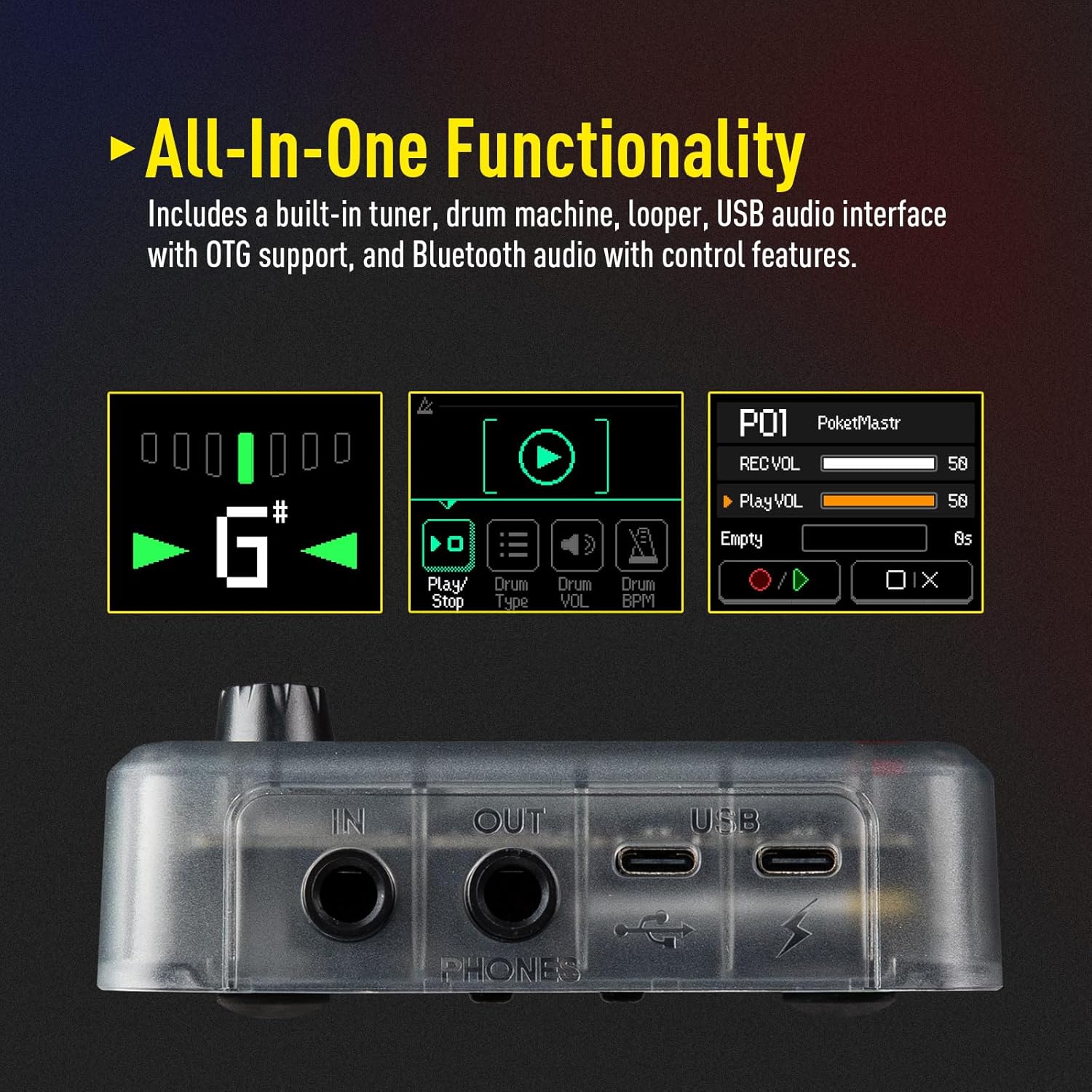
Figure 3.3: The Pocket Master's display illustrating the tuner, drum machine, and looper interfaces.
3.6 USB Audio Interface and OTG Function
The Pocket Master can function as a USB audio interface for recording directly to a computer or mobile device. Connect the device via USB and select it as your audio input/output in your Digital Audio Workstation (DAW) or recording software. The OTG (On-The-Go) function allows direct connection to compatible iOS/Android mobile devices.
3.7 Bluetooth Audio Connection
Connect your mobile device via Bluetooth to stream audio through the Pocket Master, allowing you to play along with backing tracks or music from your phone.
4. Maintenance
4.1 Cleaning
Use a soft, dry cloth to clean the exterior of the Pocket Master. Do not use abrasive cleaners, solvents, or waxes, as these can damage the finish or internal components.
4.2 Storage
When not in use for extended periods, store the device in a cool, dry place away from direct sunlight and extreme temperatures. Ensure the battery is partially charged (around 50%) before long-term storage to preserve battery health.
4.3 Firmware Updates
Periodically check the official SONICAKE website for firmware updates. Firmware updates can introduce new features, improve performance, and fix bugs. Follow the instructions provided with the firmware update package carefully.
Video 4.1: Official guide on how to perform a firmware update for the SONICAKE Pocket Master. This update introduces new features like Neural Amp Modeler (NAM) support and additional effects.
5. Troubleshooting
| Problem | Possible Cause | Solution |
|---|---|---|
| No sound output. |
|
|
| Device not charging. |
|
|
| Cannot connect to software/app. |
|
|
| Unwanted noise/hum. |
|
|
6. Specifications
| Feature | Detail |
|---|---|
| Model Number | QME-10TBK |
| Dimensions (L x W x H) | 4.13 x 2.44 x 1.12 inches (103.5 x 85 x 28.5 mm) |
| Weight | 7.3 ounces (208 grams) |
| Effects | 100+ Built-in Guitar/Bass/Acoustic Effects |
| Amp Models | 20 legendary amp models, Neural Amp Modeler (NAM) support |
| IR Support | 5 user slots for 3rd party IRs |
| Signal Processing | 24-bit 44.1kHz |
| Drum Rhythms | 99 Built-in |
| Looper | Yes (duration not specified, but typically short for practice) |
| Presets | 100 |
| Simultaneous Effect Blocks | Maximum 9 |
| Audio Interface | Stereo OTG USB Audio Interface |
| Connectivity | USB, Bluetooth |
| Battery Life | Up to 4 hours (rechargeable) |
| Software Support | Mac/Windows/iOS/Android |
7. Warranty & Support
7.1 Warranty Information
For specific warranty terms and conditions, please refer to the warranty card included with your product or visit the official SONICAKE website. Keep your purchase receipt as proof of purchase for warranty claims.
7.2 Customer Support
If you encounter any issues not covered in this manual or require further assistance, please contact SONICAKE customer support through their official website or the contact information provided in your product packaging.
You can also refer to the official user manual PDF for additional details: SONICAKE Pocket Master User Manual (PDF)
Related documentsQME-10TBK


Ask a question about this manual
Ask about setup, troubleshooting, compatibility, parts, safety, or missing instructions. Manuals+ will review the question and use this page’s manual context to help answer it.