
1. Introduction and Overview
The ORICO MiniLink Mac mini M4 USB Hub is a multifunctional docking station designed to expand the connectivity and storage capabilities of your Mac mini M4. This 9-in-1 aluminum dock integrates an M.2 SSD enclosure, multiple USB ports, SD/TF card readers, and audio jacks, providing a comprehensive solution for enhanced productivity and data management.

Figure 1: ORICO MiniLink Mac mini M4 USB Hub with M.2 SSD slot visible.
2. Key Features
- Mac mini M4 Compatibility: Specifically designed for seamless integration with Mac mini M4 models.
- M.2 Hard Drive Enclosure: Supports NVME/SATA M.2 SSDs up to 8TB (2280 size only) for significant storage expansion.
- High-Speed Data Transfer: Features two USB-A 3.2 ports (10Gbps) for ultra-fast data transfer.
- Versatile USB Connectivity: Includes two additional USB-A 2.0 ports for peripherals like keyboards and mice.
- Audio Expansion: Equipped with 3.5mm headphone and microphone jacks.
- Integrated Card Readers: Built-in SD/TF card readers support simultaneous reading with speeds up to 104MB/s.
- Efficient Cooling: Features a cooling fan, metal casing, and air holes for optimal heat dissipation.
- Sleek Design: Silver aluminum housing complements the Mac mini aesthetic.
3. Package Contents
Please ensure all items are present upon unboxing:
- ORICO MiniLink USB Hub (Model: ORICO-M49P)
- USB-C to C Cable
- USB-C to C/A Cable
- Power Adapter
- Screwdriver
- Spare Screw
- Silicone Thermal Pad
- Cooling Vest (Heatsink)
- User Manual
4. Setup and Installation
4.1 M.2 SSD Installation
- Gently twist and remove the magnetic bottom cover of the MiniLink hub.
- Locate the M.2 slot inside the enclosure.
- Attach the provided silicone thermal pad and cooling vest (heatsink) to your NVME/SATA M.2 SSD (2280 size only).
- Carefully insert the prepared M.2 SSD into the slot at an angle, then press down and secure it with the provided screw.
- Replace the magnetic bottom cover, ensuring it snaps securely into place.
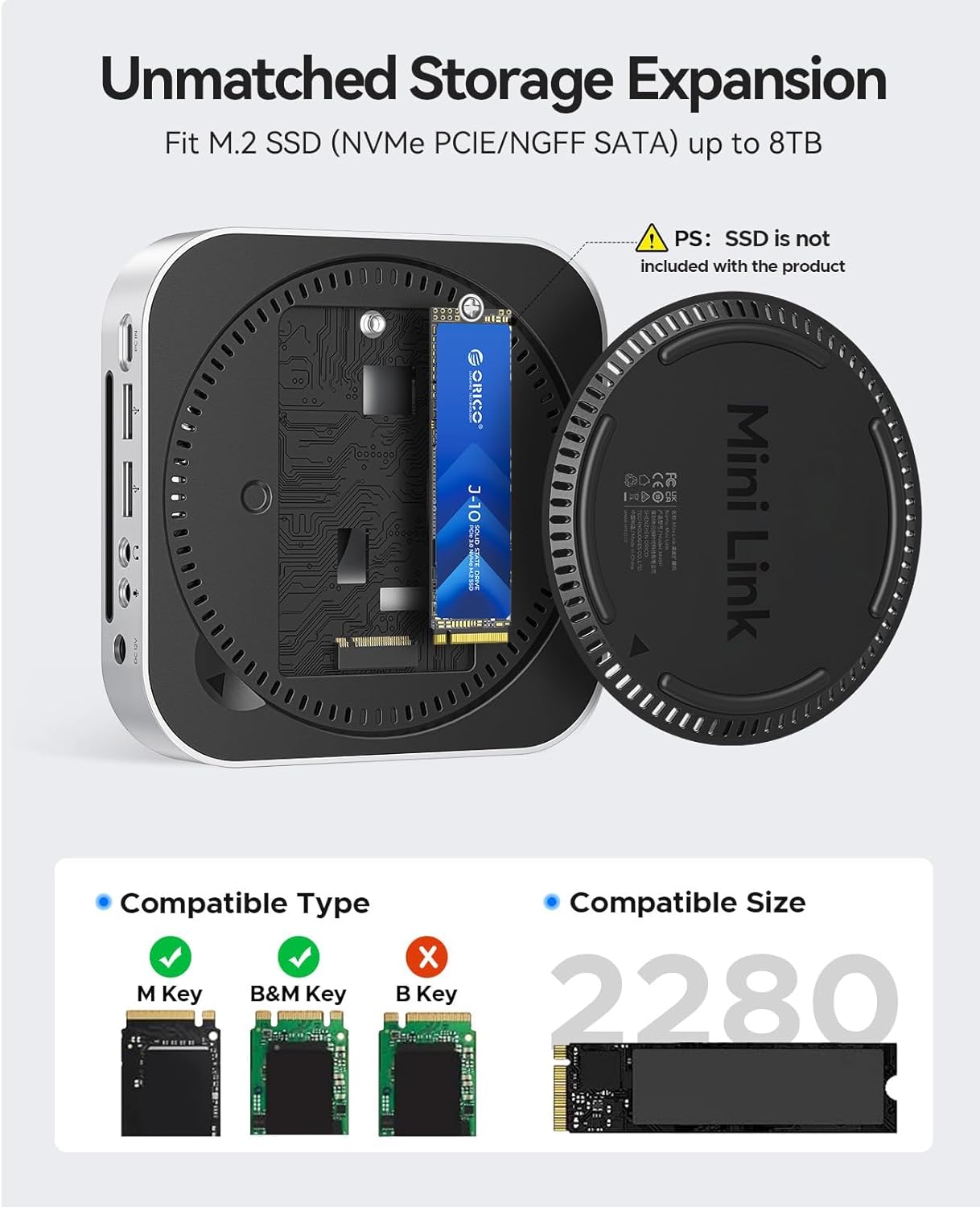
Figure 2: M.2 SSD installation process and compatible M.2 key types.
4.2 Connecting to Mac mini M4
- Place your Mac mini M4 directly on top of the ORICO MiniLink hub. The hub is designed to seamlessly fit underneath the Mac mini.
- Connect the provided USB-C to C cable from the "PC IN" port on the back of the MiniLink hub to an available USB-C/Thunderbolt port on your Mac mini.
- Connect the power adapter to the "DC 12V" port on the back of the MiniLink hub and plug it into a power outlet.
- Press the power button on the front of the MiniLink hub to activate it.
Video 1: MiniLink Mac mini M4 Hub Installation Tutorial. This video demonstrates the physical installation of the SSD and connection to the Mac mini.
5. Operating Instructions
5.1 Data Transfer and Storage
Utilize the high-speed USB-A 3.2 (10Gbps) ports for transferring large files quickly. The integrated M.2 SSD will appear as an external drive on your Mac mini, allowing for seamless data storage and access.

Figure 3: Demonstrating 10Gbps data transfer speed with the ORICO MiniLink hub.
5.2 Card Reader Usage
Insert your SD or TF cards into the corresponding slots on the front of the hub. Both card slots can be used simultaneously for efficient media import and export.
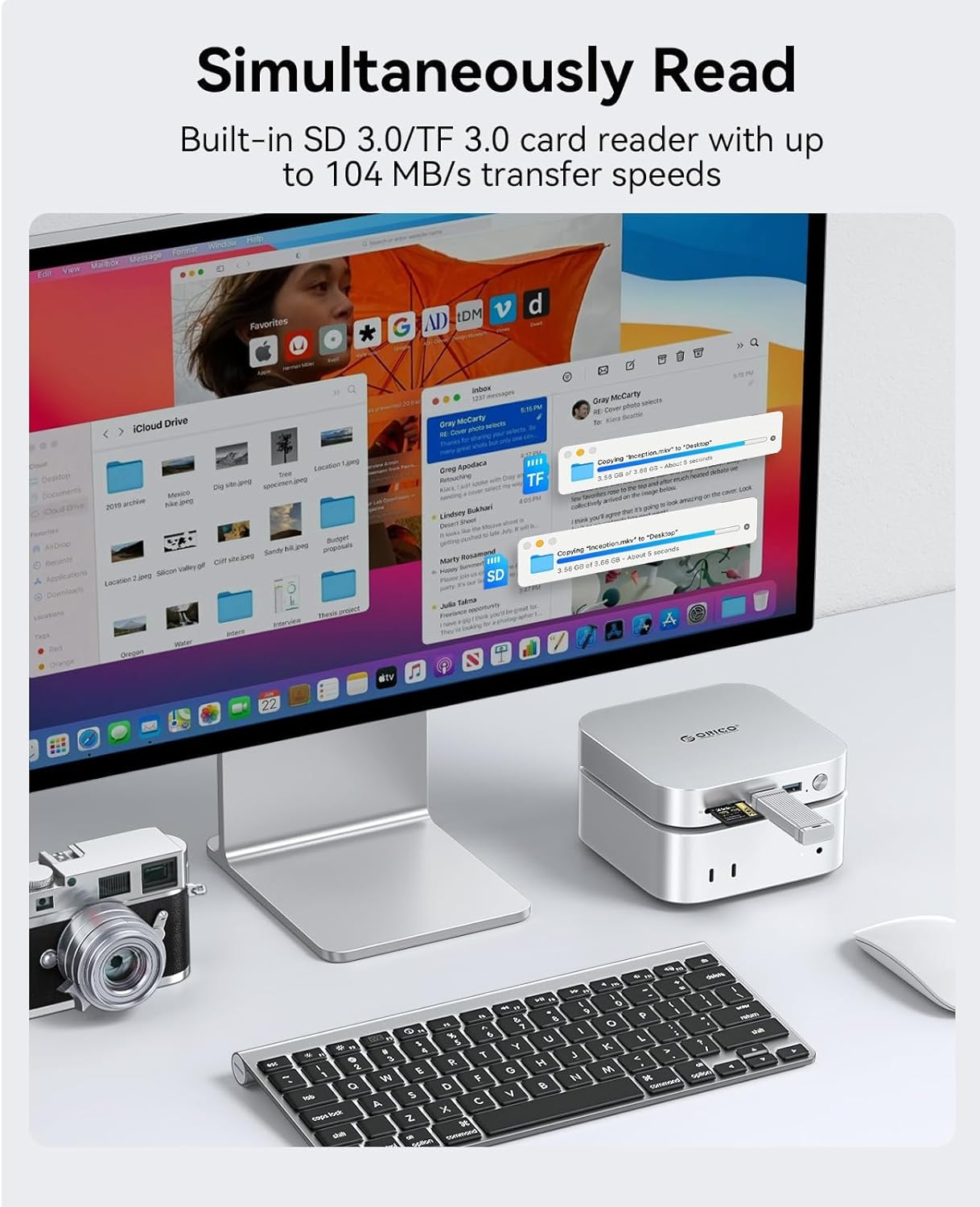
Figure 4: SD card being used with the integrated card reader.
5.3 Audio Connectivity
Connect your headphones to the 3.5mm headphone jack and a microphone to the 3.5mm microphone jack on the back of the hub for direct audio input and output.
6. Specifications
| Feature | Detail |
|---|---|
| Model Number | ORICO-M49P |
| Dimensions | 7.09 x 6.97 x 3.5 inches |
| Item Weight | 1.52 pounds |
| Color | Silver |
| Hardware Interface | USB |
| Compatible Devices | Mac Mini M4 |
| Total USB Ports | 3 (2x USB-A 3.2 10Gbps, 2x USB-A 2.0) |
| Number of Ports | 9-in-1 (including M.2, SD/TF, Audio) |
| M.2 SSD Support | NVME/SATA M.2 SSD (2280 size), up to 8TB |
7. Troubleshooting
7.1 SSD Not Recognized
- Ensure the M.2 SSD is correctly installed and secured in the enclosure.
- Verify that the MiniLink hub is properly connected to your Mac mini via the USB-C cable and has external power.
- For new SSDs, they may need to be formatted and partitioned in macOS Disk Utility before they appear on your desktop.
Video 2: ORICO Formatting Partition Steps in Mac OS System. This video guides you through formatting an SSD for use with macOS.
7.2 Slow Data Transfer Speeds
- Ensure you are using the USB-A 3.2 (10Gbps) ports for high-speed devices. USB-A 2.0 ports offer slower speeds.
- Check that your Mac mini's USB-C port supports the advertised speeds (e.g., Thunderbolt 3/4 or USB 3.2 Gen 2).
- Avoid using excessively long or low-quality USB cables, as they can degrade performance.
7.3 Overheating
- Ensure the MiniLink hub is placed on a flat, stable surface with adequate airflow around its ventilation holes.
- Verify that the cooling vest and thermal pad are correctly installed on the M.2 SSD.
- Avoid blocking the air vents on the hub.

Figure 5: Internal cooling system design for efficient heat dissipation.
8. Maintenance
- Keep the device clean by wiping it with a soft, dry cloth.
- Avoid exposing the hub to extreme temperatures, humidity, or direct sunlight.
- Do not attempt to disassemble or repair the device yourself, as this may void the warranty.
9. Warranty and Support
ORICO products typically come with a standard manufacturer's warranty. For specific warranty details, technical support, or service inquiries, please refer to the official ORICO website or contact their customer service directly. Keep your purchase receipt for warranty claims.


