
SONICAKE QME-10PP
SONICAKE Pocket Master Multi-Effects Pedal User Manual
Model: QME-10PP
1. Introduction
Thank you for choosing the SONICAKE Pocket Master Multi-Effects Pedal. This compact and versatile device is designed to provide a wide range of guitar, bass, and acoustic effects, amp modeling, and IR cabinet simulations in a portable format. It features a built-in rechargeable battery, USB audio interface capabilities, and Bluetooth connectivity for an enhanced user experience. This manual will guide you through the features, setup, and operation of your Pocket Master.

Image 1.1: Front view of the SONICAKE Pocket Master Multi-Effects Pedal, showcasing its compact design and display screen.
2. Important Safety Information
- Do not expose the device to water or excessive moisture.
- Avoid extreme temperatures. Operate and store the device in a moderate environment.
- Do not attempt to disassemble or modify the unit. Refer all servicing to qualified personnel.
- Use only the specified charging voltage (5V USB).
- Keep out of reach of children.
3. Package Contents
Please check that all items are present in your package:
- SONICAKE Pocket Master Multi-Effects Pedal
- USB Charging Cable
- User Manual (this document)
4. Product Overview
Familiarize yourself with the controls and connections of your Pocket Master.

Image 4.1: Diagram illustrating the main components and ports of the Pocket Master.
4.1 Front Panel Controls
- LCD Display: Shows current preset, effect chain, settings, and battery status.
- VALUE/VOL Knob: Rotates to adjust parameters or volume; press to confirm selections.
- Footswitches (Left & Right): Used for preset switching, tuner activation, looper control, and other functions.
4.2 Rear Panel Connections

Image 4.2: Rear panel connections including IN, OUT, PHONES, and USB ports.
- IN (Input): 1/4" mono jack for connecting your instrument (guitar, bass, acoustic).
- OUT (Output): 1/4" mono jack for connecting to an amplifier, mixer, or audio interface.
- PHONES (Headphones): 1/8" stereo jack for connecting headphones for silent practice.
- USB Ports (Type-C): Used for charging, firmware updates, and USB audio interface functionality.
5. Setup
5.1 Charging the Device
Before first use, fully charge the Pocket Master. Connect the supplied USB cable to one of the USB-C ports on the device and the other end to a 5V USB power adapter (not included) or a computer USB port. The battery indicator on the LCD will show charging status.
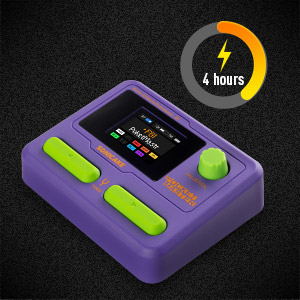
Image 5.1: The Pocket Master features an internal battery providing up to four hours of operation.
5.2 Connecting Your Instrument and Output
- Connect your guitar, bass, or acoustic instrument to the IN jack.
- Connect the OUT jack to your amplifier, mixer, or audio interface.
- For silent practice, connect headphones to the PHONES jack.
6. Operating Instructions
6.1 Power On/Off
Press and hold the left footswitch to power on the device. To power off, press and hold the left footswitch again.
6.2 Navigating Presets
Use the left and right footswitches to cycle through the 100 available presets. The LCD will display the current preset number and name.
6.3 Effect Modules and Signal Chain
The Pocket Master features 9 simultaneous effect blocks and over 100 built-in effects. The signal chain is adjustable.
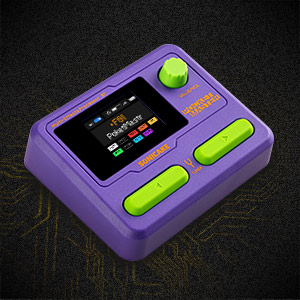
Image 6.1: The versatile effects matrix includes Noise Reduction (NR), two effects blocks (FX1, FX2), Drive (DRV), Amplifier (AMP), Impulse Response (IR), Equalizer (EQ), Delay (DLY), and Reverb (RVB).
To edit effects:
- Press the VALUE/VOL knob to enter edit mode.
- Rotate the VALUE/VOL knob to select an effect module (e.g., DRV, AMP, DLY).
- Press the VALUE/VOL knob to enter the selected module's parameters.
- Rotate the VALUE/VOL knob to adjust parameters. Press to confirm.
- To exit edit mode, press and hold the VALUE/VOL knob.
6.4 Amp Modeling and IR Cabinets
The Pocket Master includes 20 legendary amp models and supports 3rd party IRs with 5 user slots. This allows for extensive tone shaping.
6.5 Looper and Drum Rhythms
The device features a built-in looper and 99 drum rhythms for practice and creative exploration.
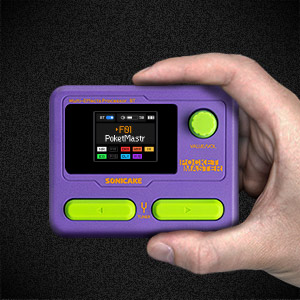
Image 6.2: The Pocket Master offers all-in-one functionality including a tuner, drum machine, and looper.
Specific controls for looper and drum machine are accessed via the footswitches and VALUE/VOL knob, as indicated on the LCD display.
6.6 USB Audio Interface
The Pocket Master functions as a stereo USB audio interface (24-bit 44.1kHz). Connect it to your computer (Mac/Windows) or mobile device (iOS/Android via OTG) to record directly or use it for playback.

Image 6.3: The Pocket Master supports USB audio interface functionality for both mobile devices and computers.
6.7 Bluetooth Connectivity
Connect your mobile device via Bluetooth for audio streaming (e.g., backing tracks) or to use the dedicated app for sound editing and preset management.
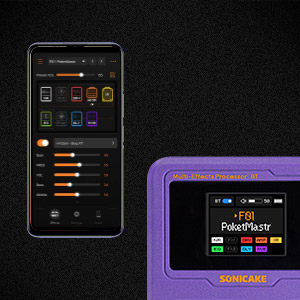
Image 6.4: The dedicated mobile application provides a user-friendly interface for sound editing and preset management.
6.8 Software Editor
A free software editor is available for Mac, Windows, iOS, and Android devices. This software allows for detailed sound editing, preset management, and firmware updates. Refer to the SONICAKE website for download links and specific instructions for the software.
7. Maintenance
- Cleaning: Use a soft, dry cloth to clean the device. Do not use abrasive cleaners or solvents.
- Storage: Store the Pocket Master in a cool, dry place away from direct sunlight and extreme temperatures.
- Battery Care: For optimal battery life, avoid fully discharging the battery frequently. If storing for extended periods, charge the battery to approximately 50% every few months.
8. Troubleshooting
| Problem | Possible Cause | Solution |
|---|---|---|
| No sound output | Incorrect cable connections, low volume, device not powered on, effect module bypassed. | Check all cable connections. Ensure the device is powered on and the volume knob is turned up. Verify that the output device (amp, headphones) is working. Check effect chain for bypassed modules. |
| Device not charging | Faulty USB cable, power adapter not supplying 5V, dirty USB port. | Try a different USB cable and power adapter. Ensure the power adapter provides 5V. Clean the USB port carefully. |
| Bluetooth connection issues | Device not in pairing mode, interference, distance. | Ensure Bluetooth is enabled on both devices. Place devices closer together. Restart both devices. |
| Software editor not connecting | USB driver issues, incorrect software version, firewall blocking connection. | Install the latest USB drivers from the SONICAKE website. Ensure you have the correct software version for your operating system. Temporarily disable firewall to test. |
9. Specifications
- Model: QME-10PP
- Dimensions: 2.44 x 4.13 x 2.44 inches (62 x 105 x 62 mm)
- Weight: 7.3 ounces (208 Grams)
- Effects: 100+ Built-in Guitar/Bass/Acoustic Effects
- Amp Models: 20 legendary amp models
- IR Support: 3rd party IR support (5 user slots)
- Signal Processing: 24-bit 44.1kHz
- Drum Rhythms: 99 Built-in
- Looper: Yes
- Presets: 100
- Simultaneous Effect Blocks: Max 9
- Audio Interface: Stereo OTG USB Audio Interface
- Connectivity: Bluetooth audio connection
- Battery: Built-in rechargeable, up to 4 hours battery life
- Power Input: 5V USB
10. Warranty and Support
SONICAKE products are designed for reliability and performance. For warranty information, please refer to the warranty card included with your product or visit the official SONICAKE website. For technical support, troubleshooting assistance, or service inquiries, please contact SONICAKE customer service through their official website or the contact information provided in your product packaging.
Official SONICAKE Website: www.sonicake.com
Related documentsQME-10PP


Ask a question about this manual
Ask about setup, troubleshooting, compatibility, parts, safety, or missing instructions. Manuals+ will review the question and use this page’s manual context to help answer it.