
1. Introduction
This manual provides detailed instructions for the proper setup, operation, maintenance, and troubleshooting of your OXS Storm A2 ANC Wireless Gaming Headset. Please read this manual thoroughly before using the product to ensure optimal performance and longevity.
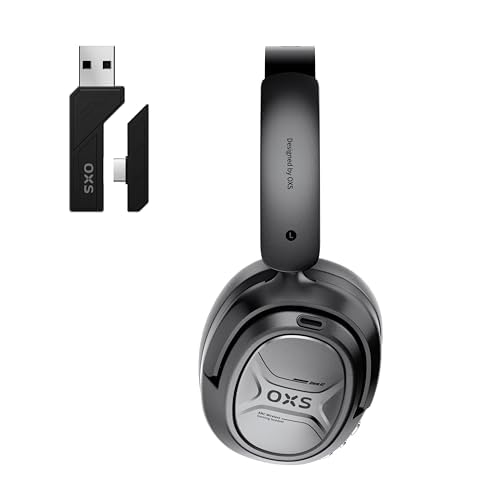
Image 1.1: The OXS Storm A2 ANC Wireless Gaming Headset. This image displays the headset's design and overall appearance.
2. Setup
2.1 Unboxing and Initial Inspection
Carefully remove all components from the packaging. Verify that all items listed in the 'Box Contents' section are present and undamaged. If any items are missing or damaged, contact customer support.
2.2 Charging the Headset
Before first use, fully charge the headset. Connect the provided charging cable to the headset's charging port and to a compatible USB power source. The LED indicator on the headset will show the charging status. A full charge provides approximately 70 hours of battery life.
2.3 Connecting to Devices
The OXS Storm A2 supports both Bluetooth and 2.4GHz wireless connectivity.
2.3.1 2.4GHz Wireless Connection (for PC, PS4, PS5)
- Insert the 2.4GHz USB dongle into an available USB port on your PC or gaming console.
- Power on the headset.
- The headset should automatically connect to the dongle. A voice prompt or LED indicator will confirm the connection.
2.3.2 Bluetooth Connection (for Mobile Devices, Laptops, Desktops)
- Ensure the headset is powered on and in Bluetooth pairing mode (refer to Section 3.2 for mode selection).
- On your device, navigate to Bluetooth settings and enable Bluetooth.
- Select "OXS Storm A2" from the list of available devices to pair.
- A voice prompt or LED indicator will confirm successful pairing.
3. Operating Instructions
3.1 Power On/Off
- To Power On: Press and hold the Power button for approximately 3 seconds until the indicator light illuminates and you hear a power-on prompt.
- To Power Off: Press and hold the Power button for approximately 3 seconds until the indicator light turns off and you hear a power-off prompt.
3.2 Mode Selection and Controls
The headset features push-button controls for various functions, including Active Noise Cancellation (ANC) and EQ modes.
- Active Noise Cancellation (ANC): Press the ANC button to toggle ANC on or off. When ANC is active, ambient noise is significantly reduced.
- Volume Control: Use the volume up/down buttons to adjust the audio level.
- Microphone Mute: Press the microphone button to mute or unmute the microphone.
- EQ Modes: The headset offers dual EQ modes. Press the EQ button to switch between gaming and music profiles.
3.3 Usage Scenarios
- Gaming: Utilize the 2.4GHz wireless connection for low-latency audio, crucial for competitive gaming. The gaming EQ mode enhances in-game sounds like footsteps and environmental cues.
- Music: Switch to Bluetooth for mobile devices and use the music EQ mode for a balanced audio experience. ANC can be used to enjoy music without distractions.
4. Maintenance
4.1 Cleaning
Regularly clean your headset to maintain its condition. Use a soft, dry cloth to wipe the surfaces. For the leather earcups, a slightly damp cloth can be used, followed by immediate drying. Avoid using harsh chemicals or abrasive materials.
4.2 Storage
When not in use, store the headset in a cool, dry place away from direct sunlight and extreme temperatures. Avoid placing heavy objects on the headset. The headset is designed to be waterproof, but prolonged exposure to water should be avoided.
5. Troubleshooting
- No Sound:
- Ensure the headset is powered on and charged.
- Check the volume levels on both the headset and the connected device.
- Verify that the headset is correctly connected (2.4GHz dongle inserted, Bluetooth paired).
- Try restarting both the headset and the connected device.
- Connection Issues:
- For 2.4GHz, ensure the dongle is securely inserted and try a different USB port.
- For Bluetooth, unpair and re-pair the headset with your device. Ensure no other devices are trying to connect simultaneously.
- Move closer to the connected device to rule out range issues.
- ANC Not Working Effectively:
- Ensure the ANC feature is activated (refer to Section 3.2).
- Check that the earcups form a good seal around your ears. Adjust the headset for a snug fit.
- Microphone Not Picking Up Sound:
- Ensure the microphone is not muted (refer to Section 3.2).
- Check microphone input settings on your connected device (PC, console, phone).
6. Specifications
| Feature | Specification |
|---|---|
| Brand | OXS |
| Model Number | OXS Storm A2 |
| Color | Black |
| Ear Placement | Over Ear |
| Noise Control | Active Noise Cancellation |
| Connectivity Technology | Bluetooth, 2.4GHz Wireless |
| Battery Average Life | 70 Hours |
| Item Weight | 0.55 Kilograms |
| Enclosure Material | Leather |
| Frequency Range | 20Hz - 20kHz |
| Compatible Devices | PC, Gaming Consoles (PS4, PS5), Mobile Devices, Laptops, Desktops |
| Water Resistance Level | Waterproof |
| Control Method | Push Button |
7. Warranty and Support
For warranty information, please refer to the warranty card included with your product or visit the official OXS website. For technical support, troubleshooting assistance beyond this manual, or to inquire about replacement parts, please contact OXS customer service through their official channels.


