
Introduction
The MelGeek O2 Wireless Mechanical Keyboard is designed for seamless compatibility and enhanced productivity across various operating systems, including macOS, Windows, and Linux. Inspired by classic aesthetics, its transparent PC top cover and rounded corners offer a visually pure and elegant design. This 75% compact keyboard features hot-swappable, pre-lubed linear switches for a quiet and smooth typing experience, making it ideal for work, gaming, and everyday use.

Figure 1: MelGeek O2 Wireless Mechanical Keyboard. This image displays the full layout of the keyboard, highlighting its compact 75% design with white keycaps and accent keys in orange (ESC) and blue (ENTER).
What's in the Box
Upon unboxing your MelGeek O2 keyboard, please verify that all the following components are included:
- 1 x MelGeek Mechanical Keyboard
- 1 x Type C Cable (for wired connection and charging)
- 1 x Keycap Puller (for easy keycap removal)
- 1 x User Manual (this document)
- 1 x 2.4G Dongle (for wireless connectivity)

Figure 2: Contents of the MelGeek O2 Keyboard Box. This image shows the keyboard, USB-C cable, keycap puller, 2.4G dongle, and user manual laid out neatly.
Video 1: MelGeek O2 Unboxing. This video demonstrates the unboxing process of the MelGeek O2 keyboard, showcasing the packaging and included accessories.
Setup
Initial Charging
Before first use, it is recommended to fully charge the keyboard. Connect the provided USB-C cable to the keyboard's USB-C port and the other end to a power source (e.g., computer USB port, wall adapter). The charging indicator light will show the charging status.
Adjusting Keyboard Height
The MelGeek O2 features snap-on magnetic foot pads, allowing you to adjust the keyboard to two different heights for optimal typing comfort and to reduce wrist pressure. Simply attach or detach the magnetic pads to achieve your preferred typing angle.

Figure 3: Magnetic Pads for Height Adjustment. This image illustrates the magnetic foot pads located on the underside of the keyboard, which can be easily attached or removed to change the typing angle.

Figure 4: Side Pads for Hassle-Free Setup. This image shows the keyboard placed on top of a laptop, demonstrating how the side pads allow for stable stacking without accidental key presses.
Operating Instructions
Connectivity Modes
The MelGeek O2 keyboard offers triple-mode connectivity for versatile use:
- 2.4GHz Wireless: For a stable, low-latency connection (1000Hz polling rate). Insert the included 2.4G dongle into your device's USB port. The keyboard will automatically connect.
- Bluetooth 5.0: Connects to up to 3 devices simultaneously. Switch the keyboard to Bluetooth mode and initiate pairing on your device. The keyboard supports quick switching between paired devices.
- Wired (USB-C): Connect the keyboard directly to your device using the USB-C cable for a reliable, zero-latency connection and simultaneous charging.
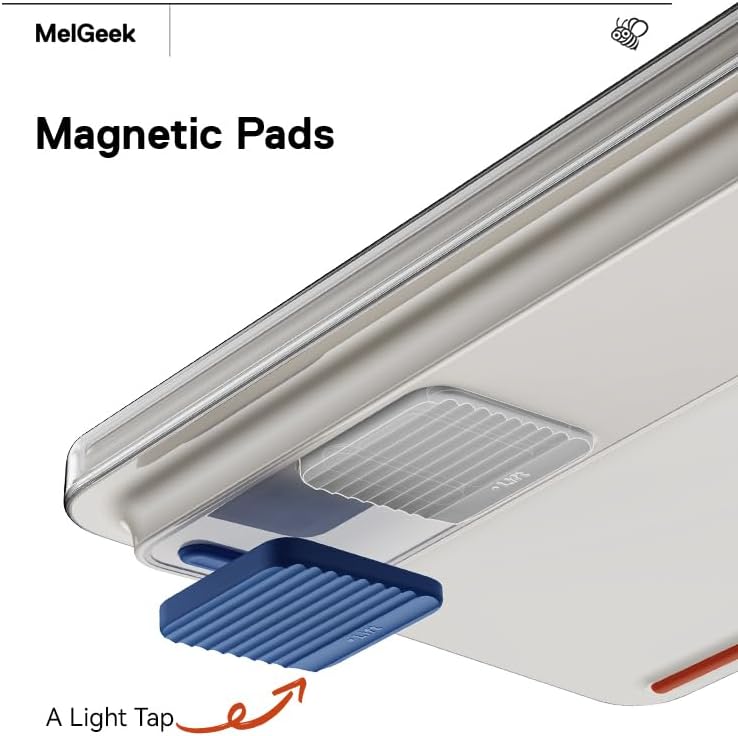
Figure 5: Triple Modes Stable Connection. This image highlights the keyboard's ability to connect via 2.4G, Bluetooth, or USB-C, ensuring stable and reliable performance.
Battery Life and Power Saving
Equipped with a 2500mAh battery, the O2 keyboard offers long-lasting performance. In Bluetooth mode, with 8 hours of daily use, the battery can last up to 13 months on a single charge. A smart sleep mode is included to conserve power when the keyboard is idle.
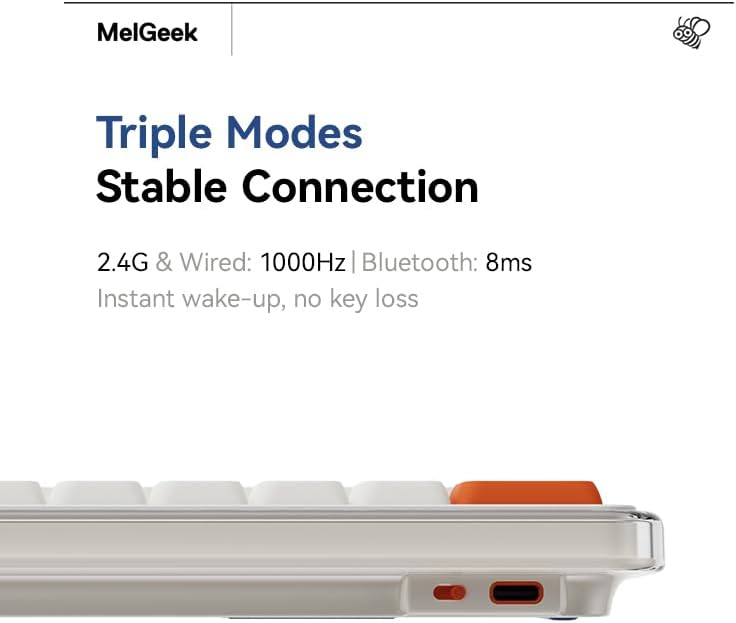
Figure 6: 2500mAh Battery + Ultra-Low Power. This image visually represents the keyboard's internal battery, emphasizing its capacity for extended use.
Mac Native Layout and Shortcuts
The O2 keyboard is designed with a familiar layout, including the same F-key row and pre-mapped Command/Option keys, providing quick and easy access for Mac users. The ESC key is true-to-size and true-to-place, ensuring a seamless transition from native Mac keyboards.

Figure 7: Native F-Key Design for MAC. This image compares the O2 keyboard's F-key row with a standard Mac keyboard, highlighting its native compatibility.
Custom Backlight & Programmable Shortcuts
The keyboard features RGB backlighting, allowing for per-key lighting customization. Utilize the MelGeek in-house driver software to personalize key functions and create custom shortcuts, enhancing your workflow and gaming experience.

Figure 8: Custom Backlight & Shortcuts. This image shows the keyboard connected to a monitor displaying the MelGeek software interface for customizing lighting and shortcuts.
Key Features
Kailh Sunlight Switches
The MelGeek O2 is equipped with custom Kailh Sunlight Switches. These pre-lubed linear switches provide a smooth 45g actuation, resulting in a quieter typing experience compared to traditional mechanical switches. The transparent shell allows for brilliant lighting effects.

Figure 9: Kailh Sunlight Switch. This close-up image shows a single Kailh Sunlight switch, highlighting its transparent design and internal components.
Video 2: MelGeek O2 Typing Test. This video provides an audio demonstration of the keyboard's typing sound, showcasing the quiet nature of the Kailh Sunlight switches.
Enhanced Typing Experience
The keyboard features durable PBT keycaps that are resistant to sweat and oil stains, providing a more contoured feel for smoother typing. The internal structure includes a gasket mount and 5-layer dampening, contributing to the quiet acoustics and comfortable typing feel, suitable for various environments.