Introduction
This manual provides detailed instructions for the setup, operation, and maintenance of your Dntum Multifunctional Digital LCD Weather Clock. Please read this manual thoroughly before using the device to ensure proper function and longevity. This device is designed to display time, date, temperature, humidity, and a basic weather forecast.
Product Features
- Large LCD display for clear viewing of weather forecast, time, calendar, week, temperature, and humidity.
- Three control buttons: MOD, °C/°F, and MAX/MIN.
- MOD button for time setting, date setting, calendar setting, and alarm clock function control.
- °C/°F button for unit conversion between Celsius (°C) and Fahrenheit (°F).
- MAX/MIN button to display maximum and minimum recorded temperature and humidity.
Package Contents
Please check the package for the following items:
- 1 x Dntum Multifunctional Digital LCD Weather Clock
- 1 x User Manual (This document)
- 1 x USB Charging Cable (assumed)
Setup
Powering On
The device is equipped with a rechargeable battery. Before initial use, ensure the device is fully charged. Connect the provided USB cable to the charging port on the device and a standard USB power adapter (not included). The charging indicator will show the charging status.
Placement
For accurate temperature and humidity readings, place the weather clock in a stable location away from direct sunlight, heat sources, air conditioning vents, or strong drafts. The device can be placed on a flat surface using its integrated kickstand or mounted on a wall using the keyhole slot.
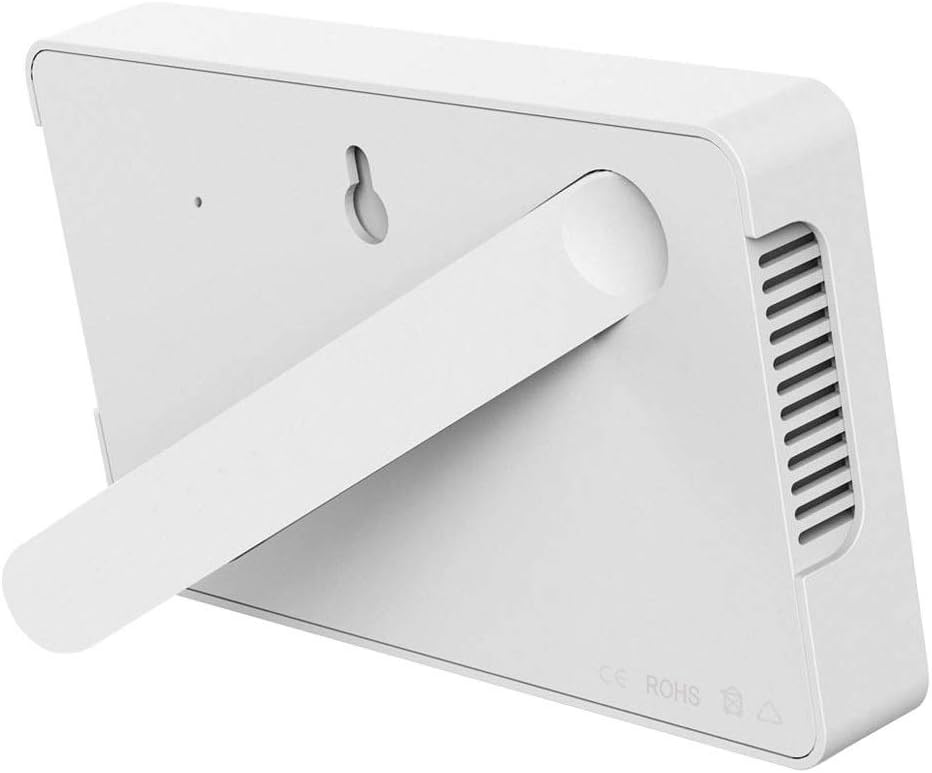
Image: Back view of the Dntum weather clock, illustrating the foldable kickstand for desk placement and a keyhole slot for wall mounting. This allows for versatile placement options.

Image: The Dntum weather clock displayed in two common placements: resting on a side table in a living room setting and securely mounted on a wall, demonstrating its adaptability to different home environments.
Operating Instructions
Button Functions
The device features three primary control buttons located below the display:
- MOD Button: Used for entering setting modes (time, date, calendar) and controlling the alarm function.
- °C/°F Button: Toggles the temperature display between Celsius (°C) and Fahrenheit (°F).
- MAX/MIN Button: Displays the maximum and minimum recorded temperature and humidity. This button also serves as an adjustment button in setting modes.

Image: Front view of the Dntum weather clock, highlighting the large LCD screen displaying time, date, temperature, humidity, and weather forecast icons. The three control buttons (C/F, Up arrow, Menu icon) are visible at the bottom.
Setting Time and Date
- Press and hold the MOD button for approximately 3 seconds to enter time setting mode. The hour digits will flash.
- Press the MAX/MIN button to adjust the hour.
- Press MOD again to move to minute setting. Use the MAX/MIN button to adjust minutes.
- Continue pressing MOD to cycle through year, month, and day settings, adjusting each with the MAX/MIN button.
- Press MOD one last time to exit setting mode, or wait for 10 seconds for it to automatically exit.
Alarm Clock Function
- To activate or deactivate the alarm, short press the MOD button repeatedly until the alarm icon appears or disappears on the display.
- To set the alarm time, press and hold the MOD button until the alarm time digits flash (this typically occurs after cycling through date settings). Adjust the alarm hour and minute using the MAX/MIN button, pressing MOD to confirm each segment.
Temperature and Humidity Display
The device continuously monitors and displays the current temperature and humidity.
- Press the °C/°F button to switch between Celsius and Fahrenheit units.
- Press the MAX/MIN button once to view the maximum recorded temperature and humidity.
- Press the MAX/MIN button again to view the minimum recorded temperature and humidity.
- To clear the MAX/MIN records, press and hold both the MOD and °C/°F buttons simultaneously for 3 seconds while MAX/MIN data is displayed.

Image: The Dntum weather clock screen showing current temperature and humidity. Text overlays indicate the temperature range of -10 to 65°C with ±1°C accuracy, and humidity range of 10-99% with ±5% accuracy.
Weather Forecast

Image: The Dntum weather clock's display showing different weather forecast icons, including sunny, partly cloudy, and rainy conditions, indicating its predictive capability.
The weather clock provides a basic weather forecast based on changes in atmospheric pressure. The icons displayed (e.g., sunny, cloudy, rainy) are indicative of general weather trends and should not be considered a precise forecast. The accuracy of the forecast may vary depending on local atmospheric conditions.
Maintenance
Cleaning
Wipe the device with a soft, dry cloth. Do not use abrasive cleaners, chemical solvents, or corrosive detergents, as they may damage the display or casing of the device.
Battery Care
The device uses a rechargeable battery. If the battery indicator shows low power, recharge the device promptly using the provided USB cable. Avoid exposing the device to extreme temperatures (hot or cold), which can significantly affect battery life and performance. Do not attempt to replace the internal battery yourself.
Troubleshooting
- No Display / Device Not Turning On: Ensure the device is fully charged. Connect it to a USB power source and allow it to charge for at least 30 minutes before attempting to power it on again.
- Incorrect Time/Date: Refer to the "Setting Time and Date" section in this manual to re-adjust the settings.
- Inaccurate Temperature/Humidity Readings: Ensure the device is placed in a suitable location, away from direct heat, cold, or drafts. Allow some time (e.g., 15-30 minutes) for the readings to stabilize after initial placement or movement.
- Buttons Not Responding: Try a soft reset by fully discharging and then recharging the device. If the issue persists, contact customer support.
Specifications
| Parameter | Value |
|---|---|
| Material | ABS |
| Power Source | Rechargeable Electronic Thermometer and Hygrometer |
| Temperature Measurement Cycle | 2 seconds |
| Temperature Measurement Range | -10°C to 65°C |
| Humidity Measurement Range | 20% to 99% |
| Temperature Error Range | ±1°C |
| Humidity Error Range | ±5% |
Warranty and Support
For warranty information or technical support, please refer to the contact details provided with your purchase or visit the official Dntum website. Keep your purchase receipt as proof of purchase for any warranty claims.


