
Introduction
This manual provides detailed instructions for the installation, operation, and maintenance of your Geeni Hawk 2 Outdoor Security Camera. The Hawk 2 is a 2K weatherproof Wi-Fi camera designed for outdoor surveillance, offering features such as night vision, motion detection, and two-way audio. Please read this manual thoroughly before using the product to ensure proper setup and functionality.
Product Overview
Key Features
- 2K Ultra HD Video: Provides sharp and detailed live video and recordings.
- Weatherproof Design: IP65 certified for reliable performance in various weather conditions.
- Motion Detection & Real-Time Alerts: Sends instant notifications to your smartphone upon detecting movement.
- Enhanced Night Vision: Captures clear footage in total darkness for 24/7 monitoring.
- Two-Way Audio: Built-in microphone and speakerphone for clear communication.
- Voice Control: Compatible with Amazon Alexa and Google Assistant for hands-free operation.
- Remote Access: Control and view live streams from anywhere using the Geeni app.
- microSD Slot: Supports local storage for recorded footage.

Image: Key features of the Geeni Hawk 2 camera, including 2K resolution, motion detection, two-way audio, and night vision.
What's in the Box
The product package typically includes the Geeni Hawk 2 Outdoor Security Camera, a power adapter, mounting screws, and a quick start guide. Please check your packaging for a complete list of contents.
Setup
1. Download the Geeni App
Search for and download the 'Geeni' app from the Apple App Store or Google Play Store. Create an account or log in if you already have one.
2. Power On the Camera
Connect the camera to a power source using the provided power adapter. Wait for the camera's indicator light to flash, indicating it is ready for pairing.
3. Add Device in Geeni App
Open the Geeni app, tap '+' to add a new device, and select 'Security Camera'. Follow the on-screen instructions to connect the camera to your 2.4GHz Wi-Fi network. Ensure your Wi-Fi network is 2.4GHz, as 5GHz networks are not supported.
4. Mounting the Camera
Choose a suitable outdoor location for mounting the camera, ensuring it has a clear view and is within Wi-Fi range. Use the provided mounting screws to securely attach the camera to a wall or ceiling. Adjust the camera angle as needed for optimal surveillance coverage.
Operating Instructions
Live View
Once connected, open the Geeni app and select your Hawk 2 camera to view the live feed. The app provides a 2K resolution live stream for sharp and detailed monitoring.

Image: A smartphone screen showing a 2K live stream from the camera.
Motion Detection & Alerts
The camera features advanced motion detection. To enable or adjust settings, navigate to the camera settings within the Geeni app. You will receive instant notifications on your phone when motion is detected.

Image: A smartphone showing a motion detection alert from the Geeni Hawk 2 camera.
Two-Way Audio
Use the two-way audio feature to communicate with visitors or deter intruders. Tap the microphone icon in the live view within the Geeni app to speak, and listen through the camera's speaker.
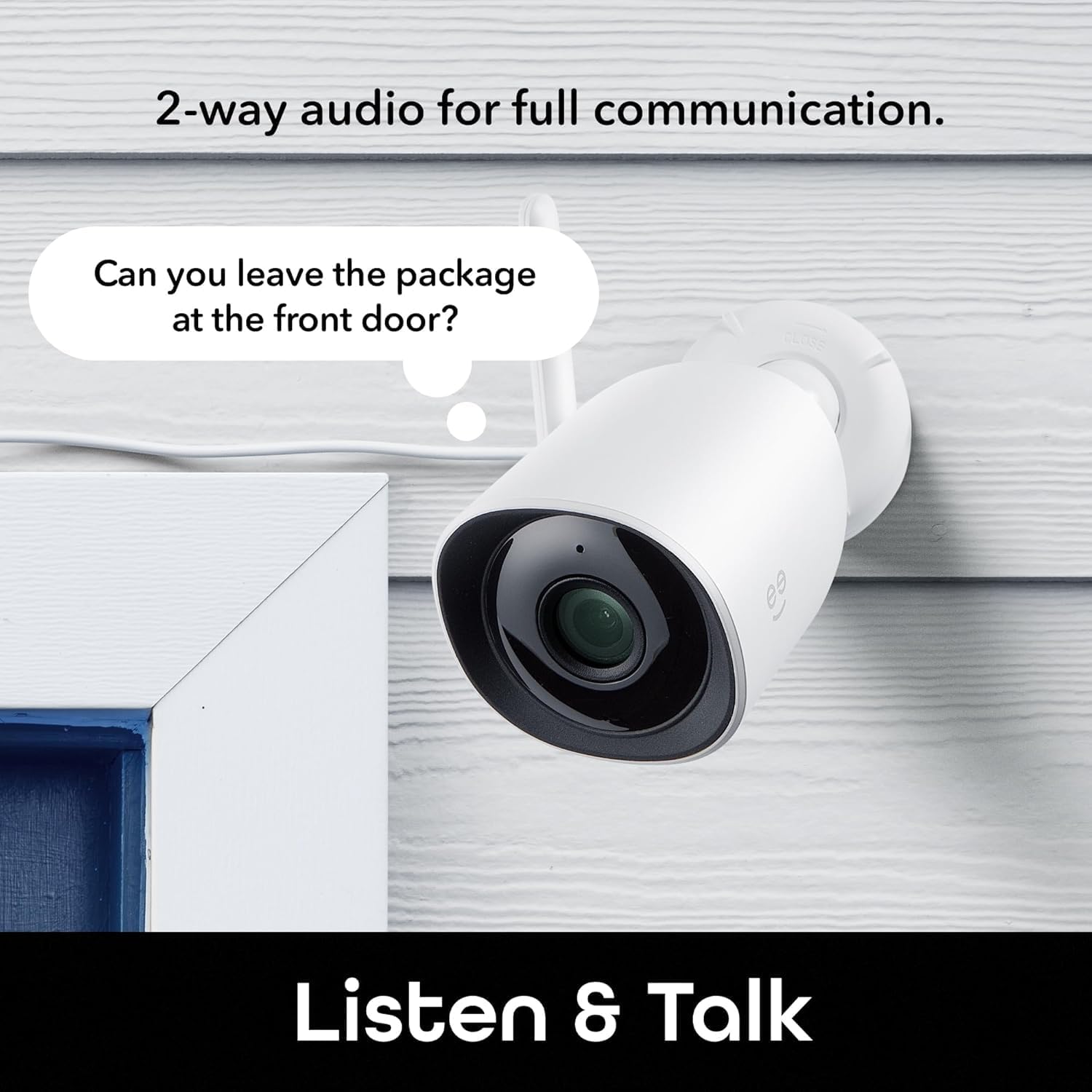
Image: The Geeni Hawk 2 camera demonstrating its two-way audio capability.
Night Vision
The camera automatically switches to night vision mode in low-light conditions, providing clear black-and-white footage. No manual adjustment is typically required.

Image: The Geeni Hawk 2 camera providing crisp night vision surveillance.
Voice Control
Integrate your Geeni Hawk 2 camera with Amazon Alexa or Google Assistant for voice commands. Follow the instructions in the Geeni app to link your accounts. You can then use commands like "Alexa, show me the outdoor camera."

Image: A tablet showing the camera feed, demonstrating voice control compatibility with Alexa and Google Assistant.
Remote Access
Access your camera's live feed and settings from any smartphone, desktop, or tablet browser using the Geeni app, providing total control and peace of mind from anywhere.

Image: A laptop screen showing multiple camera views accessible through the Geeni app.
Recording and Storage
The camera supports local storage via a microSD card (not included). Insert a microSD card into the designated slot to record footage. Cloud storage options may also be available through the Geeni app, requiring a subscription.
Maintenance
- Cleaning: Regularly wipe the camera lens with a soft, dry cloth to ensure clear image quality. Avoid using harsh chemicals.
- Firmware Updates: Keep your camera's firmware updated through the Geeni app to ensure optimal performance and access to new features.
- Connection Check: Periodically check all cable connections and ensure the camera is securely mounted.
Troubleshooting
| Issue | Possible Solution |
|---|---|
| Camera not connecting to Wi-Fi | Ensure your Wi-Fi is 2.4GHz. Check Wi-Fi signal strength at the camera's location. Restart your router and the camera. |
| No live video feed | Verify the camera is powered on and connected to Wi-Fi. Check your internet connection. Restart the Geeni app. |
| Motion detection not working | Check motion detection settings in the Geeni app. Ensure the camera's view is not obstructed. Adjust sensitivity if needed. |
| Night vision unclear | Clean the camera lens. Ensure there are no obstructions directly in front of the camera that could reflect infrared light. |
| Two-way audio issues | Check volume settings on your phone and in the app. Ensure there is no excessive background noise. |
Specifications
- Model Number: GNC-CW069-199
- Video Resolution: 2K Ultra HD
- Connectivity: Wi-Fi (2.4GHz only)
- Weather Resistance: IP65 Certified
- Night Vision: Yes
- Audio: Two-Way Audio (Built-in Mic & Speaker)
- Storage: microSD Card Slot (up to 128GB, card not included), Cloud Storage (subscription required)
- Voice Assistant Compatibility: Amazon Alexa, Google Assistant
- Dimensions: 6.7 x 6 x 12.8 centimetres
- Weight: 200 g
- Color: White
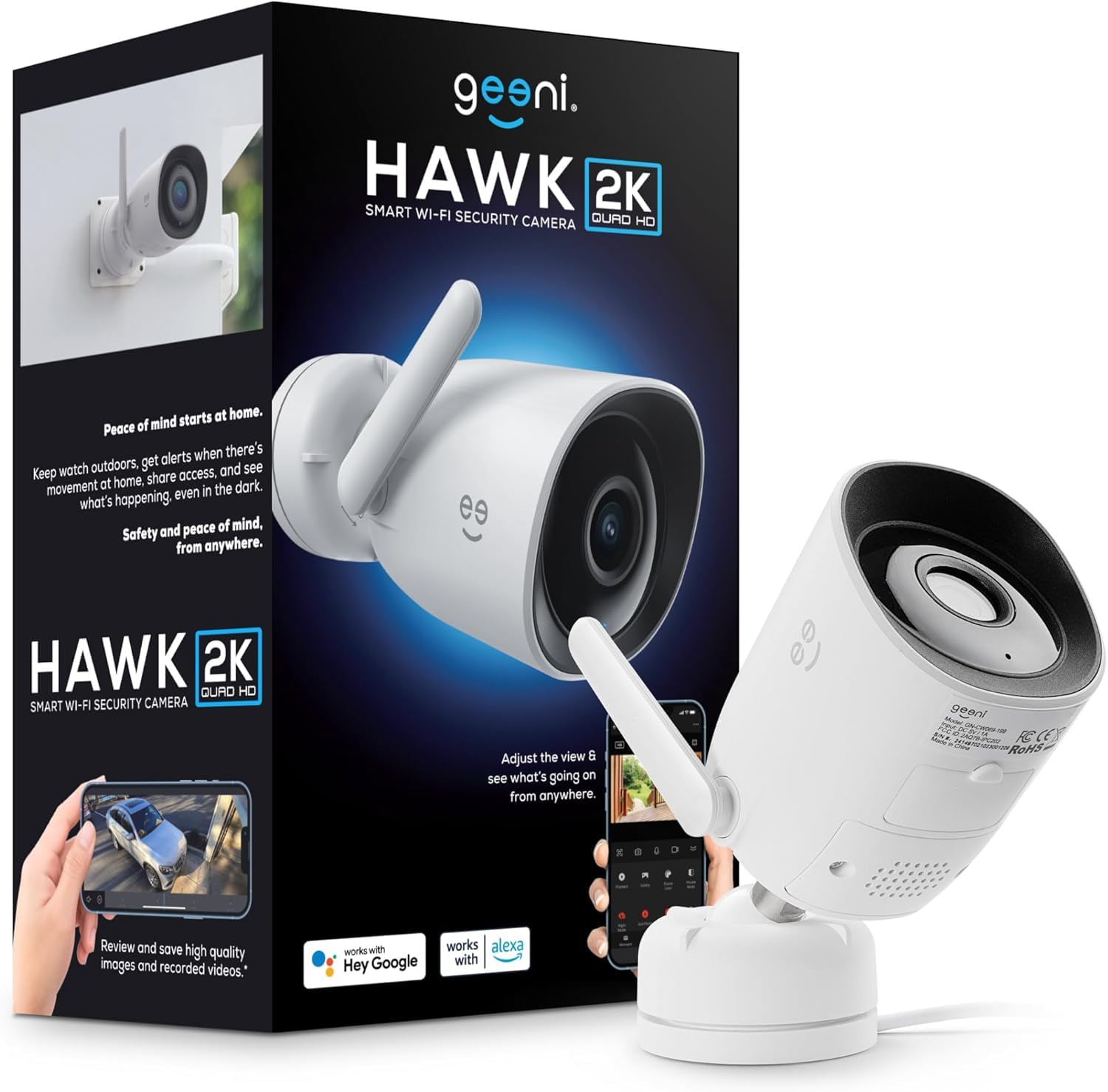
Image: The Geeni Hawk 2 Outdoor Security Camera.
Warranty and Support
For warranty information and technical support, please refer to the documentation included with your product or visit the official Geeni website. You can also contact Geeni customer service through the Geeni app or their support channels for assistance with any issues or questions.


