
1. Introduction
This manual provides detailed instructions for the installation, operation, and maintenance of your GIGABYTE B850 EAGLE WIFI7 ICE Motherboard. Please read this manual thoroughly before installing or using your motherboard to ensure correct setup and optimal performance. Keep this manual for future reference.
Safety Information
- Always disconnect the power cord from the wall outlet before touching any internal components.
- Wear an anti-static wrist strap when handling components to prevent electrostatic discharge (ESD) damage.
- Ensure proper ventilation within your PC case to prevent overheating.
- Do not expose the motherboard to moisture or extreme temperatures.
2. Product Overview
The GIGABYTE B850 EAGLE WIFI7 ICE Motherboard is designed to deliver high performance and reliability for AMD Ryzen 9000/8000/7000 Series Processors. It features advanced power delivery, high-speed connectivity, and user-friendly installation features.

Figure 2.1: GIGABYTE B850 EAGLE WIFI7 ICE Motherboard and its retail packaging.
Key Features
- AMD Socket AM5: Supports AMD Ryzen 9000/8000/7000 Series Processors.
- Digital 8+2+2 Phase VRM Solution: Ensures stable power delivery for optimal performance.
- Dual Channel DDR5: 4x DIMMs with AMD EXPO Memory Module Support, up to 8200MT/s (OC).
- Ultra-Fast Storage: 3 x M.2 slots, including PCIe 5.0 x4 for high-speed SSDs.
- WIFI EZ Plug: Quick and easy design for Wi-Fi antenna installation.
- EZ-Latch Plus: PCIe and M.2 slots with quick release and screwless design for convenient installation.
- EZ-Latch Click: M.2 Heatsinks with Screwless Design for easy access.
- X3D Turbo Mode: Enhances gaming performance.
- Friendly User Interface: Multi-theme, AIO fan control, and Q-Flash auto scanning in BIOS and software.

Figure 2.2: Top-down view of the motherboard, highlighting the CPU socket, DIMM slots, and M.2 slots.
3. Package Contents
Verify that all items listed below are included in your motherboard package. If any item is missing or damaged, please contact your retailer.
- GIGABYTE B850 EAGLE WIFI7 ICE Motherboard
- User Manual / Quick Installation Guide
- SATA Data Cables
- Wi-Fi Antenna
- M.2 Screws / Standoffs
- Driver CD / USB Drive (or download instructions)
4. Setup Guide
Follow these steps carefully to install your motherboard and its components.
4.1. Before You Begin
- Prepare your PC case and ensure it supports the ATX form factor.
- Gather necessary tools: Phillips head screwdriver, anti-static wrist strap.
- Ensure you have a compatible CPU, DDR5 RAM, M.2 SSDs, and a power supply unit (PSU).
4.2. CPU Installation
- Locate the AM5 CPU socket on the motherboard.
- Lift the CPU socket lever.
- Carefully align the triangular mark on the CPU with the mark on the socket.
- Gently place the CPU into the socket without forcing it.
- Lower the CPU socket lever until it clicks into place, securing the CPU.
- Install your CPU cooler according to its manufacturer's instructions.
4.3. Memory (RAM) Installation
- Locate the four DDR5 DIMM slots. Refer to your motherboard's specific manual for preferred slot population order (usually A2/B2 for two modules).
- Open the clips at both ends of the DIMM slot.
- Align the notch on the DDR5 memory module with the key in the DIMM slot.
- Press down firmly on both ends of the memory module until the clips snap into place.
4.4. M.2 SSD Installation
- Identify the M.2 slots on the motherboard. The B850 EAGLE WIFI7 ICE has three M.2 slots.
- Remove the M.2 heatsink cover (if present) by utilizing the EZ-Latch Click screwless design.
- Insert the M.2 SSD into the slot at a slight angle.
- Push the SSD down and secure it with the EZ-Latch Plus mechanism or a screw.
- Reattach the M.2 heatsink cover.
4.5. Graphics Card (PCIe) Installation
- Locate the PCIe 5.0 x16 slot (usually the top-most reinforced slot).
- Remove the corresponding expansion slot cover from your PC case.
- Open the retention clip at the end of the PCIe slot (if applicable, using EZ-Latch Plus).
- Align your graphics card with the slot and press down firmly until it is fully seated and the retention clip snaps into place.
- Secure the graphics card to the case with screws.
4.6. Power Connections
- Connect the 24-pin ATX main power connector from your PSU to the motherboard.
- Connect the 8-pin (or 4+4-pin) ATX 12V CPU power connector(s) to the motherboard.
- Connect any necessary PCIe power cables from your PSU to your graphics card.
4.7. Front Panel Connections
- Connect the front panel USB, audio, and power/reset/LED headers to their respective pins on the motherboard. Refer to the motherboard diagram for correct pin assignments.
- Install the Wi-Fi antenna to the rear I/O panel using the WIFI EZ Plug design.

Figure 4.1: Angled view of the motherboard, showing various headers and expansion slots.
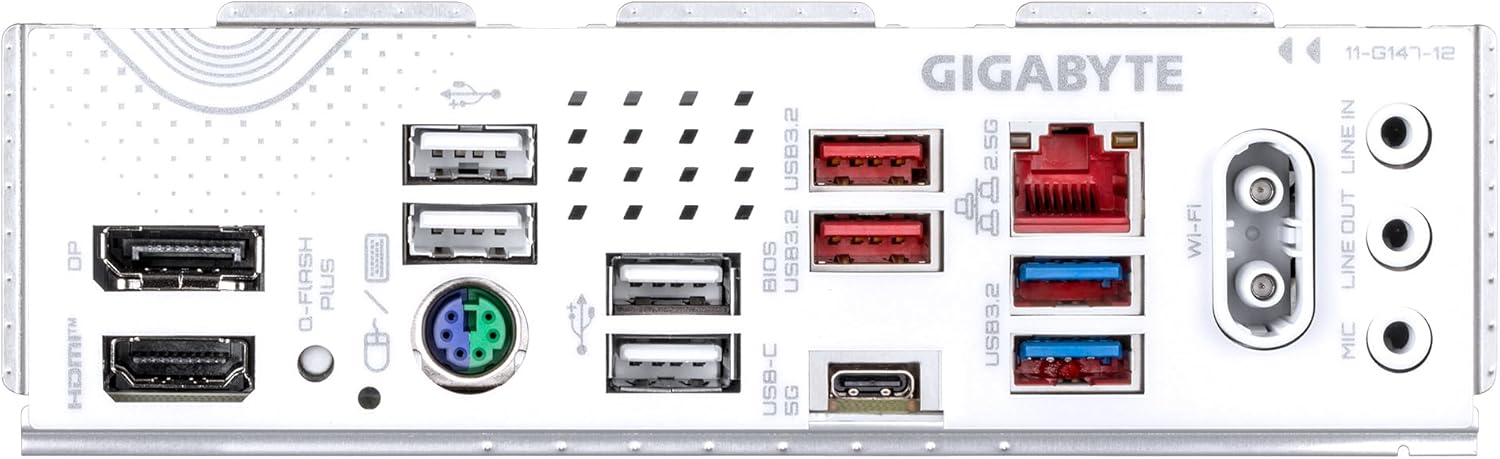
Figure 4.2: Rear I/O panel, showing USB ports, LAN, Wi-Fi antenna connectors, and audio jacks.
5. Operating Instructions
5.1. Initial Boot and BIOS Setup
- After assembling your PC, connect a monitor, keyboard, and mouse.
- Power on your system. Press the DEL key repeatedly during startup to enter the BIOS/UEFI setup utility.
- In the BIOS, you can configure boot order, enable/disable features, set memory profiles (AMD EXPO), and monitor system status.
- Save your changes and exit the BIOS to boot into your operating system installation media.
5.2. Driver Installation
After installing your operating system (e.g., Windows 11), install the necessary drivers for your motherboard components.
- Insert the provided driver CD/USB drive or download the latest drivers from the official GIGABYTE website (www.gigabyte.com).
- Install chipset drivers, LAN drivers, Wi-Fi drivers, audio drivers, and any other relevant utility drivers.
5.3. Software Utilities
GIGABYTE provides various software utilities to enhance your system's functionality and performance. These can be downloaded from the GIGABYTE website.
- GIGABYTE Control Center (GCC): For system monitoring, fan control, RGB lighting customization, and more.
- BIOS Update Utility: For updating the motherboard BIOS from within the operating system.
6. Maintenance
6.1. Cleaning
- Regularly clean dust from your PC case and motherboard components using compressed air.
- Ensure the system is powered off and unplugged before cleaning.
- Avoid using liquid cleaners directly on components.
6.2. BIOS Updates
Updating your BIOS can improve system stability, compatibility, and performance. Always download BIOS updates from the official GIGABYTE website.
- Use the Q-Flash utility within the BIOS or the GIGABYTE BIOS Update Utility in Windows.
- Follow the instructions carefully to avoid damaging the motherboard. Do not interrupt the update process.
7. Troubleshooting
This section addresses common issues you might encounter.
| Problem | Possible Cause | Solution |
|---|---|---|
| System does not power on. | Loose power cables, faulty PSU, incorrect front panel connections. | Check 24-pin ATX and 8-pin CPU power connections. Verify front panel power switch connection. Test PSU. |
| No display on monitor. | Graphics card not seated correctly, monitor cable loose, faulty RAM. | Reseat graphics card and RAM. Check monitor cable connections. Test with a different monitor or graphics card if possible. |
| System reboots unexpectedly. | Overheating, unstable power, faulty RAM, driver issues. | Ensure proper cooling. Check PSU. Test RAM modules individually. Update drivers. |
| Wi-Fi/LAN not working. | Missing drivers, antenna not connected, disabled in BIOS. | Install/update Wi-Fi/LAN drivers. Ensure Wi-Fi antenna is securely connected. Check BIOS settings. |
| M.2 SSD not detected. | Incorrect installation, BIOS settings, incompatible drive. | Reseat M.2 SSD. Check BIOS for M.2 slot configuration. Ensure drive is compatible. |
8. Technical Specifications
Below are the detailed specifications for the GIGABYTE B850 EAGLE WIFI7 ICE Motherboard.
| Feature | Specification |
|---|---|
| Brand | GIGABYTE |
| Model Name | B850 EAGLE WF7 ICE |
| CPU Socket | Socket AM5 |
| Compatible Processors | AMD Ryzen 7000 Series, AMD Ryzen 8000 Series, AMD Ryzen 9000 Series |
| Chipset Type | AMD 600 Series |
| RAM Memory Technology | DDR5 |
| Memory Clock Speed | 8200 MHz (OC) |
| Memory Storage Capacity (Max) | 256 GB |
| Product Dimensions | 9.61 x 12.01 x 1.38 inches |
| Item Weight | 2.2 pounds |
| Platform | Windows 11 |
| Manufacturer | Gigabyte |
| Date First Available | April 28, 2025 |
9. Warranty and Support
GIGABYTE motherboards come with a limited warranty. The specific terms and duration of your warranty may vary by region and retailer. Please retain your proof of purchase for warranty claims.
Customer Support
For technical support, driver downloads, BIOS updates, and further information, please visit the official GIGABYTE website:
You can also contact GIGABYTE customer service directly through their website for assistance with product-related inquiries.


