
1. Introduction
Welcome to your Garmin VIVOACTIVE 6 Smartwatch user manual. This guide provides essential information to help you set up, operate, maintain, and troubleshoot your device. The VIVOACTIVE 6 is a health and fitness GPS smartwatch designed to monitor your well-being and enhance your active lifestyle.
What's in the Box
- Garmin VIVOACTIVE 6 Smartwatch
- USB-C Charging/Data Cable
- Documentation (Quick Start Guide, Safety and Product Information)

Figure 1: Garmin VIVOACTIVE 6 Smartwatch (Black)
2. Setup
2.1 Initial Charging
Before first use, fully charge your VIVOACTIVE 6 smartwatch. Connect the USB-C charging/data cable to the charging port on the back of the watch and plug the other end into a USB power adapter or a computer's USB port. The watch display will indicate charging status.
2.2 Pairing with Your Smartphone
To unlock the full potential of your VIVOACTIVE 6, pair it with the Garmin Connect app on your smartphone.
- Download the Garmin Connect app from your smartphone's app store (App Store for iOS, Google Play Store for Android).
- Ensure your smartphone's Bluetooth is enabled.
- Open the Garmin Connect app and follow the on-screen instructions to create an account or log in.
- From the app, select Garmin Devices > Add Device and follow the prompts to pair your VIVOACTIVE 6.
- On your watch, navigate to the settings menu and select Pair Phone if prompted.
- Confirm the pairing code displayed on both your watch and phone.

Figure 2: Garmin Connect App Interface
3. Operating Your VIVOACTIVE 6
3.1 Basic Navigation
The VIVOACTIVE 6 features a bright AMOLED touchscreen display and physical buttons for navigation.
- Touchscreen: Swipe up/down to scroll through widgets and notifications. Swipe left/right to access shortcuts or specific data screens. Tap to select items.
- Buttons: Typically, one or more physical buttons control power, activity start/stop, and menu access. Refer to the quick start guide for specific button functions.
3.2 Key Features
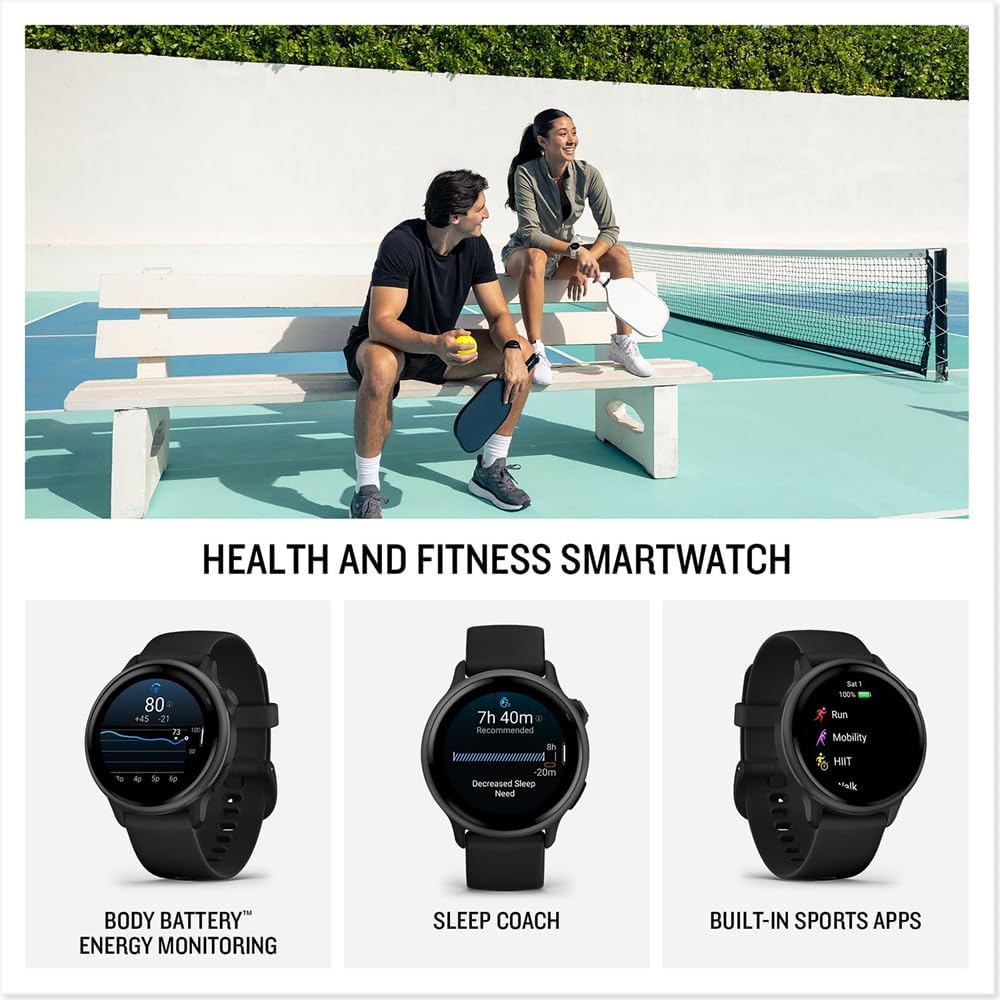
Figure 3: Health and Fitness Tracking Features
Body Battery Energy Monitoring
Your VIVOACTIVE 6 continuously monitors your energy levels throughout the day. This feature helps you understand when your body is charged and ready for activity or when it needs rest. Access this data on your watch or in the Garmin Connect app for detailed insights into how sleep, naps, daily activities, and stress impact your energy.
Sleep Coach
Receive a personalized sleep score and coaching based on your sleep patterns. The watch tracks different sleep stages, naps, and key metrics like HRV status to help you improve your sleep quality and overall health.
Built-in Sports Apps
Track over 80 preloaded GPS and indoor sports activities, including walking, running, cycling, pool swimming, and activities tailored for wheelchair users. Select an activity from the watch menu to start tracking.
Workout Options
The Garmin Connect app offers a variety of workouts, from daily suggested walking workouts to step-by-step guides for strength, HIIT, yoga, Pilates, and mobility. Download these workouts directly to your smartwatch for guided exercise.
Health and Wellness Tracking
The VIVOACTIVE 6 provides continuous health monitoring:
- Wrist-based Heart Rate: Monitors your heart rate all day and night.
- HRV Status: Gain deeper understanding of your overall health through heart rate variability during sleep.
- Pulse Ox Sensor: Tracks blood oxygen saturation while awake or asleep.
- Women's Health Tracking: Monitor menstrual cycle or pregnancy, with access to exercise and nutrition education.
- Stress Tracking: Identifies periods of calm, balanced, or high stress.
- Meditation & Mindful Breathing: Guided practices to help reduce stress.
- Hydration Tracking: Log daily fluid intake.
- Respiration Tracking: See breathing patterns throughout the day and night.
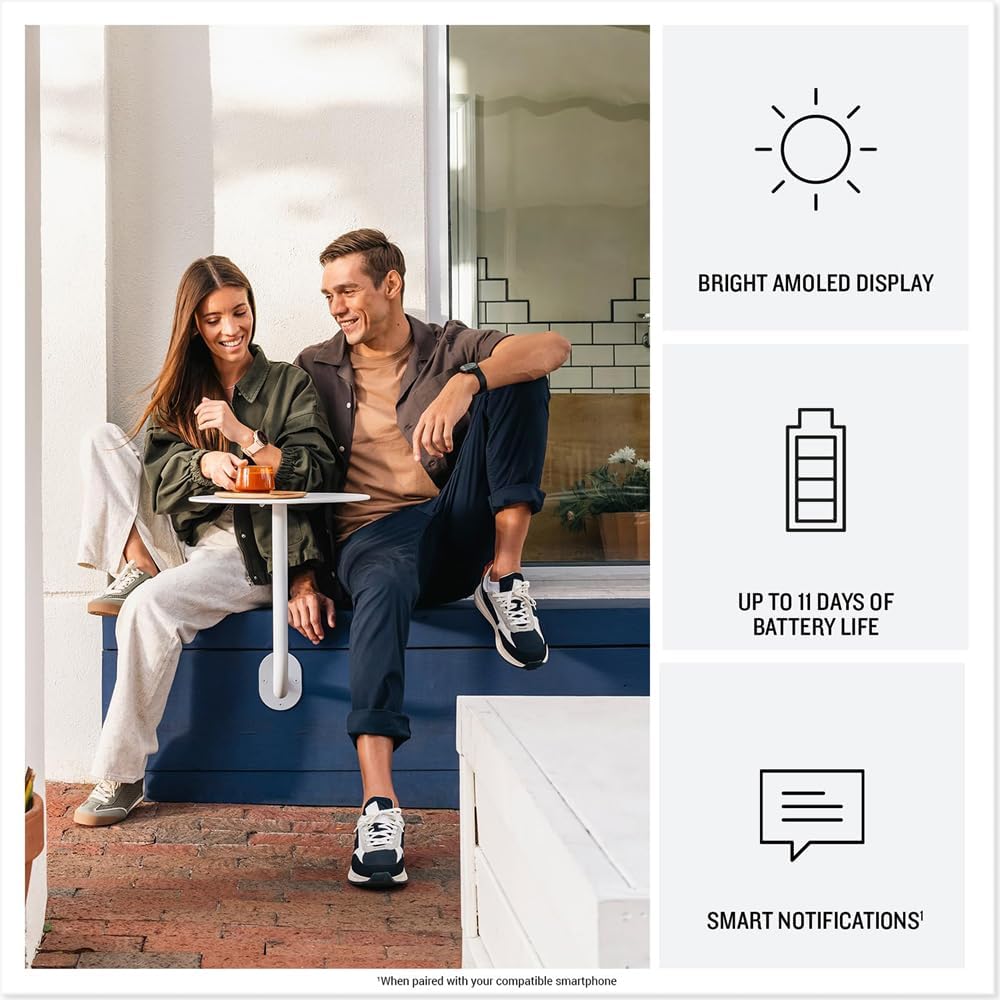
Figure 4: Display, Battery, and Notification Features
Smart Notifications and Texting
Receive emails, texts, and alerts directly on your watch when paired with your iPhone or Android smartphone. Android users can respond to texts using the on-watch keyboard and view photos sent to them.
Garmin Pay Contactless Payments
Make secure payments directly from your wrist. Set up Garmin Pay in the Garmin Connect app with participating banks and breeze through checkout lines or transit systems.
Music Storage
Download songs and playlists from compatible streaming services like Spotify, Deezer, or Amazon Music (subscription may be required) for phone-free listening with Bluetooth headphones.

Figure 5: Connectivity and Safety Features
Safety and Tracking Features
If your watch detects an incident, it can send a message with your live location to pre-selected emergency contacts. You can also manually trigger an assistance alert if you feel unsafe.
4. Maintenance
4.1 Device Care
- Avoid extreme shock and harsh treatment.
- Do not use sharp objects to clean the device.
- Avoid chemical cleaners, solvents, and insect repellents that can damage plastic components and finishes.
- Rinse the device thoroughly with fresh water after exposure to chlorine, salt water, sunscreen, cosmetics, alcohol, or other harsh chemicals. Prolonged exposure to these substances can damage the casing.
- Store the device in a dry place, away from direct sunlight.
4.2 Cleaning the Device
Regular cleaning helps maintain the appearance and functionality of your VIVOACTIVE 6.
- Watch Casing and Bands: Use a soft, damp cloth to wipe the casing and silicone bands. For stubborn dirt, a mild soap solution can be used, followed by thorough rinsing with fresh water.
- Charging Contacts: Periodically clean the charging contacts on the back of the watch using a cotton swab lightly dampened with rubbing alcohol. Allow to dry completely before charging.
5. Troubleshooting
5.1 Device Not Turning On
If your VIVOACTIVE 6 does not turn on, ensure it is fully charged. Connect it to the charging cable and a power source for at least 30 minutes. If it still doesn't turn on, try performing a soft reset by holding down the power button for 15 seconds.
5.2 GPS Signal Issues
For accurate GPS tracking, ensure you are in an open outdoor area with a clear view of the sky. It may take a few minutes for the watch to acquire a GPS signal, especially after moving to a new location.
5.3 Bluetooth Connection Problems
If your watch is not connecting to your smartphone:
- Ensure Bluetooth is enabled on your smartphone and the watch.
- Make sure the watch is within range of your smartphone (typically 10 meters or 33 feet).
- Restart both your watch and smartphone.
- Try unpairing and re-pairing the device through the Garmin Connect app.
5.4 Inaccurate Heart Rate Data
For best heart rate accuracy, ensure the watch is worn snugly but comfortably above your wrist bone. Clean the sensor regularly. Factors like skin tone, movement, and environmental conditions can affect accuracy.
6. Specifications
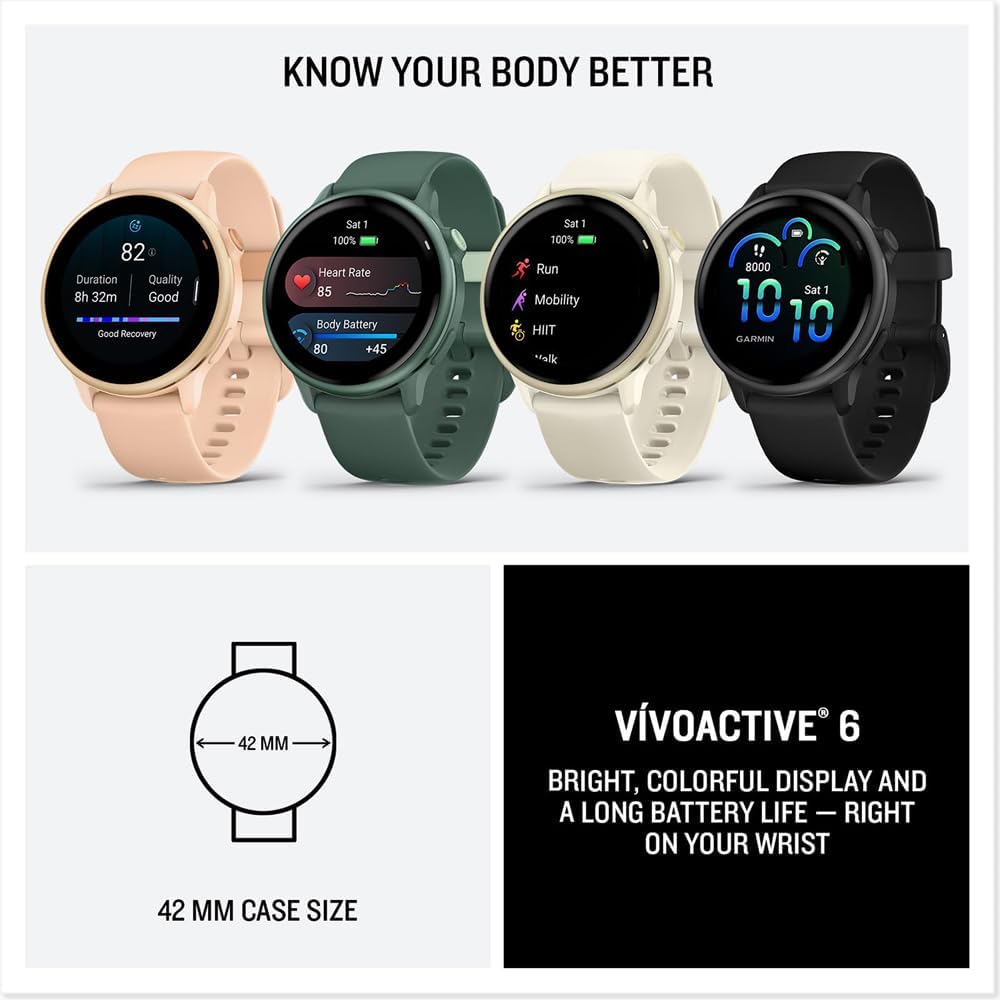
Figure 6: VIVOACTIVE 6 Case Size and Color Options
| Feature | Detail |
|---|---|
| Model Number | E1GRVIVOACTIVE6B |
| Display Type | AMOLED |
| Screen Size | 1.2 Inches (30.4 mm diameter) |
| Case Size | 42 mm |
| Item Weight | 1.28 ounces |
| Battery Life | Up to 11 days (Smartwatch mode) |
| Memory Storage Capacity | 8 GB |
| Operating System | Garmin OS |
| Connectivity Technology | Bluetooth, Wi-Fi |
| GPS | Built-in GPS |
| Water Rating | Swim (5 ATM) |
7. Warranty and Support
7.1 Limited Warranty
Your Garmin VIVOACTIVE 6 Smartwatch comes with a 1-year limited protection plan from the manufacturer, covering defects in materials and workmanship under normal use. Please refer to the documentation included in your product box for full warranty terms and conditions.
7.2 Customer Support
For additional support, frequently asked questions, software updates, or to contact Garmin customer service, please visit the official Garmin support website. You can find detailed product information and troubleshooting guides there.
Garmin Support Website: www.garmin.com/support