
1. Setup and Installation
1.1 Unpacking and Accessories
Carefully remove the television from its packaging. Ensure all components are present:
- Hisense 75-inch 4K UHD Smart Vidaa TV
- Remote Control
- Power Cable
- TV Stand (2 pieces) and Screws
- User Manual (this document)
- Warranty Card
1.2 Stand Installation
To install the TV stand:
- Place the TV screen-down on a soft, clean surface to prevent scratches.
- Align each stand piece with the corresponding slots on the bottom of the TV.
- Secure each stand piece with the provided screws.

Figure 1: Television dimensions and VESA mount details. The TV measures 167.6 cm wide, 96.4 cm high (104.1 cm with stand), and 7.9 cm deep (37.0 cm with stand). VESA wall mount support is 200x300 mm.
1.3 Wall Mounting (Optional)
If wall mounting, use a VESA-compatible bracket (200x300 mm) and follow the bracket manufacturer's instructions. Ensure the wall can support the TV's weight (18.5 kg without stand).
1.4 Connecting Peripherals
The television features various input ports for connecting external devices:
- HDMI: Connect Blu-ray players, game consoles, or set-top boxes. The TV supports 4K@60Hz. One HDMI port supports eARC for enhanced audio return.
- USB (x2): Connect USB flash drives for media playback.
- AV Input: For older devices using composite video and stereo audio.
- ANT/CABLE: Connect an antenna or cable TV signal.
- Digital Audio Out: For connecting soundbars or external audio systems.
- Ethernet: For a wired internet connection.

Figure 2: Rear panel connections for external devices.
1.5 Power Connection
Connect the power cable to the TV's power input and then to a wall outlet. The TV operates on 120 Volts.
2. Operating Instructions
2.1 Remote Control Overview
The included remote control provides access to all TV functions, including voice control and quick access buttons for popular streaming services.

Figure 3: Hisense TV Remote Control. Features quick access buttons for Disney+, YouTube, Prime Video, Netflix, YouTube Kids, Claro-video, and VOD, along with a voice control button.
2.2 Initial Setup and Vidaa TV
Upon first power-on, the TV will guide you through initial setup steps, including language selection, network connection (Wi-Fi or Ethernet), and channel scanning. The TV runs on the Vidaa U operating system, offering a smart TV experience with pre-installed applications.
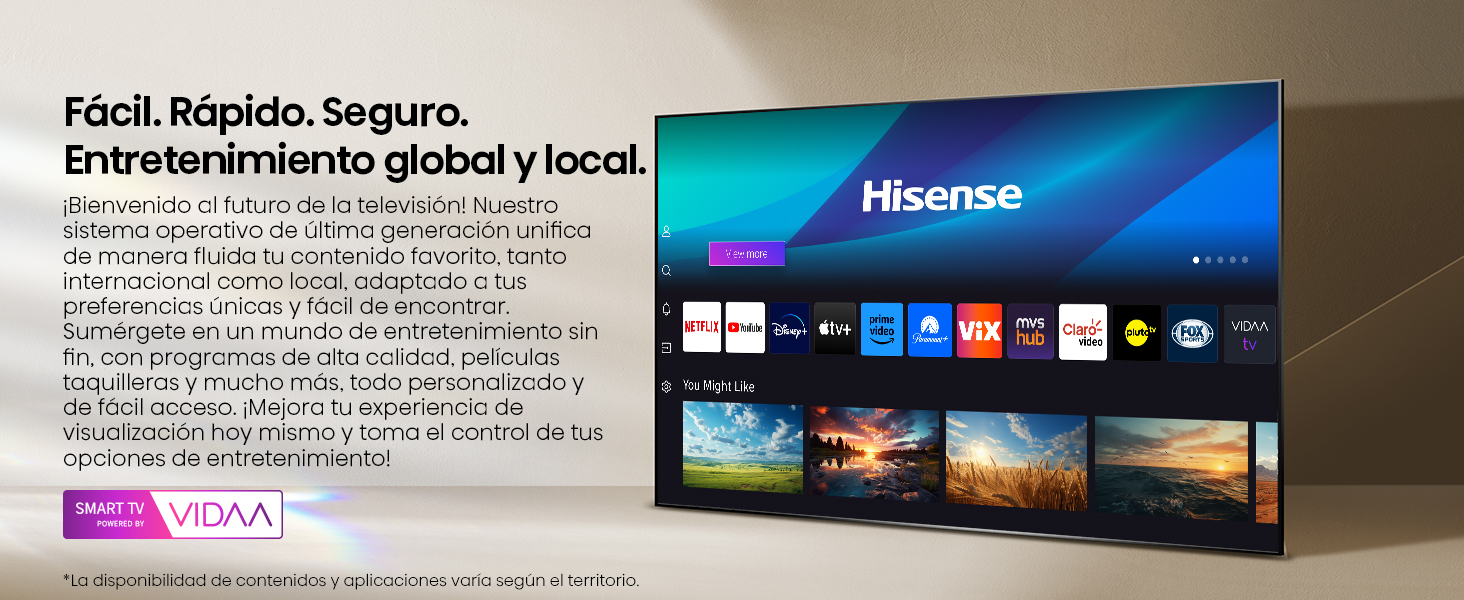
Figure 4: Vidaa Smart TV interface, providing access to global and local entertainment applications.
2.3 Picture and Sound Enhancements
- AI 4K Upscaling: This feature enhances lower-resolution content to near 4K quality, improving clarity and detail across all your viewing.

Figure 5: AI 4K Upscaling in action, transforming lower resolution content.
- AI Smooth Motion: Utilizes MEMC (Motion Estimation, Motion Compensation) and 3D Noise Reduction technologies to ensure dynamic scenes appear natural and fluid, reducing motion blur.
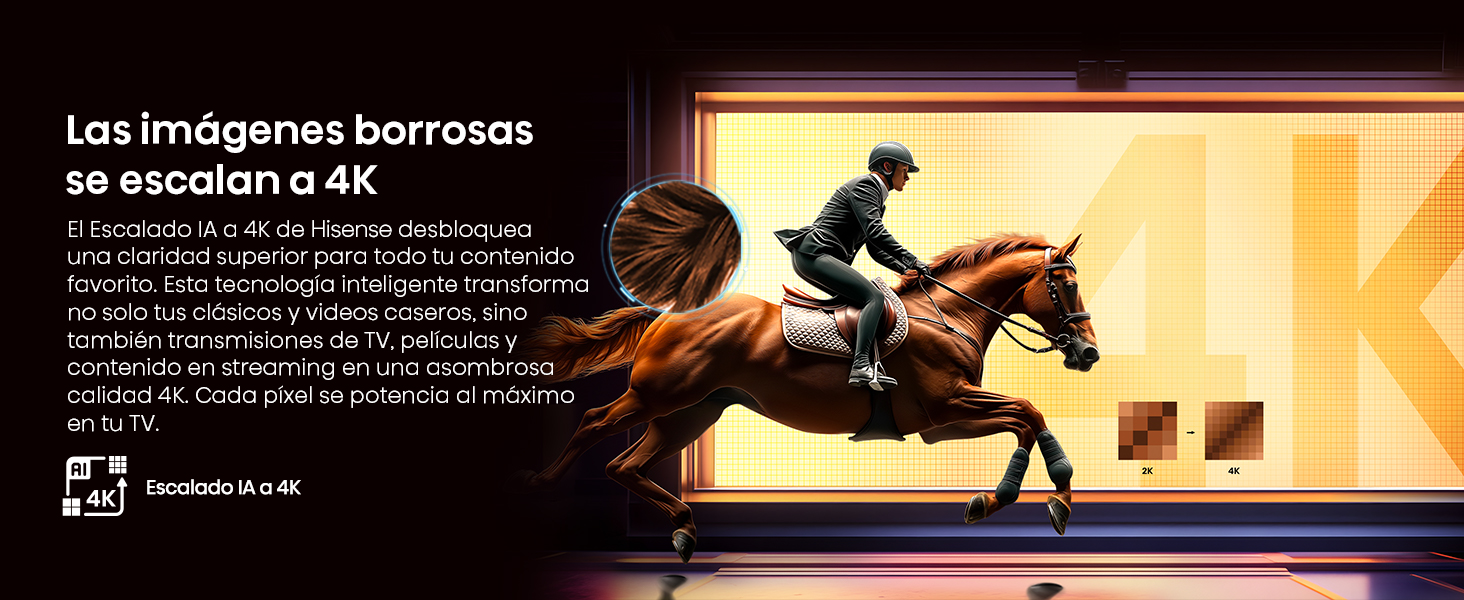
Figure 6: AI Smooth Motion for fluid, blur-free images.
- Dolby Vision: Provides a premium entertainment experience with enhanced brightness, contrast, and color, bringing content to life with greater detail.

Figure 7: Experience enhanced visuals with Dolby Vision.
- DTS Virtual:X: Delivers immersive audio without external speakers, simulating omnidirectional sound, including virtual height and rear channels, using only the TV's integrated speakers.

Figure 8: DTS Virtual:X for immersive sound experiences.
2.4 Gaming Features
The TV includes features designed to enhance your gaming experience:
- Game Mode PLUS: Reduces input lag and eliminates screen tearing for ultra-fluid gameplay. This mode includes 60Hz VRR (Variable Refresh Rate) and ALLM (Auto Low Latency Mode).
- Game Bar: An integrated control center for quick access to gaming settings.
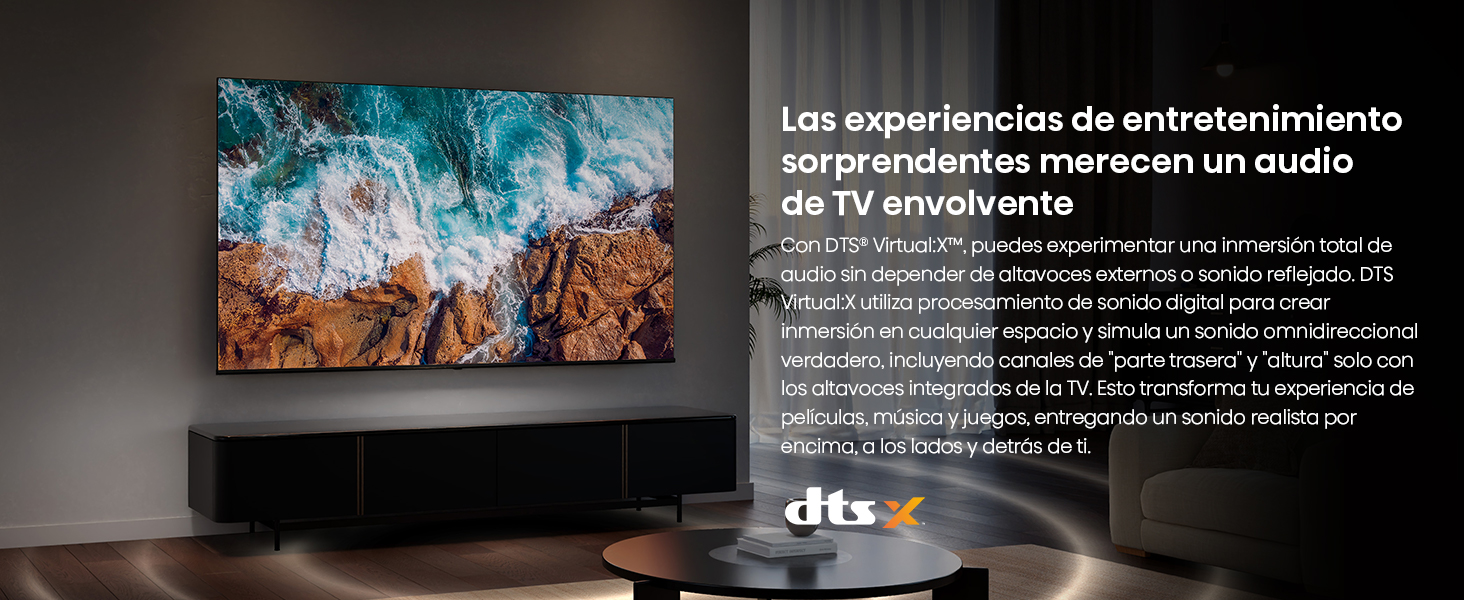
Figure 9: Game Mode PLUS for ultra-fluid, lag-free gaming.
2.5 Filmmaker Mode
Filmmaker Mode adjusts your video to its original configurations, preserving details like sound, aspect ratio, color, and frame rate, as intended by the filmmakers.

Figure 10: Filmmaker Mode ensures content is viewed as intended by creators.
2.6 Voice Control
The Hisense Voice Remote allows you to control your TV using voice commands. Press the microphone button on the remote to activate voice commands for navigating programs, adjusting volume, or interacting with virtual assistants.

Figure 11: Voice control functionality for convenient TV operation.
2.7 Connectivity and Sharing
The TV supports various connectivity options for sharing content from your devices:
- USB: Play media directly from a USB drive.
- HDMI: Connect and display content from other devices.
- Bluetooth: Connect wireless headphones or other Bluetooth audio devices.
- Wi-Fi: Connect to your home network for streaming and internet access.
- Apple Home & Apple AirPlay: Seamlessly share content from Apple devices.

Figure 12: Multiple connectivity options for sharing and enjoying content.
2.8 EzPlay Soundbar Control
The EzPlay feature allows the TV remote to synchronize with and control a connected soundbar, providing integrated audio controls directly on the screen.

Figure 13: EzPlay for integrated soundbar control.
3. Maintenance
3.1 Cleaning the Television
To maintain the appearance and performance of your TV:
- Screen: Gently wipe the screen with a soft, lint-free cloth. For stubborn marks, slightly dampen the cloth with water or a screen-specific cleaning solution. Do not spray liquid directly onto the screen.
- Body: Wipe the TV frame and stand with a soft, dry cloth. Avoid using abrasive cleaners, waxes, or solvents as they can damage the finish.
- Always unplug the TV before cleaning.
3.2 Software Updates
The TV may receive periodic software updates to improve performance and add new features. Ensure your TV is connected to the internet to receive these updates automatically or check for them manually through the settings menu.
4. Troubleshooting
If you encounter issues with your Hisense TV, refer to the following common solutions:
| Problem | Possible Solution |
|---|---|
| No Power | Check if the power cable is securely connected to the TV and the wall outlet. Try a different outlet. Press the power button on the TV or remote. |
| No Picture / Black Screen | Ensure the correct input source is selected. Check all HDMI/AV cable connections. Try restarting the TV by unplugging it for 60 seconds and plugging it back in. |
| No Sound | Check the volume level and ensure mute is off. Verify audio cable connections for external devices. If using a soundbar, check its power and input. |
| Remote Control Not Working | Replace the batteries in the remote. Ensure there are no obstructions between the remote and the TV's IR sensor. |
| Network Connection Issues | Restart your router/modem. Check Wi-Fi password. If using Ethernet, ensure the cable is connected. Try connecting to a different Wi-Fi network if available. |
| Picture Quality Issues | Adjust picture settings (brightness, contrast, color). Ensure the source content is high quality. Check cable connections for signal interference. |
For more complex issues, please refer to the support section or contact customer service.
5. Specifications
| Feature | Detail |
|---|---|
| Brand | Hisense |
| Model | 75A65NV |
| Model Year | 2025 |
| Screen Size | 75 Inches |
| Display Technology | LED, IPS Type |
| Resolution | 3840x2160 (4K UHD) |
| Refresh Rate | 60 Hz |
| Operating System | VIDAA U |
| Special Features | AI Smooth Motion, Dolby Vision, AI 4K Upscaling, Game Mode PLUS, VIDAA TV |
| Connectivity | Bluetooth, Ethernet, HDMI (x3, one eARC), USB (x2), Wi-Fi |
| Remote Control Technology | Infrared (Voice Control enabled) |
| Power Consumption | 190 Watts |
| Voltage | 120 Volts |
| Dimensions (with stand) | 167.6 cm (W) x 104.1 cm (H) x 37 cm (D) |
| Weight (with stand) | 29.5 kg |
| VESA Mount Compatibility | 200x300 mm |
6. Warranty Information
This Hisense television comes with a manufacturer's warranty. Please refer to the warranty card included in the packaging for specific terms, conditions, and duration of coverage.
Optional extended warranties may be available for purchase. For details on extended warranty options, please consult your retailer or the Hisense website.
7. Customer Support
For technical assistance, product inquiries, or warranty claims, please contact Hisense customer support:
- Phone Support: 800 0088 880
- Technical Support Chat: Visit hisense.com.mx and look for the 'Chat Soporte Técnico' option in the lower-left corner.
- Additional Phone Support: +55 41 53 1200
Operating Hours:
- Monday - Friday: 9:00 am - 9:00 pm
- Saturday: 9:00 am - 3:00 pm
Figure 14: Hisense customer support contact details and hours of operation.


