
1. Introduction
This manual provides detailed instructions for the installation, operation, and maintenance of your Bextgoo Smart Lock D10. Please read this manual thoroughly before installation and use to ensure proper function and safety. This smart lock offers multiple access methods for enhanced home security and convenience.
2. What's in the Box
Carefully unpack the box and ensure all components are present:
- Rear Panel x1
- Smart Keypad x1
- Latch 60/70 x1
- Latch Strike Plate x1
- Strike Plate Box x1
- IC Cards x3
- AA Batteries x4
- Physical Key x2
- Screw M4x45mm x2
- Screw M4x20mm x4
- User Manual x1
- Adjustable Deadbolt Latch x1
- Hardware Assembly x1

Image: All components included in the Bextgoo Smart Lock D10 package.
3. Tools Required
The following tools are recommended for installation:
- Phillips Screwdriver
- Ruler
- Lineman's Pliers (for screw trimming, if necessary)
4. Important Notes Before Installation
- Keep the door open during installation.
- DO NOT close the door until the batteries are installed.
- Battery installation is the final step.
Door Compatibility Check
Before purchasing and installing, ensure your door dimensions are compatible:
- Cross Bore Diameter: 2-1/8 inches (54 mm)
- Cross Bore Backset: 2-3/8 inches or 2-3/4 inches (60 mm or 70 mm)
- Door Thickness: 1-3/8 inches to 2-1/8 inches (35 mm to 55 mm)
- Latch Bolt Size (height): 1 inch (25 mm)
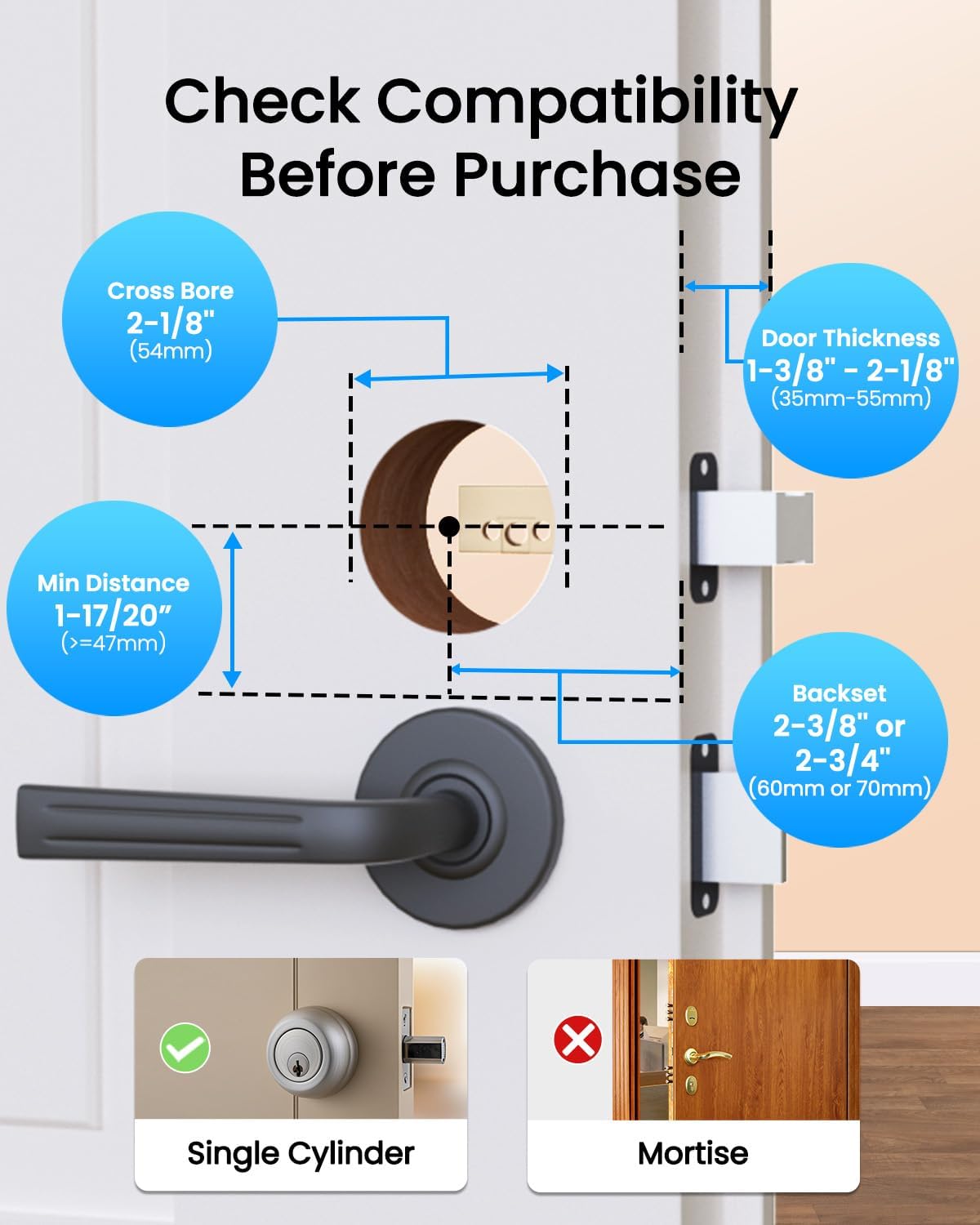
Image: Door measurement guide for Bextgoo Smart Lock D10 compatibility.
5. Installation Guide
Follow these steps carefully to install your Bextgoo Smart Lock D10. For a visual guide, please refer to the installation video below.
Installation Video
Video: Official Bextgoo Smart Lock D10 installation guide. This video demonstrates the step-by-step process of installing the smart lock on a door, including bolt adjustment, keypad panel installation, and mounting plate setup.
Step-by-Step Installation
- Bolt Adjustment:
- Hold the bolt in front of the door hole to check if the latch square hole is centered.
- If centered (60mm backset), no adjustment is needed.
- If not centered (70mm backset), adjust the bolt by rotating it to the end.

Image: Bolt adjustment process, showing how to measure and rotate the bolt if needed.
- Install the Latch:
- Ensure the 'UP' sign on the latch is facing upwards.
- Insert the latch into the door edge.
- Secure the latch with the provided screws.
- Check latch function: Ensure the latch is retracted (unlocked) before proceeding.

Image: Installing the latch and securing it with screws.
- Install the Keypad Panel:
- Position the square spindle vertically to match the latch square hole.
- Route the power cable underneath the latch.
- Align the keypad panel with the latch square hole.
- Note: Ensure the keypad panel faces the outside of the door.

Image: Keypad panel installation, showing cable routing and spindle alignment.
- Take out the Mounting Plate:
- Open the battery compartment on the rear panel.
- Unscrew the mounting screws.
- Remove the mounting plate.

Image: Removing the mounting plate from the rear panel.
- Install the Mounting Plate:
- Before installing, pass the power cable through the mounting plate.
- Insert the trimmed screws (if necessary, based on door thickness) suitable for your door thickness and tighten them.

Image: Installing the mounting plate and securing the power cable.
- Install the Rear Panel:
- Connect the power cable between the front and rear panels of the lock.
- Make sure to set the rear panel to the unlocked position first.
- Tidy up any excess power cable and tuck it into the door frame.
- Align the rear panel with the latch and secure it in place.
- Insert the two screws you previously removed from the holes and tighten them.
- Insert 4 AA batteries into the battery compartment.
- Finally, close the battery cover.

Image: Completing the rear panel installation and battery insertion.
6. Features
- 10-in-1 Keyless Access: Unlock using fingerprint, Bluetooth app, IC card, passcode, physical key, or the indoor one-touch unlock button.
- Ultra-Fast Fingerprint Access: Unlock in just 0.1 seconds with high-accuracy fingerprint recognition. Supports up to 100 fingerprints.
- App Control: Manage your lock via Bluetooth. With an optional gateway (sold separately), enjoy remote access, generate passcodes from anywhere, view unlock history, and enable voice control via Alexa or Google Assistant.
- Auto-Lock & One-Touch Locking: Set auto-lock delays (5-60 seconds) for convenience.
- Flexible Passcode Options: Create permanent, temporary, recurring, or one-time passcodes for various users.
- Anti-Peep Passcode: Add random digits before or after your actual passcode to prevent others from guessing it.
- Long Battery Life & Emergency Backup: Powered by 4 AA batteries (included) for up to 8+ months. Features low battery alerts, an emergency Type-C charging port, and a hidden keyhole for physical key access.
- Durable Design: Crafted from solid aluminum alloy for durability and a modern aesthetic.
- Weather Resistant: Works in extreme temperatures (-13°F to 149°F) and is IP63 water-resistant.
- Left/Right-Handed Door Compatible: Fits both left and right-handed doors.
Image: Multiple unlocking methods for the smart lock.
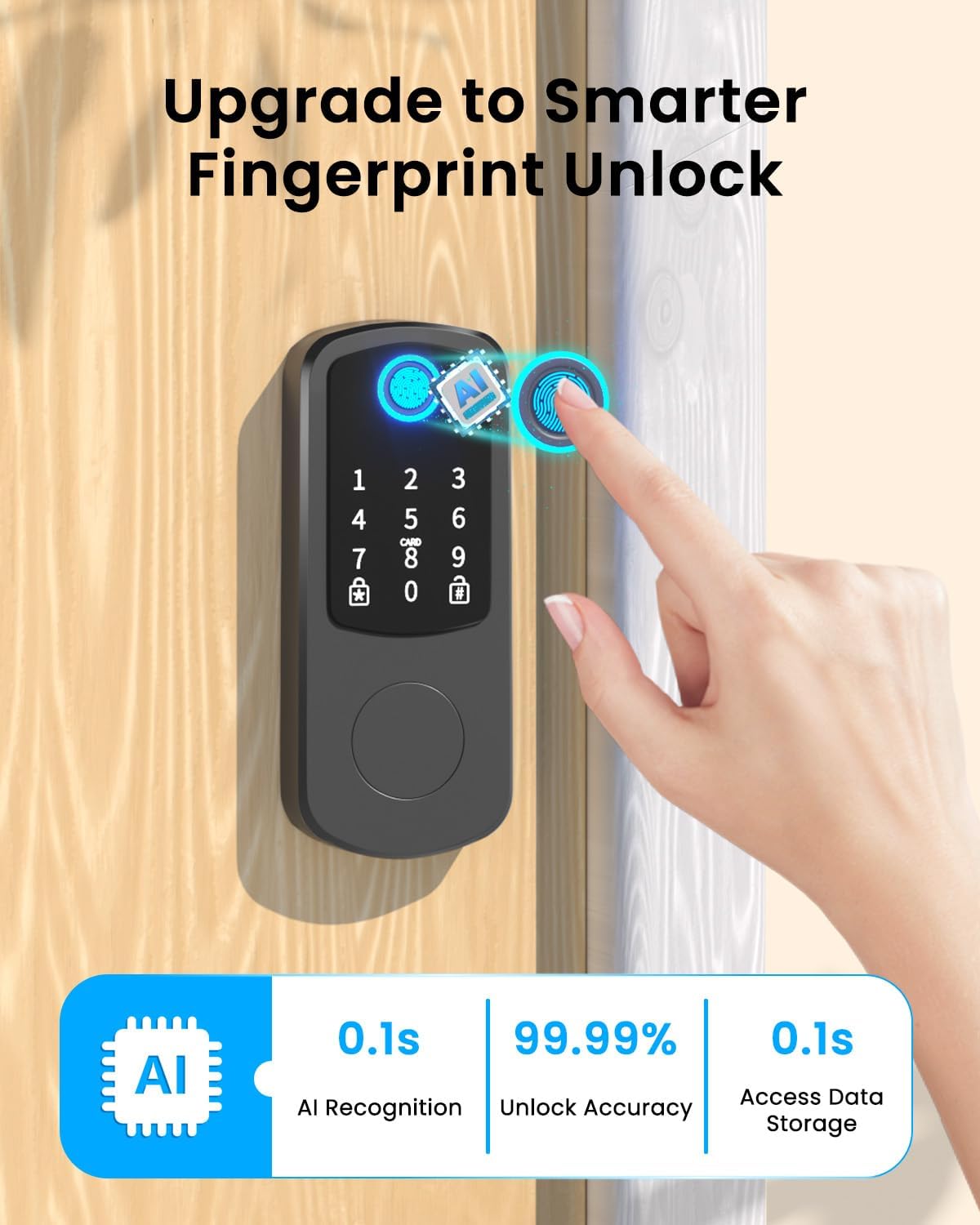
Image: Ultra-fast fingerprint access.

Image: Extended battery life and emergency backup.

Image: All-weather operation of the smart lock.
7. Operating Instructions
Unlocking Methods
- Fingerprint: Place your registered finger on the fingerprint sensor. The lock will unlock instantly.
- Passcode: Enter your registered passcode on the keypad. For anti-peep security, you can enter random digits before and after your actual code.
- IC Card: Tap your registered IC card on the designated area of the keypad.
- Bluetooth App: Open the Bextgoo app on your smartphone and use the unlock function via Bluetooth within range (up to 15 meters).
- Physical Key: In case of emergency or battery depletion, use the physical key in the hidden keyhole.
- Indoor One-Touch Unlock: Use the internal knob or button for quick exit.

Image: Fingerprint unlock in action.

Image: Anti-peep passcode entry.

Image: IC card unlocking.

Image: Bluetooth app unlocking.

Image: Physical key backup access.
App Control Functions
The Bextgoo app provides comprehensive control over your smart lock:
- Enable Auto-Lock: Set the lock to automatically lock after a specified delay (5-60 seconds).
- Check Access Logs: View a history of who entered and when.
- Check Battery Status: Monitor the current battery level of your lock.
- Set up IC Card: Register and manage IC cards for access.
- Set up Fingerprint: Register and manage fingerprints for access.
- User Management: Add, modify, or remove users and their access credentials.
- Temporary Passcodes: Generate time-limited or one-time passcodes for guests or service providers.
- Passage Mode: Disable auto-lock for a period, keeping the door unlocked for convenience during gatherings.
- Silent Mode: Adjust or mute the lock's voice prompts for quiet operation.

Image: Overview of smart lock app control features.

Image: Auto-lock and one-touch locking via app.

Image: Viewing access history in the app.

Image: Passage Mode for temporary open access.

Image: Silent Mode for adjusting lock sounds.

Image: Access Management for user control.
8. Maintenance
- Battery Replacement: Replace all four AA batteries when the low battery alert is received. Use high-quality alkaline batteries for optimal performance.
- Cleaning: Wipe the keypad and lock body with a soft, dry cloth. Avoid using abrasive cleaners or solvents that could damage the finish or electronic components.
- Regular Checks: Periodically check that all screws are tight and the lock operates smoothly.
9. Troubleshooting
- Lock Not Responding: Check battery levels. If batteries are low, replace them or use the emergency Type-C charging port. If still unresponsive, use the physical key.
- Fingerprint Not Recognized: Ensure your finger is clean and dry. Re-register your fingerprint if issues persist.
- Passcode Not Working: Double-check the entered passcode. Ensure anti-peep digits are correctly used if enabled. The lock will automatically lockout after 5 failed attempts.
- App Connectivity Issues: Ensure Bluetooth is enabled on your phone and you are within range of the lock. Restart the app or your phone if necessary.
- Latch Not Retracting/Extending: Check for any obstructions in the door frame or latch mechanism. Ensure the latch square hole is correctly aligned during installation.
10. Specifications
| Brand | Bextgoo |
| Model Name | D10 |
| Lock Type | Deadbolt |
| Material | Aluminum |
| Color | Black |
| Item Dimensions L x W x H | 4 x 2.8 x 6.1 inches |
| Item Weight | 2.16 pounds (0.98 Kilograms) |
| Control Method | App, Touch |
| Special Features | Anti-Peeping Password, Auto-Lock, Fingerprint, Fob Unlock, Passcode Unlock |
| Power Source | 4 AA Alkaline Batteries (Included) |
| Smart Home Compatibility | Smart Home Compatible (with optional gateway) |
11. Warranty and Support
For any questions, concerns, or warranty information regarding your Bextgoo Smart Lock D10, please contact customer support.
Email: support@bextgoo.com