
1. Product Overview
The Hoembpn SATA to USB 3.0 Adapter Cable provides a convenient solution for connecting 2.5-inch and 3.5-inch SATA SSDs and HDDs to your computer via a USB 3.0 port. This adapter supports high-speed data transfer up to 5 Gbps, enhanced by UASP technology for faster read and write performance. It is designed for various applications including extended storage, data transfer, system recovery, and hard drive testing. The package includes the adapter cable and a 12V/2A external power adapter for 3.5-inch drives.
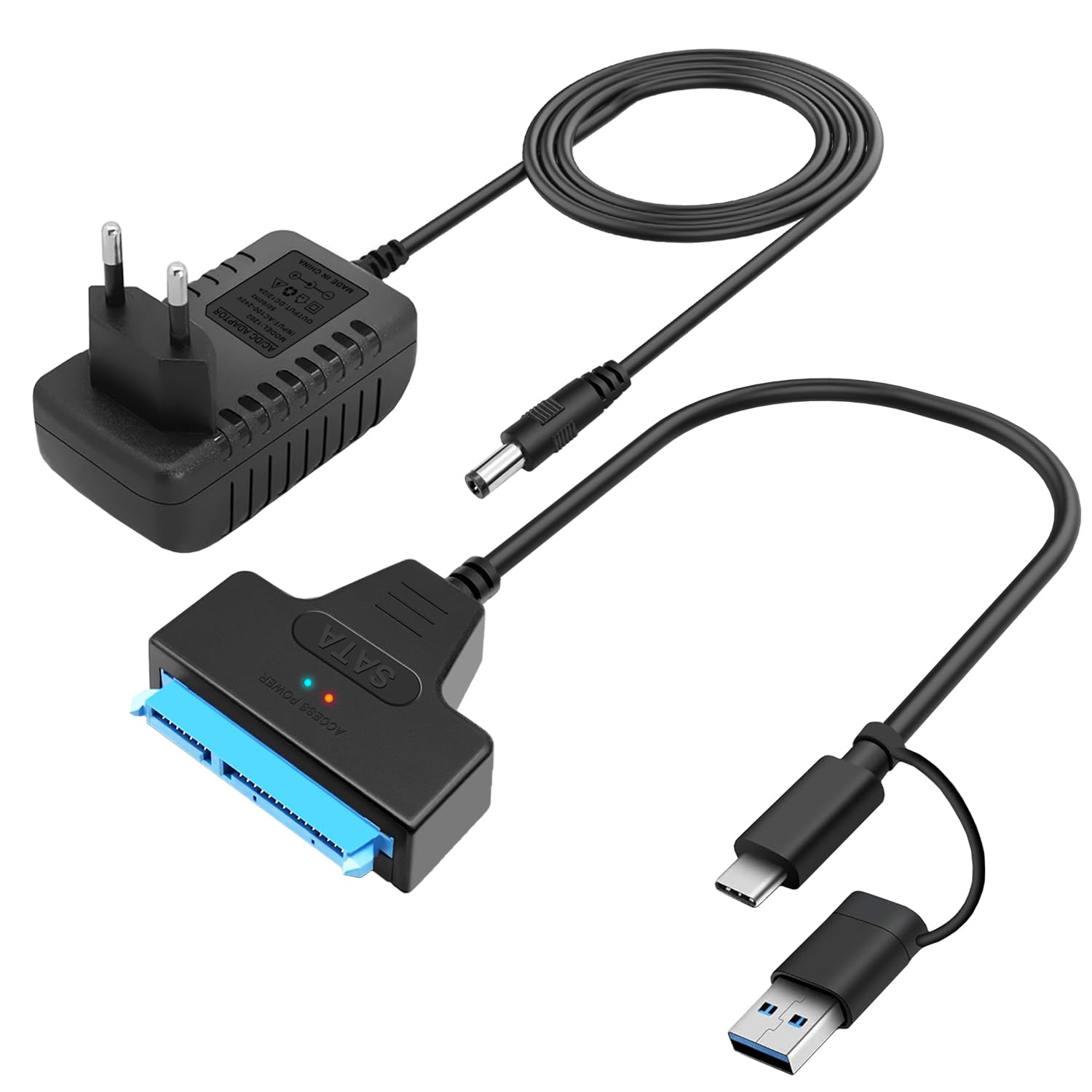
Image: The Hoembpn SATA to USB 3.0 Adapter Cable connected to an SSD, illustrating its 5Gbps SuperSpeed transfer capability with UASP support.
Key Features:
- Universal Compatibility: Supports 2.5" and 3.5" SATA I/II/III SSDs and HDDs.
- High-Speed Data Transfer: USB 3.0 with up to 5 Gbps, enhanced by UASP for up to 70% faster performance.
- Plug and Play: No drivers required for Windows, Mac, and Linux operating systems.
- External Power Adapter: Includes a 12V/2A power adapter for stable operation with 3.5-inch hard drives. 2.5-inch drives are USB-powered.
- Hot-Swappable: Allows for quick connection and disconnection of drives without system restart.

Image: The Hoembpn SATA to USB 3.0 adapter demonstrating compatibility with various operating systems (Windows, Mac OS, Linux) and devices (laptops, desktops, smart TVs, NAS storage devices).
2. Package Contents
Please verify that all items are present in your package:
- 1 x Hoembpn SATA to USB 3.0 Adapter Cable
- 1 x 12V/2A External Power Adapter (for 3.5" HDDs)

Image: The Hoembpn SATA to USB 3.0 Adapter Cable and its accompanying 12V/2A external power adapter.
3. Setup Instructions
Follow these steps to connect your SATA SSD or HDD using the adapter cable:
3.1 Connecting a 2.5-inch SSD/HDD
- Ensure your computer is powered on.
- Connect the SATA 15+7 pin connector of the adapter cable to your 2.5-inch SATA SSD or HDD.
- Plug the USB 3.0 connector of the adapter cable into an available USB 3.0 port on your computer.
- The 2.5-inch drive will be powered directly via the USB port. No external power adapter is needed.
- Your operating system should detect the drive automatically.
3.2 Connecting a 3.5-inch HDD
- Ensure your computer is powered on.
- Connect the SATA 15+7 pin connector of the adapter cable to your 3.5-inch SATA HDD.
- Connect the 12V/2A external power adapter to the adapter cable's power input port.
- Plug the 12V/2A external power adapter into a wall outlet.
- Plug the USB 3.0 connector of the adapter cable into an available USB 3.0 port on your computer.
- Your operating system should detect the drive automatically.

Image: Step-by-step installation diagram for connecting both 2.5-inch and 3.5-inch SATA drives to the Hoembpn adapter and then to a computer, including power adapter connection for 3.5-inch drives.
4. Operating Instructions
Once connected, the Hoembpn SATA to USB 3.0 Adapter Cable operates as a standard external storage device.
4.1 Accessing Your Drive
- Windows: The drive will appear under "This PC" or "My Computer". If it's a new drive, you may need to initialize and format it using Disk Management before it appears.
- Mac: The drive will appear on your desktop or in Finder. New drives may require formatting using Disk Utility.
- Linux: The drive will typically be mounted automatically or can be mounted manually. New drives may require partitioning and formatting.
4.2 Data Transfer
Drag and drop files to and from the connected drive as you would with any other external storage device. The USB 3.0 interface and UASP support ensure fast data transfer speeds for large files and backups.

Image: The Hoembpn adapter connected to a laptop and a hard drive, highlighting its plug-and-play and hot-swapping capabilities for multiple drives.
4.3 Safe Removal
Always safely eject the drive from your operating system before physically disconnecting the adapter cable to prevent data corruption.
- Windows: Click the "Safely Remove Hardware and Eject Media" icon in the system tray.
- Mac: Drag the drive icon to the Trash or click the Eject button next to the drive in Finder.
- Linux: Use the "Unmount" option for the drive.
5. Maintenance
The Hoembpn SATA to USB 3.0 Adapter Cable requires minimal maintenance.
- Keep the adapter and power supply in a dry, dust-free environment.
- Avoid exposing the device to extreme temperatures or direct sunlight.
- Clean the connectors gently with a dry, lint-free cloth if necessary.
- Do not attempt to disassemble the adapter or power supply.
6. Troubleshooting
6.1 Drive Not Detected
- Check Connections: Ensure all cables (SATA, USB, power adapter for 3.5" drives) are securely connected.
- Power Supply: For 3.5-inch HDDs, confirm the 12V/2A external power adapter is correctly plugged into both the adapter cable and a working wall outlet. The adapter requires sufficient power.
- USB Port: Try a different USB port on your computer. Ensure it's a USB 3.0 port for optimal performance.
- Drive Health: Test the SATA drive directly in a computer or with another adapter if possible, to rule out a drive issue.
- Disk Management (Windows) / Disk Utility (Mac): Check if the drive appears in your operating system's disk management tools. New drives may need to be initialized, partitioned, and formatted.
- Compatibility: Verify that the drive is a SATA drive. This adapter is not compatible with IDE drives.
6.2 Slow Transfer Speeds
- USB 3.0 Port: Ensure the adapter is connected to a USB 3.0 port on your computer. Connecting to a USB 2.0 port will result in slower speeds.
- UASP Support: For UASP to function, both your operating system and USB host controller must support it. Most modern systems do.
- Drive Speed: The actual transfer speed is also limited by the speed of your SATA drive.
- Other USB Devices: Disconnect other high-bandwidth USB devices that might be competing for bandwidth.
6.3 Intermittent Disconnections
- Power Supply (3.5" HDD): Ensure the 12V/2A power adapter is providing stable power. A faulty power supply can cause disconnections.
- Cable Integrity: Check the adapter cable and USB cable for any damage.
- USB Port Power: Some USB ports may not provide sufficient power, especially for 2.5-inch drives under heavy load. Try a different USB port or a powered USB hub.
7. Specifications
| Brand | Hoembpn |
| Model | 750739974058 |
| Connector Type | USB Type A (Input), SATA 15+7 Pin (Output) |
| Cable Type | SATA to USB 3.0 |
| Data Transfer Rate | Up to 5 Gbps (USB 3.0), with UASP support |
| Compatible Drive Sizes | 2.5-inch and 3.5-inch SATA SSD/HDD |
| Power Supply (for 3.5" HDD) | External 12V/2A AC Power Adapter |
| Power Supply (for 2.5" SSD/HDD) | USB Bus-powered |
| Compatibility | Windows, Mac OS, Linux |
| Cable Length (Data Lines) | Approximately 17.5 cm (6.89 inches) |
| Cable Length (Power Adapter) | Approximately 89 cm (35.1 inches) |
| Special Features | High Speed, Plug and Play, Hot-Swappable, UASP Support |

Image: Product dimensions for the Hoembpn SATA to USB 3.0 adapter cable and its power adapter.
8. Warranty and Support
For warranty information and technical support, please refer to the seller's policy on the purchase platform or contact Hoembpn customer service directly. Keep your purchase receipt for warranty claims.