
LASUNEY 15 IN 1
LASUNEY 15-in-1 USB C Laptop Docking Station
Model: 15 IN 1
Introduction
The LASUNEY 15-in-1 USB C Laptop Docking Station is designed to expand the connectivity of your USB-C enabled laptop, providing a comprehensive solution for multiple peripherals, external displays, and power delivery. This manual provides detailed instructions for setup, operation, and troubleshooting to ensure optimal performance.

Image: LASUNEY 15-in-1 USB C Laptop Docking Station, showcasing its compact design and connected USB-C cable.
Product Features and Port Layout
This docking station offers 15 ports for extensive connectivity, transforming a single USB-C port on your laptop into a versatile workstation hub.
- Host Connection: 1x USB-C input for laptop connection.
- Power Delivery: 1x USB-C PD 3.0 port (up to 100W input, 87W output).
- Video Outputs: 1x HDMI, 2x DisplayPort (DP), 1x VGA for triple or quadruple display setups.
- USB Data Ports: 2x USB 3.1 (10Gbps), 1x USB 3.0 (5Gbps), 2x USB 2.0 (480Mbps), 1x USB-C (data transfer, 10Gbps).
- Network: 1x Gigabit Ethernet (RJ45).
- Card Readers: SD and Micro SD card slots (read simultaneously).
- Audio: 1x 3.5mm Audio/Microphone port.

Image: Detailed diagram of the LASUNEY 15-in-1 docking station, illustrating the location and function of each port, including Ethernet, DisplayPort, HDMI, VGA, PD 3.0, Host USB-C, SD/Micro SD, USB A 2.0, USB A 3.0, USB A 3.1, Audio & Mic, and USB C Data ports.
Setup Instructions
- Connect Power (Recommended): For stable operation, especially with multiple displays or power-hungry devices, connect a USB-C PD protocol power supply (minimum 87W output, 100W recommended) to the docking station's "PD 3.0" port. The power adapter and cable are not included.
- Connect to Laptop: Use the integrated USB-C cable from the docking station to connect to a compatible USB-C port on your laptop. Ensure your laptop's USB-C port supports data, video output (DisplayPort Alt Mode), and power delivery for full functionality.
- Connect Peripherals:
- Displays: Connect your monitors to the HDMI, DisplayPort, or VGA ports.
- USB Devices: Plug in USB drives, keyboards, mice, or other USB peripherals into the available USB-A and USB-C data ports.
- Network: Connect an Ethernet cable to the RJ45 port for a wired network connection.
- Audio: Connect headphones or speakers to the 3.5mm audio port.
- Memory Cards: Insert SD or Micro SD cards into the respective slots.
- Driver Installation: This docking station is designed for plug-and-play operation and typically requires no driver installation.
Important Note on Power Supply:
The docking station requires an external power supply (not included) to ensure stable current and voltage, especially when connecting multiple screens or devices. Using a USB-C PD protocol power supply with a minimum output of 87W is crucial to prevent issues like screen flickering or unstable connections.

Image: Diagram illustrating the power delivery (PD 100W input, 87W output) and USB-C data transfer capabilities of the docking station, showing connections to a laptop and a smartphone.
Operating Instructions
Display Modes
The docking station supports various display configurations depending on your operating system and laptop's graphics card.
Windows Operating System
For Windows laptops, the docking station supports both Mirror Mode and Extend Mode across multiple displays.
- Mirror Mode: All connected displays will show the same content as your laptop screen.
- Extend Mode (AMD/Nvidia Graphics): If your laptop has AMD or Nvidia graphics, you can achieve up to 4 different extended displays (laptop screen + 3 external monitors via HDMI, VGA, and 2 DP ports).
- Extend Mode (Intel Graphics): For Windows laptops with Intel Graphics, simultaneous display on 5 monitors (laptop + 4 external) is not supported due to graphics limitations. One of the video output ports may show a black screen.

Image: Visual representation of Windows display modes, including Mirror Mode and Extend Mode configurations for AMD/Nvidia and Intel graphics, highlighting potential limitations with Intel graphics.
Resolution Note for Windows:
The final resolution depends on your host device and connected displays. If VGA works simultaneously with other ports, the resolution will be 1080P@60Hz. Under partial connection (no VGA), the highest resolution of all monitors can reach 4K@30Hz. Only with DP1.4 and AMD processor computers or Apple models listed after 2018 with dual systems installed can achieve 4 screens when using the WIN system.
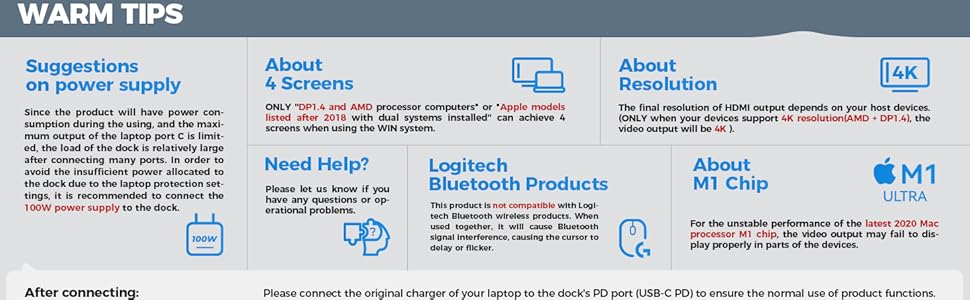
Image: Diagram illustrating multi-monitor support and resolution limitations, specifically noting that different screens of multi-monitors (A/BCDE, A/BCD, A/BC) are not supported, and detailing resolution capabilities for DP1.4 and AMD processor laptops.
Mac OS Operating System
Mac OS has specific limitations regarding extended display modes.
- Mirror Mode: All connected displays will show the same content as your MacBook screen.
- Extend Mode: Due to Mac OS not supporting Multi-Stream Transport (MST), you can only achieve 2 different contents between your laptop and the entire video outputs. This means external monitors will mirror each other in extended mode, showing one extended desktop.

Image: Visual guide for Mac OS display modes, showing Mirror Mode and Extend Mode, and explicitly stating that Mac OS does not support MST for multiple independent extended displays.
Data Transfer
The docking station provides high-speed data transfer capabilities:
- USB 3.1 and USB-C Data Ports: Up to 10Gbps for rapid file transfers.
- USB 3.0 Port: Up to 5Gbps.
- USB 2.0 Ports: Up to 480Mbps, suitable for keyboards, mice, and other low-bandwidth devices.
- SD/TF Card Slots: Allows simultaneous access to files on SD and Micro SD cards.

Image: Illustration of high-speed data transfer using the USB 3.1 ports, showing USB drives connected to the docking station and a laptop, emphasizing 10Gbps transfer speeds.
Power Delivery (PD)
The USB-C PD 3.0 port supports up to 100W power input. For safety and to ensure device battery life, the power output to the connected laptop is limited to 87W. This allows you to charge your laptop while using the docking station with a compatible USB-C PD charger.
Gigabit Ethernet
The RJ45 Gigabit Ethernet port provides a stable and high-speed wired internet connection, which is often more reliable than Wi-Fi for demanding tasks.
Compatibility
The performance of the docking station is significantly influenced by the capabilities of your laptop's USB-C port. Ensure your laptop's USB-C port supports data transfer, video output (DisplayPort Alt Mode), and power delivery for full functionality.
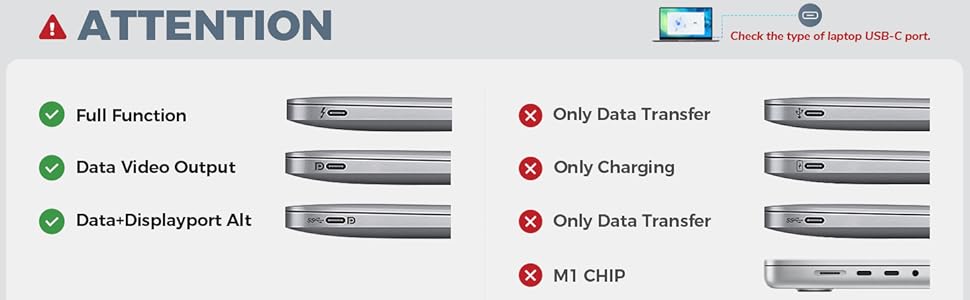
Image: A guide illustrating different types of USB-C ports on laptops and their functionalities (Full Function, Data Video Output, Data+Displayport Alt) versus limited functions (Only Data Transfer, Only Charging, M1 Chip limitations).
Compatible Devices (Examples):
- Apple: MacBook/Pro (2016-2021), MacBook Air/Mac Mini (2018-2020), iMac (2020), iMac Pro (2017-2019), iPad/Pro (2018-Newest).
- Dell: Latitude (3500/5290...), XPS (13/15/5590...), Precision (5530,5540,5550...), Inspiron (5590,7373,7573...).
- HP: Spectre (13/X360-13T...), Elitebook (X360/1030 G3...), Envy (17T/X360/13-AQ1...), Zbook (15U G3/G4...).
- Lenovo: Yoga (370/720/730...), ThinkPad (P50/P52/P70...), IdeaPad (Flex 14/330s...).
- Others: Asus Zenbook, Huawei MateBook, Samsung Galaxy.
Operating Systems: Windows, Mac OS X 10.6 or later, Chrome OS, Linux 2.6.14 or later.
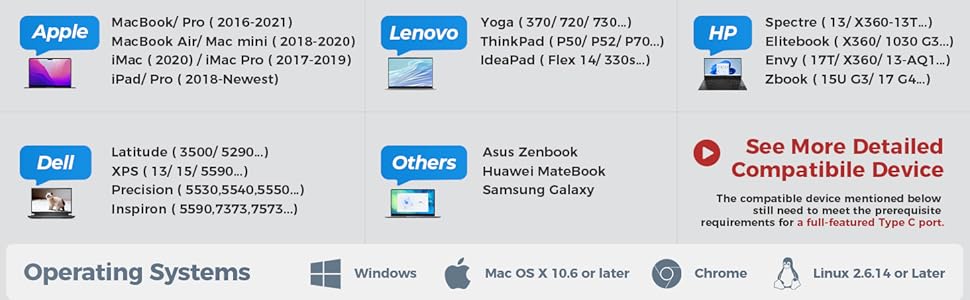
Image: A comprehensive list of compatible laptop brands and models, including Apple, Dell, Lenovo, HP, and others, along with supported operating systems like Windows, Mac OS, Chrome OS, and Linux.
Troubleshooting
- Screen Flickering or Unstable Connections:
This often occurs due to insufficient power supply. Connect a USB-C PD protocol power supply (minimum 87W, 100W recommended) to the docking station's PD port. The docking station splits power, and without external power, it may not provide enough for all connected devices and displays.
- External Display Issues (Black Screen, No Signal):
- Ensure your laptop's USB-C port supports DisplayPort Alt Mode.
- Verify all display cables are securely connected.
- For Windows laptops with Intel Graphics, simultaneous display on 5 monitors (laptop + 4 external) is not supported. One video output may show a black screen.
- On Mac OS, only 2 different contents can be displayed (laptop + one extended desktop mirrored across external monitors) due to lack of MST support.
- If VGA is used simultaneously, the maximum resolution for all displays will be 1080P@60Hz.
- For unstable performance with 2020 Mac processor M1 chip, video output may fail to display in parts of the devices.
- Logitech Bluetooth Product Incompatibility:
This product is not compatible with Logitech Bluetooth wireless products. When used together, it may cause Bluetooth signal interference, leading to cursor delay or flickering.
- Power Delivery (PD) Not Working:
Ensure you are using a USB-C PD protocol power supply with sufficient wattage (minimum 87W) and an undamaged USB-C cable. Connect the power supply to the dedicated PD 3.0 port on the docking station.
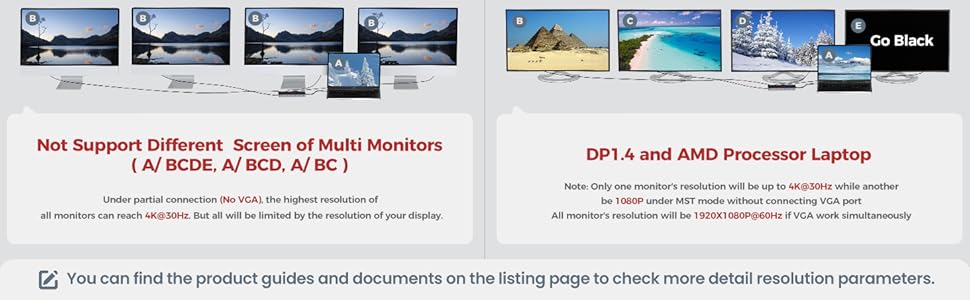
Image: "Warm Tips" section providing advice on power supply requirements (100W recommended), conditions for achieving 4 screens on Windows, resolution considerations, and notes on M1 chip compatibility issues.
Specifications
| Feature | Detail |
|---|---|
| Model | 15 IN 1 |
| Brand | LASUNEY |
| Total Ports | 15 |
| Video Output Ports | 1x HDMI, 2x DisplayPort, 1x VGA |
| USB Data Ports | 2x USB 3.1 (10Gbps), 1x USB 3.0 (5Gbps), 2x USB 2.0 (480Mbps), 1x USB-C (10Gbps) |
| Ethernet | 1x Gigabit RJ45 |
| Card Reader | SD & TF (simultaneous read) |
| Audio Port | 1x 3.5mm Audio/Mic |
| Power Delivery (Input) | Up to 100W (via USB-C PD 3.0 port) |
| Power Delivery (Output) | Up to 87W to host laptop |
| Hardware Interface | Thunderbolt, USB Type C |
| Color | Black |
| Item Weight | 11.7 ounces (0.33 Kilograms) |
| Package Dimensions | 8.23 x 4.64 x 2.52 inches |
Maintenance
To ensure the longevity and optimal performance of your LASUNEY docking station, follow these general maintenance guidelines:
- Keep the device clean and free from dust. Use a soft, dry cloth for cleaning.
- Avoid exposing the docking station to extreme temperatures, humidity, or direct sunlight.
- Do not block the air vents on the product, as this can affect heat dissipation.
- Handle cables and connectors gently to prevent damage.
Warranty and Support
Specific warranty details are not provided in this manual. For warranty information, technical support, or any operational problems, please contact LASUNEY customer service or refer to the product's official website or purchase platform for assistance.
Ask a question about this manual
Ask about setup, troubleshooting, compatibility, parts, safety, or missing instructions. Manuals+ will review the question and use this page’s manual context to help answer it.