Introduction
This manual provides essential information for the safe and efficient operation of your ZER-LON 34-inch Curved Gaming Monitor (Model PD22340W). Please read this manual thoroughly before using the product and retain it for future reference.

Image: Front view of the ZER-LON 34-inch Curved Gaming Monitor with its stand.
Safety Information
- Ensure the monitor is placed on a stable, level surface to prevent accidental falls.
- Do not block ventilation openings. Proper airflow is essential to prevent overheating.
- Use only the power adapter supplied with the monitor.
- Avoid exposing the monitor to water or excessive humidity.
- Do not attempt to open or repair the monitor yourself. Refer all servicing to qualified personnel.
- Unplug the monitor from the power outlet during lightning storms or when unused for extended periods.
Package Contents
Verify that all items are present in your package:
- ZER-LON 34-inch Curved Gaming Monitor
- Monitor Stand (Base and Neck)
- Power Adapter and Power Cable
- DisplayPort (DP) Cable
- HDMI Cable
- User Manual (this document)
- Mounting Screws (for stand assembly)
Setup
1. Monitor Assembly
Follow these steps to assemble the monitor stand:
- Carefully remove the monitor and stand components from the packaging. Place the monitor screen-down on a soft, clean cloth to prevent scratches.
- Attach the stand neck to the monitor panel using the provided screws.
- Connect the stand base to the stand neck, securing it with the designated screw.
- Carefully lift the assembled monitor and place it on a stable desk.
Note on Screen Surface: The monitor ships with a temporary protective film that gives it a glossy appearance. After removing this film, the screen surface is matte.
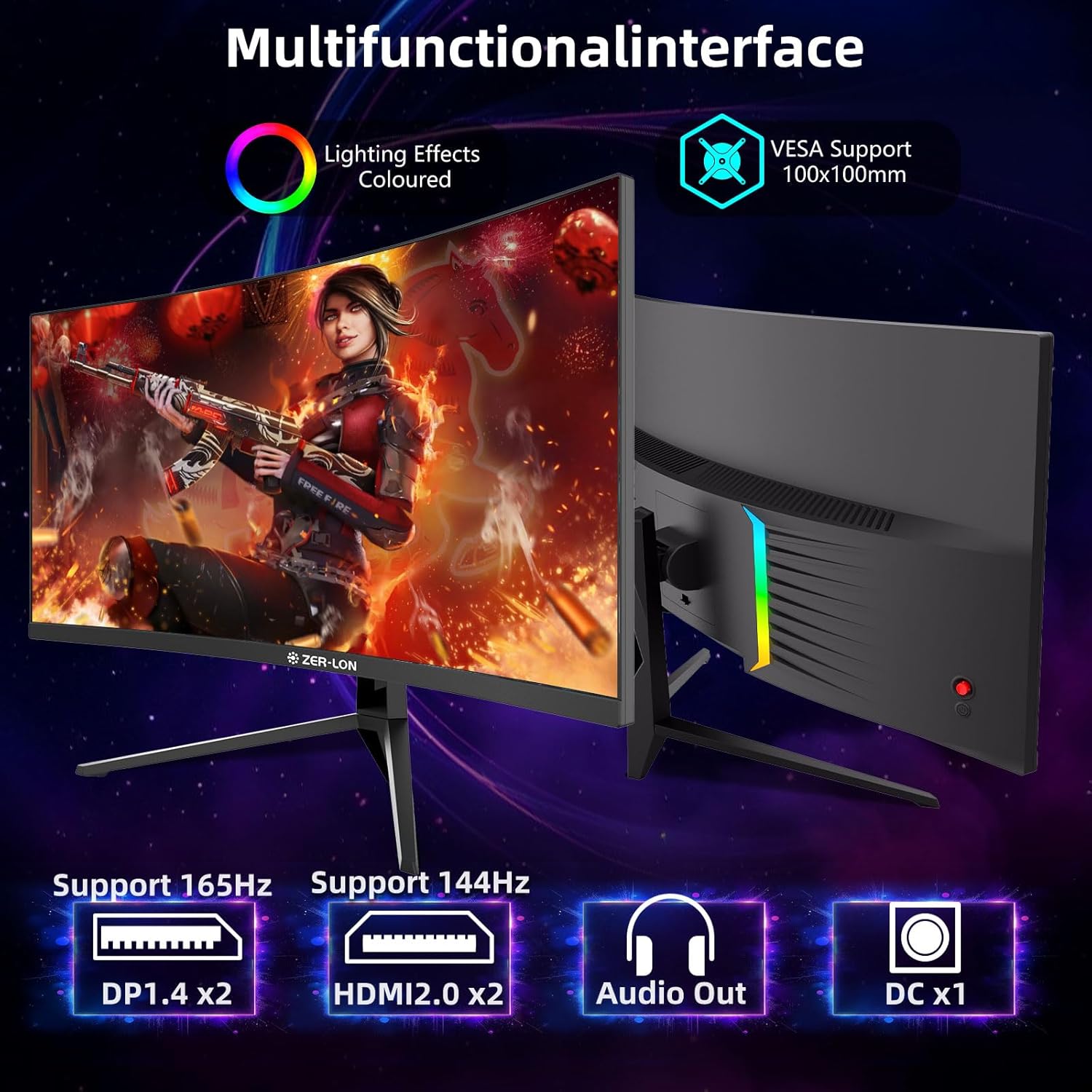
Image: Rear view of the monitor highlighting the input ports and VESA mounting points.
2. Connecting to a Device
The monitor supports multiple input options:
- DisplayPort (DP): Connect one end of the DP cable to the DisplayPort output on your computer and the other end to one of the DP 1.4 ports on the monitor. This connection supports up to 165Hz refresh rate at 3440x1440 resolution.
- HDMI: Connect one end of the HDMI cable to the HDMI output on your computer/device and the other end to one of the HDMI 2.0 ports on the monitor. This connection supports up to 144Hz refresh rate at 3440x1440 resolution.
- Audio Out: Connect external speakers or headphones to the 3.5mm audio output port on the monitor if you wish to use external audio devices instead of the built-in speakers.
- Power: Connect the power adapter to the DC input port on the monitor, then plug the power cable into a wall outlet.
Wall Mounting: The monitor is compatible with VESA 100mm x 100mm mounting solutions. Ensure you use appropriate screws and a compatible wall mount (sold separately).
Operating Instructions
1. Power On/Off
Press the power button, usually located on the rear or bottom of the monitor, to turn the monitor on or off. The power indicator light will illuminate when the monitor is active.
2. On-Screen Display (OSD) Menu Navigation
The monitor features a joystick control, typically located on the rear, for navigating the OSD menu. Push the joystick in to access the main menu. Use the joystick to move up, down, left, or right to select and adjust settings.

Image: Illustration of the monitor's joystick control and its directional functions for menu navigation.
3. Key OSD Settings
- Picture Settings: Adjust brightness, contrast, sharpness, and color temperature.
- Color Settings: Fine-tune color balance, gamma, and saturation. The monitor offers 125% sRGB coverage and 8-bit color depth.
- Gaming Features:
- Refresh Rate: Set to 165Hz for optimal gaming performance via DisplayPort, or 144Hz via HDMI.
- FreeSync: Enable FreeSync to synchronize the monitor's refresh rate with your GPU's frame rate, reducing screen tearing and stuttering.
- MPRT (Moving Picture Response Time): Activate 1ms MPRT for reduced motion blur in fast-paced scenes.
- Black Equalizer: Adjust this setting to enhance visibility in dark areas of games without overexposing bright areas.
- HDR (High Dynamic Range): Enable HDR for enhanced contrast and color reproduction with compatible content.
- Low Blue Light: Activate this mode to reduce blue light emissions, which can help reduce eye strain during prolonged use.
- Input Source: Manually select between DisplayPort and HDMI inputs.
- Audio: Adjust volume for built-in speakers or connected headphones.
- Multi-Window: The monitor supports dual inputs, allowing for Picture-by-Picture (PBP) or Picture-in-Picture (PIP) modes. Refer to the OSD for specific settings.
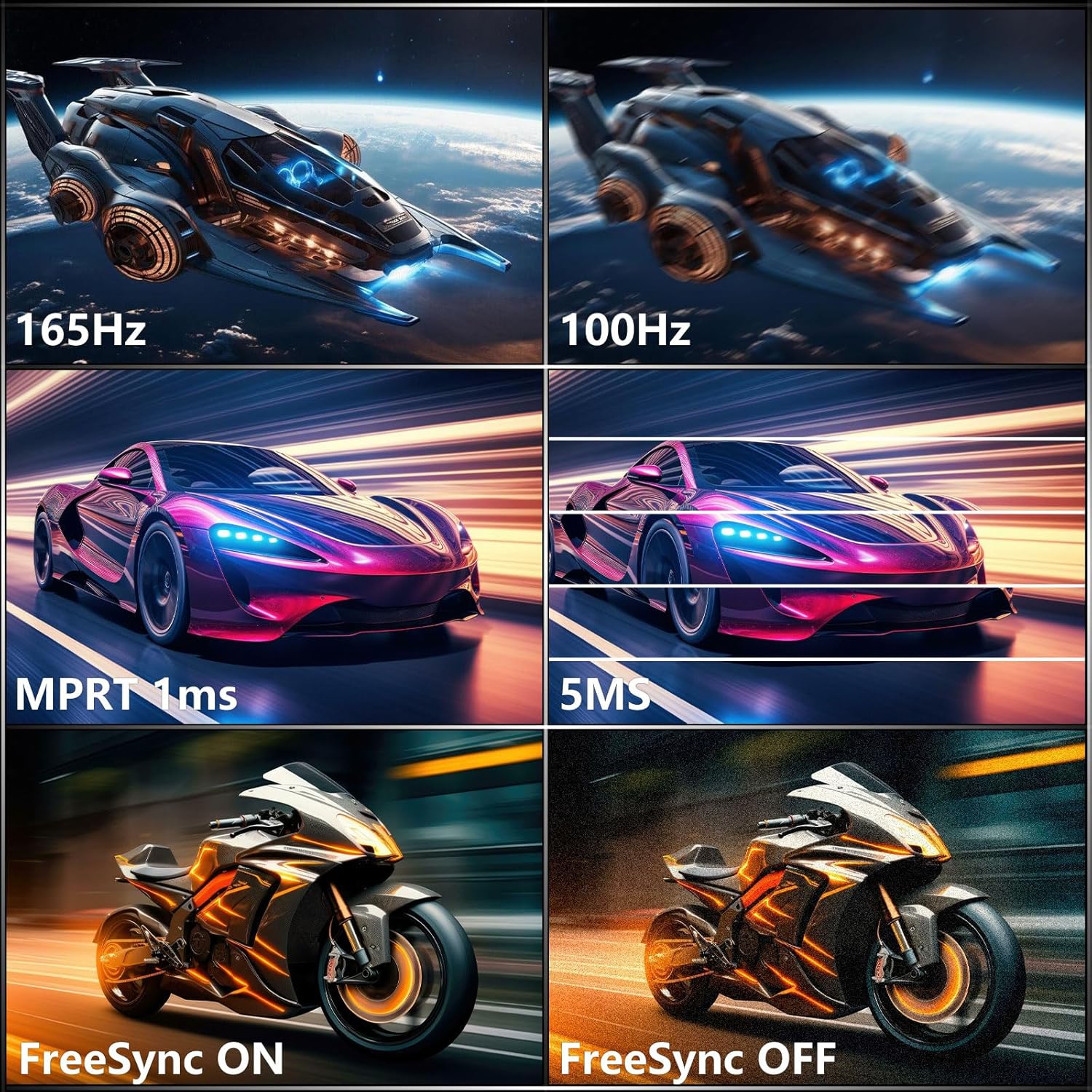
Image: Visual demonstration of the benefits of 165Hz refresh rate, 1ms MPRT, and FreeSync technology.

Image: Display of various preset visual modes optimized for different content types like movies, FPS games, general games, and RTS games.
Maintenance
1. Cleaning the Monitor
- Always unplug the monitor before cleaning.
- Use a soft, lint-free cloth lightly dampened with water or a non-abrasive screen cleaner.
- Do not spray cleaner directly onto the screen.
- Avoid using benzene, thinner, ammonia-based cleaners, or abrasive materials, as these can damage the screen or casing.
2. Storage
If storing the monitor for an extended period, disconnect all cables and pack it in its original packaging or a suitable protective box. Store in a cool, dry place away from direct sunlight and extreme temperatures.
Troubleshooting
If you encounter issues with your monitor, refer to the following common problems and solutions:
| Problem | Possible Cause | Solution |
|---|---|---|
| No image on screen |
|
|
| Image flickering or distorted |
|
|
| No sound from speakers |
|
|
| Monitor not reaching 165Hz |
|
|
Specifications
| Feature | Detail |
|---|---|
| Model Number | PD22340W |
| Screen Size | 34 Inches |
| Curvature | 1500R |
| Aspect Ratio | 21:9 |
| Resolution | 3440 x 1440 (WQHD) |
| Refresh Rate | 165Hz (DisplayPort), 144Hz (HDMI) |
| Response Time | 1ms (MPRT) |
| Brightness | 350 cd/m² (nits) |
| Color Depth | 8-bit |
| Color Gamut | 125% sRGB |
| Contrast Ratio | 4000:1 (Static) |
| HDR Support | Yes (HDR10) |
| Adaptive Sync | FreeSync |
| Connectivity | 2x HDMI 2.0, 2x DisplayPort 1.4, 1x 3.5mm Audio Out |
| Built-in Speakers | Yes |
| VESA Mount Compatibility | 100mm x 100mm |
| Adjustability | Tilt Adjustable |
| Product Dimensions (L x W x H) | 31.73 x 4.4 x 19.1 inches |
| Item Weight | 15.32 pounds |
| Power Input | 12 Volts |
Warranty and Support
Your ZER-LON 34-inch Curved Gaming Monitor (Model PD22340W) is backed by a 12-month warranty from the date of purchase. This warranty covers manufacturing defects and workmanship under normal use.
For technical support, warranty claims, or any questions regarding your product, please contact ZER-LON customer support. Refer to the contact information provided on the ZER-LON official website or your purchase documentation.
Please have your model number (PD22340W) and proof of purchase ready when contacting support.


