
Introduction
Thank you for choosing the KOORUI S3241XO 31.5-inch 4K OLED Gaming Monitor. This manual provides essential information for setting up, operating, and maintaining your monitor. Please read it thoroughly before use to ensure optimal performance and safety.
Safety Information
- Do not expose the monitor to rain or moisture to prevent fire or electric shock.
- Do not open the monitor casing. There are no user-serviceable parts inside. Refer all servicing to qualified service personnel.
- Place the monitor on a stable, flat surface to prevent it from falling.
- Ensure proper ventilation around the monitor. Do not block ventilation openings.
- Use only the power adapter and cables provided by the manufacturer.
- Unplug the monitor from the power outlet during lightning storms or when unused for long periods.
- Avoid placing heavy objects on the power cord or monitor cables.
Package Contents
Verify that all items are present in your package:
- KOORUI S3241XO 31.5-inch 4K OLED Gaming Monitor
- HDMI 2.1 Cable
- DisplayPort 1.4 Cable (1.8m)
- USB 3.0 A-B Cable
- Type-C Cable
- AC Power Cable
- Power Adapter
- User Manual
Setup
1. Monitor Assembly
Follow these steps to assemble the monitor stand and attach it to the display panel.

Image: The KOORUI S3241XO monitor with its stand, showcasing the display and connectivity options.
2. Connecting to Devices
The monitor offers various connectivity options. Ensure your device supports the required output.
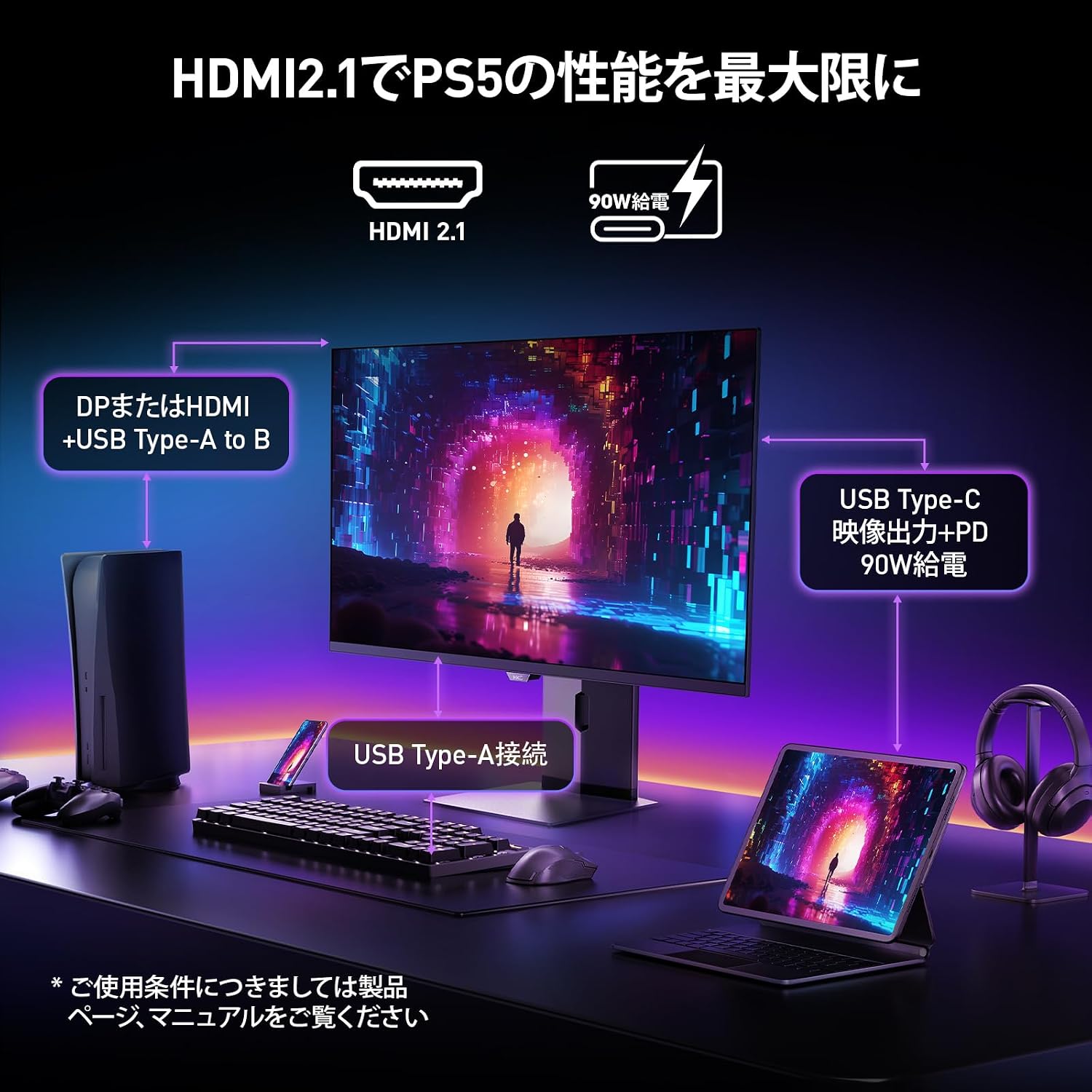
Image: A diagram illustrating how to connect various devices like a PS5, laptop, and peripherals to the monitor using HDMI 2.1, USB Type-C, and USB Type-A ports.
Port Overview:

Image: Detailed view of the monitor's rear input/output ports with numerical labels for identification.
- Power Cable: Connect the AC power cable to the monitor and a power outlet.
- USB Type-B (Upstream): Connect to your computer to enable the monitor's USB-A ports.
- USB 3.1 Type-A (x2): For connecting USB peripherals.
- HDMI 2.1 (x2): Connect to devices supporting HDMI 2.1 for 4K 240Hz output.
- DisplayPort 1.4: Connect to devices supporting DisplayPort 1.4 for 4K 240Hz output.
- Type-C (with PD): Connect to compatible devices for video input and power delivery (up to 90W).
- Headphone Output: For connecting headphones or external speakers.
Operating Instructions
1. Power On/Off
Press the power button, usually located on the back or bottom of the monitor, to turn it on or off.
2. On-Screen Display (OSD) Menu
Use the joystick or buttons on the monitor to navigate the OSD menu. The OSD allows you to adjust various settings.
Key OSD Settings:
- Picture Settings: Adjust brightness, contrast, sharpness, and color temperature.
- Color Modes: Select from various preset color modes, including a professional color mode for accurate color reproduction (99% DCI-P3, 100% sRGB, Delta E<2, True 10-bit color).
- Input Source: Manually select the input source (HDMI 1, HDMI 2, DisplayPort, Type-C).
- Gaming Features: Access specific gaming modes (RPG, FPS, RCG) and settings like FreeSync and G-Sync compatibility.
- Response Time: The monitor features a 0.03ms (OD) response time for rapid image transitions.
- HDR True Black 400: Optimizes black levels for enhanced detail in dark scenes.
- DIC (Digital Image Control) Mode: Enable or disable DIC to prevent ghosting and improve image quality.

Image: Visual representation of the monitor's color accuracy and wide color gamut.

Image: Illustrates the difference in motion clarity at various refresh rates, highlighting the 240Hz 0.03ms response.

Image: Demonstrates the enhanced black levels and detail in dark scenes provided by the KOORUI QD OLED technology compared to a typical LCD.

Image: Shows the effect of Digital Image Control (DIC) mode on reducing ghosting for smoother visuals.
3. Ergonomic Adjustments
The monitor stand allows for various adjustments to optimize your viewing experience:
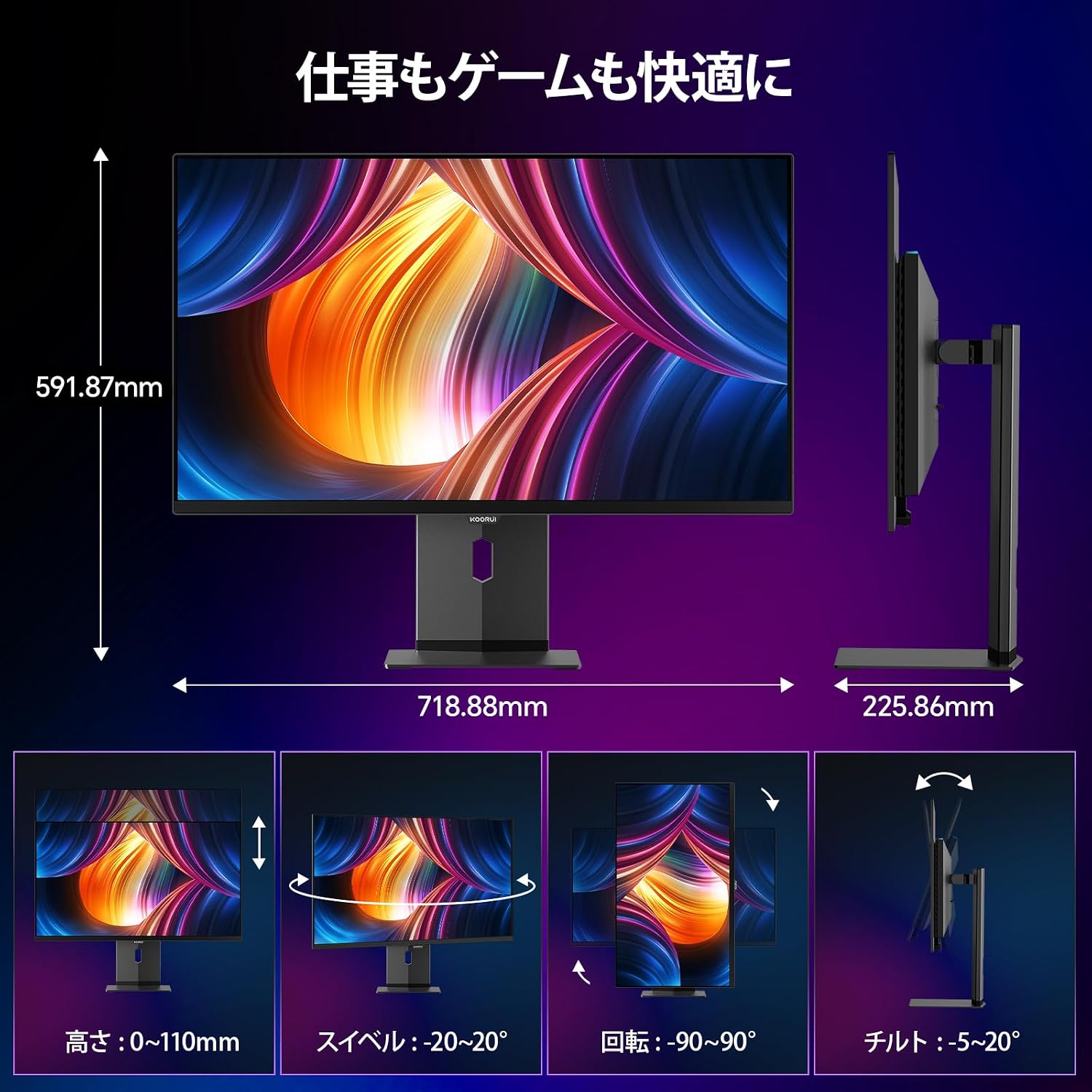
Image: Illustrations of the monitor's adjustable features: height, swivel, pivot (rotation), and tilt.
- Height Adjustment: Adjust the display height by up to 110mm.
- Tilt: Tilt the screen from -5° to 20° for comfortable viewing angles.
- Swivel: Swivel the monitor -20° to 20° horizontally.
- Pivot (Rotation): Rotate the screen -90° to 90° for portrait or landscape orientation.
Maintenance
1. Cleaning the Monitor
- Always unplug the monitor before cleaning.
- Use a soft, lint-free cloth lightly dampened with water or a mild, non-abrasive screen cleaner.
- Do not spray cleaner directly onto the screen.
- Avoid using benzene, thinner, or any volatile solvents, as they may damage the screen surface.
2. Eye Care Features
The monitor includes features to reduce eye strain during prolonged use:
- Hardware Blue Light Cut: Reduces harmful blue light emissions without affecting color accuracy.
- Flicker Guard: Eliminates screen flickering for a more comfortable viewing experience.

Image: Demonstrates the effectiveness of hardware blue light reduction in preserving natural colors.

Image: Illustrates the difference between Flicker Guard off and on, showing reduced screen flickering.
3. Panel Protection Features
To prevent OLED burn-in, the monitor incorporates proprietary panel protection technologies:
- Pixel Shift: Periodically shifts pixels slightly to prevent static images from causing burn-in.
- Taskbar Detection: Detects static elements like the taskbar and adjusts their brightness to minimize burn-in risk.
- Graphene Sheet + Custom Heatsink: Advanced thermal management to maintain optimal operating temperature.

Image: Visual explanation of pixel shift, taskbar detection, and thermal management for panel protection.
Troubleshooting
If you encounter issues with your monitor, refer to the following common problems and solutions:
| Problem | Possible Cause | Solution |
|---|---|---|
| No image on screen | Power cable disconnected, incorrect input source, device not powered on. | Check power connections, select correct input source via OSD, ensure connected device is on. |
| Image flickering | Flicker Guard disabled, cable issue, graphics card driver issue. | Enable Flicker Guard in OSD, try a different cable, update graphics drivers. |
| Poor color quality | Incorrect color mode, cable issue. | Adjust color settings in OSD, try a different cable. |
| No sound from headphones | Headphones not properly connected, audio settings on device/monitor. | Ensure headphones are fully plugged in, check audio output settings on your computer and monitor. |
| USB ports not working | USB Type-B upstream cable not connected. | Connect the USB Type-B cable from the monitor to your computer. |
Specifications
| Feature | Specification |
|---|---|
| Brand | KOORUI |
| Model Number | S3241XO |
| Screen Size | 31.5 inches |
| Panel Type | OLED (QLED) |
| Resolution | 4K UHD (3840 x 2160 pixels) |
| Refresh Rate | 240 Hz |
| Response Time | 0.03 ms (OD) |
| Aspect Ratio | 16:9 |
| Contrast Ratio | 1,500,000:1 |
| Brightness | 280 cd/m² |
| Color Gamut | 99% DCI-P3, 100% sRGB |
| Color Depth | True 10-bit (1.07 billion colors) |
| HDR Support | DisplayHDR400 True Black |
| Adaptive Sync | FreeSync and G-Sync Compatible |
| Connectivity | 2x HDMI 2.1, 1x DisplayPort 1.4, 1x Type-C (with 90W PD), 2x USB-A 3.1, 1x USB-B, 1x Headphone Jack |
| Ergonomics | Height Adjustment (110mm), Tilt (-5° to 20°), Swivel (-20° to 20°), Pivot (-90° to 90°) |
| VESA Mount | 100 x 100 mm |
| Dimensions (W x H x D) | Approx. 71.9 x 59.2 x 22.6 cm (with stand) |
| Weight | Approx. 8.3 KG |
| Power Consumption | 264 Watts (Max) |
Warranty and Support
The KOORUI S3241XO monitor comes with a 3-year manufacturer's warranty. The LCD panel itself is covered by a 1-year warranty. For warranty claims or technical support, please contact KOORUI customer service.
KOORUI also offers a free recycling service for monitors. Please refer to the official KOORUI website or contact support for details on how to utilize this service.
For further assistance, please visit the KOORUI Brand Store.


