
Introduction
Welcome to the Parsonver SR2 Smart Watch user manual. This guide provides detailed instructions on how to set up, operate, maintain, and troubleshoot your new smart watch. Please read this manual thoroughly to ensure optimal performance and longevity of your device.

Image: The Parsonver SR2 Smart Watch, showcasing its display with time, date, steps, and heart rate, alongside a smaller inset of its GPS tracking feature.
1. Setup
1.1 Package Contents
Before you begin, please verify that all items are present in your package:
- Parsonver SR2 Smart Watch
- Charging Cable
- User Manual (this document)

Image: An illustration showing the Parsonver SR2 Smart Watch, its magnetic charging cable, and the included user manual.
1.2 Charging the Device
Upon first use, fully charge your smart watch. Connect the magnetic charging cable to the charging contacts on the back of the watch and plug the USB end into a power adapter (not included) or a computer's USB port. A full charge typically takes approximately 2 hours.
Image: The Parsonver SR2 Smart Watch connected to its magnetic charging cable, displaying a 100% charge indicator.
1.3 App Installation and Pairing
To unlock the full functionality of your Parsonver SR2 Smart Watch, download and install the companion application on your smartphone.
- Scan the QR code in the manual or search for the 'Parsonver' app in your phone's app store (Google Play Store for Android, Apple App Store for iPhone).
- Install the application and create an account or log in.
- Ensure Bluetooth is enabled on your smartphone.
- Open the Parsonver app, navigate to the device section, and follow the on-screen instructions to pair your SR2 Smart Watch.
- Grant all necessary permissions requested by the app for full functionality, including notifications and location services.
2. Operating Your Smart Watch
2.1 Basic Navigation
The Parsonver SR2 Smart Watch features a responsive touchscreen and dual physical buttons for intuitive control.
- Touchscreen: Swipe left/right, up/down to navigate through menus and features. Tap to select.
- Upper Button: Typically used to return to the home screen or wake the device.
- Lower Button: Customizable. Can be set to quickly access workout modes or frequently used applications via the companion app.

Image: A close-up of the Parsonver SR2 Smart Watch highlighting its dual button design and a menu showing 'Exercise', 'Walking', and 'Treadmill' options.
2.2 Bluetooth Calling & Smart Notifications
The SR2 Smart Watch supports Bluetooth 5.3 for stable connectivity, allowing you to answer and make calls directly from your wrist and receive smart notifications.
- Answering/Making Calls: Once paired, incoming calls will display on your watch. You can answer or reject them. Use the integrated microphone and speaker for conversations.
- Smart Notifications: Receive alerts for calls, SMS, and various social media applications directly on your watch. Ensure app permissions are granted for notifications.
- Quick Call Replies: (Android only) Respond instantly to calls with pre-set messages.

Image: A person interacting with the Parsonver SR2 Smart Watch, showing a call screen with a dial pad and contact list, along with icons for various social media notifications.
2.3 Sports Modes & Built-in GPS
Track your fitness activities with over 100 sports modes and accurate built-in GPS.
- 100+ Sports Modes: Select your activity from a wide range of sports to get precise tracking of duration, distance, calories burned, and heart rate zones.
- Built-in GPS: Accurately record your workout routes without needing your phone. View detailed maps and statistics in the companion app after your activity.
- Smart Detection: The watch can automatically recognize when you are running, walking, or using a treadmill.

Image: A person running outdoors, with the Parsonver SR2 Smart Watch displaying a GPS-tracked route on its screen and a smartphone app showing detailed workout data including distance and time.
2.4 24-Hour Health Monitoring
Monitor your health metrics continuously with the SR2 Smart Watch.
- Heart Rate Monitoring: Tracks your heart rate throughout the day. Set custom alerts for high or low readings.
- Sleep Monitoring: Analyzes your sleep patterns (deep sleep, light sleep, REM, awake time, sporadic naps) to provide insights into your sleep quality.
- Blood Oxygen (SpO2) Monitoring: Measures your blood oxygen levels, providing clear trends and real-time tracking.
- Stress Monitoring: Understand your emotional fluctuations through data-driven body-mind analysis.
- Women's Health Companion: Provides data-driven cycle management features.

Image: A person sleeping, wearing the Parsonver SR2 Smart Watch, with graphics illustrating sleep monitoring, heart rate monitoring, stress monitoring, and blood oxygen monitoring features.
2.5 Watch Faces & DIY
Personalize your watch with a variety of watch faces or create your own.
- 100+ Watch Faces: Choose from a wide selection of pre-installed watch faces to match your style.
- DIY Watch Faces: Use the companion app to upload your own photos and customize your watch face.

Image: The Parsonver SR2 Smart Watch displaying a custom watch face with a photo, surrounded by various other watch face designs and a smartphone screen showing the watch face synchronization interface.
2.6 Additional Features
The SR2 Smart Watch offers a range of other useful functions:
- World Clock
- Brightness Adjustment
- Alarm
- Calculator
- Timer
- Find My Phone
- Lift-to-wake
- Stopwatch
- Music Control
- Remote Camera Trigger
- Breathing Exercises
- Reminders (Handwashing, Medication, Event, Drinking, Standing)

Image: The Parsonver SR2 Smart Watch screen surrounded by icons representing various features like weather, music, camera control, alarm, and more.
3. Maintenance
3.1 Waterproof Rating (IP68)
The Parsonver SR2 Smart Watch is rated IP68 waterproof, meaning it is rigorously tested to withstand splashes, hand washing, face washing, and intense sweat. It is suitable for daily use and light water exposure.
Note: Avoid using the watch while showering, in saunas, or swimming, as hot water, steam, or prolonged submersion can compromise the seal and cause damage.

Image: A man kayaking on a river, wearing the Parsonver SR2 Smart Watch, illustrating its IP68 waterproof capability against splashes.
3.2 Cleaning and Care
- Regularly clean your watch and strap with a soft, damp cloth.
- Avoid using harsh chemicals, abrasive cleaners, or solvents.
- Ensure the charging contacts are clean and dry before charging to prevent corrosion.
3.3 Battery Care
- Charge the watch regularly, avoiding complete discharge for extended periods.
- Store the watch in a cool, dry place when not in use.
- Typical battery life is 5-7 days with normal use, and up to 40 days in standby mode. Actual battery life may vary based on usage.
4. Troubleshooting
If you encounter issues with your Parsonver SR2 Smart Watch, please refer to the following common solutions:
| Issue | Possible Solution |
|---|---|
| Watch not turning on | Ensure the watch is fully charged. Connect it to the charger for at least 30 minutes. |
| Cannot pair with phone | Ensure Bluetooth is enabled on your phone. Restart both the watch and phone. Make sure the watch is within Bluetooth range. Check app permissions. |
| Notifications not received | Verify that notification permissions are granted in the Parsonver app and your phone's settings. Ensure the app is running in the background. |
| Inaccurate health data | Ensure the watch is worn snugly on your wrist, not too tight or too loose. Clean the sensor on the back of the watch. Avoid excessive movement during measurements. |
| GPS not tracking | Ensure you are in an open outdoor area with a clear view of the sky. Wait for the watch to acquire a GPS signal before starting your activity. |
| Short battery life | Reduce screen brightness, disable 'Lift-to-wake' if not needed, limit continuous heart rate monitoring, and close unused apps on the watch. |
If the issue persists, please contact customer support for further assistance.
5. Specifications
| Feature | Detail |
|---|---|
| Model Number | SR2 |
| Product Dimensions | 9.84 x 1.69 x 0.46 inches |
| Item Weight | 1.41 ounces (40 Grams) |
| Screen Size | 1.27 Inches (Standing screen display size) |
| Visible Screen Diagonal | 2" / 4 cm |
| Memory Storage Capacity | 256 MB |
| Wireless Communication | Bluetooth 5.3 |
| Human Interface Input | Touchscreen |
| International Protection Rating | IP68 |
| Battery | 1 C battery required (included) |
| Manufacturer | Parsonver |
| First Available Date | October 12, 2025 |
6. Warranty & Support
6.1 Product Warranty
Parsonver products are designed and manufactured to the highest quality standards. This product is covered by a limited warranty against defects in materials and workmanship. Please refer to the warranty card included in your package or contact Parsonver customer support for specific warranty terms and conditions.
6.2 Customer Support
For any questions, technical assistance, or support needs, please contact Parsonver customer service. Our support team is available 24/7 to assist you.
- Online Support: Visit the official Parsonver website or contact us through the companion app for online assistance.
- Email Support: Refer to your warranty card or product packaging for email contact information.
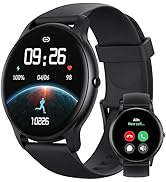
Image: An icon representing 24/7 online customer support, featuring a headset and chat bubbles.


