
Introduction
This manual provides detailed instructions for the Keychron B36 2.4 GHz Wireless Bluetooth 100% Full-Size Layout Keyboard. Please read this guide thoroughly to ensure proper setup, operation, and maintenance of your device. The Keychron B36 offers versatile connectivity, an ergonomic design, and a silent typing experience.
What's in the Box
- Keychron B36 Wireless Keyboard x1
- Type-A 2.4 GHz Receiver x1
- Type-A to Type-C Cable x1
Setup
1. Charging the Keyboard
Before initial use, fully charge the keyboard using the provided Type-A to Type-C cable. Connect the USB-C end to the keyboard and the USB-A end to a power source (e.g., computer USB port, USB wall adapter). The charging indicator will show the charging status.
2. Connectivity Options
The Keychron B36 supports three connection modes: 2.4 GHz wireless, Bluetooth 5.2, and USB-C wired.

Image: The Keychron B36 keyboard highlighting its multiple connectivity options: 2.4 GHz wireless, Bluetooth 5.2, and USB-C wired. The 2.4G dongle slot is also visible.
2.1. 2.4 GHz Wireless Connection
- Locate the 2.4 GHz USB receiver (dongle) included in the box.
- Plug the 2.4 GHz receiver into an available USB-A port on your computer.
- Turn on the keyboard and switch the mode selector to 2.4G. The keyboard will automatically connect to the receiver.
2.2. Bluetooth 5.2 Connection
The keyboard can connect to up to three Bluetooth devices.
- Switch the mode selector on the keyboard to Bluetooth (BT).
- To pair with a new device, press and hold the Fn + 1 (for device 1), Fn + 2 (for device 2), or Fn + 3 (for device 3) key combination for 3 seconds until the indicator light flashes rapidly, indicating pairing mode.
- On your device (computer, tablet, smartphone), enable Bluetooth and search for "Keychron B36".
- Select "Keychron B36" to complete the pairing process. The indicator light will stop flashing once connected.
- To switch between paired Bluetooth devices, press Fn + 1, Fn + 2, or Fn + 3 briefly.
2.3. USB-C Wired Connection
- Connect the provided Type-A to Type-C cable from your computer's USB port to the keyboard's USB-C port.
- Switch the mode selector on the keyboard to "Cable" or "Wired" mode. The keyboard will function as a wired device.
3. Operating System Compatibility
The Keychron B36 is compatible with macOS, Windows, and Linux operating systems. Use the OS switch on the keyboard to select the appropriate layout for your system.
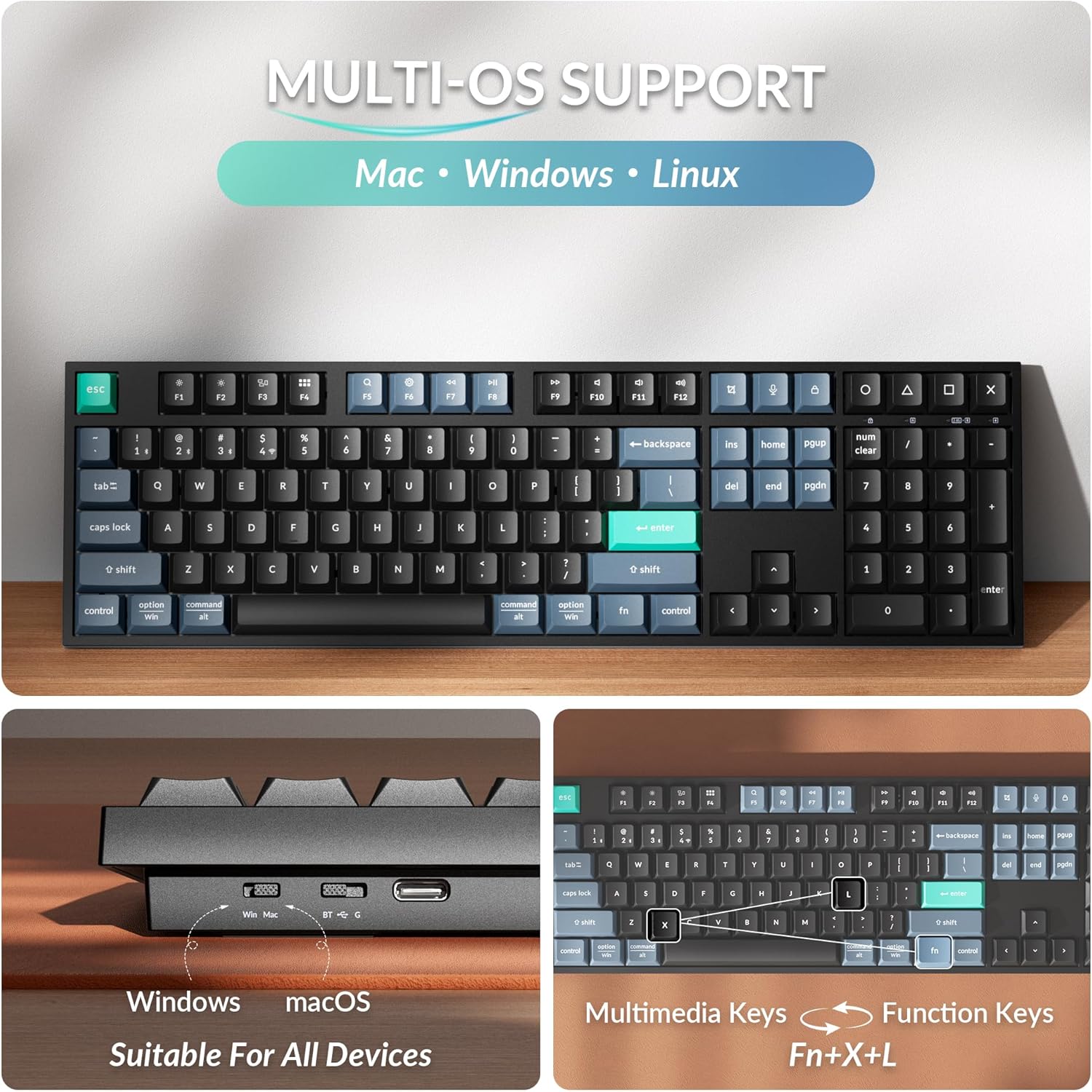
Image: The Keychron B36 keyboard demonstrating its compatibility with multiple operating systems, including Mac, Windows, and Linux. A physical switch allows users to toggle between Windows and macOS layouts.
Operating Instructions
1. Key Functions and Layout
The B36 features a 100% full-size layout with a numeric keypad. Standard QWERTY layout is used. Function keys (F1-F12) can be accessed directly or via the Fn key in combination with other keys for multimedia controls.
- Multimedia Keys: Press Fn + F1 to Fn + F12 for various multimedia functions (e.g., volume control, media playback).
- Function Keys: To use F1-F12 as standard function keys, press Fn + X + L (or refer to the specific key combination for your OS).
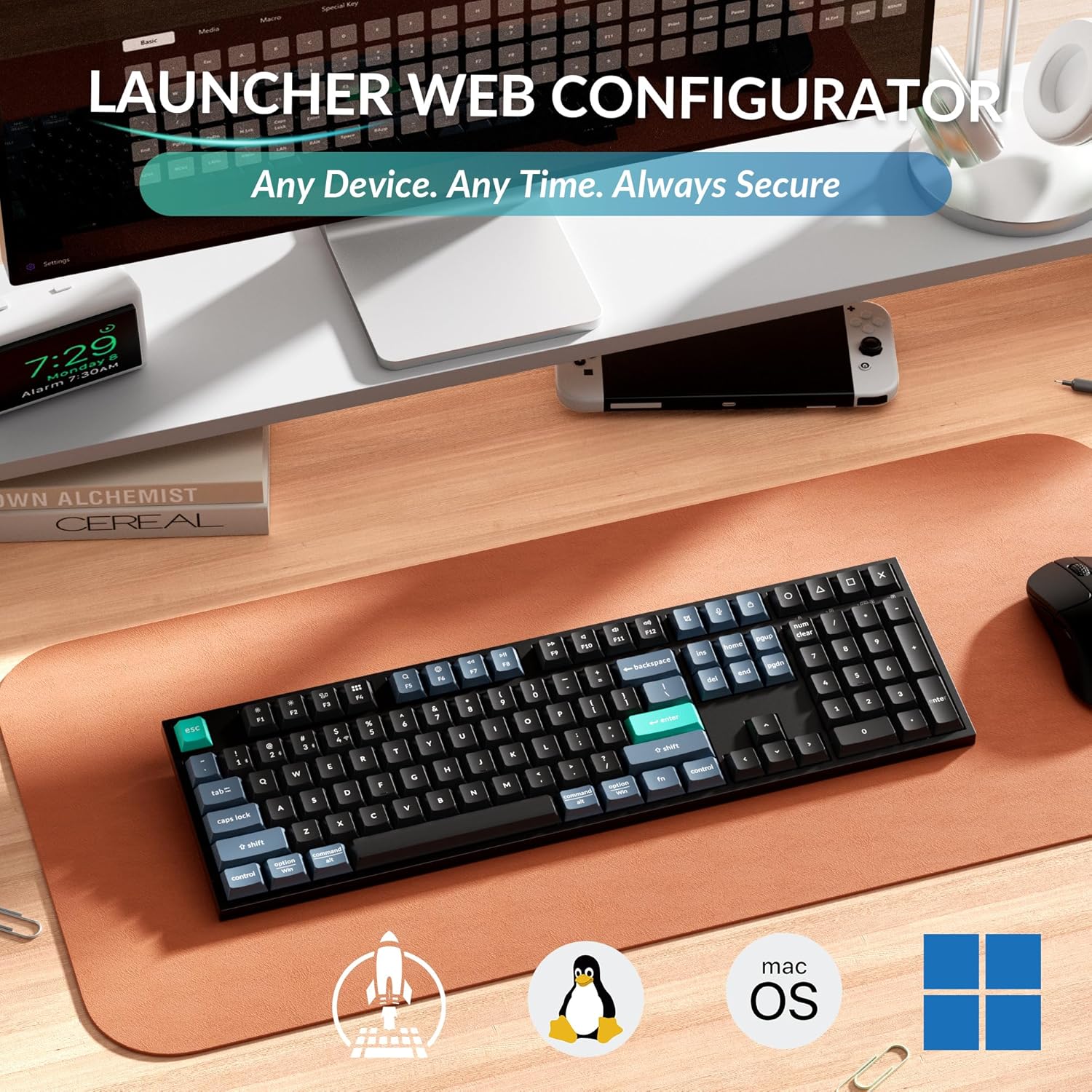
Image: A top-down view of the Keychron B36 full-size keyboard, showcasing its complete 100% layout including the numeric keypad.
2. Ergonomic Angle Adjustment
The keyboard features a two-stage kickstand, allowing you to adjust the typing angle for improved comfort. Available angles are 5°, 6.5°, and 9°.
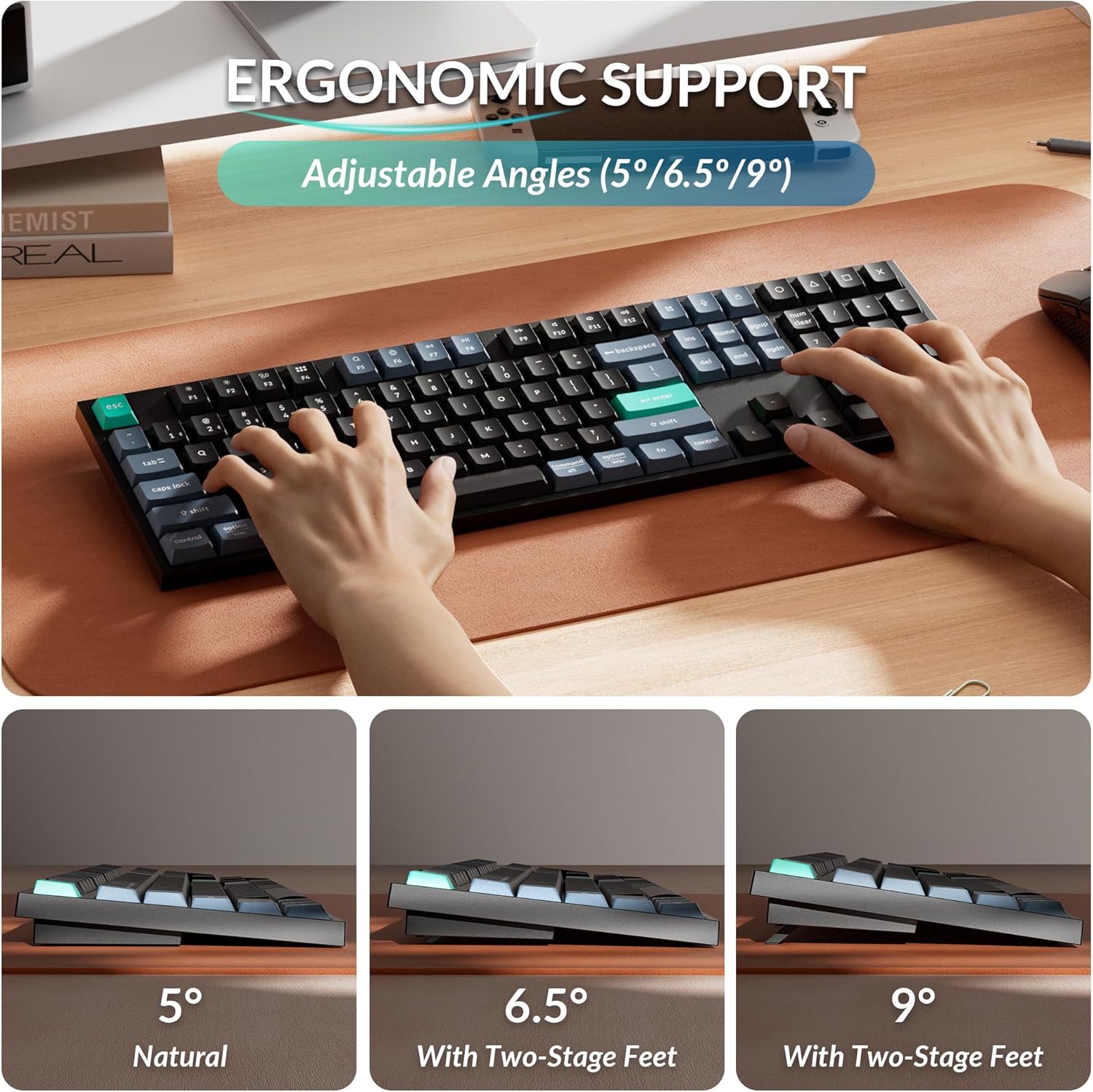
Image: The Keychron B36 keyboard demonstrating its adjustable ergonomic angles. The keyboard can be set to 5° (natural), 6.5°, or 9° using its two-stage feet for personalized comfort.
3. Launcher Web Configurator
The Keychron Launcher web application allows for key remapping, macro creation, shortcut customization, and firmware updates. This tool is accessible via web browsers like Chrome, Opera, or Edge and requires no software installation.
Visit the official Keychron website for access to the Launcher web app.

Image: A visual representation of the Keychron Launcher web configurator, showing options for key remapping, macros, and firmware updates for the B36 keyboard.
4. Silent Typing Experience
The B36 keyboard utilizes pre-lubed scissor switches, designed to provide a smooth, consistent, and ultra-quiet typing experience. This makes it suitable for environments requiring minimal noise, such as offices or shared workspaces.
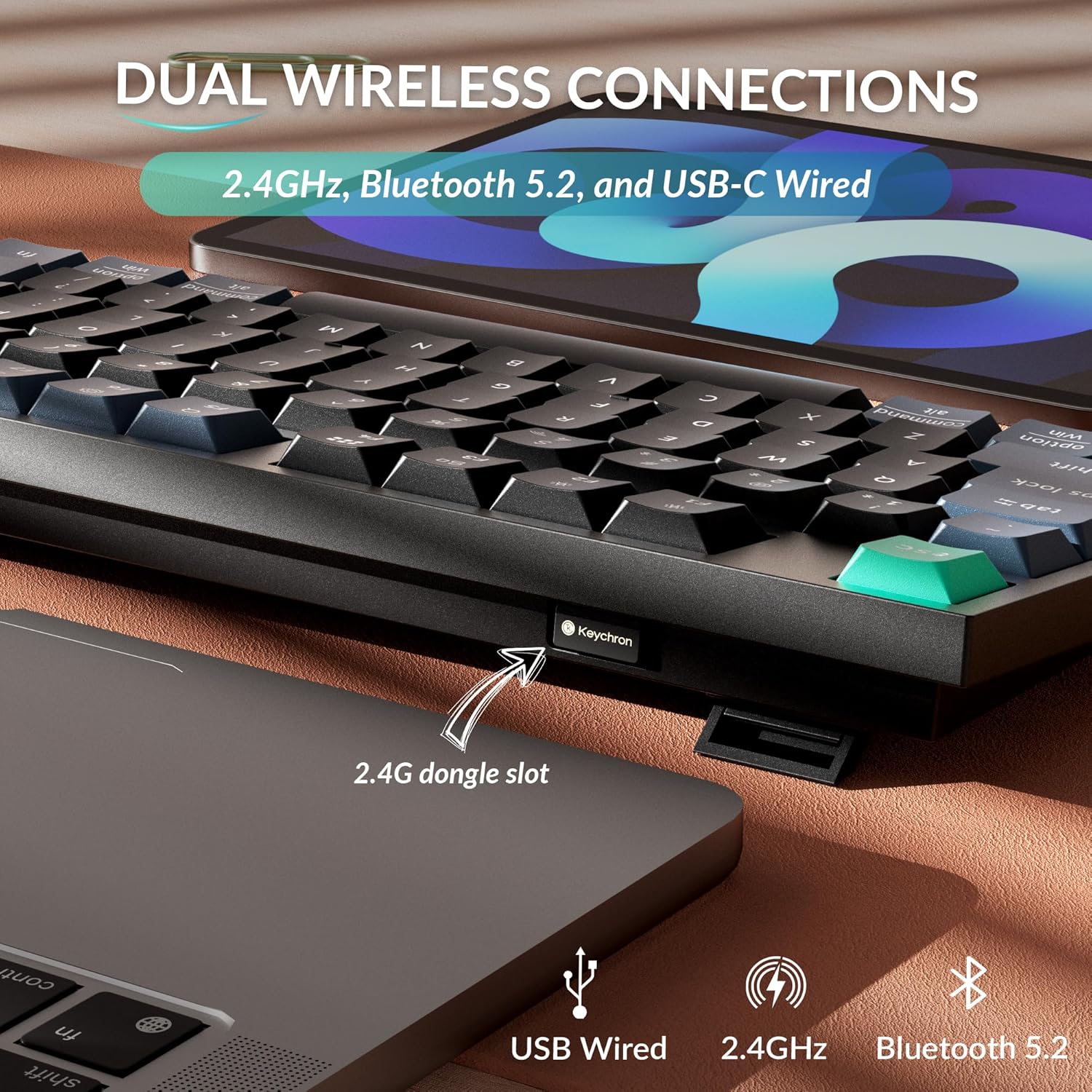
Image: A detailed view of the Keychron B36's scissor switch mechanism, illustrating the 2mm activation point and 3.5mm total travel distance for silent and precise typing.
5. Battery Management
The keyboard is equipped with an 800 mAh rechargeable battery, offering up to 320 hours of continuous use on a full charge. The intelligent power management system helps conserve battery life. Recharge the keyboard when the battery indicator shows low power.

Image: The Keychron B36 keyboard displayed with text highlighting its long-lasting battery, providing up to 320 hours of usage.
Maintenance
- Cleaning: Use a soft, dry cloth to clean the keyboard surface. For deeper cleaning, use a slightly damp cloth with mild soap, ensuring no liquid enters the keyboard. Avoid abrasive cleaners or solvents.
- Storage: Store the keyboard in a cool, dry place away from direct sunlight and extreme temperatures.
- Battery Care: To prolong battery life, avoid fully discharging the battery frequently. If storing for an extended period, charge the battery to about 50% before storage.
Troubleshooting
| Problem | Solution |
|---|---|
| Keyboard not connecting via 2.4 GHz. | Ensure the 2.4 GHz receiver is securely plugged into a USB port. Verify the keyboard's mode switch is set to 2.4G. Try plugging the receiver into a different USB port. |
| Bluetooth connection issues. | Ensure the keyboard is in Bluetooth pairing mode (indicator flashing). Check that Bluetooth is enabled on your device. Forget the device in your device's Bluetooth settings and re-pair. Ensure the keyboard's OS switch matches your device. |
| Keys are unresponsive or typing errors occur. | Check battery level and charge if necessary. Ensure the keyboard is within range of the receiver/device. Try switching to wired mode to confirm functionality. Clean under the keycaps if debris is suspected. |
| Keyboard not charging. | Verify the USB-C cable is properly connected to both the keyboard and the power source. Try a different USB port or charging adapter. Ensure the cable is not damaged. |
Specifications
| Feature | Detail |
|---|---|
| Model | Keychron B36 |
| Layout | 100% Full-Size, 104 Keys (QWERTY) |
| Connectivity | 2.4 GHz Wireless, Bluetooth 5.2, USB-C Wired |
| Switch Type | Scissor Mechanism (Pre-lubed, Linear) |
| Battery Capacity | 800 mAh Rechargeable |
| Battery Life | Up to 320 hours (continuous use) |
| Operating System Compatibility | macOS, Windows, Linux |
| Dimensions (L x W x H) | 17.2" x 5.15" x 1.02" (436.95 x 130.95 x 25.9 mm) |
| Weight | 1.43 lbs (650 g) |
| Body Material | ABS |

Image: A summary of the Keychron B36's technical specifications, including dimensions, weight, key count, connectivity, and operating system compatibility.
Warranty and Support
Keychron products typically come with a limited warranty. For specific warranty details, registration, and technical support, please visit the official Keychron website or contact their customer service. Keep your purchase receipt for warranty claims.
Official Keychron Website: www.keychron.com
Product Video
Video: A typing test demonstrating the sound and feel of the Keychron B36 wireless keyboard's scissor switches and ABS keycaps. This video is provided by the Keychron Store.


