
JOYACCESS B0F4CYYYYB
JOYACCESS Wireless Keyboard 2.4G User Manual
Model: B0F4CYYYYB
Introduction
This manual provides comprehensive instructions for the setup, operation, maintenance, and troubleshooting of your JOYACCESS 2.4G Wireless Keyboard. Please read this manual carefully before using the product to ensure optimal performance and longevity.
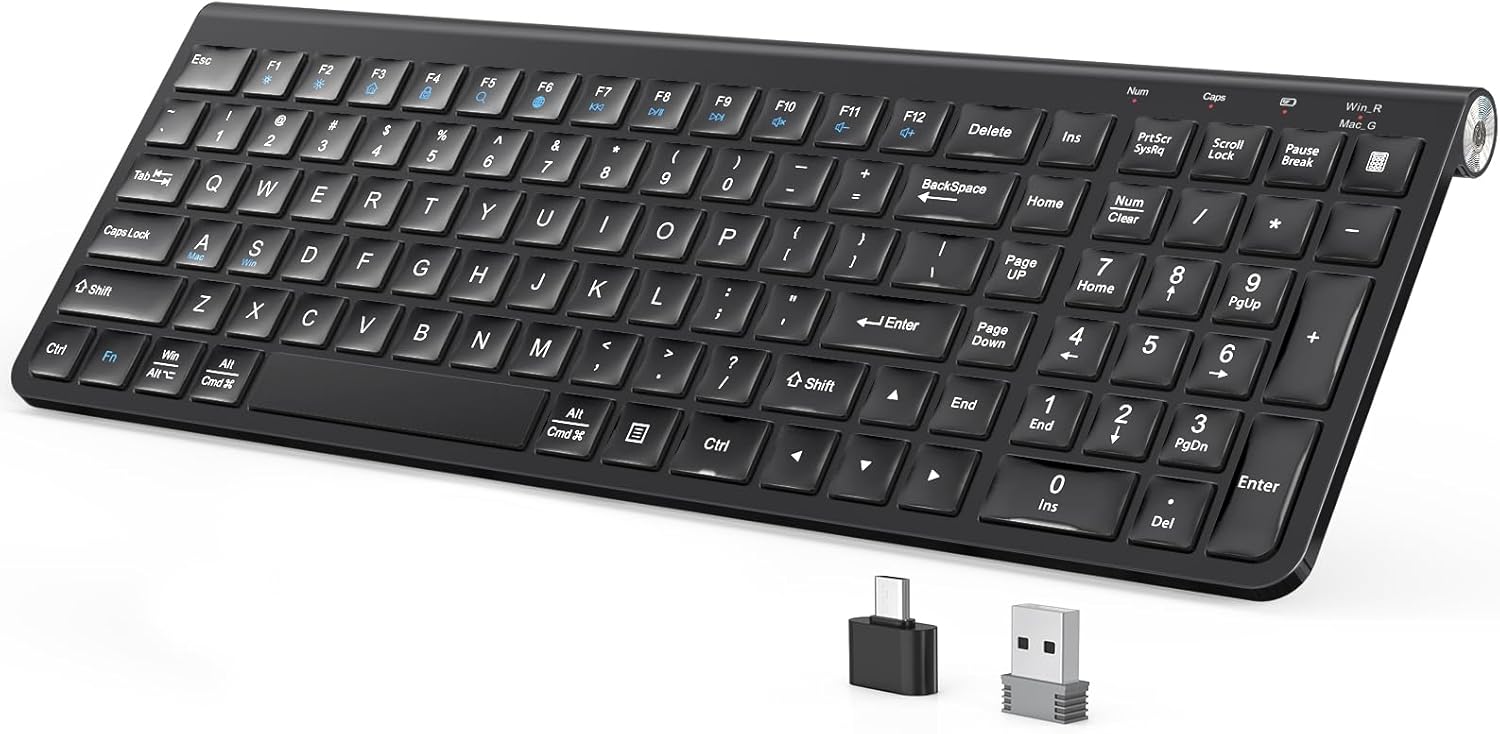
Image: The JOYACCESS 2.4G Wireless Keyboard, showcasing its full-size layout and the included USB-A and USB-C receivers.
Package Contents
Verify that all items are present in the package:
- 1 x JOYACCESS Wireless Keyboard
- 1 x USB-A Receiver
- 1 x USB-C Receiver
- 1 x Dustproof Protective Film
- 1 x User Manual
Note: 2 AA batteries are not included and must be purchased separately. No mouse is included with this keyboard.

Image: Underside view of the keyboard showing the battery compartment, power switch, and approximate dimensions.
Setup Guide
1. Battery Installation
- Locate the battery compartment on the underside of the keyboard.
- Open the battery compartment cover.
- Insert two (2) AA batteries, ensuring correct polarity (+/-).
- Close the battery compartment cover securely.
2. Connecting the Receiver
The keyboard comes with both a USB-A and a USB-C receiver for broad compatibility.
- For USB-A Ports: Plug the USB-A receiver into an available USB-A port on your computer or device.
- For USB-C Ports: Plug the USB-C receiver into an available USB-C port on your computer or device.
Note: Only one receiver (USB-A or USB-C) is needed for operation. The USB-C adapter requires pairing with the USB-A receiver if used with a USB-C device.
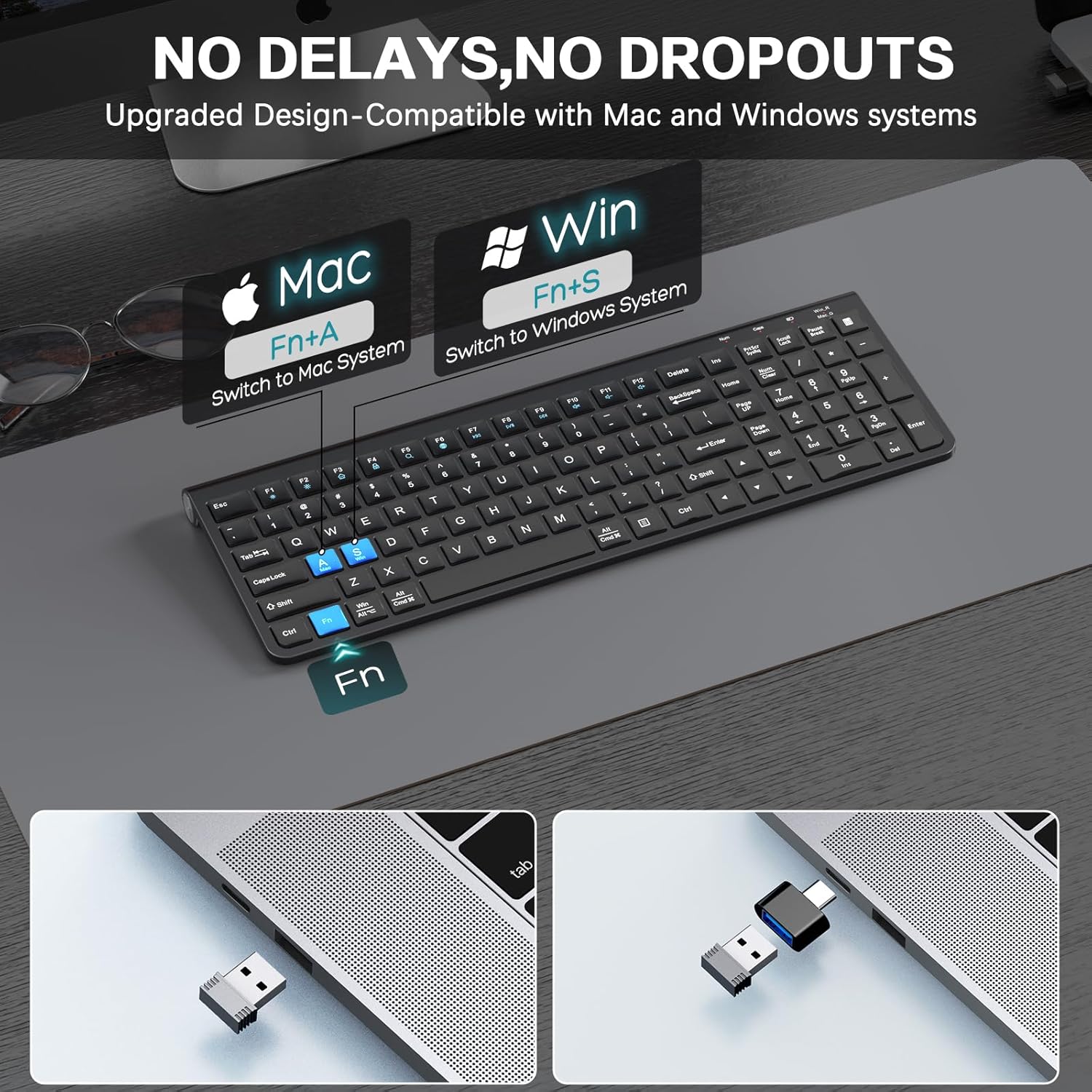
Image: The keyboard demonstrating the use of Fn+A for Mac system and Fn+S for Windows system switching.
3. Powering On
Locate the power switch on the top right side of the keyboard. Slide the switch to the 'ON' position. The keyboard should automatically connect to the receiver.
Operation
System Switching (Windows/macOS)
The keyboard supports seamless switching between Windows and macOS layouts.
- To switch to macOS layout: Press Fn + A
- To switch to Windows layout: Press Fn + S
Multimedia Functions and Shortcut Keys
The keyboard features 12 multifunctional keys and multimedia shortcuts. These keys are typically accessed by pressing the Fn key in combination with the corresponding function key (F1-F12).
| Key Combination | Function |
|---|---|
| Fn + F1 | Media Player |
| Fn + F2 | Volume Down |
| Fn + F3 | Volume Up |
| Fn + F4 | Mute |
| Fn + F5 | Previous Track |
| Fn + F6 | Next Track |
| Fn + F7 | Play/Pause |
| Fn + F8 | Stop |
| Fn + F9 | Web Browser |
| Fn + F10 | |
| Fn + F11 | My Computer |
| Fn + F12 | Calculator |
Ergonomic Stand
The keyboard features an adjustable foldable stand. Gently pull out the stand from the underside of the keyboard to elevate it to a comfortable typing angle (approximately 7 degrees). This design helps reduce wrist pressure during extended use.

Image: The keyboard showing its adjustable legs extended to provide an ergonomic typing angle of 7 degrees.
Power Saving Mode
To conserve battery life, the keyboard is equipped with an auto-sleep mode. If left idle for a period, it will automatically enter a low-power state. To wake the keyboard, simply press any key. It will instantly reconnect and be ready for use.

Image: Illustration of the keyboard's auto-sleep function, 2.4GHz wireless technology, and 33ft/10m range, highlighting its power efficiency.
Maintenance
Cleaning
The keyboard includes a dustproof and waterproof protective film. To clean the keyboard, gently wipe the surface with a soft, damp cloth. Ensure the keyboard is powered off before cleaning. Avoid using harsh chemicals or abrasive materials.

Image: The keyboard with its transparent dustproof and waterproof protective film, demonstrating its protective features.
Battery Replacement
When the keyboard's performance degrades or it fails to power on, it is likely time to replace the batteries. Follow the battery installation steps outlined in the Setup Guide.
Troubleshooting
- Keyboard not responding:
- Ensure the keyboard is powered on.
- Check if the batteries are correctly installed and have sufficient charge. Replace if necessary.
- Ensure the USB receiver is securely plugged into a working USB port on your device.
- Try plugging the receiver into a different USB port.
- Move the keyboard closer to the receiver to rule out range issues.
- Keys are sticky or unresponsive:
- Clean the keyboard surface and around the keys, especially if using the protective film.
- The keyboard uses a scissor-switch mechanism for responsive keystrokes. Ensure no debris is obstructing key movement.
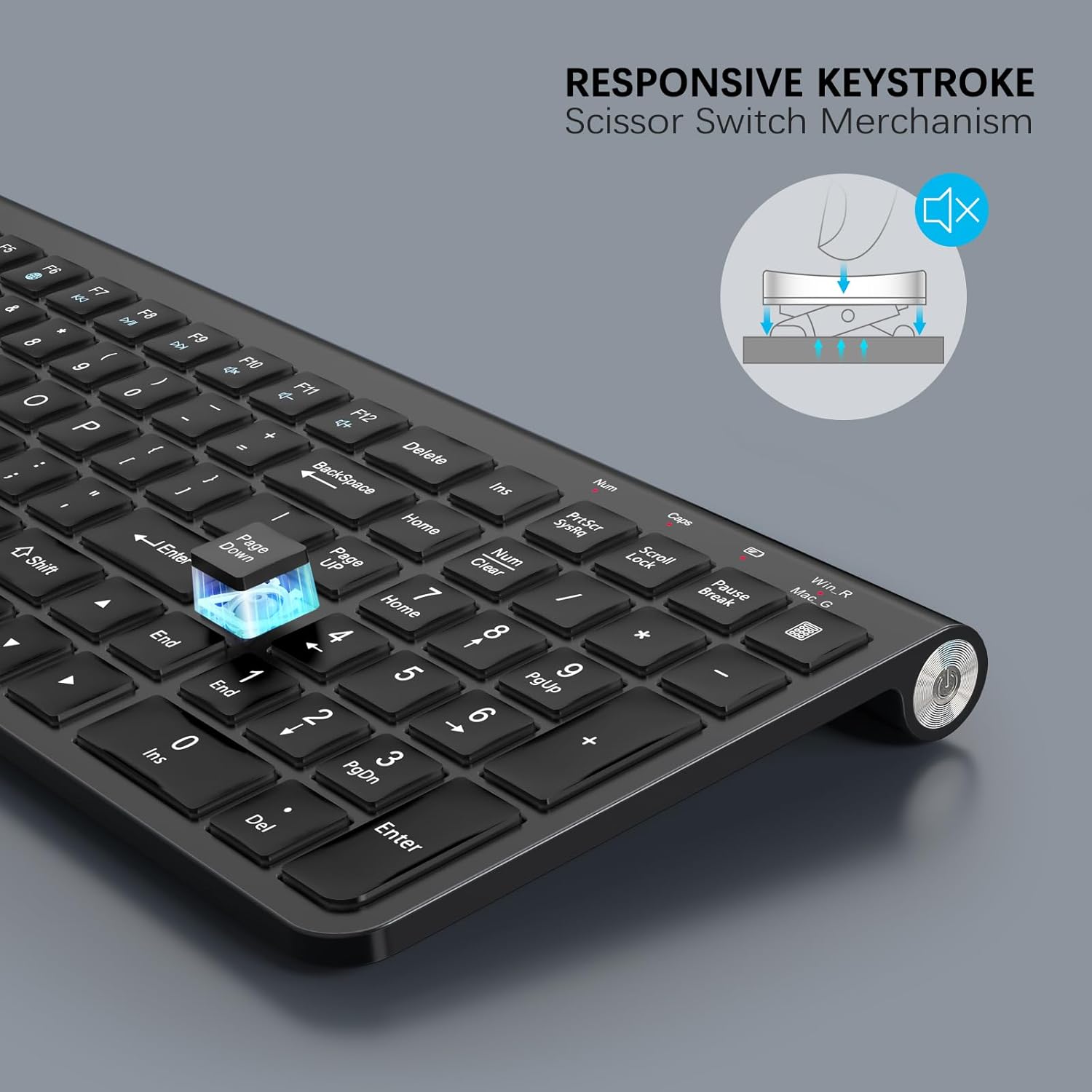
Image: Close-up view of a key demonstrating the responsive scissor-switch mechanism for quiet and comfortable typing.
- System layout issues (e.g., @ key types ", etc.):
- Ensure the keyboard is set to the correct operating system layout (Fn+A for Mac, Fn+S for Windows).
- Check your computer's operating system settings for keyboard layout and language.
Product Specifications
| Feature | Detail |
|---|---|
| Brand | JOYACCESS |
| Model | B0F4CYYYYB |
| Connectivity Technology | 2.4G USB Wireless |
| Compatible Devices | Laptop, PC, Smart TV, Tablet |
| Keyboard Description | Numeric, Full-size, Slim, Black, 2.4G wireless connectivity, Waterproof and dust-proof protective film, Compact keyboard |
| Special Features | Dustproof, Ergonomic, Portable, Wireless, Quiet |
| Color | Black |
| Product Dimensions | 15.35"L x 5.3"W x 1.38"H (39.0cm x 13.5cm x 3.5cm) |
| Item Weight | 1.36 pounds (0.62 kg) |
| Material | Plastic |
| Power Source | 2 x AA Batteries (not included) |
| Wireless Range | Up to 33 feet (10 meters) |
Safety Information
- Do not expose the keyboard to extreme temperatures or humidity.
- Avoid dropping or subjecting the keyboard to strong impacts.
- Keep out of reach of children.
- Dispose of batteries according to local regulations.
Customer Support
For further assistance or inquiries, please contact JOYACCESS customer support through the retailer's platform or the official JOYACCESS website.
Related documentsB0F4CYYYYB

Ask a question about this manual
Ask about setup, troubleshooting, compatibility, parts, safety, or missing instructions. Manuals+ will review the question and use this page’s manual context to help answer it.