
1. Introduction
The CENMATE 5-Bay Hybrid NVMe Enclosure is an innovative storage solution designed to combine the benefits of high-capacity Hard Disk Drives (HDDs) and high-speed Solid State Drives (SSDs). This enclosure supports up to two 3.5-inch SATA HDDs/SSDs and three M.2 NVMe SSDs, offering a maximum total storage capacity of 68TB (2x 22TB HDDs + 3x 8TB M.2 SSDs). It features a USB 3.2 Gen 2 interface, providing data transfer speeds of up to 10Gbps. Constructed with an aluminum alloy and equipped with a cooling fan, it ensures efficient heat dissipation and stable operation. The device offers wide compatibility with various operating systems and devices, along with tool-free installation for convenience.
2. What's in the Box
- 1 x Hybrid Enclosure
- 1 x USB A Cable
- 1 x USB C Cable
- 1 x EU Plug Power Adapter
- Screws and Screwdriver
- User Manual
3. Product Overview
The CENMATE 5-Bay Hybrid NVMe Enclosure provides a versatile storage solution, integrating both traditional SATA drives and modern NVMe SSDs. It features two bays for 2.5-inch or 3.5-inch SATA HDDs/SSDs and three dedicated slots for M.2 NVMe SSDs.

Figure 3.1: The 5-bay configuration, showing 2 HDD bays and 3 M.2 SSD slots.
This hybrid design allows for massive storage capacity, reaching up to 68TB, by combining the strengths of both drive types. The enclosure connects via USB 3.2 Gen 2, ensuring high-speed data transfer.

Figure 3.2: Maximum storage capacity of 68TB.
The enclosure is equipped with LED indicators for each drive bay, providing visual status for connection and activity, aiding in troubleshooting.
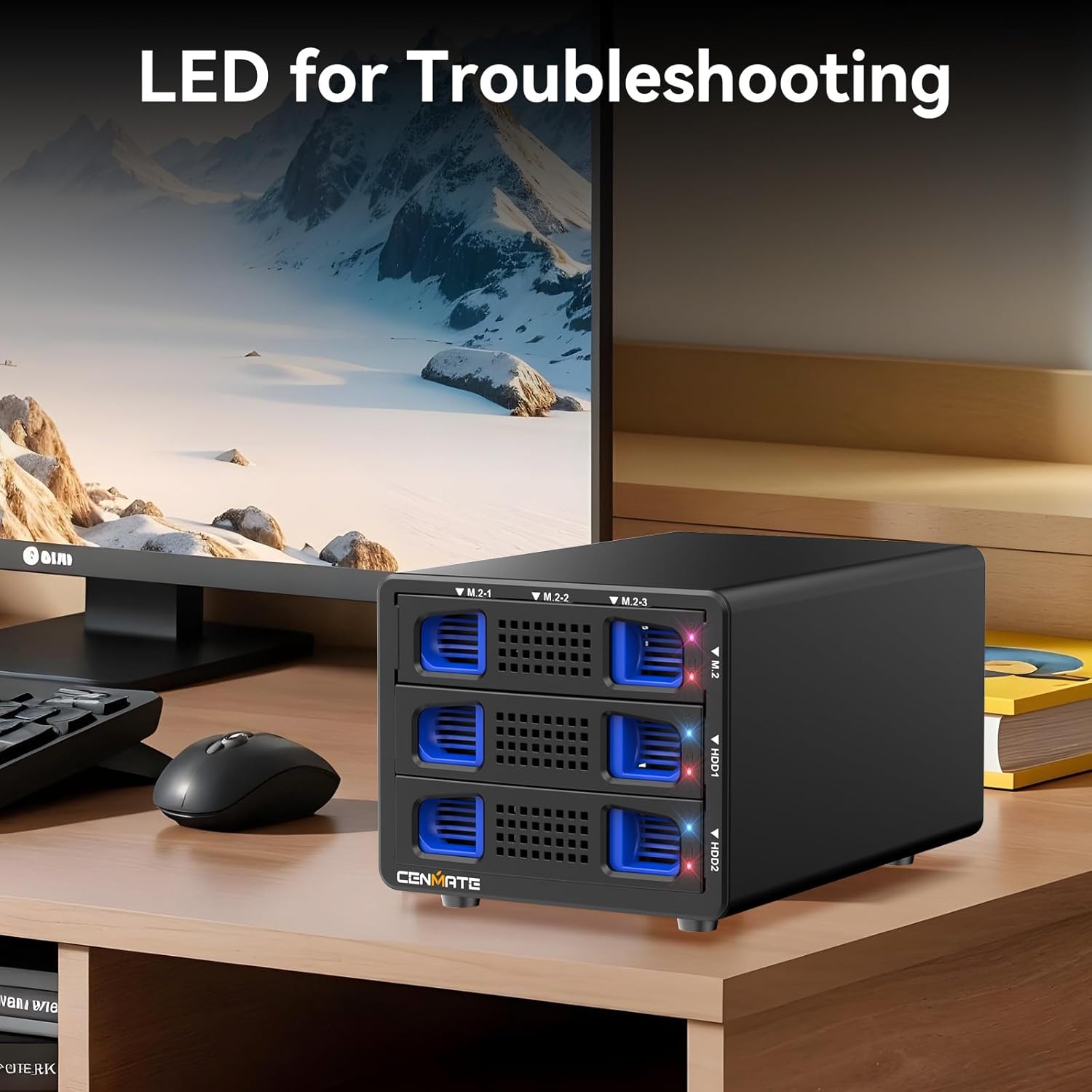
Figure 3.3: Front panel with LED indicators for each drive.
It features a robust aluminum casing and an integrated cooling fan to maintain optimal operating temperatures for your drives, ensuring data integrity and longevity.

Figure 3.4: Internal cooling fan and aluminum casing.
4. Setup and Installation
4.1. 3.5-inch Hard Drive Installation
- Pull the blue latch on both sides of the tray.
- Gently place the 3.5-inch hard drive into the tray, aligning the pins with the side holes.

Figure 4.1: Installation steps for a 3.5-inch HDD.
4.2. 2.5-inch Hard Drive/SSD Installation
- Remove the blue latch on the side using a screwdriver.
- Use the provided screws to secure the 2.5-inch HDD/SSD into the corresponding holes in the tray.

Figure 4.2: Installation steps for a 2.5-inch HDD/SSD.
4.3. M.2 SSD Installation
- Insert the M.2 SSD into the slot.
- Snap the rubber stopper into the semi-circular metal part of the M.2 SSD.
- Push the rubber stopper with the M.2 SSD into the bayonet to secure it.

Figure 4.3: Installation steps for an M.2 SSD.
The enclosure supports M.2 NVMe SSDs of various lengths (2230, 2242, 2260, 2280, 22110) and M-Key or M&B-Key (NVMe/PCIe) types. B-Key (NGFF/SATA) M.2 SSDs are not supported.

Figure 4.4: Compatible M.2 NVMe SSD types and sizes.
5. Operating Instructions
5.1. Connecting to Your Computer
- Ensure all drives are securely installed in their respective bays.
- Connect the power adapter to the enclosure and plug it into a power outlet.
- Use the provided USB-A or USB-C cable to connect the enclosure to your computer's USB port.
- Turn on the main power switch located on the rear panel of the enclosure.
- The enclosure is plug-and-play. Your operating system should detect the drives automatically. You may need to initialize and format new drives through your operating system's disk management utility before use.
5.2. Compatibility
The CENMATE enclosure is compatible with:
- Operating Systems: Windows 7 and above, Mac OS 9.1 and above, Linux, Chrome OS.
- Interfaces: USB 3.0, USB 3.1, USB 3.2, Thunderbolt 3, Thunderbolt 4.

Figure 5.1: Wide compatibility with systems and devices.
5.3. Data Transfer
The enclosure supports data transfer speeds up to 10Gbps via its USB 3.2 Gen 2 interface. Actual speeds may vary depending on your computer's USB port, the quality of the cable, and the performance of the installed drives.

Figure 5.2: High-speed 10Gbps data transfer.
6. Maintenance
6.1. Cooling Fan
The enclosure features a built-in 2-inch cooling fan designed to continuously cool the drives and protect data security. The fan operates at approximately 40-50 decibels. If you are sensitive to noise, this product may not be ideal for quiet environments. Sleep mode installation files are available to adjust the product's sleep duration according to your needs, which can help manage fan noise during idle periods.

Figure 6.1: Built-in cooling fan and aluminum housing.
6.2. General Care
- Keep the enclosure in a clean, dry environment, away from direct sunlight and extreme temperatures.
- Avoid blocking the ventilation openings to ensure proper airflow for the cooling fan.
- Clean the exterior with a soft, dry cloth. Do not use liquid cleaners or solvents.
7. Troubleshooting
7.1. LED Indicators
The front panel features LED indicators for each drive bay to help monitor status:
- M.2-1 (Violet LED): Solid blue when connected, blinks for read/write activity.
- M.2-2 (Red LED): Solid red when connected, blinks for read/write activity.
- M.2-3 (Red LED): Solid red when connected, blinks for read/write activity.
- HDD1 (Blue LED): Solid blue when connected.
- HDD2 (Blue LED): Solid blue when connected.

Figure 7.1: LED indicator guide.
7.2. Common Issues
- Drives Not Detected:
- Ensure all cables (USB and power) are securely connected.
- Verify that the main power switch on the enclosure is turned on.
- Check if new drives are initialized and formatted in your operating system's disk management utility.
- Confirm M.2 SSD compatibility (NVMe M-Key or M&B-Key only, not SATA B-Key).
- Slow Data Transfer Speeds:
- Ensure you are connected to a USB 3.2 Gen 2 (10Gbps) port on your computer. Older USB ports will result in lower speeds.
- Verify the quality of the USB cable. Use the provided cables or certified USB 3.2 Gen 2 cables.
- Actual speeds are limited by the slowest component (drive, cable, port). M.2 SSDs may not reach their maximum theoretical speeds if the enclosure's controller or host interface is a bottleneck.
- Fan Noise:
- The fan operates continuously for cooling and may produce audible noise (40-50 dB).
- Consider using the provided sleep mode installation files to configure the enclosure to enter sleep mode during idle periods, which can reduce noise.
8. Specifications
| Brand | cenmate |
| Model Number | 5 Bay |
| Maximum Supported Devices | 5 (2x 3.5"/2.5" SATA, 3x M.2 NVMe) |
| Data Transfer Rate | 10 Gigabits per second |
| Hardware Interface | USB 3.2 Gen 2 |
| Color | Black |
| Product Dimensions | 20.2L x 13.2W x 8.8H centimeters |
| Hardware Platform | Windows / Mac OS / Linux |
| Material | Aluminum, Plastic |
| Item Weight | 1.2 Kilograms |
| Memory Storage Capacity | 68 TB |
| Compatible Devices | Computer, Laptop |
| Hard Drive Form Factor | 2.5 Inches (for SATA SSD/HDD) |
9. Warranty and Support
9.1. Manufacturer's Warranty
The CENMATE 5-Bay Hybrid NVMe Enclosure comes with a 1-year manufacturer's warranty.
9.2. Technical Support
CENMATE provides friendly technical support. If you have any questions or encounter issues with the product, please do not hesitate to contact us. We aim to respond and resolve your problem within 24 hours.


