
1. Introduction
This manual provides detailed instructions for the installation, operation, and maintenance of your Uckazy Car Stereo, Model XADBMWE46-32. This unit is designed to integrate seamlessly with BMW E46 3 Series vehicles manufactured between 1999 and 2004, offering modern features such as Apple CarPlay, Android Auto, Bluetooth connectivity, and a responsive touch screen display.
The system enhances your driving experience with advanced navigation, multimedia playback, and communication capabilities. Please read this manual thoroughly before installation and use to ensure proper functionality and safety.

Figure 1.1: Uckazy Car Stereo main unit with included accessories.
2. Package Contents
Verify that all items listed below are present in your package. If any components are missing or damaged, please contact customer support.
- Uckazy Car Stereo Head Unit (Model XADBMWE46-32)
- Power Cable with CANBUS Box
- RCA Audio/Video Harness
- GPS Antenna
- External Microphone
- USB Cables (x2)
- Backup Camera
- Installation Tools (plastic pry tools)

Figure 2.1: Head unit dimensions and included accessories.
3. Installation Guide
Professional installation is recommended. Disconnect the vehicle's battery before beginning any electrical work.
3.1. Pre-installation Check
Before removing your factory radio, inspect your vehicle's existing wiring harness. Some BMW E46 models, particularly those with factory navigation or premium sound systems (e.g., Harmon Kardon), may require an additional extension cable or specific CANBUS module for proper functionality. If your vehicle's wiring connectors do not match the provided harness directly, an extension cable may be necessary.
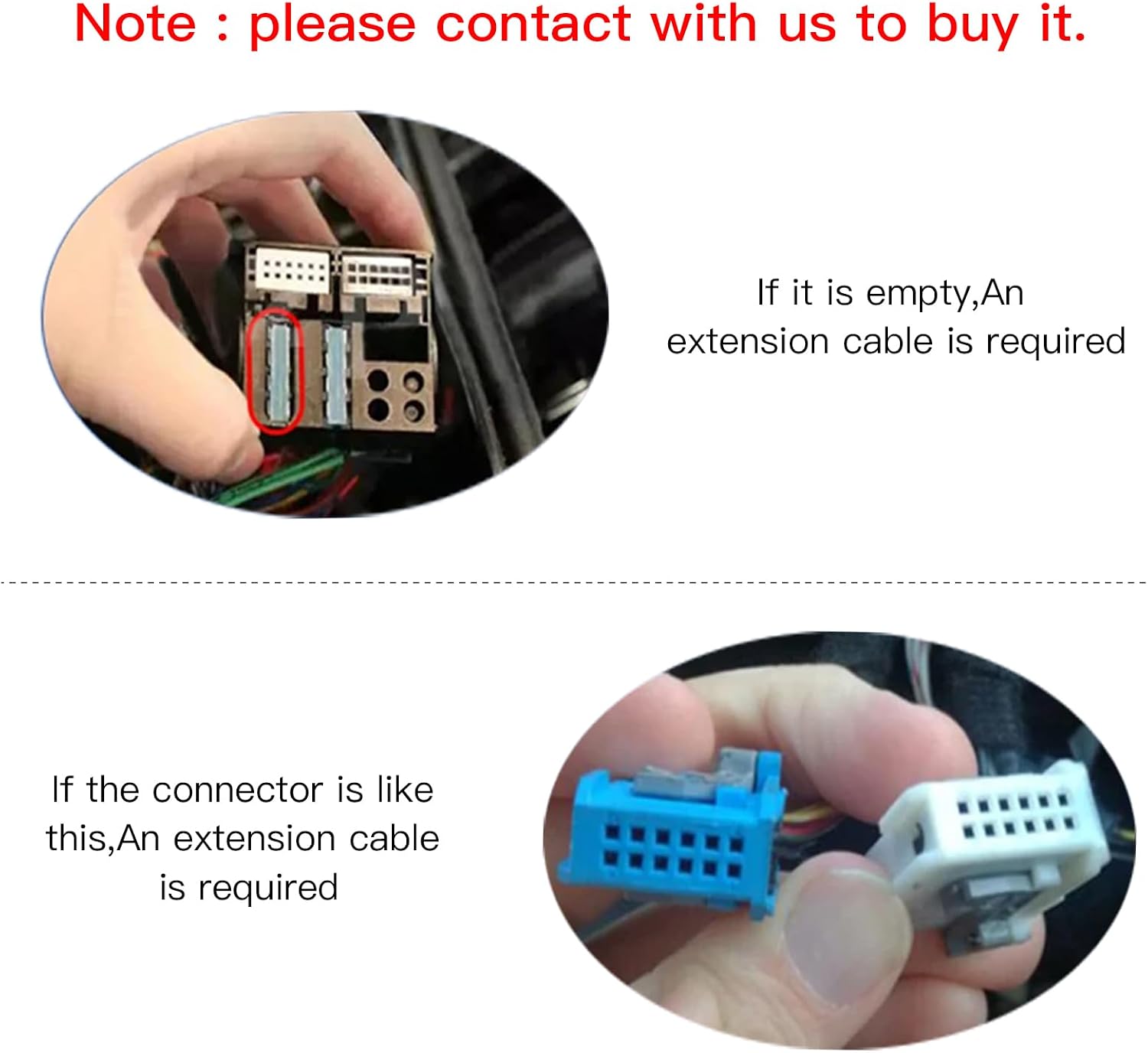
Figure 3.1: Wiring harness inspection for extension cable requirement.
3.2. Removing the Factory Radio
- Carefully use the provided installation tools to pry off trim pieces surrounding the factory radio.
- Unscrew the mounting screws securing the factory radio.
- Gently pull out the factory radio and disconnect all wiring harnesses and antenna cables.
3.3. Wiring Connections
- Connect the provided power cable and CANBUS box to the vehicle's main wiring harness. Ensure all connections are secure.
- Connect the GPS antenna and position it in a location with a clear view of the sky (e.g., dashboard, under the windshield).
- Connect the external microphone and route it to a suitable location for clear voice pickup (e.g., near the rearview mirror or steering column).
- Connect the USB cables and route them to a convenient location, such as the glove compartment or center console.
- If installing the backup camera, connect its video and power cables according to the camera's instructions and route the video cable to the head unit.
- Connect the RCA harness for any external amplifiers or auxiliary inputs/outputs.
3.4. Mounting the New Head Unit
- Carefully slide the Uckazy Car Stereo into the dashboard opening.
- Secure the head unit with the appropriate screws.
- Reinstall any removed trim pieces, ensuring they snap securely into place.

Figure 3.2: Comparison of dashboard before and after Uckazy Car Stereo installation.
4. Initial Setup
After installation, reconnect the vehicle's battery. The unit will power on automatically or by pressing the power button.
- First Boot: The system will boot up, which may take a moment.
- Language and Time: Follow the on-screen prompts to select your preferred language, time zone, and date.
- Wi-Fi Connection: Navigate to Settings > Network & Internet > Wi-Fi. Connect to an available Wi-Fi network to enable online features, app downloads, and system updates.
- GPS Calibration: Ensure the GPS antenna is properly positioned. The system will automatically acquire satellite signals for navigation.
5. Operating Instructions
The Uckazy Car Stereo features an intuitive Android-based interface. Tap icons to access different functions.
5.1. Main Interface
The home screen provides quick access to frequently used applications such as Radio, Navigation, Bluetooth, Music, Video, and Settings. Swipe left or right to access additional app pages.
5.2. Radio (FM)
Tap the 'Radio' icon to access the FM tuner. You can manually tune frequencies, scan for stations, and save your favorite presets. Note: While the product description mentions AM, some units may not support AM radio functionality.
5.3. Bluetooth
To pair your phone:
- Go to Settings > Bluetooth or tap the 'Bluetooth' icon on the home screen.
- Enable Bluetooth on your mobile device and search for available devices.
- Select 'Uckazy Car Stereo' (or similar name) from the list on your phone.
- Confirm the pairing code on both devices.
Once paired, you can make hands-free calls, access your phonebook, and stream audio.
5.4. Apple CarPlay & Android Auto
The unit supports both wireless Apple CarPlay and Android Auto for seamless smartphone integration.
- Wireless Connection: Ensure your phone's Wi-Fi and Bluetooth are enabled. Follow the on-screen prompts in the CarPlay/Android Auto app on the head unit to connect.
- Wired Connection: Connect your smartphone to one of the USB ports using a certified USB cable. The system should automatically launch CarPlay or Android Auto.
These features allow you to use navigation, make calls, send messages, and listen to music directly from your phone's interface displayed on the car stereo screen.

Figure 5.1: Wireless Apple CarPlay and Android Auto functionality.
5.5. Navigation
The unit comes with pre-installed navigation capabilities. You can use Google Maps or other compatible navigation applications downloaded from the App Store. Ensure a strong GPS signal for accurate positioning.
5.6. Multimedia Playback
Access music and video files from USB drives, internal storage, or streaming apps. The system supports various audio and video formats.

Figure 5.2: Multimedia and communication features.
5.7. Voice Control
Utilize voice commands for hands-free operation through integrated assistants like Siri (for CarPlay) or Google Assistant (for Android Auto). This allows you to navigate, play music, and make calls safely while driving.

Figure 5.3: Voice assistant integration for hands-free control.
5.8. App Store
The unit provides access to an App Store, allowing you to download and install various Android applications to expand the stereo's functionality.

Figure 5.4: Access to the App Store for additional applications.
6. Specifications
| Feature | Specification |
|---|---|
| Model Number | XADBMWE46-32 |
| Display Size | 7 Inches |
| Display Type | LCD |
| Touch Screen Type | Capacitive |
| Processor | Quad-core ARMv7 rev 3 (v7l) 1.3Ghz (ac8227l) |
| RAM | 2 GB |
| Internal Storage | 64 GB |
| Connectivity | Bluetooth 4.1, Wi-Fi |
| Special Features | Wireless CarPlay, Wireless Android Auto, GPS, FM Radio, DSP, USB OTG, Backup Camera Support, Dash Cam Input |
| Mounting Type | Dashboard Mount |
| Vehicle Service Type | Car (BMW E46 3 Series 1999-2004) |
| Item Weight | 3.4 pounds |
| Package Dimensions | 22 x 20 x 16 inches |
7. Maintenance
- Cleaning: Use a soft, dry cloth to clean the screen and unit. For stubborn smudges, a slightly damp cloth with a mild, non-abrasive cleaner can be used, then wipe dry immediately. Avoid harsh chemicals.
- Software Updates: Periodically check for system software updates via the Settings menu and a Wi-Fi connection. Updates can improve performance and add new features.
- Temperature: Avoid exposing the unit to extreme temperatures for prolonged periods.
8. Troubleshooting
- No Power: Ensure all power cables are securely connected. Check the vehicle's fuse box for any blown fuses. Verify the CANBUS box is correctly installed and functioning.
- No Sound: Check speaker connections. Ensure the volume is not muted or set too low. If using an external amplifier, verify its power and connections. Some factory premium sound systems may require an additional adapter or specific wiring configuration.
- GPS Signal Issues: Ensure the GPS antenna has a clear line of sight to the sky. Avoid placing it under metal objects.
- Bluetooth Connection Problems: Ensure Bluetooth is enabled on both the stereo and your phone. Delete previous pairings and try reconnecting.
- CarPlay/Android Auto Not Connecting: Verify your phone's Wi-Fi and Bluetooth are on for wireless connection. For wired connection, try a different USB cable or USB port. Ensure the CarPlay/Android Auto app is active on the head unit.
- Slow Performance: Close unnecessary background applications. Clear cache from time to time in system settings.
- Display Issues: If the screen is unresponsive, try restarting the unit. If parts of the screen are cut off, check for display calibration settings in the system menu.
9. Warranty and Support
For warranty information, technical assistance, or to report any issues, please contact Uckazy customer support through the retailer where the product was purchased or visit the official Uckazy website. Please have your model number (XADBMWE46-32) and purchase details ready when contacting support.