
WAVLINK UMD27PRO
Contents
WAVLINK PD3.1 Docking Station UMD27PRO Instruction Manual
Model: UMD27PRO | Brand: WAVLINK
Introduction
The WAVLINK PD3.1 Docking Station UMD27PRO is a versatile USB-C docking solution designed to expand the connectivity of your Windows laptop. It supports multiple high-resolution displays, high-speed data transfer, and powerful charging capabilities, transforming your laptop into a comprehensive workstation.
Key Features:
- Triple Display Output: Connect up to three external monitors via 2 HDMI and 1 DisplayPort, supporting single 4K@144Hz/8K@30Hz (with DP1.4 or HDMI 2.1 with DSC) or dual 4K@60Hz.
- 140W Power Delivery: Features a PD3.1-140W power adapter, providing up to 125W upstream charging to your laptop.
- High-Speed Data Transfer: Includes 1 USB-C 3.2 (10Gbps) port and 2 USB-A 3.0 (5Gbps) ports for rapid data exchange.
- Gigabit Ethernet: Ensures stable and fast wired network connectivity.
- Audio Connectivity: Integrated 3.5mm combination audio jack for headphones or microphones.
- Broad Compatibility: Plug-and-play support for Windows 11/10/8.1/8/7, Chrome OS, Linux, Harmony OS, and Android with OTG function.
Package Contents
Upon unpacking, ensure all the following items are present:
- WAVLINK PD3.1 Docking Station UMD27PRO
- Vertical Stand (Anodized Aluminum)
- PD3.1-140W Power Adapter
- USB-C to USB-C Cable
- Quick Start Guide
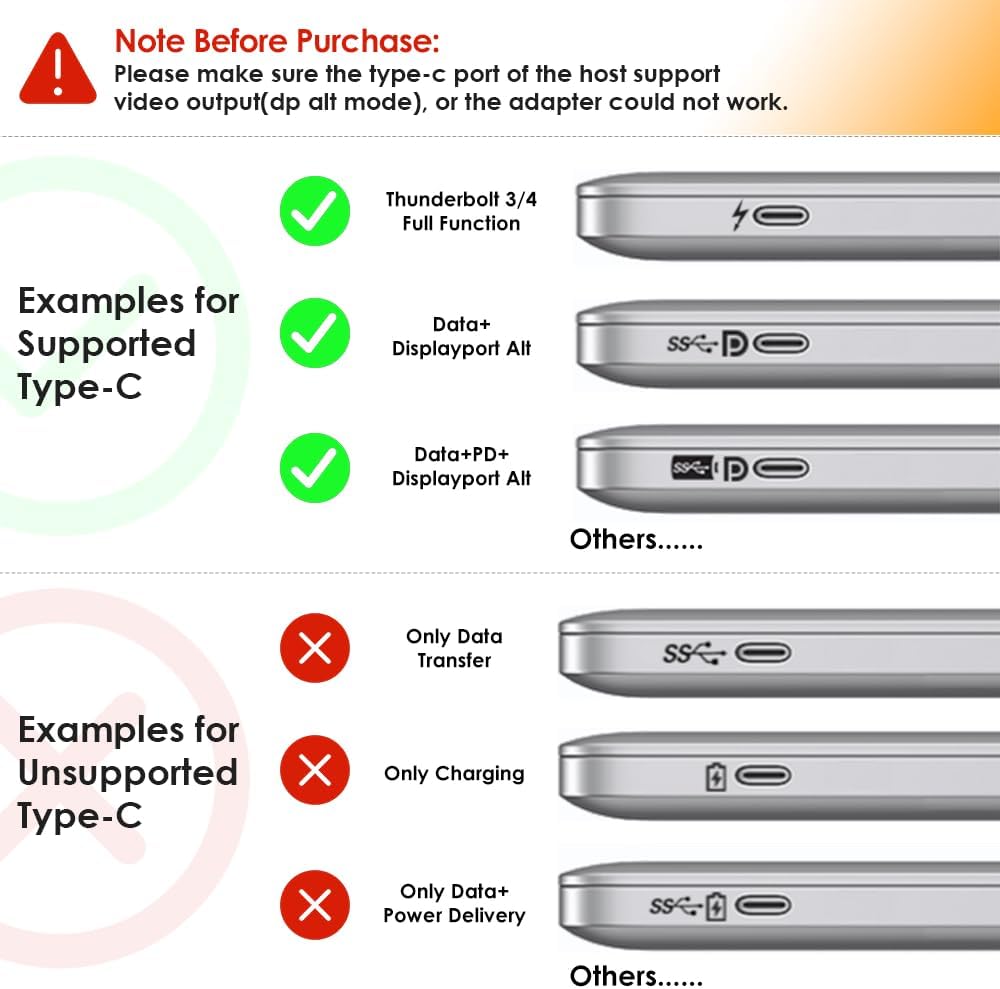
Image: The WAVLINK UMD27PRO Docking Station, its vertical stand, power adapter, USB-C cable, and quick start guide.
Setup Guide
Follow these steps to set up your WAVLINK PD3.1 Docking Station:
- Place the Dock: Insert the docking station into its vertical stand for stable placement on your desk. The stand features rubber feet for stability.
- Connect Power: Connect the PD3.1-140W power adapter to the "USB-C IN (140W Max)" port on the rear of the docking station, then plug the adapter into a power outlet.
- Connect to Host Laptop: Use the provided USB-C to USB-C cable to connect the "USB-C Host Port" on the front of the docking station to a compatible USB-C port on your Windows laptop. Ensure your laptop's USB-C port supports video transmission and charging.
- Connect Displays:
- Connect your primary monitor to the DisplayPort.
- Connect additional monitors to the HDMI ports (HDMI1, HDMI2).
- Ensure your monitors are powered on and set to the correct input source.
- Connect Peripherals:
- For wired internet, connect an Ethernet cable to the "Gigabit LAN Port".
- Plug USB devices (keyboard, mouse, external drives) into the available USB-A 3.0 (5Gbps) and USB-C 3.2 (10Gbps) ports.
- Connect headphones or a microphone to the 3.5mm audio jack.

Image: Front and rear views of the WAVLINK UMD27PRO Docking Station highlighting all available ports including USB-A, USB-C, 3.5mm audio, Gigabit LAN, DisplayPort, and HDMI.
Video: An overview of the WAVLINK PD3.1 Triple Display Dock, showcasing its ports and features.
Operating Instructions
Display Configuration (Windows):
The docking station supports various display modes for Windows systems:
- Single Display: Up to 4K@144Hz or 8K@30Hz (under DP1.4 or HDMI 2.1 with DSC).
- Dual Display: Up to 4K@60Hz on both external monitors.
- Triple Display: Supports up to three external monitors simultaneously. Resolutions may vary based on your laptop's graphics card and DP/HDMI versions.
To configure your displays, right-click on your desktop, select "Display settings," and arrange your monitors as desired (Extend, Duplicate, or Second screen only).

Image: A laptop connected to a single external monitor displaying 4K@144Hz content, demonstrating immersive visual output.

Image: Diagrams illustrating dual and triple display setups for Windows, showing various resolution combinations under different DisplayPort versions.
Charging Functionality:
The docking station provides up to 125W of power to charge your host laptop. Ensure your laptop's USB-C port supports charging via Power Delivery (PD) for this feature to work.

Image: The WAVLINK UMD27PRO Docking Station connected to a laptop, illustrating 125W fast charging capability.
Data Transfer and Network:
Utilize the USB-C 3.2 (10Gbps) and USB-A 3.0 (5Gbps) ports for connecting high-speed storage devices or other peripherals. The Gigabit Ethernet port provides a stable and fast internet connection, ideal for demanding online tasks.

Image: Close-up view of the WAVLINK UMD27PRO Docking Station with various ports connected, including a USB-C device, Ethernet cable, and audio jack.
Important Compatibility Notes
- Mac OS: This docking station is not compatible with any Mac OS computer.
- Host USB-C Port: Please ensure that the USB-C port on your host laptop supports video transmission (DP Alt Mode) and charging (Power Delivery). If not, the docking station's display and charging functions may not work.
- Graphics Card Limitations: Some Windows laptops may only support a maximum of 3 monitors (including the host screen) due to their internal graphics card limitations. Verify your computer's maximum monitor support.
- Resolution Requirements: To achieve 4K@144Hz or 8K@30Hz resolution, your laptop's USB-C port must support DP1.4 or HDMI2.1 with DSC. Lower specifications will result in reduced resolutions.
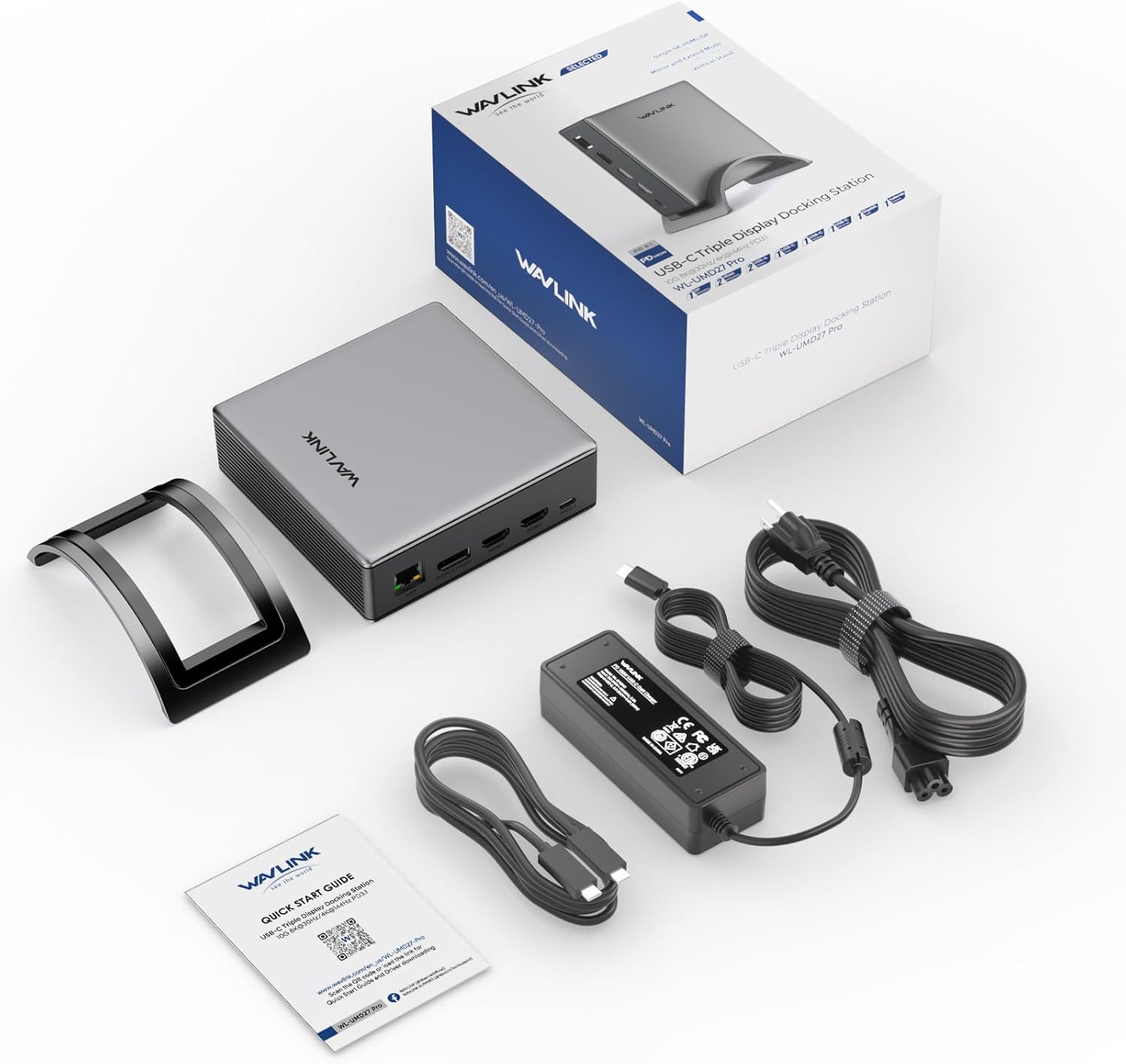
Image: Visual guide illustrating examples of supported USB-C ports (Thunderbolt 3/4, Data+DisplayPort Alt, Data+PD+DisplayPort Alt) and unsupported USB-C ports (Only Data Transfer, Only Charging, Only Data+Power Delivery).
Specifications
| Feature | Detail |
|---|---|
| Model Number | UMD27PRO |
| Product Dimensions | 5 x 4.6 x 1.5 inches (12.7 x 11.7 x 3.8 cm) |
| Item Weight | 2.93 pounds (1.33 Kilograms) |
| Color | Silver |
| Hardware Interface | 3.5mm Audio, DisplayPort, Ethernet, HDMI, USB 3.2 Gen 2 |
| Total USB Ports | 3 (1x USB-C 10Gbps, 2x USB-A 5Gbps) |
| Total HDMI Ports | 2 |
| DisplayPort | 1 |
| Wattage | 140W (PD3.1) |
| Compatible Devices | Chrome OS, Dell, HP, Lenovo, Windows (Not compatible with Mac OS) |
Troubleshooting
- No Display Output:
- Ensure your laptop's USB-C port supports DisplayPort Alternate Mode (DP Alt Mode).
- Check all cable connections between the dock, laptop, and monitors.
- Verify monitors are powered on and set to the correct input source.
- Update your laptop's graphics drivers.
- No Charging:
- Confirm your laptop's USB-C port supports Power Delivery (PD).
- Ensure the PD3.1-140W power adapter is correctly connected to the dock and a working power outlet.
- Intermittent Connectivity:
- Check for loose cable connections.
- Ensure the docking station is receiving adequate power.
- Avoid overloading USB ports with too many high-power devices.
- Mac OS Compatibility: This docking station is specifically designed for Windows and other listed operating systems and does not support Mac OS.
Maintenance
To ensure the longevity and optimal performance of your WAVLINK PD3.1 Docking Station:
- Keep the device in a cool, dry place, away from direct sunlight and extreme temperatures.
- Clean the exterior with a soft, dry cloth. Avoid using liquid cleaners or solvents.
- Do not block the ventilation grilles on the sides of the docking station to prevent overheating.
- Avoid dropping or subjecting the device to strong impacts.
Warranty and Support
WAVLINK offers a 12-month warranty for this product. For any inquiries or assistance, please contact WAVLINK customer service for fast response support.
You can find contact information and further support resources on the official WAVLINK website or through your purchase platform.
Documents and downloads
Ask a question about this manual
Ask about setup, troubleshooting, compatibility, parts, safety, or missing instructions. Manuals+ will review the question and use this page’s manual context to help answer it.