
1. Introduction
Thank you for choosing the CG Mobile Guess Bluetooth Over-Ear Headphones. This manual provides essential information for setting up, operating, and maintaining your new headphones. Please read it carefully before use to ensure optimal performance and longevity of your device.
2. Package Contents
Verify that all items listed below are present in your package:
- CG Mobile Guess Bluetooth Over-Ear Headphones
- USB-C Charging Cable
- User Manual (this document)
- Protective Pouch

Image: Retail packaging box for Guess Wireless Headphones. The box displays the headphones, product features, and specifications.

Image: Grey protective drawstring pouch with the Guess logo, designed to store the headphones.
3. Product Overview
The CG Mobile Guess Bluetooth Over-Ear Headphones feature a stylish design with the Guess 4G logo and offer advanced audio capabilities. They are equipped with Bluetooth 5.3 for stable connectivity and Environmental Noise Cancellation (ENC) for clear calls.
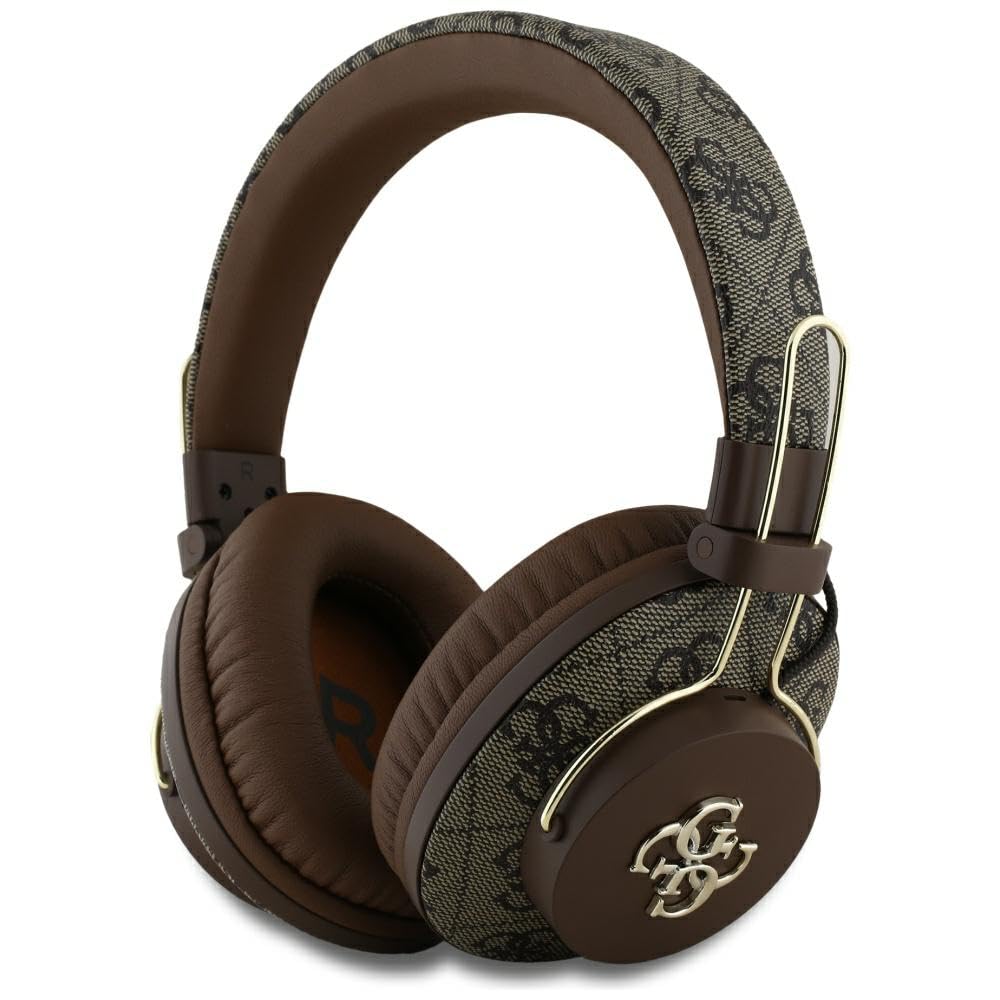
Image: Angled view of the brown Guess Bluetooth Over-Ear Headphones, highlighting the 4G logo on the earcups.

Image: Side view of the brown Guess Bluetooth Over-Ear Headphones, showing the earcup and headband design.

Image: Front view of the brown Guess Bluetooth Over-Ear Headphones, displaying both earcups and the adjustable headband.
Key Features:
- Bluetooth 5.3 for stable wireless connection.
- Environmental Noise Cancellation (ENC) for clear calls.
- Up to 30 hours of playback time on a single charge.
- IPX4 sweat and splash resistance.
- Integrated microphone for hands-free calling.
- Voice assistant compatibility.
4. Setup
4.1 Charging the Headphones
- Locate the USB-C charging port on the headphones.
- Connect one end of the provided USB-C cable to the headphone's charging port.
- Connect the other end of the USB-C cable to a compatible USB power source (e.g., wall adapter, computer USB port).
- The LED indicator on the headphones will illuminate to show charging status. It typically takes approximately 2 hours for a full charge.
- Once fully charged, the LED indicator will change or turn off (refer to specific LED behavior in the quick start guide if available).
Note: Ensure the headphones are fully charged before first use for optimal battery life.
4.2 Bluetooth Pairing
- Power On: Press and hold the Power button on the headphones until the LED indicator flashes, indicating pairing mode. (Typically, blue and red flashing, or rapidly flashing blue).
- Activate Bluetooth: On your device (smartphone, tablet, computer), enable Bluetooth.
- Search for Devices: In your device's Bluetooth settings, search for available devices.
- Select Headphones: From the list of found devices, select "Guess Headphones" or a similar name.
- Confirm Pairing: Once connected, the LED indicator on the headphones will typically show a solid blue light or flash slowly. A voice prompt may also confirm the connection.
- Reconnect: The headphones will automatically attempt to reconnect to the last paired device when powered on and within range.
Tip: If pairing fails, turn off the headphones and your device's Bluetooth, then repeat the steps. Ensure the headphones are not connected to another device.
5. Operating Instructions
5.1 Basic Controls
The headphones feature intuitive controls for managing audio playback and calls. Specific button functions may vary slightly, but common controls include:
- Power Button: Press and hold to power on/off. Short press for play/pause.
- Volume Up (+): Short press to increase volume. Long press for next track.
- Volume Down (-): Short press to decrease volume. Long press for previous track.
- Multi-function Button (MFB): (Often the Power button or a dedicated button)
- Answer/End Call: Short press.
- Reject Call: Long press.
- Activate Voice Assistant: Double-press or triple-press (refer to specific product documentation for exact action).
5.2 Making and Receiving Calls
With the integrated microphone and hands-free function, you can manage calls directly from your headphones:
- Answering a Call: When a call comes in, press the Power/MFB button once.
- Ending a Call: During a call, press the Power/MFB button once.
- Rejecting a Call: When a call comes in, press and hold the Power/MFB button for approximately 2 seconds.
- Voice Assistant: Use the voice assistant feature to initiate calls by voice command (e.g., "Call [Contact Name]").
Environmental Noise Cancellation (ENC): The ENC feature is active during calls to reduce background noise for the person you are speaking to, ensuring your voice is clear and understandable.
5.3 Music Playback
- Play/Pause: Press the Power/MFB button once.
- Next Track: Long press the Volume Up (+) button.
- Previous Track: Long press the Volume Down (-) button.
- Volume Adjustment: Short press the Volume Up (+) or Volume Down (-) buttons.
6. Maintenance and Care
To ensure the longevity and optimal performance of your headphones, follow these care guidelines:
- Cleaning: Use a soft, dry cloth to wipe the headphones. Do not use abrasive cleaners, solvents, or strong chemicals.
- Storage: When not in use, store the headphones in the provided protective pouch to prevent scratches and damage. Keep them in a cool, dry place away from direct sunlight and extreme temperatures.
- Water Resistance: The headphones are IPX4 rated, meaning they are resistant to sweat and splashes. Do not submerge them in water or expose them to heavy rain. Dry them thoroughly if they get wet.
- Charging: Only use the provided USB-C cable or a certified equivalent for charging. Avoid overcharging the battery.
- Avoid Impact: Do not drop or subject the headphones to strong impacts, as this can damage internal components.
7. Troubleshooting
If you encounter issues with your headphones, refer to the following common problems and solutions:
| Problem | Possible Solution |
|---|---|
| Headphones do not power on. | Ensure the headphones are fully charged. Connect them to a power source using the USB-C cable. |
| Cannot pair with a device. |
|
| No sound or low volume. |
|
| Call quality is poor. |
|
| Intermittent connection. |
|
8. Specifications
| Feature | Detail |
|---|---|
| Model Number | GUBHS72P4FC4M |
| Type | Over-Ear Headphones |
| Connectivity | Wireless (Bluetooth) |
| Bluetooth Version | 5.3 |
| Bluetooth Range | Up to 10 meters |
| Battery Capacity | 300 mAh |
| Charging Time | Approx. 2 hours |
| Playback Time | Up to 30 hours |
| Charging Port | USB-C |
| Water Resistance Rating | IPX4 (Sweat and Splash Resistant) |
| Microphone | Integrated, with Environmental Noise Cancellation (ENC) |
| Impedance | 32 Ohm ± 15% |
| Frequency Range | 20Hz - 20kHz |
| Control Method | Physical buttons, Voice Assistant |
| Compatible Devices | Bluetooth-enabled devices |
9. Warranty and Support
For warranty information and customer support, please refer to the warranty card included with your product or visit the official CG Mobile website. Keep your proof of purchase for any warranty claims.
If you experience any issues not covered in the troubleshooting section, please contact CG Mobile customer service for assistance.