
1. Product Overview
The AULA F108 PRO is a full-size wireless mechanical keyboard designed for versatility and performance. It features a smart display screen, multi-function knob, tri-mode connectivity, hot-swappable switches, and extensive RGB backlighting. This manual provides instructions for setup, operation, and maintenance.
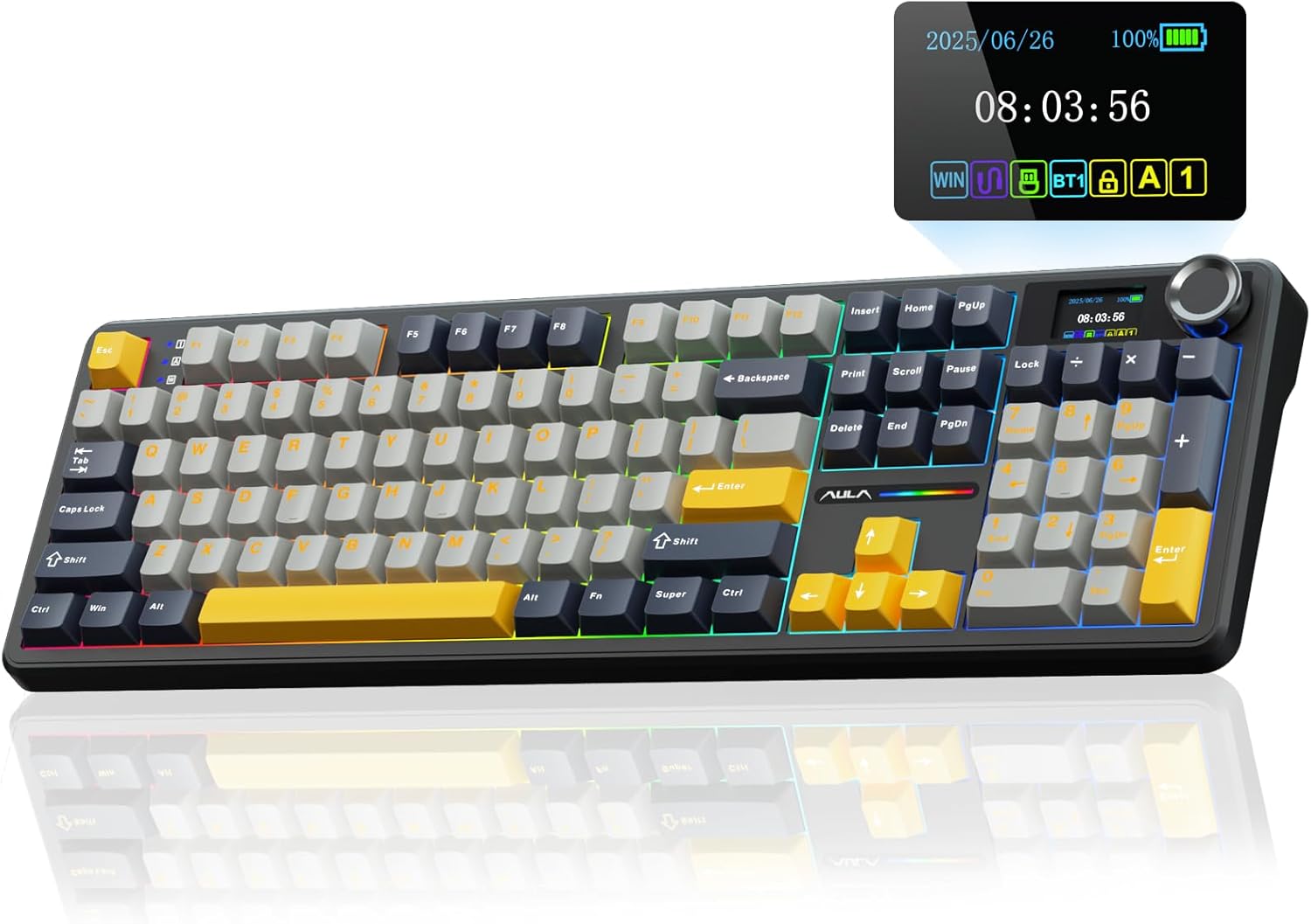
Image 1.1: AULA F108 PRO Wireless Mechanical Keyboard in Gray & Yellow.
Video 1.1: Overview of the AULA F108 PRO Wireless Mechanical Keyboard with Screen and Knob.
2. Package Contents
Verify that all items are present in the package:
- Mechanical Keyboard x1
- Keycap/Switches Puller x1
- Extra Switches x2
- USB Cable x1

Image 2.1: Contents included in the AULA F108 PRO keyboard package.
Video 2.1: Unboxing of the EPOMAKER X AULA F108 PRO keyboard.
3. Setup
3.1 Tri-Mode Connection
The AULA F108 PRO supports three connection modes: Bluetooth 5.0, 2.4GHz wireless, and USB-C wired. Use the switch located on the back of the keyboard to select your desired mode.
- Bluetooth (BT5.0): Allows connection to up to five devices. Switch between paired devices using the multi-function knob.
- 2.4GHz Wireless: Insert the 2.4GHz USB receiver (located in a dedicated slot on the keyboard) into your device's USB port.
- USB-C Wired: Connect the keyboard directly to your device using the provided USB-C cable. This mode is required for driver software functionality.

Image 3.1: Illustration of the keyboard's tri-mode connection options.
3.2 Driver Software Installation (Windows Only)
To unlock full customization options, including screen image/GIF updates, date/time calibration, and macro programming, download the driver software. This software is compatible with Windows systems only and requires a wired USB-C connection.
- Download the driver from: bit.ly/m/AULA
- Connect the keyboard via USB-C cable to your Windows PC.
- Install and run the software to configure settings.

Image 3.2: The programmable custom driver interface for Windows.
4. Operating Instructions
4.1 Smart Display Screen & Multi-function Knob
The intelligent TFT color display screen provides real-time information and customization options. The multi-function knob allows for easy navigation and adjustment.
- Knob Functions: Turn to select sections (e.g., volume, backlight, connection mode). Press to confirm selection.
- Screen Customization: Update custom GIF images, set date and time, view battery status, and change backlight modes. (Requires Windows driver in wired mode for GIF/time calibration).

Image 4.1: Detailed view of the smart LCD screen and multi-function knob controls.
Video 4.1: Instructions on how to calibrate screen date/time and customize GIF images.
4.2 RGB Backlight Control
The keyboard features 16.8 million RGB colors with multiple dynamic effects and side light adjustments.
- Shortcut Keys: Use FN key combinations to switch lighting effects, adjust brightness, and change speed.
- Knob/Software: RGB effects and colors can also be switched and customized via the multi-function knob or the driver software.

Image 4.2: Shortcut keys for adjusting RGB backlight effects and colors.
Video 4.2: Demonstration of adjusting K95 light efficiency, including color switch, brightness, and speed.
4.3 Hot-Swappable Switches
The keyboard features a hot-swappable base compatible with 3-pin or 5-pin switches, allowing for easy customization without soldering.
- Use the included keycap/switch puller to remove keycaps and switches.
- Align new switches with the PCB sockets and press firmly until seated.
- Replace keycaps.

Image 4.3: Illustration of hot-swappable switch functionality.
4.4 Programmable Keys & Macros
All keys support macro customization through the F108 Pro driver software (Windows only, wired mode).
- Download and install the driver software.
- Use the software interface to record and edit macros for improved efficiency.
5. Maintenance
To ensure the longevity and optimal performance of your AULA F108 PRO keyboard, follow these maintenance guidelines:
- Cleaning: Regularly clean the keyboard with a soft, dry cloth. For deeper cleaning, remove keycaps and use a brush or compressed air to clear debris.
- Switch/Keycap Replacement: When replacing switches, ensure the keyboard is powered off to prevent damage.
- Battery Care: The 8000mAh high-capacity battery provides approximately 32 hours with backlight ON and 76 hours with backlight OFF. Charge the keyboard when the battery indicator on the screen shows low power.

Image 5.1: Battery life estimates for the AULA F108 PRO keyboard.
6. Troubleshooting
- Screen Display Issues: Ensure the transparent protective film on the screen has been removed. For GIF updates or time calibration, connect via USB-C and use the Windows driver software.
- F-Zone Functionality in Linux: Incompatible driver versions in Linux systems may cause abnormal F-zone functionality. This is a known phenomenon and does not indicate a defect.
- Connectivity Problems: Verify the mode switch on the keyboard is set correctly (BT, 2.4G, or Wired). For 2.4GHz, ensure the USB receiver is properly inserted. For Bluetooth, ensure the keyboard is in pairing mode and visible to your device.
- Keys Not Responding: Check if the keyboard is powered on and properly connected. If individual keys are not working, consider hot-swapping the switch with one of the included extra switches.
Video 6.1: Demonstration that the AULA F108Pro screen scratch is a peelable protective film.
7. Specifications
| Feature | Detail |
|---|---|
| Brand | AULA |
| Model Number | F108 Pro |
| Connectivity Technology | 2.4GHz Wireless, BT5.0, USB-C |
| Keyboard Description | Mechanical |
| Key Layout | 104 Keys Full Size |
| Keycaps | Two-color injection-moulded PBT |
| Switches | Pre-lubed Linear (Rainy Switches) |
| Hot-Swappable | 3-pin or 5-pin switches compatible |
| Battery Capacity | 8000mAh |
| Backlighting | RGB (16.8 million colors) |
| Special Features | Smart TFT Color Display Screen, Multi-function Knob, Programmable Keys, Rechargeable |
| Compatible Devices | PC, Mac, IOS, Android, Gaming Console, Laptop, Smartphone, Tablet |
| Dimensions | 18.75 x 7 x 2.25 inches |
| Item Weight | 3.64 pounds |
8. Warranty and Support
For warranty information and technical support, please refer to the official AULA website or contact AULA customer service. Keep your purchase receipt for warranty claims.


