
Introduction
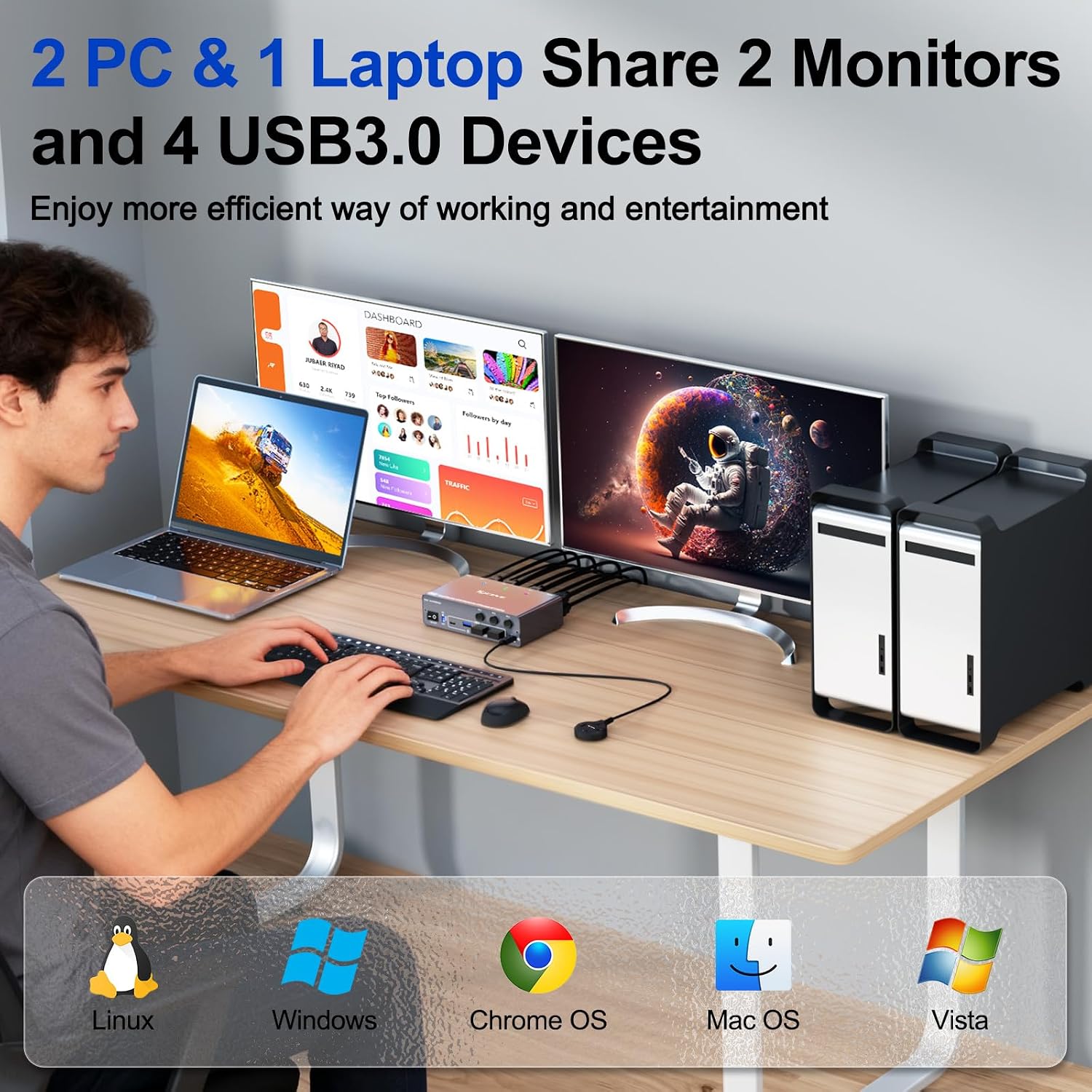
This manual provides detailed instructions for setting up and operating your KCEVE KC-302CDHX KVM Switch. This device allows you to control up to three computers (one laptop and two desktops) using a single set of keyboard, mouse, and two HDMI monitors. It supports high-resolution video output up to 4K@60Hz and includes USB 3.0 ports for peripheral sharing, along with 85W Power Delivery for laptop charging.
Package Contents
Please verify that all items are present in your package:
- 1 x KCEVE KVM Switch (KC-302CDHX)
- 1 x USB-C Cable
- 2 x USB 3.0 Cables (Type-A to Type-A)
- 1 x Wired Remote (1.5m)
- 1 x DC 12V Power Supply
- 1 x User Manual (this document)

Product Features
- Multi-Computer Control: Manage 1 laptop and 2 desktop computers with a single keyboard, mouse, and two HDMI monitors.
- High-Resolution Video: Supports resolutions up to 4K@60Hz, 4K@30Hz, 2K@144Hz, and 1080P@144Hz. Compatible with HDMI 2.0 and DisplayPort 1.4.
- USB 3.0 Connectivity: Features 4 USB 3.0 ports for connecting peripherals such as keyboards, mice, printers, and scanners, offering data transfer speeds up to 5Gbps.
- Power Delivery (PD): Provides 85W charging for your laptop via the USB-C connection. A 100W PD charger is recommended for optimal performance.
- EDID Emulation: Maintains display settings and window arrangement when switching between computers, preventing screen reorganization.
- Flexible Switching: Switch between connected computers using the front panel button or the included 1.5m wired remote control.
- Broad Compatibility: Works with Windows (11/10/8/7/XP/Vista), Chrome OS, and Mac OS systems. Supports various input devices including desktops, laptops, HDTVs, monitors, and projectors.
Setup Instructions
Follow these steps to connect your KVM switch and computers:
- Power Connection: Connect the included DC 12V power adapter to the KVM switch's DC 12V port and plug it into a power outlet.
- Monitor Connections: Connect your two HDMI monitors to the KVM switch's "OUT A" and "OUT B" HDMI ports.
- Peripheral Connections: Connect your keyboard, mouse, and other USB 3.0 peripherals (e.g., printer, USB drive) to the USB 3.0 ports on the front panel of the KVM switch.
- Computer 1 (Laptop) Connection:
- Connect one end of an HDMI cable to the laptop's HDMI output and the other end to the KVM switch's "INPUT B1 HD" port.
- Connect one end of the USB-C cable to the laptop's USB-C port and the other end to the KVM switch's "INPUT A1 USB-C" port. This connection also provides 85W Power Delivery to your laptop.
- Important: Ensure your laptop's USB-C port and HDMI port can output video simultaneously.
- Computer 2 (Desktop) Connection:
- Connect two HDMI cables from your desktop's HDMI outputs to the KVM switch's "INPUT B2 HD" and "INPUT A2 DP" ports. (Note: If your desktop has a DisplayPort output, you can use a DisplayPort to HDMI adapter for "INPUT A2 DP" if needed, or use two HDMI outputs).
- Connect one end of a USB 3.0 cable (Type-A to Type-A) to your desktop's USB 3.0 port and the other end to the KVM switch's "PC 2 USB 3.0" port.
- Computer 3 (Desktop) Connection:
- Connect two HDMI cables from your desktop's HDMI outputs to the KVM switch's "INPUT B3 HD" and "INPUT A3 HD" ports.
- Connect one end of a USB 3.0 cable (Type-A to Type-A) to your desktop's USB 3.0 port and the other end to the KVM switch's "PC 3 USB 3.0" port.
- Wired Remote (Optional): Plug the wired remote into the "Wired Remote" port on the front panel for convenient switching.

Note on Cables:
- For optimal performance and to prevent flickering or black screens, use high-quality HDMI 2.0/2.1 and DisplayPort 1.4 cables.
- Keep cable lengths as short as possible to ensure a stable signal, especially for 4K@60Hz resolutions.
- Ensure the computer's USB port is connected to the KVM's USB input port for keyboard and mouse recognition.
Operating Instructions
Switching Between Computers
You can switch between the connected computers using two methods:
- Front Panel Button: Press the corresponding PC1, PC2, or PC3 button on the front of the KVM switch to select the desired computer.
- Wired Remote Control: Press the button on the wired remote control to cycle through the connected computers.
LED indicators on the KVM switch will illuminate to show which computer is currently active.

Display Modes
When using a Windows laptop, you can select between extended screen mode or mirror mode by pressing "Windows + P".
Note for Apple M1/M2/M3 Users:
- Apple M1/M2 chips typically support only single-screen output.
- MacBook Pro (M3) models may not output images through both USB-C and HDMI ports simultaneously; only one image output may be available.

EDID Emulation
The KVM switch supports EDID lock functionality. This feature automatically adjusts monitor settings for optimal resolution and refresh rate, ensuring consistent image quality. When switching between computers, the original window order and desktop layout will be preserved. You can enable or disable the EDID function using the switch on the front panel.

Laptop Charging (PD)
When your laptop is connected via the USB-C port to the KVM switch, it will receive up to 85W of power for charging. Ensure you use a 100W Power Delivery (PD) charger connected to the KVM switch for optimal charging efficiency.

Maintenance
To ensure the longevity and optimal performance of your KCEVE KVM Switch, follow these maintenance guidelines:
- Cleaning: Use a soft, dry cloth to clean the exterior of the KVM switch. Avoid using liquid cleaners or abrasive materials.
- Ventilation: Ensure the KVM switch is placed in a well-ventilated area to prevent overheating. Do not block any ventilation openings.
- Cable Management: Keep cables organized and free from kinks or excessive bending to prevent damage.
- Power Off: If the device will not be used for an extended period, disconnect the power adapter.
Troubleshooting
If you encounter issues with your KVM switch, refer to the following common problems and solutions:
- No Display or Flickering Screen:
- Ensure all HDMI and DisplayPort cables are securely connected.
- Use high-quality 8K-rated cables, especially for 4K@60Hz resolutions, and keep them as short as possible.
- Verify the KVM switch is powered on and the correct input is selected.
- Keyboard/Mouse or USB Devices Not Recognized:
- Confirm that the USB 3.0 cables connecting your computers to the KVM switch's "PC USB 3.0" ports are properly connected.
- Try connecting the USB devices directly to the computer to rule out device issues.
- Ensure the KVM switch has adequate power from the DC 12V adapter.
- Laptop Not Charging (PD):
- Verify that a 100W Power Delivery (PD) charger is connected to the KVM switch.
- Ensure the USB-C cable connecting the laptop to the KVM switch supports PD.
- Only the currently active laptop input will receive charging power.
- Window Order Changes After Switching:
- Ensure the EDID emulation function is enabled on the KVM switch.
- Apple M1/M2/M3 Display Limitations:
- Be aware that Apple M1/M2 chips typically support only single-screen output.
- MacBook Pro (M3) may not output images through both USB-C and HDMI ports simultaneously.
Specifications
| Feature | Detail |
|---|---|
| Model Number | KC-302CDHX |
| Product Dimensions (L x W x H) | 5.4 x 3 x 1.4 inches (13.8 x 7.6 x 3.5 cm) |
| Item Weight | 12.8 ounces (360g) |
| Shell Material | Aluminum |
| Video Inputs | USB-C, HDMI, DisplayPort |
| Video Outputs | 2 x HDMI |
| Max Resolution Support | 4K@60Hz, 4K@30Hz, 2K@144Hz, 1080P@144Hz |
| USB Ports | 4 x USB 3.0 (up to 5Gbps) |
| Power Delivery (PD) | 85W (via USB-C input) |
| Power Supply | DC 12V (included adapter) |
| Switching Methods | Front Panel Button, Wired Remote |
| Compatibility | Windows, Chrome OS, Mac OS |
| ESD Protection | Built-in |
Warranty and Support
KCEVE provides a 12-month after-sales service and lifetime technical support for your KVM switch. If you have any questions or require assistance, please do not hesitate to contact KCEVE customer support.


