
Introduction
Thank you for choosing the EDJO Ergonomic Wireless Keyboard. This keyboard is designed to provide a comfortable and efficient typing experience with its wave-shaped keys and integrated wrist rest. Featuring 2.4GHz wireless connectivity, it offers a reliable connection for various operating systems, including Windows and Mac OS.
This manual provides detailed instructions for setting up, operating, and maintaining your keyboard to ensure optimal performance and longevity.
Package Contents
- EDJO Ergonomic Wireless Keyboard
- USB Receiver
- User Manual
Setup
1. Battery Installation
The keyboard requires one (1) AA battery (not included). Locate the battery compartment on the underside of the keyboard. Open the cover, insert the AA battery according to the polarity indicators (+/-), and close the cover securely.
2. Connecting the USB Receiver
The USB receiver is stored in a dedicated slot next to the battery compartment on the underside of the keyboard for convenient transport. Remove the USB receiver from its storage slot.

Image: Underside of the keyboard showing the USB receiver stored next to the battery compartment.
Insert the USB receiver into an available USB port on your computer, laptop, or compatible device. The system will automatically detect and install the necessary drivers. No manual driver installation is required.
3. Powering On/Off
Locate the power switch on the top-right side of the keyboard. Slide the switch to the 'ON' position to power on the keyboard. To conserve battery life, slide the switch to 'OFF' when the keyboard is not in use for extended periods.

Image: Close-up of the keyboard's top-right section, highlighting the ON/OFF switch and LED indicators.
Operating Instructions
1. Basic Typing and Ergonomic Design
The EDJO keyboard features a wave-shaped key design and an integrated palm rest to promote a natural and comfortable typing posture. This design helps reduce wrist strain and fatigue during prolonged use.

Image: A user's hands positioned on the ergonomic keyboard, illustrating the comfortable palm rest and natural typing angle compared to a standard flat keyboard.
2. System Layout Switching (Mac/Windows)
This keyboard supports dual system layouts for both Mac and Windows operating systems. To switch between layouts:
- For Windows Layout: Press the Fn + W keys simultaneously. The Win/Mac indicator light will turn Red.
- For Mac OS Layout: Press the Fn + Q keys simultaneously. The Win/Mac indicator light will turn Green.

Image: Diagram illustrating the key combinations (Fn+W for Windows, Fn+Q for Mac) to switch between operating system layouts, with corresponding indicator light colors.
3. Multimedia Shortcut Keys
The keyboard includes 12 multimedia shortcut keys (F1-F12) to enhance productivity. To activate these functions, press the Fn key in combination with the desired F-key.
- Fn + F1: Music Player
- Fn + F2: Volume Down
- Fn + F3: Volume Up
- Fn + F4: Mute
- Fn + F5: Previous Track
- Fn + F6: Next Track
- Fn + F7: Play/Pause
- Fn + F8: Stop
- Fn + F9: Open Browser
- Fn + F10: Open E-Mail
- Fn + F11: My Computer
- Fn + F12: Calculator
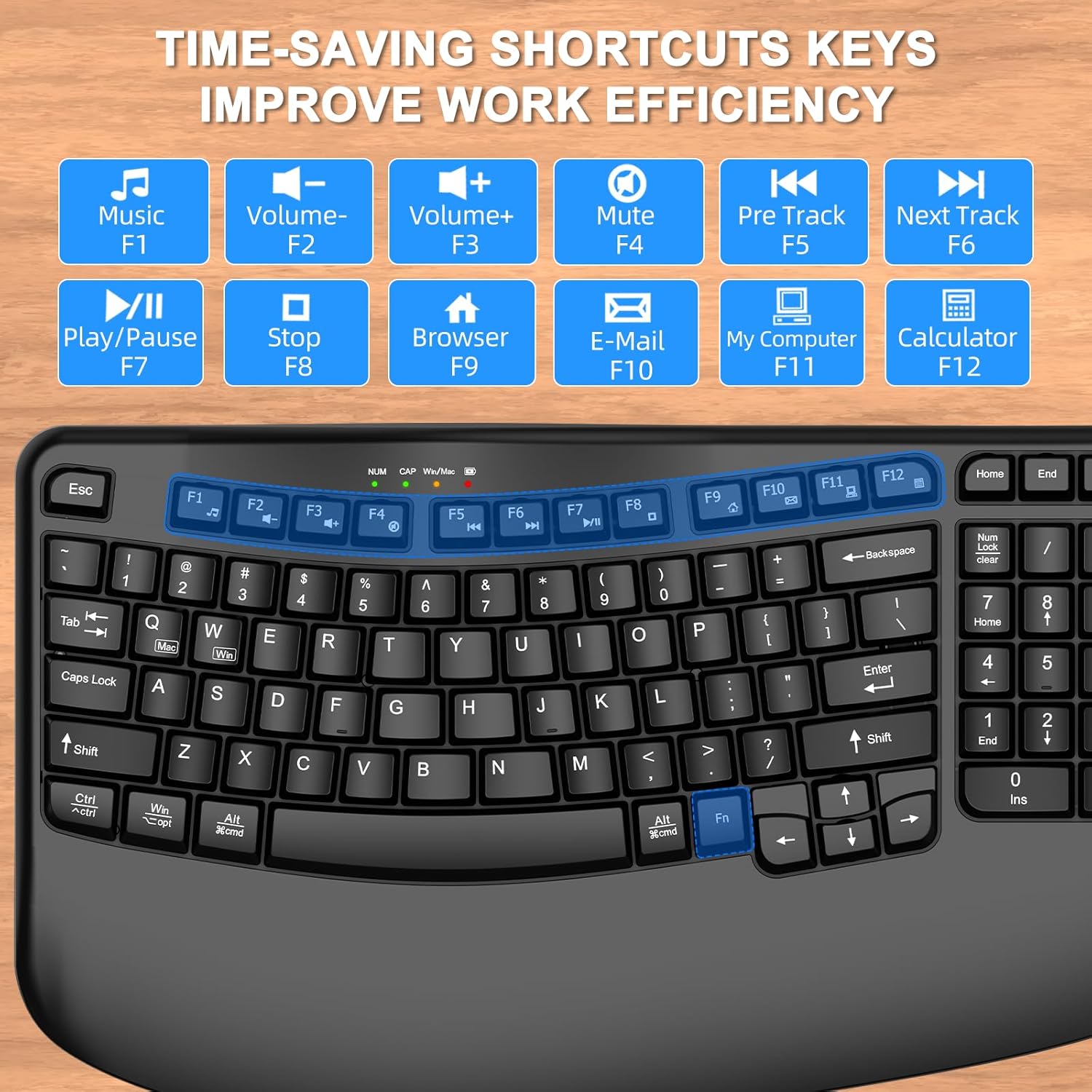
Image: The top row of the keyboard with F1-F12 keys highlighted, showing their corresponding multimedia functions.
Features Overview
1. 2.4GHz Wireless Connection
The keyboard utilizes a 2.4GHz wireless connection, providing a stable and reliable link to your device within a range of up to 33 feet (10 meters). This technology ensures minimal delays and dropouts during use.
Image: The keyboard on a desk, illustrating its 2.4GHz wireless connection, 33ft range, plug-and-play functionality, and compatibility with Windows, Mac OS, Linux, Chrome, and Android.
2. Auto Sleep Function
To conserve battery life, the keyboard automatically enters sleep mode after 10 minutes of inactivity. To reactivate the keyboard, simply press any key.
3. LED Indicators
The keyboard features several LED indicator lights:
- Low Power Indicator: Illuminates when the battery level is low, indicating that the battery needs replacement.
- Win/Mac Indicator: Shows the currently active operating system layout (Red for Windows, Green for Mac OS).
- Caps Lock Indicator: Illuminates when Caps Lock is active.
- Num Lock Indicator: Illuminates when Num Lock is active.
Maintenance
1. Cleaning
To clean your keyboard, power it off and disconnect the USB receiver. Use a soft, lint-free cloth slightly dampened with water or a mild cleaning solution. Avoid using harsh chemicals or abrasive materials. For cleaning between keys, a can of compressed air can be used to remove dust and debris.
2. Battery Replacement
When the low power indicator light illuminates, replace the AA battery promptly to ensure uninterrupted operation. Follow the battery installation steps outlined in the Setup section.
Troubleshooting
- Keyboard not responding:
- Ensure the keyboard is powered on.
- Check if the battery is correctly installed and has sufficient charge. Replace if necessary.
- Ensure the USB receiver is securely plugged into a working USB port on your device.
- Try plugging the USB receiver into a different USB port.
- Move the keyboard closer to the USB receiver to rule out range issues.
- Keys not typing correctly or sticky:
- Clean the keyboard to remove any debris or dust that might be affecting key functionality.
- Ensure the correct system layout (Mac/Windows) is selected.
- Wireless connection issues:
- Avoid placing the USB receiver near other wireless devices or large metal objects that may cause interference.
- Ensure the distance between the keyboard and receiver is within the 33-foot operating range.
Specifications
| Brand | EDJO |
| Model | Ergonomic Wireless Keyboard |
| Connectivity Technology | 2.4GHz Wireless (USB Receiver) |
| Compatible Devices | Personal Computer, Laptop, Television (Windows, Mac OS, Linux, Chrome, Android) |
| Keyboard Description | Multimedia, Membrane, Wave Keys |
| Special Features | Wave Keys, Natural Typing, Ergonomic, Wrist Rest, Shortcut Keys, Compact, Water Resistant |
| Color | Black |
| Product Dimensions | 15.35"L x 9.04"W x 1.89"H |
| Material | Plastic |
| Power Source | 1 x AA Battery (not included) |

Image: Visual representation of the keyboard's dimensions (15.35"L x 9.04"W x 1.89"H) and a hand size guide for ergonomic fit.
Warranty and Support
For warranty information or technical support, please refer to the documentation provided with your purchase or contact EDJO customer service through the retailer where the product was purchased. Keep your proof of purchase for warranty claims.