
1. Introduction
The KCEVE C212H KVM Switch is designed to allow two USB-C enabled laptops to share a single set of keyboard, mouse, and other USB 3.0 devices, while displaying content on two HDMI monitors. This device supports 4K@60Hz resolution and provides 80W Power Delivery (PD) charging for connected laptops. It offers efficient switching between connected computers for enhanced productivity.

Figure 1: KVM Switch connecting two laptops to two monitors and shared peripherals.
2. Package Contents
Verify that all items are present in the package:
- 1 x KVM Switch USB C (Model: C212H)
- 2 x Type-C Cables
- 1 x Wired Remote Control (1.5m)
- 1 x User Manual
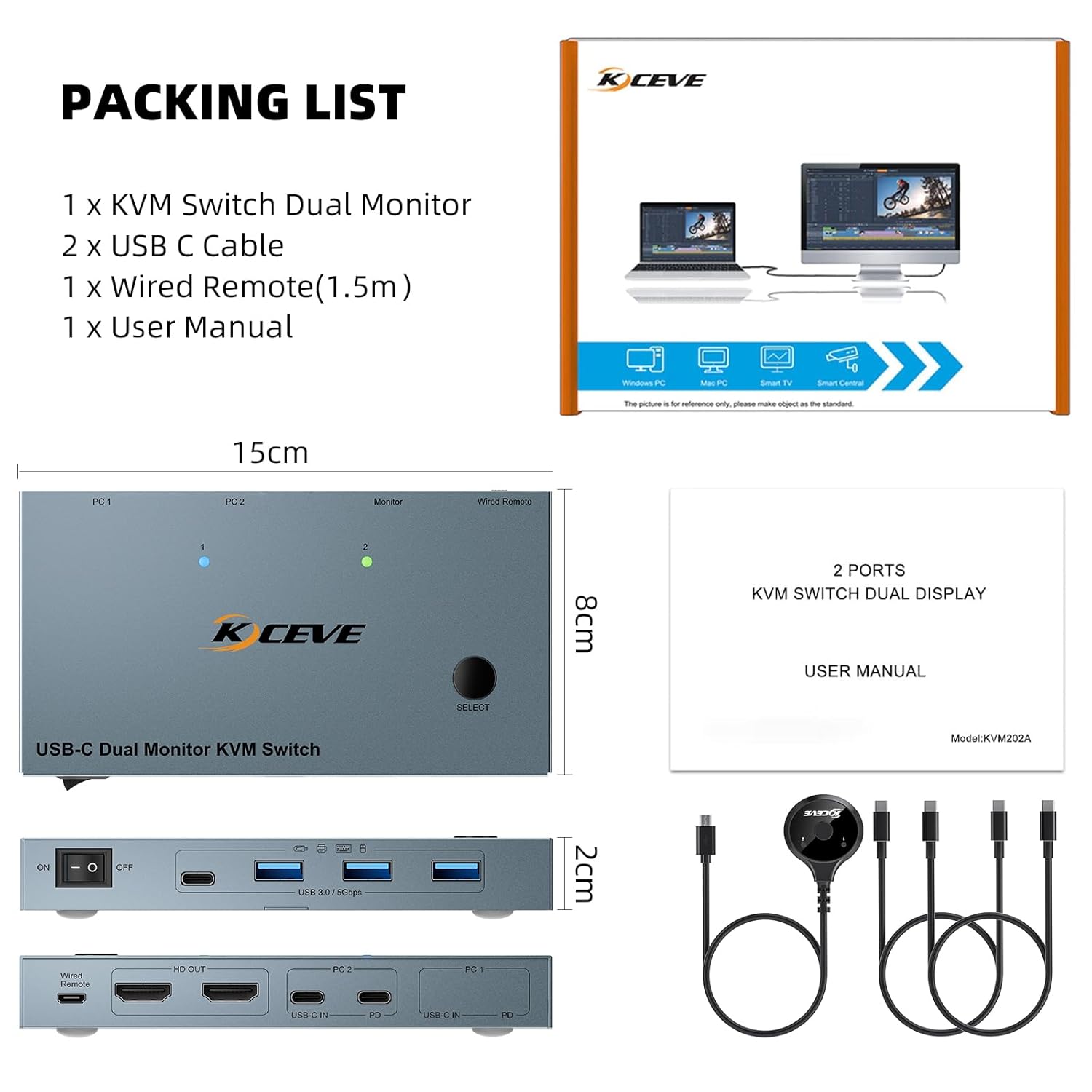
Figure 2: Package contents of the KCEVE C212H KVM Switch.
Video 1: Unboxing and overview of the KVM Switch package contents.
3. Product Features
- Dual Monitor Support: Connects two USB-C laptops to two HDMI monitors.
- High Resolution: Supports 4K@60Hz resolution with HDMI 2.0 and Deep Color 4:4:4.
- USB 3.0 Connectivity: Features 4 USB 3.0 ports for sharing keyboard, mouse, printer, scanner, and other USB devices with data transfer speeds up to 5Gbps.
- 80W Power Delivery: Provides up to 80W charging for connected laptops via the PD port.
- Multiple Switching Methods: Switch between laptops using a button on the device or the included 1.5m wired remote control.
- Plug and Play: No additional driver software required.
- Wide Compatibility: Compatible with Windows 7/8/10/11/XP/Vista, Mac OS, Linux, and Chrome OS.
- Integrated ESD Protection: Built-in electrostatic discharge protection system.

Figure 3: High-definition visual output at 4K@60Hz.

Figure 4: 80W Power Delivery (PD) charging for laptops.

Figure 5: USB 3.0 ports supporting data transfer speeds up to 5Gbps.
4. Setup Instructions
Follow these steps to connect your KVM switch:
- Connect Monitors: Connect your two HDMI monitors to the 'HD OUT_A' and 'HD OUT_B' ports on the KVM switch.
- Connect Laptops (PC1):
- Connect the first laptop's USB-C port to the 'PC1 IN' USB-C port on the KVM switch using a Type-C cable. This cable handles video, data, and PD charging.
- If your laptop requires additional power, connect its charging cable to the 'PD' port next to 'PC1 IN'.
- Connect Laptops (PC2): Repeat the steps for the second laptop, connecting it to the 'PC2 IN' USB-C port and its corresponding 'PD' port if needed.
- Connect Peripherals: Connect your keyboard, mouse, and other USB 3.0 devices (e.g., printer, USB drive) to the USB 3.0 ports on the front of the KVM switch.
- Connect Wired Remote: Plug the wired remote control into the designated port on the KVM switch for convenient switching.
- Power On: Ensure all connections are secure, then power on the KVM switch using the ON/OFF switch.

Figure 6: Connection diagram for the KCEVE C212H KVM Switch.
Video 2: Step-by-step instructions for connecting the KVM Switch to computers and monitors.
5. Operating Instructions
5.1 Switching Between Laptops
The KVM switch offers two methods for switching between connected laptops:
- Button Switch: Press the 'Switch' button on the front panel of the KVM device to toggle between PC1 and PC2. The LED indicator will show which computer is active.
- Wired Remote Control: Use the included 1.5m wired remote control to switch between PC1 and PC2.
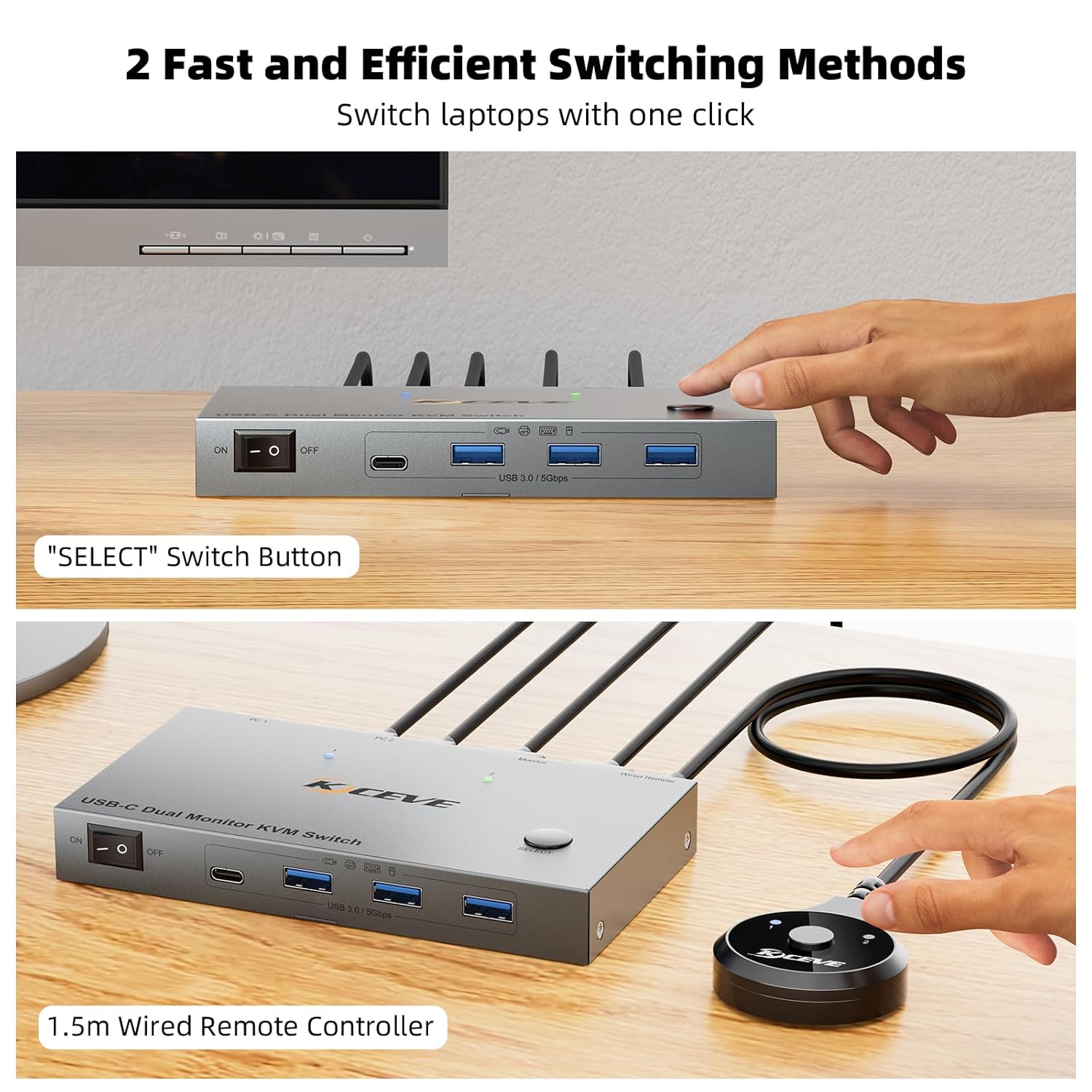
Figure 7: Two methods for switching between connected laptops.
5.2 Display Modes
The KVM switch supports different display modes depending on your operating system:
- Windows Laptops: Support expanding to two different screens. Press "Windows+P" to select extended screen mode or mirror mode.
- Mac OS Laptops: Support expanding to two identical screens only, as Mac OS does not support Multi-Stream Transport (MST) for different extended displays through this type of KVM.

Figure 8: Display modes for Windows and Mac OS.
6. Specifications
| Feature | Specification |
|---|---|
| Model Number | C212H |
| Product Dimensions | 15.24 x 7.62 x 2.03 cm (6 x 3 x 0.8 inches) |
| Item Weight | 249 g (0.55 Lb) |
| Video Output | 2 x HDMI 2.0 |
| Resolution Support | Up to 4K@60Hz |
| USB Ports | 4 x USB 3.0 (5Gbps data transfer) |
| USB-C Input | 2 x USB Type-C 3.1 Gen 2 |
| Power Delivery (PD) | Up to 80W for laptops |
| Material | Metal |
| Operating Voltage | 12 Volts |
| Control Method | Push Button, Wired Remote Control |
| Compatibility | Windows, Mac OS, Linux, Chrome OS |
7. Troubleshooting
- Flickering or Black Screen: If you experience screen flickering or a black screen, ensure you are using high-quality HDMI cables. Using a short 8K HDMI cable can improve signal stability and clarity, resolving these issues.
- No Display on Monitors: Verify that all HDMI and USB-C cables are securely connected to both the KVM switch and your laptops/monitors. Ensure the KVM switch is powered on.
- USB Devices Not Working: Check that the USB 3.0 cables from your laptops are correctly connected to the KVM switch. Ensure the KVM switch is powered on. Try reconnecting the USB devices.
- Laptop Not Charging: Confirm that the Type-C charging cable is connected to the 'PD' port on the KVM switch and that your laptop supports USB-C Power Delivery.
- Mac OS Display Issue: Remember that Mac OS laptops will only expand to two identical screens, not two different extended screens, due to MST limitations.
8. Warranty and Support
KCEVE provides 12 months of after-sales service and lifetime technical support for this KVM switch. If you encounter any issues or have questions, please contact KCEVE customer support for assistance.


