
1. Introduction
The NearStream AM25X Gen2 is a versatile condenser microphone designed for high-quality audio capture in various applications, including podcasting, streaming, gaming, and music recording. It features dual USB and XLR connectivity, advanced noise-canceling technology, and intuitive controls for an enhanced user experience.

Image 1.1: The NearStream AM25X Gen2 microphone highlighting its professional-grade clarity with 24-bit depth, ≥125dB SPL, and ≥75dB S/N ratio.
2. What's in the Box
Upon unboxing your NearStream AM25X Gen2 microphone, please ensure all the following components are present:
- 1 x AM25X Condenser Microphone
- 1 x Mic Windscreen
- 1 x Desk Stand
- 1 x USB Cable (6.5ft USB-C to USB-A/USB-C)
Note: An XLR cable is not included and must be purchased separately if XLR connectivity is desired.

Image 2.1: All components included in the NearStream AM25X Gen2 microphone package.
3. Setup
3.1 Assembling the Desk Stand
- Screw the adjustable stand pole into the weighted round metal base. The base features non-slip padding to protect your desktop.
- Attach the microphone mount to the top of the stand pole.
- Secure the AM25X microphone onto the mount. The microphone features a 1/4-inch mounting thread for compatibility with various stands or boom arms (not included).
The adjustable desk stand allows for height adjustments from 6.2 to 8 inches to achieve the optimal recording angle.
Video 3.1: A short demonstration of the quick assembly process for the NearStream AM25X microphone and its desk stand.
3.2 Connecting the Microphone
The AM25X Gen2 offers dual connectivity options:
- USB Connection: Use the provided USB-C to USB-A/USB-C cable to connect the microphone directly to your PC, Mac, PS4/PS5, or laptop. This mode enables all microphone features, including noise cancellation, monitoring, and gain control.
- XLR Connection: For professional audio setups, connect the microphone to an audio mixer or interface using an XLR cable (not included). In XLR mode, the microphone provides pure analog output, and its built-in features (noise cancellation, monitoring, gain control) are bypassed.
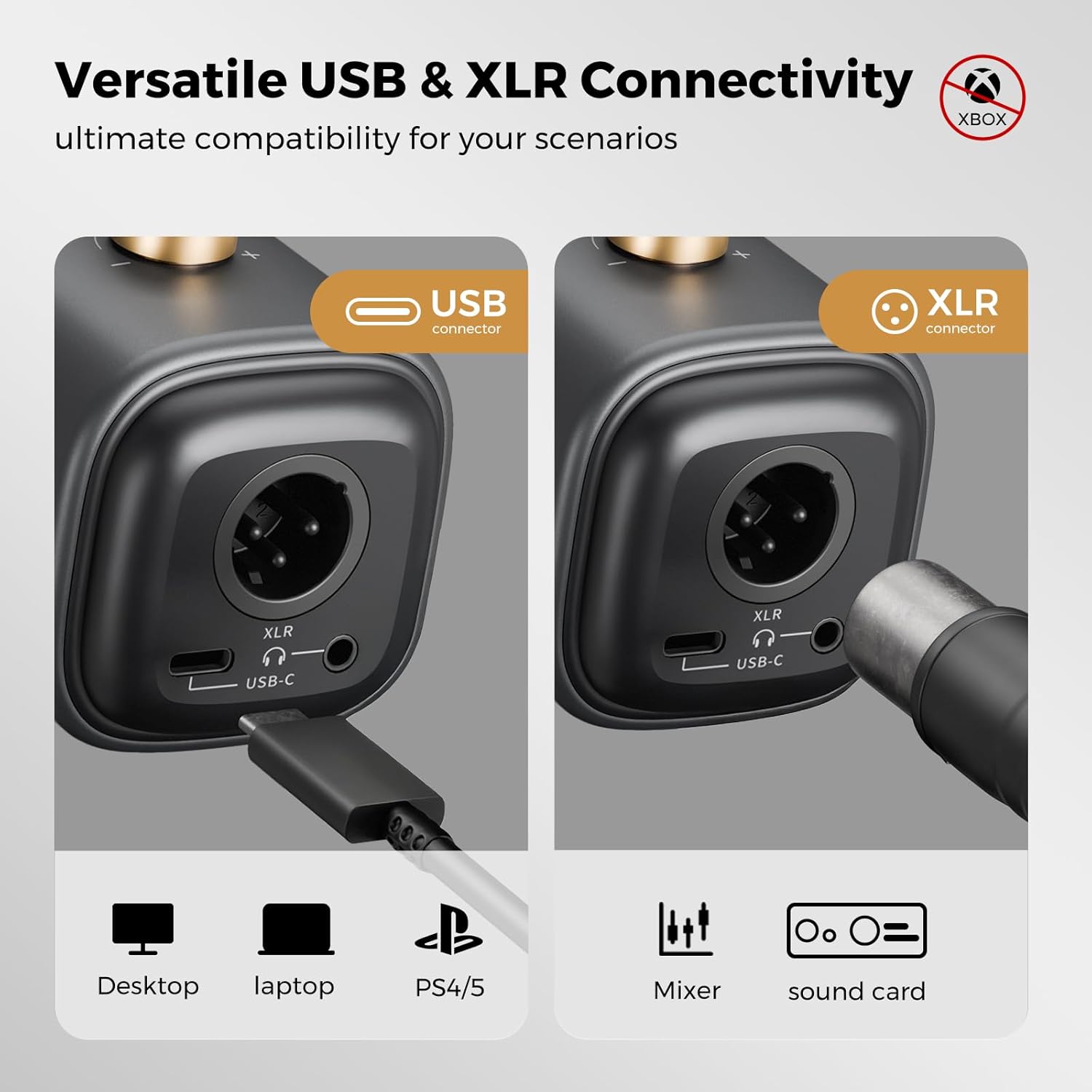
Image 3.2: Close-up view of the microphone's versatile USB-C and XLR connectivity options.
3.3 Optimal Microphone Placement
For the best audio quality, position the microphone vertically within 15 inches (approximately 38 cm) of your mouth. The supercardioid pickup pattern is designed to focus on your voice and reject side noise, but proper placement is crucial for optimal results.

Image 3.3: The supercardioid polar pattern diagram, indicating the microphone's focused sound pickup range.
4. Operating Instructions
4.1 Microphone Controls (USB Mode Only)
The AM25X Gen2 features intuitive controls for easy audio management. These functions are active only when the microphone is connected via USB:
- Mute/Noise-Cancel Button: A dual-action button with color-coded LED indicators.
- Short press: Toggles mute ON/OFF (Red LED indicates mute).
- Long press: Activates/Deactivates AI noise cancellation (Blue LED for ON, Yellow LED for OFF).
- Mic/Monitor Mode Switch: A button to toggle between microphone and monitoring modes.
- Short press: Toggles between Microphone mode (Blue/Yellow LED) and Monitor mode (Green LED).
- 15-Level Rotary Volume Knob: Adjusts the microphone's input gain or headphone monitoring volume. Turn left to decrease, right to increase.
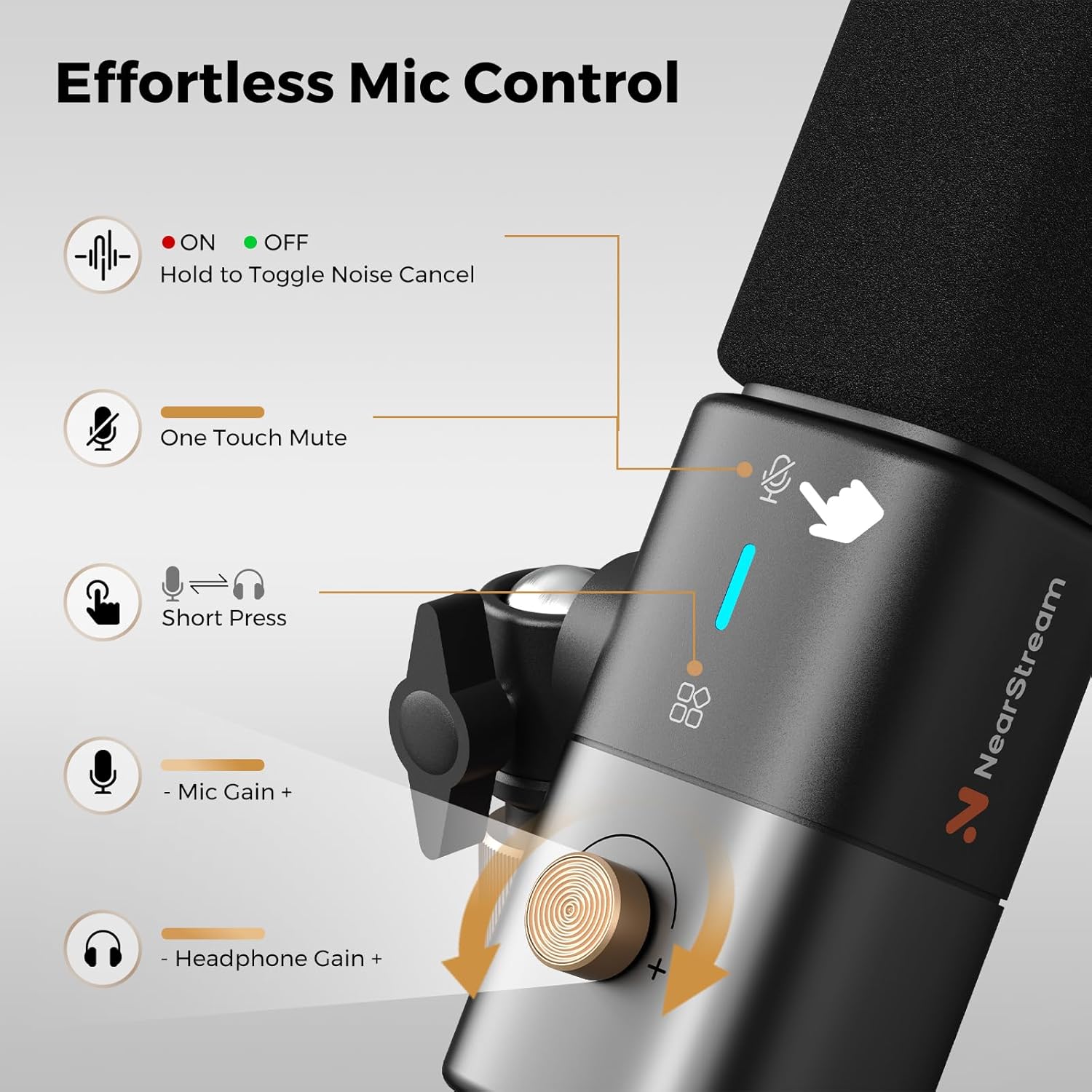
Image 4.1: Detailed view of the microphone's control interface, including mute, noise cancellation, and volume adjustments.
4.2 Real-Time Monitoring
The microphone includes a 3.5mm audio jack for headphone connectivity, allowing for real-time sound monitoring with low latency. This feature is available only when the microphone is connected via USB. This enables you to hear your audio output directly and make immediate adjustments to volume or gain.
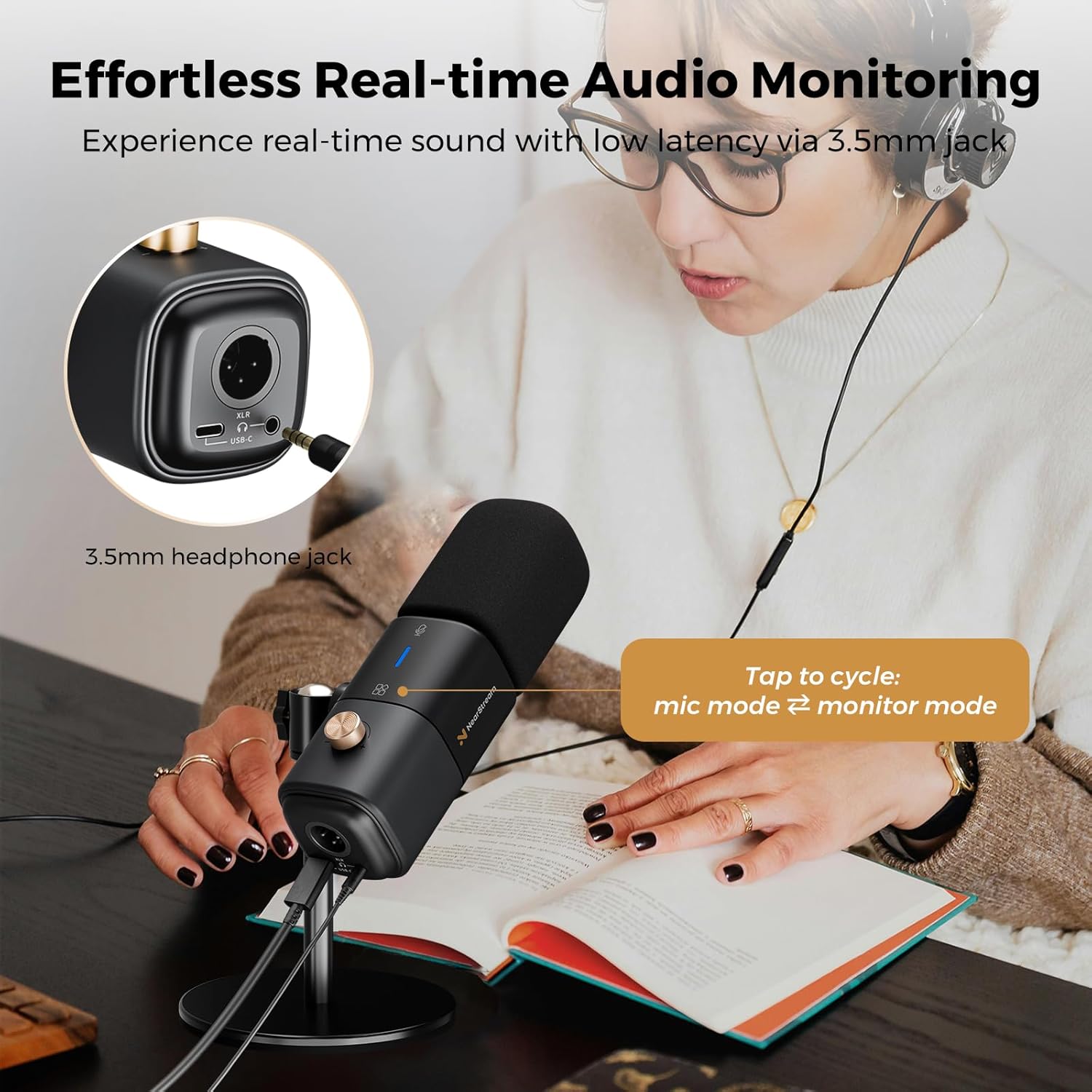
Image 4.2: A user demonstrating real-time audio monitoring via the 3.5mm headphone jack on the microphone.
5. Noise Cancellation Feature
The AM25X Gen2 incorporates an advanced AI noise-canceling mode to eliminate background interference, such as keystrokes, fan noise, or ambient room sounds. This feature is particularly beneficial for maintaining crystal-clear audio in less-than-ideal recording environments.
Video 5.1: Demonstration of the microphone's noise cancellation feature in a dog barking environment.
Video 5.2: Testing the microphone's noise cancellation with electrical hum.
Video 5.3: Noise cancellation test in a general noisy environment.
Video 5.4: Noise cancellation test with an indoor fan.
6. Maintenance
To ensure the longevity and optimal performance of your NearStream AM25X Gen2 microphone, follow these maintenance guidelines:
- Cleaning: Use a soft, dry cloth to wipe the microphone body. Do not use liquid cleaners or solvents. The mic windscreen can be gently cleaned with a damp cloth and allowed to air dry completely before reattaching.
- Storage: Store the microphone in a cool, dry place away from direct sunlight and extreme temperatures.
- Handling: Avoid dropping the microphone or subjecting it to strong impacts, as this can damage internal components.
7. Troubleshooting
If you encounter issues with your NearStream AM25X Gen2 microphone, please refer to the following common solutions:
- No Sound Output (USB): Ensure the USB cable is securely connected to both the microphone and your computer. Check your computer's sound settings to confirm the AM25X is selected as the input device. Verify the mute function is not active (Red LED OFF).
- No Sound Output (XLR): Ensure the XLR cable is securely connected to both the microphone and your audio interface/mixer. Confirm your audio interface/mixer is powered on and configured correctly. Remember that XLR mode bypasses the microphone's internal controls.
- Features Not Working (XLR): All function keys (mute, noise cancellation, monitoring, gain control) are only accessible when the microphone is connected via USB. These features are not available in XLR mode.
- Poor Audio Quality/Background Noise: Ensure the microphone is positioned vertically within 15 inches of your mouth. Activate the AI noise-canceling mode (long press the mute button until the Blue LED appears). Check for any obstructions or interference near the microphone.
- Monitoring Issues: Real-time monitoring through the 3.5mm headphone jack is only available with a USB connection. Ensure headphones are properly plugged in and the mic/monitor mode is correctly set (Green LED for monitor mode).
8. Specifications
| Feature | Specification |
|---|---|
| Brand | NearStream |
| Model Number | AM25X-US |
| Connectivity Technology | USB, XLR |
| Connector Type | USB Type-C, XLR |
| Special Features | Mute Function, Noise Reduction, Sound Monitoring, Volume Control, XLR/USB Connectivity |
| Compatible Devices | Audio Interface, Audio Mixer, Laptop, Personal Computer (PC, Mac, PS4/PS5) |
| Polar Pattern | Super Cardioid |
| Material | Metal |
| Recommended Uses | Gaming, Podcasting, Sound Recording, Streaming |
| Max Pickup Distance | 14 inches (approx. 35.5 cm) |
9. Warranty
The NearStream AM25X Gen2 Condenser Microphone comes with a 1-Year Manufacturer Warranty. Please retain your proof of purchase for any warranty claims.
10. Support
For further assistance, technical support, or warranty inquiries, please contact the NearStream Official Store directly through their Amazon store page or the contact information provided with your product packaging.
Visit the NearStream Official Store on Amazon.


