
1. Introduction
This user manual provides comprehensive instructions for the installation, operation, and maintenance of your KCEVE HDMI KVM Switch. This device allows two computers to share one monitor, a single keyboard, mouse, and other USB 3.0 devices, optimizing your workspace and enhancing productivity. Please read this manual thoroughly before use to ensure proper setup and functionality.
2. Product Overview
The KCEVE HDMI KVM Switch is designed to streamline your computing setup by enabling two computers to share a single display and a set of USB 3.0 peripherals. It supports high-resolution video up to 8K@60Hz and 4K@120Hz, leveraging HDMI 2.1 and HDCP 2.3 technologies. With its USB 3.0 interface, it offers ultra-fast data transfer rates of up to 5Gbps, making it ideal for high-definition webcams, flash drives, printers, and scanners. The switch features two convenient switching methods: a physical button on the unit and a wired remote control.

Figure 2.1: KCEVE HDMI KVM Switch with connected cables and power adapter, illustrating its compact design and multiple ports.
3. Features
- High Resolution Support: Supports resolutions up to 8K@60Hz, 4K@120Hz, 4K@60Hz, and 1080P@120/60Hz.
- HDMI 2.1 & HDCP 2.3 Compliance: Ensures compatibility with the latest display technologies and backward compatibility with HDMI 2.0 and 1.4.
- USB 3.0 Connectivity: Features 4 USB 3.0 ports for connecting peripherals with data transfer speeds up to 5Gbps.
- Dual Switching Methods: Easily switch between computers using the button on the unit or the included 1.5m wired remote control.
- LED Indicators: Clear LED lights indicate which computer is currently active.
- Wide Compatibility: Compatible with Windows (11/10/8/7/XP/Vista), Chrome OS, Mac OS, and Linux systems.
- Plug and Play: No additional driver software required for installation.
- Broad Device Support: Supports various HDMI input devices including desktops, laptops, Internet TV boxes, Xbox One, PS5, HDTVs, monitors, and projectors.

Figure 3.1: Illustration of a laptop connected to the KVM switch, demonstrating its capability to output up to 8K@60Hz resolution to a large monitor.
4. Package Contents
Please verify that all items are present in the package:
- 1 x KCEVE 8K HDMI KVM Switch
- 2 x USB 3.0 Cables (1.5m each)
- 1 x Wired Remote Control Cable (1.5m)
- 1 x User Manual
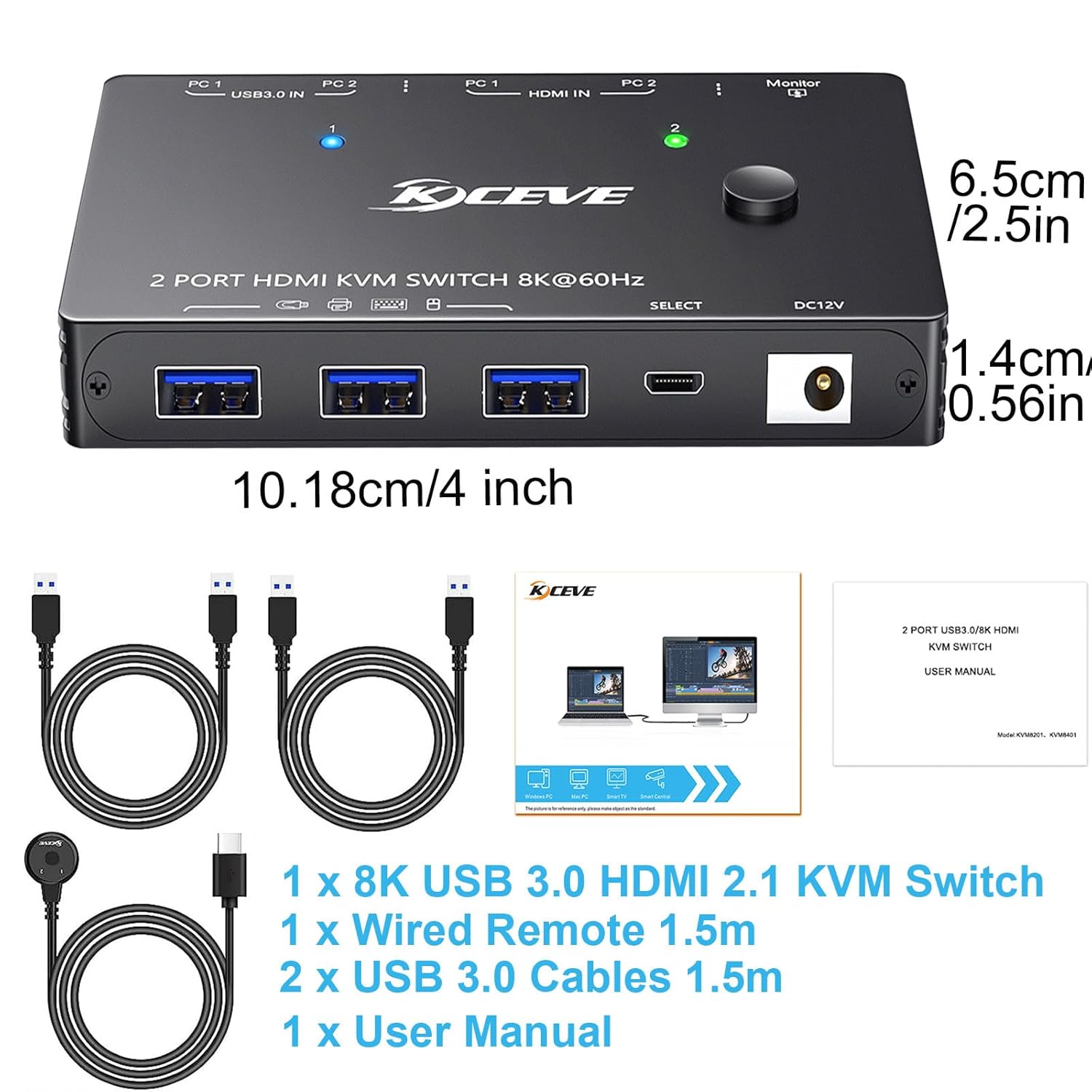
Figure 4.1: Visual representation of the KVM switch and its accompanying accessories, including USB cables, wired remote, and user manual.
5. Setup Instructions
Follow these steps to connect your KVM switch:
- Power Off Devices: Ensure all computers and the monitor are powered off before making any connections.
- Connect Monitor: Connect your monitor to the "Monitor" HDMI output port on the KVM switch using an HDMI cable.
- Connect Computers (HDMI): Connect the HDMI output of PC 1 to the "HDMI IN PC 1" port on the KVM switch. Repeat for PC 2, connecting its HDMI output to "HDMI IN PC 2".
- Connect Computers (USB 3.0): Connect one end of a supplied USB 3.0 cable to a USB 3.0 port on PC 1, and the other end to the "USB3.0 IN PC 1" port on the KVM switch. Repeat for PC 2, connecting its USB 3.0 output to "USB3.0 IN PC 2". Note: Each PC requires both an HDMI cable and a USB 3.0 cable connected to the KVM for full functionality.
- Connect Peripherals: Connect your keyboard, mouse, and other USB 3.0 devices (e.g., printer, U disk) to the available USB 3.0 ports on the front of the KVM switch.
- Connect Wired Remote (Optional): If desired, connect the wired remote control cable to the designated port on the KVM switch.
- Power On: Power on the KVM switch (it is powered by the USB connections, but for 4K@60Hz or higher resolutions, an external 12V DC power adapter may be required, if not included, ensure your USB connections provide sufficient power). Then, power on your monitor and computers.

Figure 5.1: Comprehensive diagram illustrating the correct connection of two PCs, a monitor, and various USB peripherals to the KVM switch.
6. Operating Instructions
The KCEVE KVM switch offers two methods for switching between connected computers:
- Button Switch: Press the "SELECT" button located on the top of the KVM switch to toggle between PC 1 and PC 2.
- Wired Remote Control: Press the button on the wired remote control to switch between PC 1 and PC 2. This is convenient if the KVM unit is placed out of reach.
The LED indicators on the KVM switch will illuminate to show which computer is currently active (e.g., blue for PC 1, green for PC 2).
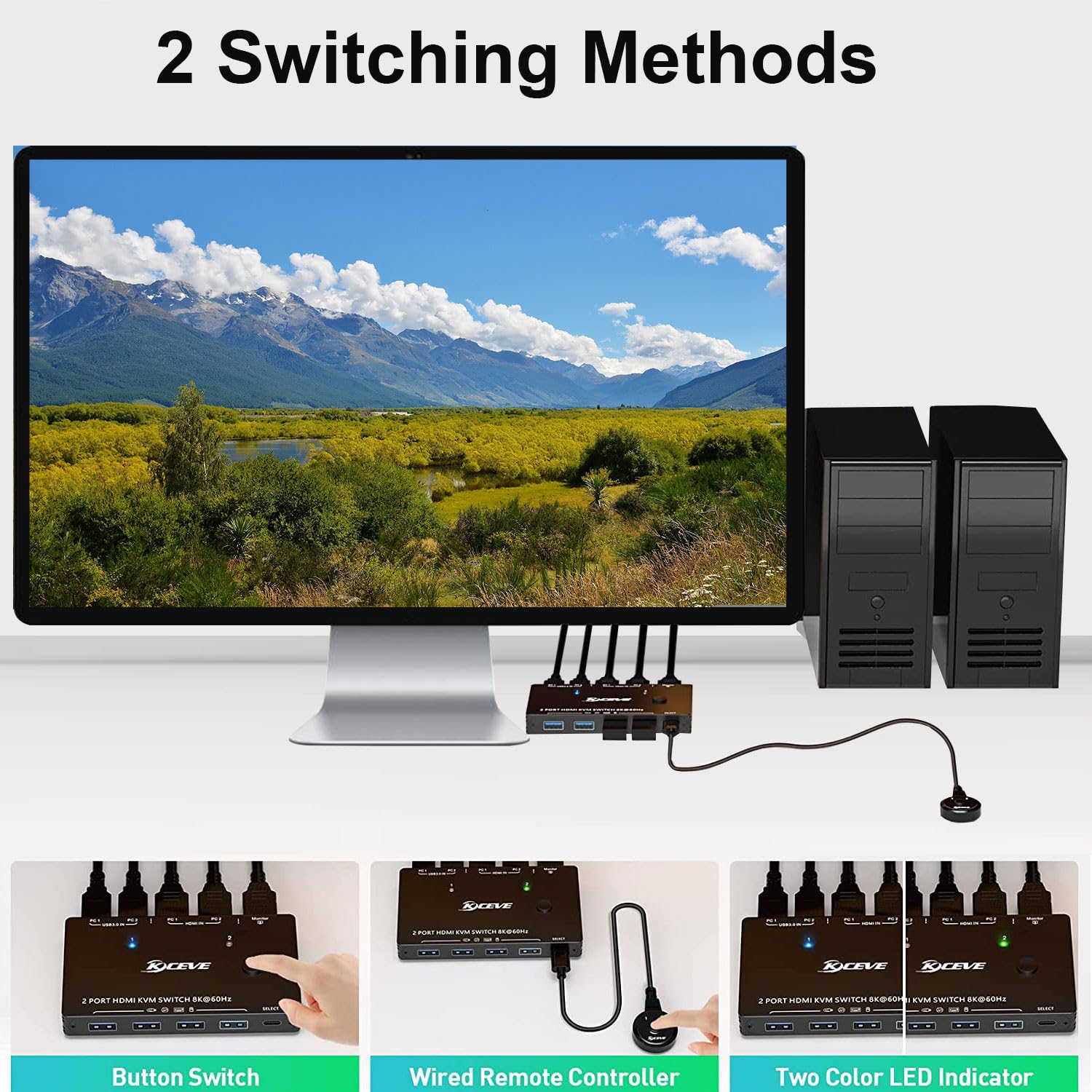
Figure 6.1: Depiction of the two available switching methods: the direct button on the KVM unit and the external wired remote control.
7. Maintenance
To ensure the longevity and optimal performance of your KVM switch, follow these maintenance guidelines:
- Cleaning: Use a soft, dry cloth to clean the exterior of the device. Avoid using liquid cleaners or aerosols, which may damage the unit.
- Ventilation: Ensure the KVM switch is placed in a well-ventilated area to prevent overheating. Do not block any ventilation openings.
- Cable Management: Keep cables organized and free from kinks or excessive bending to prevent signal degradation or damage.
- Storage: When not in use for extended periods, store the device in a cool, dry place away from direct sunlight and extreme temperatures.
8. Troubleshooting
If you encounter issues with your KVM switch, refer to the following common problems and solutions:
| Problem | Possible Cause / Solution |
|---|---|
| No video output or flickering screen. |
|
| Keyboard/Mouse or USB devices not working. |
|
| Switching is slow or unresponsive. |
|
| Audio issues (e.g., static pop). |
|
9. Specifications
| Attribute | Value |
|---|---|
| Product Name | HDMI KVM SWITCH 2 port |
| Model Number | KCEVE-8201-A |
| Input Ports | 2 x USB 3.0, 2 x HDMI 2.1 |
| Output Ports | 1 x HDMI, 4 x USB 3.0 |
| Supported Resolutions | Up to 8K@60Hz, 4K@120Hz, 4K@60Hz, 1920x1080@120/60Hz |
| HDMI Standard | HDMI 2.1, HDCP 2.3 (backward compatible with HDMI 2.0, 1.4) |
| USB Standard | USB 3.0 (up to 5Gbps) |
| Switching Methods | Button switch, Wired remote control |
| Dimensions (L x W x H) | 10.18 x 6.5 x 1.4 cm (4 x 2.56 x 0.55 inches) |
| Material | Metal |
| Manufacturer | KCEVE |
10. Warranty and Support
KCEVE is committed to providing high-quality products and customer satisfaction. While specific warranty details are typically provided with your product purchase or on the official KCEVE website, the company offers comprehensive after-sales support, including product replacement and technical assistance.
For any technical inquiries, troubleshooting assistance, or warranty claims, please contact KCEVE customer support. Refer to the contact information provided on the product packaging or the official KCEVE website for the most up-to-date support channels.
Note: This 8K HDMI KVM switch is a technical product, and some compatibility errors may occur. KCEVE has extensive experience in KVM Switch technology and is ready to assist with any issues.