
1. Introduction
Thank you for choosing the TNICER T4X Motorcycle Intercom. This device is designed to enhance your riding experience by providing clear communication, music playback, and navigation audio while on the road. Featuring advanced ENC (Environmental Noise Cancellation) technology, Bluetooth 5.2 connectivity, and IP67 waterproof rating, the T4X ensures reliable performance in various conditions. Please read this manual thoroughly before use to ensure proper operation and to maximize the product's potential.
2. Safety Information
- Always prioritize road safety. Do not operate the device in a way that distracts you from riding.
- Ensure the device is securely mounted to your helmet before riding.
- Adjust volume to a level that allows you to hear ambient traffic sounds. Excessive volume can damage hearing and impair awareness.
- Do not attempt to disassemble or modify the device. This may void the warranty and cause damage.
- Keep the device away from extreme temperatures, open flames, and corrosive substances.
- Dispose of batteries according to local regulations.
3. Package Contents
Verify that all items are present in your package:
- T4X Main Unit
- Hard Microphone & Speaker Set
- Soft Microphone
- User Manual (Japanese)
- USB-C Charging Cable
- 3M Adhesive Pads (for main unit and speakers)
- Rigid Mic Fixed Velcro
- Mounting Bracket Base
- Round Velcro (for speakers)
- Speaker Foam Pads
- Metal Clip
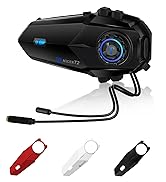
Image: All components included in the TNICER T4X package, laid out for identification.
4. Product Overview
The TNICER T4X features a sleek design with intuitive controls. Familiarize yourself with the main unit's buttons and ports:
- Power/Intercom Button: Used for powering on/off, initiating/ending intercom calls.
- Volume Up Button: Increases volume, navigates menus.
- Volume Down Button: Decreases volume, navigates menus.
- Multi-function Button: Controls music playback, phone calls, and voice assistant.
- Charging Port: USB-C port for charging.
- Headset Port: Connects speakers and microphone.

Image: Front view of the TNICER T4X main unit, highlighting its buttons and indicator light.
5. Setup
5.1. Charging the Device
Before first use, fully charge the T4X unit.
- Connect the provided USB-C charging cable to the T4X charging port.
- Connect the other end of the cable to a USB power adapter (not included) or a computer USB port.
- The LED indicator will show charging status (e.g., red for charging, blue for fully charged).
- A full charge takes approximately 1.5 hours.

Image: The TNICER T4X unit connected to a USB-C charging cable, illustrating its 1000mAh battery capacity and usage times (40 hours talk/music, 1.5 hours charge, 600 hours standby).
5.2. Helmet Installation
Choose between the metal clip or adhesive mount for securing the T4X to your helmet.
- Mounting the Intercom Unit:
- Metal Clip: Slide the metal clip between the helmet shell and inner padding. Secure the T4X main unit to the clip.
- Adhesive Mount: Clean the desired area on the helmet surface. Attach the 3M adhesive pad to the mounting bracket base, then firmly press the base onto the helmet. Secure the T4X main unit to the bracket.
- Speaker Installation:
- Attach the round Velcro pads to the inside of your helmet, aligning them with your ears.
- Attach the speakers to the Velcro pads. Ensure speakers are positioned directly over your ears for optimal sound.
- Microphone Installation:
- Hard Mic: Suitable for open-face or modular helmets. Attach the hard mic to the helmet's chin bar using the rigid mic fixed Velcro. Position it close to your mouth.
- Soft Mic: Suitable for full-face helmets. Route the soft mic inside the helmet, positioning it near your mouth.
- Connect Headset: Plug the speaker and microphone cable into the headset port on the T4X main unit. Ensure it is firmly inserted.
6. Operating Instructions
6.1. Power On/Off
- Power On: Press and hold the Power/Intercom Button for approximately 3 seconds until the LED indicator lights up and you hear a voice prompt.
- Power Off: Press and hold the Power/Intercom Button for approximately 3 seconds until the LED indicator turns off and you hear a voice prompt.
6.2. Volume Control
- Increase Volume: Press the Volume Up Button.
- Decrease Volume: Press the Volume Down Button.
6.3. Bluetooth Pairing (Smartphone)
- Ensure the T4X is powered off.
- Press and hold the Power/Intercom Button for approximately 5-7 seconds until the LED indicator flashes red and blue alternately, indicating pairing mode.
- On your smartphone, enable Bluetooth and search for new devices.
- Select "TNICER T4X" from the list of available devices.
- Once paired, the LED indicator will flash blue slowly, and you will hear a confirmation voice prompt.
6.4. Intercom Pairing (Multi-Unit)
The T4X supports one-touch automatic pairing for up to 8 riders within a 1000m range.

Image: A visual representation of multiple T4X units automatically pairing for group communication over a bridge, illustrating the one-touch pairing feature for up to 8 devices.
- Ensure all T4X units are powered off.
- On the first unit (Unit A), press and hold the Power/Intercom Button for 5-7 seconds to enter pairing mode (red and blue flashing).
- On the second unit (Unit B), press and hold the Power/Intercom Button for 5-7 seconds to enter pairing mode.
- Briefly press the Power/Intercom Button on Unit A. It will search for Unit B. Once connected, both units will flash blue slowly.
- To add more units (Unit C, D, etc.), repeat steps 2-4, pairing each new unit to an already connected unit.
- Automatic Reconnection: If communication is interrupted due to distance or obstacles, the T4X will automatically reconnect when units are back within range.
6.5. Intercom Communication
- Start Intercom: Briefly press the Power/Intercom Button on any paired unit.
- End Intercom: Briefly press the Power/Intercom Button again.
6.6. Phone Functions
- Answer Call: Briefly press the Multi-function Button.
- End Call: Briefly press the Multi-function Button during a call.
- Reject Call: Press and hold the Multi-function Button for 2 seconds when a call comes in.
- Redial Last Number: Double-press the Multi-function Button.
6.7. Music Playback
- Play/Pause: Briefly press the Multi-function Button.
- Next Track: Press the Volume Up Button for 2 seconds.
- Previous Track: Press the Volume Down Button for 2 seconds.
- Music Sharing: While playing music, briefly press the Multi-function Button and Volume Up Button simultaneously to share music with a connected intercom unit.
6.8. FM Radio

Image: A rider on a motorcycle, with graphics indicating FM radio functionality (76.0MHz to 108.0MHz) and voice command support (Siri, Google Assistant).
- Turn On/Off FM: Press and hold the Volume Down Button for 2 seconds.
- Scan Channels: Briefly press the Multi-function Button while FM is on.
- Change Channel: Press the Volume Up or Volume Down Button briefly.
6.9. Voice Assistant
- Activate Voice Assistant: Double-press the Volume Up Button. This will activate your smartphone's voice assistant (e.g., Siri, Google Assistant).
6.10. Sound Adjustment (Equalizer)
The T4X offers three sound profiles:

Image: A motorcycle rider with a helmet, overlaid with a graphic showing three distinct sound profiles: Bass Boost, Mid-range Boost, and Treble Boost, indicating customizable audio experience.
- Switch Sound Modes: Triple-press the Multi-function Button to cycle through Bass Boost, Mid-range Boost, and Treble Boost.
6.11. Ambient Sound Reception
This feature allows you to hear your surroundings without removing your helmet.
- Activate/Deactivate Ambient Sound: Press and hold the Volume Up Button for 2 seconds.
7. Maintenance
- Cleaning: Wipe the device with a soft, damp cloth. Do not use harsh chemicals or abrasive cleaners.
- Storage: Store the device in a cool, dry place when not in use. Avoid direct sunlight and extreme temperatures.
- Battery Care: For optimal battery life, charge the device at least once every three months if not used regularly.
8. Troubleshooting
8.1. No Sound from Earphones or Microphone
If you experience issues with audio output or input:
- Solution 1: Ensure the cable connector is fully inserted into the main unit's jack. The earphone jack may be tight, requiring firm insertion.
- Solution 2: Try unplugging and re-plugging the earphone cable several times to ensure a secure connection.
- Solution 3: Check if the volume is turned up on both the intercom and your connected smartphone.
- Solution 4: Test with another headset if available to rule out a faulty headset.
8.2. Intercom Not Connecting
- Ensure both units are in pairing mode (red and blue flashing) before initiating pairing.
- Make sure units are within the 1000m communication range.
- Try resetting both units to factory settings (refer to the full manual for specific steps) and re-pairing.
8.3. Device Not Powering On
- Ensure the battery is charged. Connect to a charger and check the LED indicator.
- If the device is completely unresponsive, try a hard reset by holding the Power/Intercom button for an extended period (e.g., 10-15 seconds).
9. Specifications
| Feature | Detail |
|---|---|
| Model Number | T4X |
| Bluetooth Version | 5.2 |
| Noise Cancellation | ENC (Environmental Noise Cancellation) |
| Max Intercom Users | 8 riders |
| Max Intercom Range | 1000 meters |
| Battery Capacity | 1000mAh Lithium Polymer |
| Music Playback Time | Up to 40 hours |
| Talk Time | Up to 40 hours |
| Standby Time | Up to 700 hours |
| Charging Time | Approx. 1.5 hours |
| Waterproof Rating | IP67 |
| Weight | 44 grams |
| Dimensions (Package) | 20.5 x 10.9 x 8.9 cm |
| Headphone Jack | Mini USB |
| Color | White/Black |
10. Warranty and Support
10.1. Warranty Information
The TNICER T4X comes with a standard manufacturer's warranty. Please retain your proof of purchase for warranty claims. The warranty covers defects in materials and workmanship under normal use. It does not cover damage caused by misuse, accidents, unauthorized modifications, or natural disasters.
10.2. Customer Support
For any questions, issues, or support needs regarding your TNICER T4X intercom, please contact our customer service team. You can typically find contact information on the product packaging or the official TNICER website.
If purchased through Amazon, you can also contact the seller directly:
- Go to "Your Account" > "Your Orders".
- Find your order for the TNICER T4X.
- Click "Contact Seller" to send a message.
Alternatively, you may contact us via email at: tnicerservice@tognicer.com (Please include your order number in the email).


