
EWEADN S9
EWEADN S9 Wireless Gaming Mouse User Manual
Model: S9 Black-PAW3395
Introduction
The EWEADN S9 Wireless Gaming Mouse is designed for high-performance gaming and productivity, featuring triple connection modes, a high-precision optical sensor, and a lightweight ergonomic design. This manual provides detailed instructions to help you set up, operate, and maintain your S9 mouse for an optimal user experience.

Figure 1: EWEADN S9 Wireless Gaming Mouse (Black)
What's in the Box
Please verify that all items are present in the package:
- EWEADN S9 Wireless Gaming Mouse
- Instruction Manual
- 1K Wireless USB Receiver
- 1.5M Parachute Cord (USB-C to USB-A cable)
- PE Bag
- Foot Pads
- Anti-slip Protection Sticker

Figure 2: Package Contents of the S9 Gaming Mouse
Setup and Connection
The EWEADN S9 mouse offers three versatile connection modes: 2.4G Wireless, Bluetooth 5.0, and USB-C Wired. You can switch between these modes using the switch located on the bottom of the mouse.
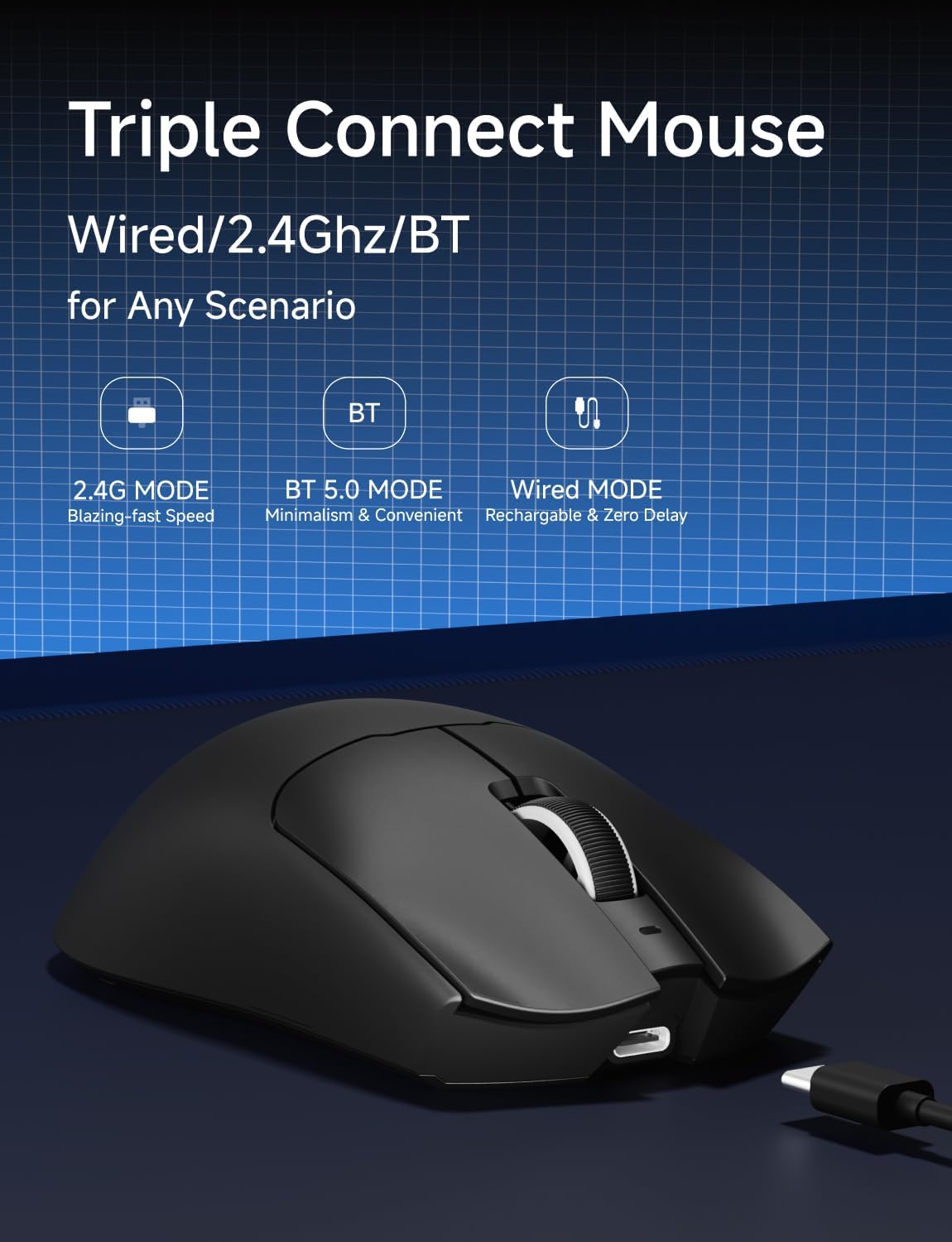
Figure 3: Triple Connection Modes
2.4G Wireless Mode
- Locate the 1K Wireless USB Receiver in the package.
- Plug the USB receiver into an available USB port on your computer.
- Switch the mode selector on the bottom of the mouse to '2.4G'.
- The mouse should automatically connect. If not, press the pairing button (if available, refer to the diagram on the mouse's underside) to initiate pairing.
Bluetooth 5.0 Mode
- Switch the mode selector on the bottom of the mouse to 'BT'.
- On your computer or device, go to Bluetooth settings and search for new devices.
- Select 'EWEADN S9' from the list of available devices to pair.
USB-C Wired Mode
- Connect one end of the provided USB-C cable to the front port of the mouse.
- Connect the other end (USB-A) to an available USB port on your computer.
- Switch the mode selector on the bottom of the mouse to 'USB-C'.
- The mouse will function as a wired mouse and charge simultaneously.
Compatibility
The S9 mouse is widely compatible with Windows 7/8/10/XP/Vista, Mac OS, Linux, and Android systems. It is suitable for use with PCs, laptops, Macs, and other devices.
Operating Your Mouse
Advanced Performance Features
The S9 mouse is equipped with the flagship PAW3395 optical sensor, offering programmable DPI up to 26000 and 650 IPS tracking for precise control without drift. It supports an 8K polling rate in wired mode and 1K in wireless mode for smooth, lag-free gaming.

Figure 4: PAW3395 Optical Sensor

Figure 5: Customizable DPI Settings
Programmable Buttons and Switches
The S9 features professional-grade HUANYU switches with a click life exceeding 100 million times, ensuring durability and low latency. You can configure buttons, DPI/IPS settings, lift distance, and macro settings using the dedicated software.

Figure 6: Kailh White Blade Microswitches
Ergonomic Design
Weighing only 65g, the S9 mouse is designed for right-handed users with medium to large hands, reducing fatigue during extended use. The shell features an upgraded sweat-proof nano ice skin coating for a comfortable matte feel and easy grip.

Figure 7: Ergonomic Design for Various Grip Styles
Product Overview Video
Video 1: An overview of the EWEADN S9 Lightweight Mouse, highlighting its features and design.
Maintenance and Care
Battery Life and Charging
The S9 mouse features an upgraded 500mAh battery, providing extended battery life for longer gaming sessions. To charge the mouse, connect it using the provided USB-C cable to your computer or a USB power adapter.

Figure 8: Upgraded 500mAh Battery
Cleaning and Durability
The nano ice skin coating is sweat-proof and easy to clean. Use a soft, dry cloth to wipe down the mouse regularly. Avoid using harsh chemicals or abrasive materials. The durable parachute cord cable is designed to resist breakage and tangling.
Troubleshooting
- Mouse not responding: Ensure the mouse is charged and the correct connection mode (2.4G, BT, or USB-C) is selected. For wireless modes, check that the receiver is properly plugged in or Bluetooth is paired.
- Lag or disconnections: Try moving closer to the receiver/Bluetooth device. Ensure there are no major obstructions or sources of interference. For 2.4G, try plugging the receiver into a different USB port.
- DPI not changing: Ensure the mouse is powered on and connected. Use the DPI switch button or the software to adjust DPI settings.
- Buttons not working: Check software settings for custom button assignments. Ensure the mouse is clean and free of debris around the buttons.
If issues persist, try restarting your computer and the mouse. For further assistance, please contact EWEADN customer support.
Specifications
| Feature | Detail |
|---|---|
| Brand | EWEADN |
| Model Number | S9 |
| Color | S9 Black-PAW3395 |
| Connectivity Technology | 2.4Ghz Wireless, Bluetooth, USB-C Wired |
| Movement Detection Technology | Optical (PAW3395 Sensor) |
| Max DPI | 26000 |
| Polling Rate | 8K (Wired), 1K (Wireless) |
| Switches | HUANYU Switch (100 Million Clicks) |
| Battery Capacity | 500mAh |
| Item Weight | 2.24 ounces (approx. 65g) |
| Package Dimensions | 7.36 x 6.3 x 5.75 inches |

Figure 9: S9 Mouse Dimensions and Key Components
Warranty and Support
EWEADN provides manufacturer support for its products. If you have any questions, require technical assistance, or need to inquire about warranty information, please contact EWEADN customer service. Refer to the product packaging or the official EWEADN website for the most current contact details.

Figure 10: EWEADN Customer Support Information
Related documentsS9


Ask a question about this manual
Ask about setup, troubleshooting, compatibility, parts, safety, or missing instructions. Manuals+ will review the question and use this page’s manual context to help answer it.