Introduction
This manual provides comprehensive instructions for the installation, operation, and maintenance of your FELLOSTAR DUDUAUTO DUDU5 Car Radio Stereo. This custom-designed head unit is specifically engineered for Mitsubishi Outlander models from 2001 to 2005, offering a seamless upgrade to your vehicle's infotainment system.
The DUDUAUTO DUDU5 features a 9.5-inch in-cell touch screen, an 8-Core UIS7862 processor, 4GB RAM, and 64GB ROM, ensuring smooth performance for all multimedia functions. Key features include wired and wireless CarPlay and Android Auto, triple-mode GPS (L1, B1, E1) for precise navigation, Bluetooth for hands-free communication and audio streaming, and an advanced audio system with TDA7851 amplifier and AK7604 chip for superior sound quality.
Safety Information
- Read all instructions carefully before installation and operation.
- Ensure the vehicle's ignition is off and the battery is disconnected before beginning installation to prevent electrical shorts or damage.
- Do not operate the device in a way that distracts you from driving. Always prioritize road safety.
- Consult a qualified professional for installation if you are unsure about any steps.
- Avoid exposing the unit to extreme temperatures, direct sunlight for prolonged periods, or excessive moisture.
Package Contents
Please verify that all items are present in the package before proceeding with installation:
- DUDUAUTO DUDU5 Head Unit
- Power Harness (Vehicle-specific)
- GPS Antenna
- USB Cables
- External Microphone
- User Manual (This document)
- Additional accessories may vary based on specific package.
Setup and Installation
The DUDUAUTO DUDU5 is designed for plug-and-play installation in Mitsubishi Outlander models from 2001-2005. While designed for ease of installation, professional installation is recommended if you are unfamiliar with car audio systems.
Installation Steps:
- Preparation: Turn off the vehicle's ignition and disconnect the negative terminal of the car battery.
- Remove Old Unit: Carefully remove the existing factory radio from your Mitsubishi Outlander dashboard. Refer to your vehicle's service manual for specific trim panel removal instructions.
- Connect Wiring: Connect the provided power harness, GPS antenna, USB cables, and external microphone to the corresponding ports on the DUDUAUTO DUDU5 head unit. Ensure all connections are secure.
- Test Connections: Before fully mounting, temporarily reconnect the car battery and turn on the ignition to test basic functions (power, audio, touch screen response).
- Mount New Unit: Securely install the DUDUAUTO DUDU5 into the dashboard opening. Reinstall any removed trim panels.
- Final Check: Reconnect the car battery. Power on the unit and perform a full functional test of all features.

Figure 1: Comparison of the car dashboard before and after the DUDUAUTO DUDU5 car stereo installation. The image illustrates the seamless integration of the new 9.5-inch display into the Mitsubishi Outlander's interior.
Operating Instructions
1. Basic Operation
- Power On/Off: Press and hold the power button (usually located on the front panel or as a soft button on the screen) to turn the unit on or off. A short press typically mutes/unmutes audio.
- Volume Control: Adjust volume using the physical knob (if present) or on-screen controls.
- Touch Screen: The 9.5-inch in-cell touch screen responds to taps, swipes, and pinches for navigation and control.
2. CarPlay and Android Auto
The DUDUAUTO DUDU5 supports both wired and wireless CarPlay and Android Auto for seamless smartphone integration.
- Wireless Connection:
- Ensure Bluetooth and Wi-Fi are enabled on your smartphone.
- On the head unit, navigate to the CarPlay or Android Auto application.
- Follow the on-screen prompts to pair your phone via Bluetooth. Once paired, the system will automatically establish a Wi-Fi connection for CarPlay/Android Auto.
- Wired Connection:
- Connect your smartphone to the head unit using a compatible USB cable.
- The system should automatically detect your phone and launch CarPlay or Android Auto.

Figure 2: Demonstration of wireless and wired CarPlay and Android Auto functionality, showing a smartphone connected to the DUDUAUTO DUDU5 head unit.
3. GPS Navigation
The DUDUAUTO DUDU5 features a triple-mode GPS system (L1, B1, E1) for enhanced positioning accuracy and reliability.
- Accessing Navigation: Tap the "Navigation" or "Maps" icon on the home screen.
- Setting Destination: Use the on-screen keyboard or voice commands (if supported by the navigation app) to enter your destination.
- Voice Guidance: Follow the spoken directions and on-screen map for turn-by-turn navigation.
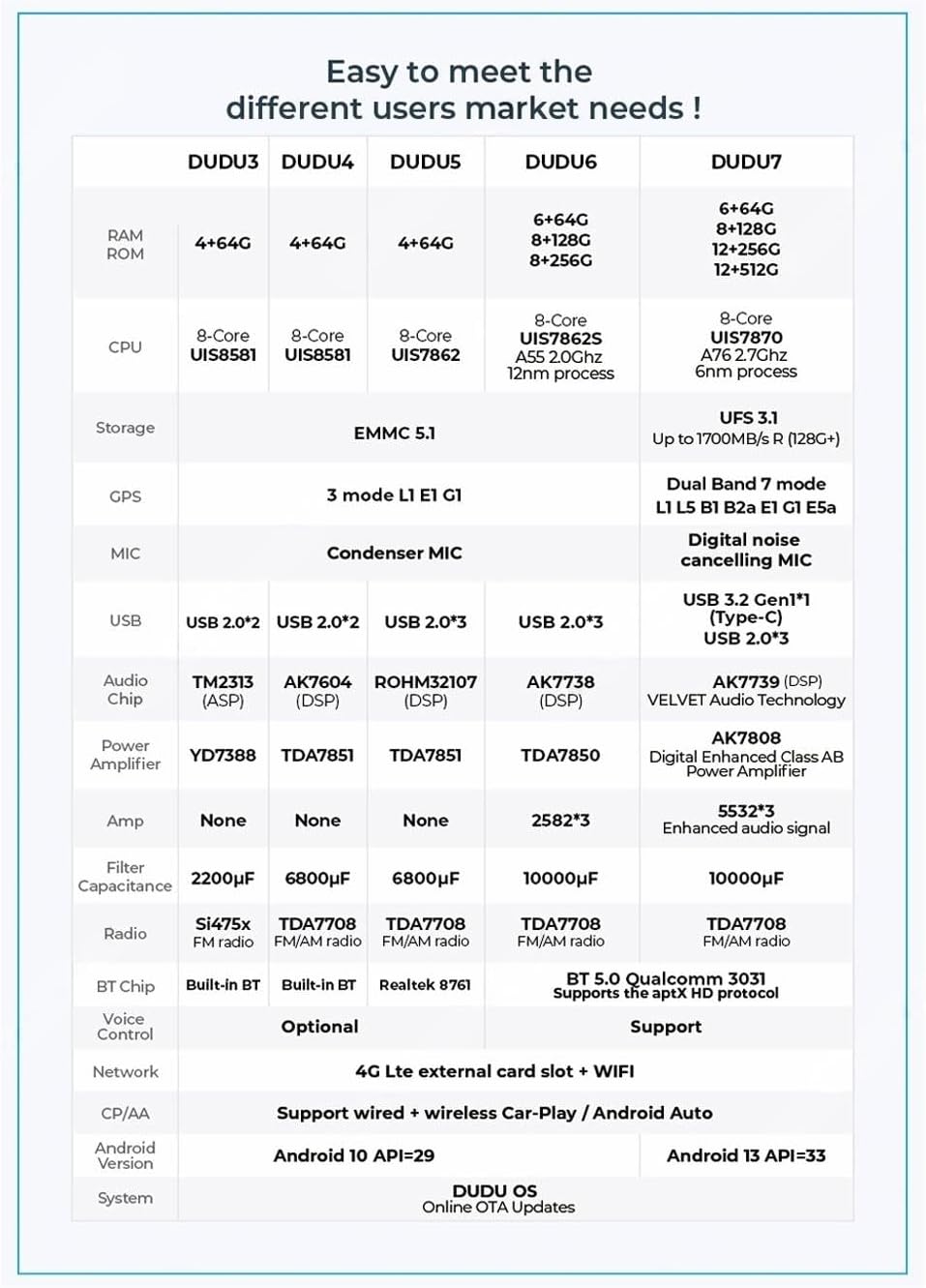
Figure 3: Visual representation of the Triple Mode Navigation (L1, B1, E1) system, emphasizing improved positioning accuracy for reliable guidance.
4. Bluetooth Connectivity
Connect your smartphone via Bluetooth 5.0 for hands-free calling and audio streaming.
- Pairing a Device:
- Go to the Bluetooth settings on the head unit.
- Enable Bluetooth on your smartphone and search for available devices.
- Select "DUDUAUTO DUDU5" (or similar name) from the list on your phone and confirm the pairing code.
- Hands-Free Calling: Once paired, you can make and receive calls directly through the head unit using the built-in microphone and car speakers.
- Audio Streaming: Play music from your phone through the car's audio system.

Figure 4: Overview of the DUDUAUTO DUDU5's audio capabilities, highlighting the AK7604 audio chip, TDA7851 amplifier, and Bluetooth 5.0 for high-quality sound.
5. Advanced Audio Features
The DUDUAUTO DUDU5 incorporates advanced audio processing for an immersive listening experience.
- DTS 5.1 Audio: Access DTS sound effects and advanced settings through the audio menu to customize your listening environment.
- Sound Field Correction: Utilize the sound field correction system to optimize audio output based on seating position (Driver Mode, Passenger Mode, Rear Mode, All-Car Mode).

Figure 5: Interface for DTS 5.1 Audio settings and the sound field correction system, allowing users to tailor the audio experience within the vehicle cabin.
6. Customizable Screen Experience
Personalize your head unit's interface with various layouts, plug-ins, and navigation bar placements.
- Layouts and Plug-ins: Choose from 6 layouts and 12 plug-ins to display information such as navigation, music, weather, compass, and real-time travel data.
- Navigation Bar: Adjust the position of the navigation bar (bottom, left, or right) to suit your preference.
- Themes: Select customizable themes to match your vehicle's interior or personal style.

Figure 6: Examples of 12 freely selectable plug-ins, demonstrating the customizable screen experience of the DUDUAUTO DUDU5 head unit.
Maintenance
- Screen Cleaning: Use a soft, lint-free cloth slightly dampened with water or a screen cleaner specifically designed for electronic displays. Do not use abrasive cleaners or solvents.
- Software Updates: Periodically check for software updates (OTA updates via DUDU OS) to ensure optimal performance and access to new features. Follow the on-screen instructions for any available updates.
- General Care: Keep the unit free from dust and debris. Avoid placing heavy objects on the unit or exposing it to direct impacts.
Troubleshooting
| Problem | Possible Cause | Solution |
|---|---|---|
| Unit does not power on. | Loose power connection, blown fuse, vehicle battery issue. | Check power harness connections. Inspect vehicle fuses. Ensure car battery is charged. |
| No sound. | Volume muted, incorrect audio source, speaker wiring issue. | Check volume level and mute status. Select correct audio source. Verify speaker connections. |
| CarPlay/Android Auto not connecting. | Bluetooth/Wi-Fi off on phone, incompatible cable, app issues. | Ensure phone's Bluetooth/Wi-Fi is on. Try a different USB cable. Restart phone and head unit. |
| GPS signal weak or inaccurate. | GPS antenna obstruction, poor satellite visibility. | Ensure GPS antenna is properly installed and has a clear view of the sky. Move to an open area. |
| Touch screen unresponsive. | Temporary software glitch, screen protector interference. | Restart the head unit. Remove any thick screen protectors. If issue persists, contact support. |
If problems persist after attempting these solutions, please contact customer support.
Specifications

Figure 7: Detailed comparison table of DUDU series models. Refer to the "DUDU5" column for specific specifications of this unit.
| Feature | Specification |
|---|---|
| Model | DUDU5 |
| Compatibility | Mitsubishi Outlander (2001-2005) |
| Screen Size | 9.5 Inches |
| Display Type | In-Cell Touch Screen |
| Resolution | 1280*720P |
| Processor | 8-Core UIS7862 |
| RAM | 4GB |
| ROM (Storage) | 64GB (EMMC 5.1) |
| Operating System | Android-based platform with DUDU OS (Android 10 API=29) |
| CarPlay / Android Auto | Wired & Wireless Support |
| GPS | Triple-mode (L1, B1, E1) |
| Bluetooth | Bluetooth 5.0 (Realtek 8761 BT Chip) |
| Microphone | Condenser MIC |
| USB Ports | USB 2.0*3 |
| Audio Chip | ROHM32107 (DSP) |
| Power Amplifier | TDA7851 |
| Radio | TDA7708 FM/AM radio |
| Network | 4G LTE external card slot + WIFI |

Figure 8: Visual representation of the Ultra-thin Full-fit In-cell Screen (1280*720P), highlighting its integrated touch sensors and sleek design.
Warranty and Support
FELLOSTAR products are designed for reliability and performance. For specific warranty details, please refer to the warranty card included with your product or visit the official FELLOSTAR website. For technical assistance, troubleshooting not covered in this manual, or service inquiries, please contact FELLOSTAR customer support.
FELLOSTAR Customer Support:
- Website: Visit the FELLOSTAR Store on Amazon
- Please refer to the product packaging or official website for the most current contact information.
