
1. Introduction
Welcome to the user manual for the FLYDIGI APEX 4 PC Controller Black Myth: Wukong Edition. This advanced gaming controller is engineered to provide an unparalleled gaming experience across multiple platforms, including PC, Nintendo Switch, TV, Android, and iOS devices. Featuring innovative technologies such as the world's first force-adjustable alloy joystick, 2000Hz Nearlink wireless polling rate, and an interactive smart screen, the APEX 4 is designed for precision, responsiveness, and immersive gameplay. Please read this manual carefully to ensure proper setup, operation, and maintenance of your new controller.
2. Product Overview and Features
The FLYDIGI APEX 4 PC Controller combines cutting-edge technology with a premium design, offering a superior gaming experience.

Figure 2.1: The FLYDIGI APEX 4 PC Controller Black Myth: Wukong Edition, showcasing its black and gold aesthetic with textured grips and a central interactive screen.
2.1. Key Innovations
- Force-Adjustable Alloy Joystick: The world's first alloy joystick with adjustable tension, providing seamless force adjustment, strong recenter without drift, and ultra-smooth pushing without friction. This ensures precise control and eliminates dead zones.
- 2000Hz Wired/Wireless Polling Rate (Nearlink Technology): Enhances controller responsiveness and ensures better synchronization between player reactions and game actions, leading to a smoother and more consistent gaming experience.
- Force Feedback Trigger: Delivers immersive haptic feedback, simulating nuances like pedal resistance in racing games or gun recoil in shooting games for a realistic battlefield feel.
- Smart Interactive Screen: A customizable screen that allows users to set favorite GIFs, emojis, and quickly configure settings, modes, and rapid-fire functions directly on the controller.
- Upgraded Four-Motors Areas Stereo Vibration: Features counter-weighted handbar areas and two trigger areas for an immersive and lasting gaming experience. Vibration strength can be customized via software.

Figure 2.2: An overview of the FLYDIGI APEX 4's core mechanical and technological innovations, including the force-adjustable alloy joystick, 2000Hz polling rate, force feedback trigger, mechanical buttons, and smart interactive screen.

Figure 2.3: Detailed view of the Global First Force Feedback Trigger, illustrating its ability to simulate nuanced feedback for both racing and shooting games, enhancing immersion.

Figure 2.4: Close-up of the Smart Interactive Screen, highlighting its customization options for GIFs, emojis, and quick access to settings like mode switching and turbo functions.

Figure 2.5: Comparison illustrating the APEX 4's 0 dead zone and minimal recenter error (<0.5%) compared to standard joysticks, emphasizing its precision for FPS players.
2.2. Design and Configuration
- Magnetic Cover: Utilizes IML (In-Mold Labeling) technology to create a realistic wood grain texture, enhancing durability and scratch resistance.
- Armored Chassis: Independently molded with electroplating process for a premium metallic aesthetic.
- Magnesium-Aluminum D-Pad: Lightweight design for smooth and agile directional input.
- Customized Anti-Slip Joystick Caps: Provides enhanced grip and comfort.
- Retro-style Gold Electroplating: Applied to face buttons, triggers, bumpers, 4 rear buttons, and Start/Select buttons for a distinctive look.

Figure 2.6: Visual breakdown of the design elements unique to the Black Myth Wukong Edition, including the black & gold color scheme, wood grain surface, armored texture grips, exclusive joystick caps, screen animation, and lightweight metal D-pad.

Figure 2.7: A comparative table highlighting the differences between the Collaborated Edition (Black Myth Wukong) and the Standard Edition of the FLYDIGI APEX 4, detailing features like connectivity, body material, display screen, D-pad, joystick caps, and button finishes.
3. Setup Guide
3.1. Package Contents
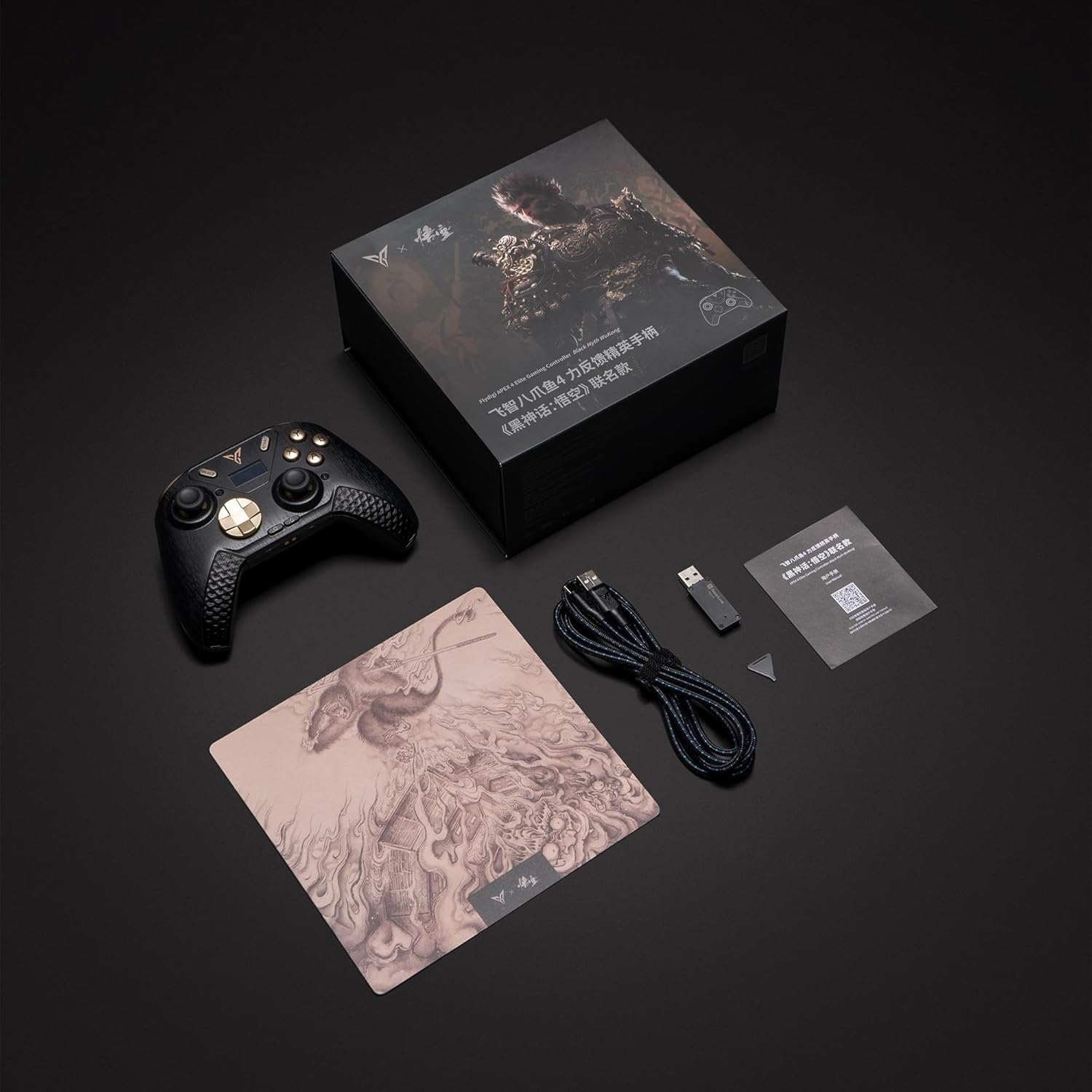
Figure 3.1: The complete package contents of the FLYDIGI APEX 4 PC Controller, including the controller, USB cable, 2.4G wireless dongle, user manual, and a themed mousepad.
Before using your controller, please ensure all components are present:
- FLYDIGI APEX 4 PC Controller
- USB-C Charging/Data Cable
- 2.4G Wireless Dongle
- User Manual
- Themed Mousepad (Black Myth: Wukong Edition)
- 1 AAAA battery (pre-installed or included)
3.2. Connecting Your Controller
The APEX 4 controller supports multiple connection methods:
- 2.4G Wireless (Recommended for PC/TV):
a. Insert the 2.4G wireless dongle into an available USB port on your PC or TV.
b. Power on the controller. The controller should automatically connect to the dongle. The interactive screen will indicate connection status. - Bluetooth (for PC/Android/iOS/Nintendo Switch):
a. Power on the controller.
b. On your device (PC, Android, iOS, Nintendo Switch), navigate to Bluetooth settings.
c. Search for available devices and select "FLYDIGI APEX 4".
d. Pair the controller. The interactive screen will confirm successful pairing. - Wired Connection (for PC):
a. Connect the USB-C cable to the controller and the other end to a USB port on your PC.
b. The controller will automatically switch to wired mode.
For optimal performance, ensure your controller's firmware is up to date by visiting the official FLYDIGI website.
4. Operating Instructions
4.1. Basic Operation
- Power On/Off: Press and hold the central FLYDIGI logo button to power the controller on or off.
- Mode Switching: Use the Smart Interactive Screen to cycle through different modes (e.g., PC XInput, Nintendo Switch, Android).
- Joystick Tension Adjustment: Refer to the controller's physical mechanism or accompanying software for adjusting the tension of the alloy joysticks to your preference.
- Vibration Customization: Connect the controller to the FLYDIGI software on your PC to customize the strength and patterns of the four-motor stereo vibration.
4.2. Using the Smart Interactive Screen
The interactive screen provides quick access to various functions:
- DIY GIF/Emoji: Upload and display custom animations or emojis.
- Mode Switch: Easily change between supported platform modes.
- Turbo Function: Configure buttons for rapid-fire actions.
- Settings: Access and adjust various controller parameters without needing external software.
5. Maintenance
Proper care will extend the life of your FLYDIGI APEX 4 controller:
- Cleaning: Use a soft, dry cloth to wipe down the controller. For stubborn dirt, a slightly damp cloth can be used, but ensure no moisture enters the internal components. Avoid harsh chemicals or abrasive cleaners.
- Storage: Store the controller in a cool, dry place away from direct sunlight and extreme temperatures.
- Battery Care: If storing for an extended period, ensure the battery is partially charged (around 50%) to maintain battery health. Avoid fully discharging the battery frequently.
- Joystick Maintenance: The alloy joysticks are designed for durability. Avoid applying excessive force beyond normal gaming use.
6. Troubleshooting
If you encounter issues with your controller, please refer to the following common solutions:
| Problem | Possible Cause | Solution |
|---|---|---|
| Controller not powering on | Low battery; Power button not pressed correctly | Charge the controller using the USB-C cable. Press and hold the power button for 3-5 seconds. |
| Unable to connect wirelessly | Dongle not properly inserted; Bluetooth not enabled/paired; Interference | Ensure dongle is fully inserted. Check device's Bluetooth settings. Re-pair the controller. Move closer to the receiver. Try a different USB port. |
| Buttons/Joysticks unresponsive or drifting | Software glitch; Physical obstruction; Calibration needed | Restart the controller and the connected device. Check for firmware updates. Calibrate joysticks via FLYDIGI software. Ensure no debris is lodged around buttons. |
| Vibration not working | Vibration disabled in game/software; Motor issue | Check in-game settings and FLYDIGI software for vibration settings. Ensure vibration strength is not set to zero. |
If the problem persists after trying these solutions, please contact FLYDIGI customer support for further assistance.
7. Specifications
| Feature | Detail |
|---|---|
| Model | APEX 4 |
| Connectivity | Wired (USB-C), Bluetooth, 2.4G Wireless (Nearlink Technology) |
| Polling Rate | 2000Hz (Wired/Wireless) |
| Supported Platforms | PC, Nintendo Switch, TV, Android, iOS (Does not support Xbox or PlayStation) |
| Joystick Type | Force-Adjustable Alloy Joystick (0 Dead Zone, <0.5% Recenter Error) |
| Triggers | Force Feedback Triggers |
| Vibration | Four-Motors Areas Stereo Vibration (Customizable) |
| Display | Smart Interactive Screen |
| Dimensions | 7.4 x 7.4 x 3.4 inches |
| Weight | 1.41 pounds |
| Battery | 1 AAAA battery (included) |
| Material | Magnetic Cover (IML wood grain), Armored Chassis, Magnesium-Aluminum D-Pad |
8. Warranty and Support
FLYDIGI products are manufactured to the highest quality standards. For information regarding warranty coverage, technical support, or service inquiries, please visit the official FLYDIGI website or contact their customer support directly. Keep your purchase receipt as proof of purchase for any warranty claims.


