
1. Introduction
Thank you for choosing the iKF T1 Max Wireless Bluetooth Over Ear Headphones. These headphones are designed to provide a high-fidelity audio experience with advanced features such as Active Noise Cancellation (ANC), extended battery life, and dual-device connectivity. This manual will guide you through the setup, operation, and maintenance of your new headphones.

Image 1.1: Exploded view of the 40mm dynamic driver, illustrating the components responsible for HiFi sound quality.
2. Package Contents
Please check the package for the following items:
- iKF T1 Max Wireless Bluetooth Over Ear Headphones
- User Manual
- Charging Cable (USB-C)
- 3.5mm Audio Cable
3. Product Overview
Familiarize yourself with the various parts of your iKF T1 Max headphones. A detailed diagram of button functions and port locations can typically be found in the printed manual included with your product.

Image 3.1: The iKF T1 Max headphones, showcasing their design and over-ear form factor.
Key Components:
- Earcups: Padded for comfort, housing the drivers and controls.
- Headband: Adjustable for a secure fit.
- Power Button: Used for powering on/off and pairing.
- Volume Buttons: Adjusts audio volume.
- Multi-function Button: Controls playback, calls, and ANC modes.
- USB-C Charging Port: For charging the headphones.
- 3.5mm Audio Jack: For wired connection.
- LED Indicator: Displays power, pairing, and charging status.
4. Setup
4.1 Charging the Headphones
- Connect the USB-C charging cable to the charging port on the headphones.
- Connect the other end of the cable to a USB power adapter (not included) or a computer's USB port.
- The LED indicator will show charging status (e.g., red for charging, blue for fully charged). A full charge typically takes approximately 2 hours.
4.2 Power On/Off
- To Power On: Press and hold the Power button for approximately 3 seconds until the LED indicator flashes.
- To Power Off: Press and hold the Power button for approximately 5 seconds until the LED indicator turns off.
4.3 Bluetooth Pairing
- Ensure the headphones are powered off.
- Press and hold the Power button for approximately 5-7 seconds until the LED indicator flashes rapidly (usually blue and red alternately), indicating pairing mode.
- On your device (smartphone, tablet, laptop), enable Bluetooth and search for available devices.
- Select "iKF T1 Max" from the list of found devices.
- Once connected, the LED indicator will typically show a steady blue light or flash slowly.
4.4 iKF App Connection
For advanced customization, including ANC level adjustments and personalized sound profiles, download the official iKF app from your device's app store. Follow the in-app instructions to connect your headphones.

Image 4.1: The iKF T1 Max headphones connected to the iKF mobile application, demonstrating app-based control and customization.
5. Operating Instructions
5.1 Active Noise Cancellation (ANC)
The iKF T1 Max features Active Noise Cancellation to reduce ambient noise. You can activate and adjust ANC levels:
- Activate/Deactivate: Press the dedicated ANC button (refer to your product diagram for exact location).
- Adjust Levels: Use the iKF app to fine-tune ANC intensity to your preference.
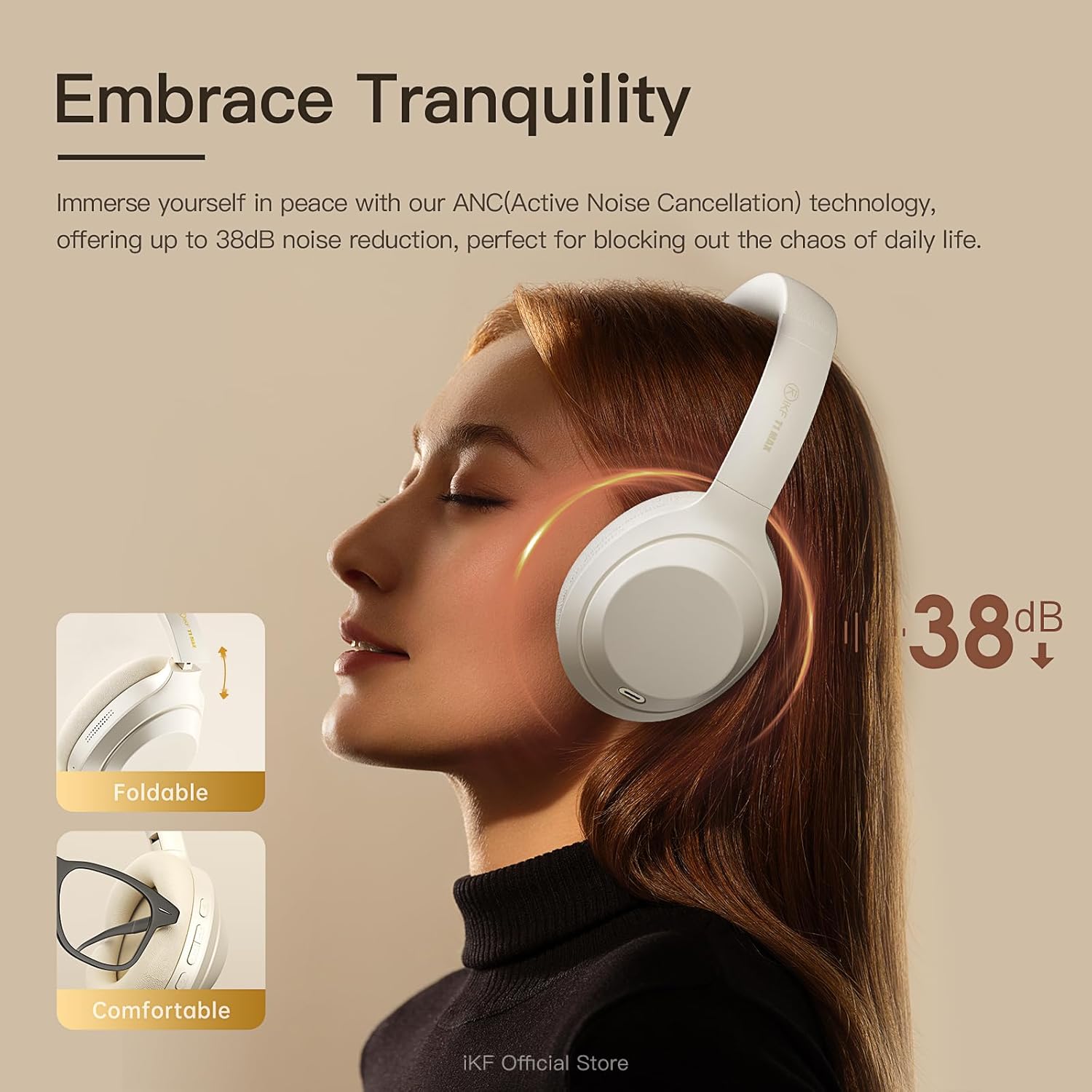
Image 5.1: A user experiencing the noise reduction capabilities of the iKF T1 Max headphones, highlighting up to 38dB noise cancellation.
5.2 Dual Device Connection
The headphones can connect to two Bluetooth devices simultaneously, allowing for seamless switching between audio sources.
- Pair the headphones with your first device (e.g., smartphone) as described in Section 4.3.
- Disconnect Bluetooth on the first device temporarily.
- Pair the headphones with your second device (e.g., laptop).
- Reconnect Bluetooth on the first device. The headphones should now be connected to both devices.
- Audio will automatically switch to the device playing content or receiving a call.

Image 5.2: The iKF T1 Max headphones demonstrating simultaneous connection to a smartphone and a laptop, enabling effortless switching between devices.
5.3 Wired Mode
For continuous listening or when battery is low, use the included 3.5mm audio cable.
- Plug one end of the 3.5mm audio cable into the headphone's audio jack.
- Plug the other end into your audio source's 3.5mm port.
- The headphones will automatically switch to wired mode. Bluetooth functions will be disabled.

Image 5.3: A visual comparison illustrating the flexibility of the iKF T1 Max headphones, supporting both wireless Bluetooth and wired 3.5mm audio connections.
5.4 Basic Controls
- Play/Pause: Single press the Multi-function button.
- Volume Up/Down: Press the Volume + / - buttons.
- Next Track: Double press the Multi-function button.
- Previous Track: Triple press the Multi-function button.
- Answer/End Call: Single press the Multi-function button during an incoming call or active call.
- Reject Call: Press and hold the Multi-function button during an incoming call.

Image 5.4: The iKF T1 Max headphones adapting to various audio experiences, including music listening, movie watching, and gaming, demonstrating seamless transition.
6. Maintenance
6.1 Cleaning
- Wipe the headphones with a soft, dry, lint-free cloth.
- Do not use abrasive cleaners, alcohol, or chemical solvents.
- Avoid getting moisture into any openings.
6.2 Storage
- Store the headphones in a cool, dry place away from extreme temperatures and direct sunlight.
- When not in use for extended periods, fully charge the headphones at least once every three months to preserve battery life.
- The headphones are foldable for compact storage.
7. Troubleshooting
If you encounter issues with your iKF T1 Max headphones, refer to the following common problems and solutions:
| Problem | Solution |
|---|---|
| Headphones do not power on. | Ensure the headphones are charged. Connect to a power source and try again after a few minutes. |
| Cannot pair with a device. | Ensure headphones are in pairing mode (LED flashing rapidly). Turn off and on Bluetooth on your device. Move headphones closer to the device. |
| No sound or low volume. | Check volume levels on both headphones and the connected device. Ensure headphones are properly paired. If in wired mode, check cable connection. |
| ANC is not effective. | Ensure ANC is activated. Adjust ANC levels via the iKF app. Ensure earcups form a good seal around your ears. |
| Dual device switching not working. | Ensure both devices are actively connected via Bluetooth. Play audio on one device to initiate the switch. |
8. Specifications
Key technical specifications for the iKF T1 Max Wireless Bluetooth Over Ear Headphones:
- Brand: iKF
- Model: T1 Max
- Ear Placement: Over Ear
- Noise Control: Active Noise Cancellation, Environmental Noise Cancellation
- Connectivity Technology: Bluetooth 5.4, Wired (3.5mm Jack)
- Driver Size: 40mm
- Battery Life (ANC Off): Up to 100 hours
- Battery Life (ANC On): Up to 75 hours
- Charging Time: Approximately 2 hours
- Compatible Devices: Android Phone, Laptops, Smart Watch, Tablets, iPhone/iPad/Macbook
- Material: Plastic, Polyurethane (PU)

Image 8.1: The iKF T1 Max headphones highlighting their extended battery performance: up to 100 hours with ANC off and 75 hours with ANC on.
9. Warranty and Support
9.1 Warranty Information
The iKF T1 Max Wireless Bluetooth Over Ear Headphones come with a 1-Year Store Warranty from the date of purchase. This warranty covers manufacturing defects and workmanship under normal use. It does not cover damage caused by misuse, accidents, unauthorized modifications, or normal wear and tear. Please retain your proof of purchase for warranty claims.
9.2 Customer Support
For further assistance, technical support, or warranty inquiries, please contact iKF customer service through the retailer's platform or the official iKF website. Please have your product model and purchase details ready when contacting support.


