
1. Introduction
Welcome to the user manual for your new Toladrone TD31LCD Drone. This drone is designed to provide an immersive flight experience with its advanced features, including a built-in LCD screen remote control for real-time image transmission, powerful brushless motors, and user-friendly functions suitable for both beginners and experienced pilots. Please read this manual thoroughly before operating your drone to ensure safe and optimal performance.

Image: The Toladrone TD31LCD Drone in flight, showcasing its sleek design and camera.
2. Safety Guidelines
Operating a drone requires responsibility. Adhere to the following safety guidelines to prevent accidents and ensure a pleasant flight experience:
- Read the Manual: Familiarize yourself with all instructions and warnings before use.
- Local Regulations: Always comply with local drone regulations and restrictions.
- Pre-Flight Check: Ensure the drone, remote control, and batteries are in good working condition.
- Environmental Conditions: Avoid flying in strong winds, rain, snow, or fog. Maintain clear line of sight.
- Safe Distance: Keep the drone away from people, animals, buildings, and power lines.
- Battery Safety: Use only approved chargers and batteries. Do not overcharge or puncture batteries.
- Emergency Stop: Understand how to perform an emergency stop in critical situations.
3. Product Overview
The Toladrone TD31LCD is a foldable drone featuring a high-definition camera and an integrated LCD screen remote control for direct real-time viewing. Its brushless motors provide stable and efficient flight.
3.1 Drone Components

Image: The Toladrone TD31LCD drone in both unfolded and folded states, alongside its remote control with an LCD screen.
- Foldable Arms: For compact storage and portability.
- Brushless Motors: Provide powerful and stable flight with reduced noise and increased durability.
- Adjustable Camera: Motorized camera allows for angle adjustments during flight.
- Modular Battery: Easy to install and replace, offering a flight time of approximately 15 minutes.
- LED Lights: Indicate drone status and aid in orientation.
3.2 Remote Control Features

Image: A detailed diagram illustrating the various buttons and joysticks on the Toladrone TD31LCD remote control, with labels for each function.
- LCD Display: Provides real-time video feed from the drone's camera.
- Left Joystick: Controls rise/fall and left/right turn.
- Right Joystick: Controls forward/backward and left/right flight.
- Power Switch: Turns the remote control on/off.
- Speed Control Key: Adjusts flight speed (3 modes).
- 3D Flip Button: Initiates a 360-degree flip maneuver.
- Fine-tuning Keys: Adjust drone drift for stable flight.
- Headless Mode Button: Activates headless mode.
- One Key Take-off/Landing: Simplifies starting and ending flights.
- Emergency Stop (Long Press): Immediately stops the drone.
- Camera Up/Down: Adjusts the camera angle.
- Photo/Video Buttons: Capture images or start/stop video recording.
- SD Card Slot: Supports up to 32GB SD card for media storage.
4. Setup
Follow these steps to prepare your Toladrone TD31LCD Drone for its first flight.
4.1 Unboxing and Packing List

Image: A visual representation of all items included in the Toladrone TD31LCD package, such as the drone, remote, battery, propellers, screwdriver, charging cables, instruction manual, and carrying case.
Ensure all items are present:
- 1x TD31LCD Drone
- 1x Remote Control
- 1x Modular Battery
- 8x Propellers (4 installed, 4 spare)
- 1x Screwdriver
- 2x Charging Cables
- 1x Instruction Manual
- 1x Carrying Case
4.2 Battery Installation and Charging
- Drone Battery: Insert the modular battery into the drone's battery compartment until it clicks securely.
- Charging: Connect the drone battery and remote control to their respective charging cables. Use a 5V/2A USB adapter (not included). The charging indicator will show charging status and turn off when fully charged.
- Remote Control Battery: The remote control has a built-in rechargeable battery. Charge it using the provided USB cable.

Image: Close-up view of the drone's modular battery compartment and a diagram illustrating the brushless motor.
4.3 Propeller Installation
The drone comes with propellers pre-installed. If replacement is needed:
- Identify propellers marked 'A' and 'B'.
- Match the propellers to the corresponding motor arms (A to A, B to B).
- Use the provided screwdriver to secure the propellers.
4.4 SD Card Installation
The remote control supports a Micro SD card (up to 32GB, not included) for storing photos and videos directly.
- Locate the SD card slot on the side of the remote control.
- Insert the Micro SD card with the contacts facing down until it clicks into place.

Image: The remote control highlighting the SD card slot and a 32GB Micro SD card.
5. Operating Instructions
Learn how to fly your TD31LCD drone and utilize its various functions.
5.1 Pairing the Drone and Remote Control
- Place the drone on a flat, level surface.
- Turn on the drone's power. The LED lights will flash.
- Turn on the remote control. The remote will automatically search for the drone.
- Once paired, the drone's LED lights will become solid, and the remote's LCD screen will display the live video feed.
5.2 One Key Take-off and Landing
- Take-off: After pairing, press the One Key Take-off/Landing button. The drone will automatically ascend and hover at a stable altitude.
- Landing: During flight, press the One Key Take-off/Landing button again. The drone will slowly descend and land automatically.
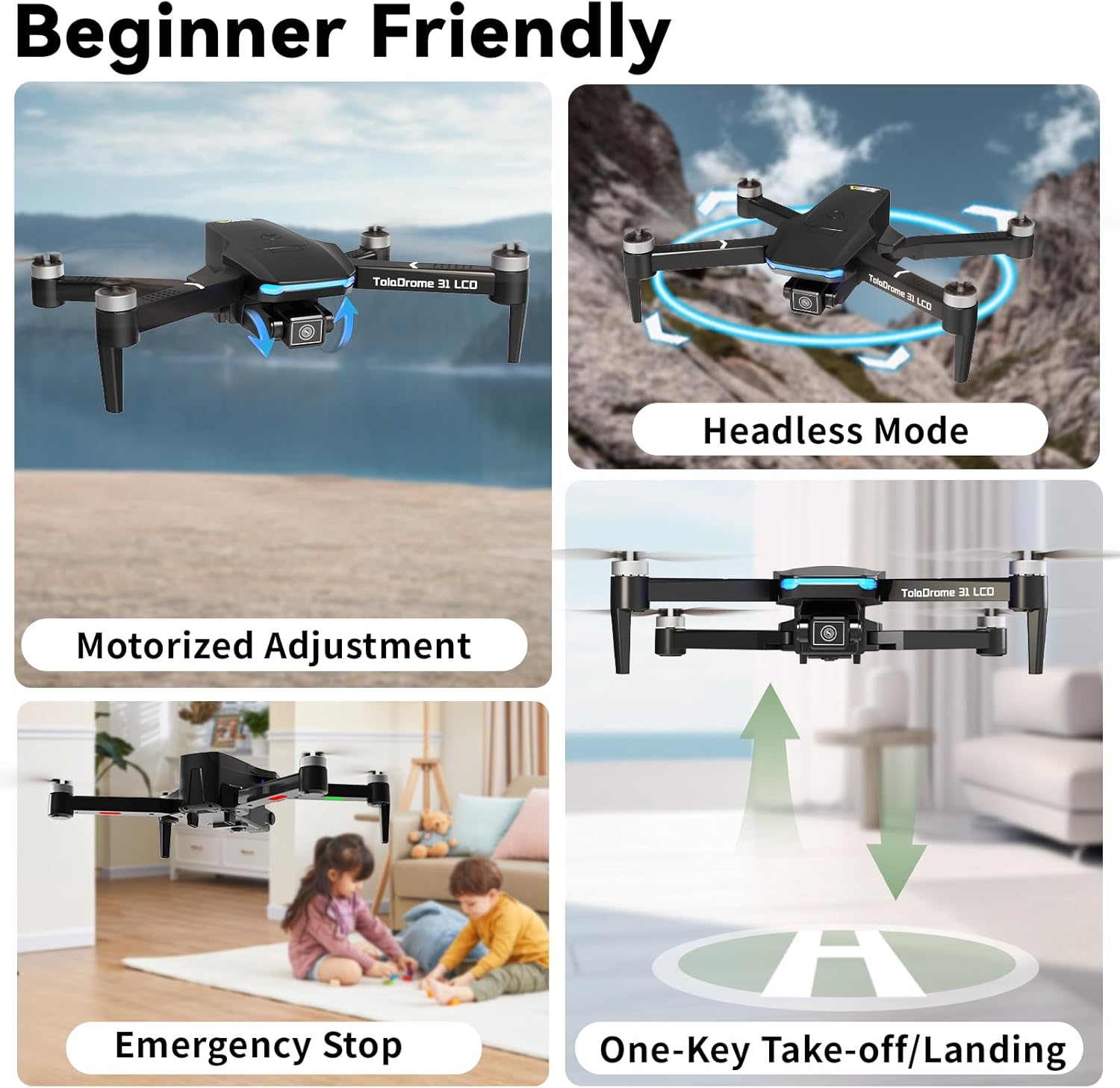
Image: A collage showing the drone in various flight modes, including headless mode, motorized camera adjustment, emergency stop, and one-key take-off/landing.
5.3 Flight Controls
- Ascend/Descend: Push the Left Joystick up or down.
- Turn Left/Right: Push the Left Joystick left or right.
- Forward/Backward: Push the Right Joystick up or down.
- Fly Left/Right (Sideways): Push the Right Joystick left or right.
5.4 Headless Mode
In Headless Mode, the drone's orientation is relative to the pilot, regardless of the drone's front direction. This simplifies control for beginners.
- Press the Headless Mode button (short press) to activate. The drone's lights will flash to indicate activation.
- Press again to deactivate.
5.5 Speed Modes
The drone offers three speed settings for different skill levels and flight conditions.
- Press the Speed Control Key to cycle through low, medium, and high speeds.
- Low speed is recommended for beginners and indoor flight.

Image: The drone executing a 360-degree flip and an infographic showing the three available speed modes.
5.6 Camera Operation and Real-time Transmission
The remote's LCD screen provides a direct view from the drone's camera, eliminating the need for a smartphone app.
- Adjust Camera Angle: Use the Camera Up/Down buttons to adjust the camera's tilt.
- Take Photo: Press the Photo button to capture an image.
- Record Video: Press the Video button to start recording. Press again to stop.
- Playback: Use the playback mode buttons on the remote to review stored media on the SD card.
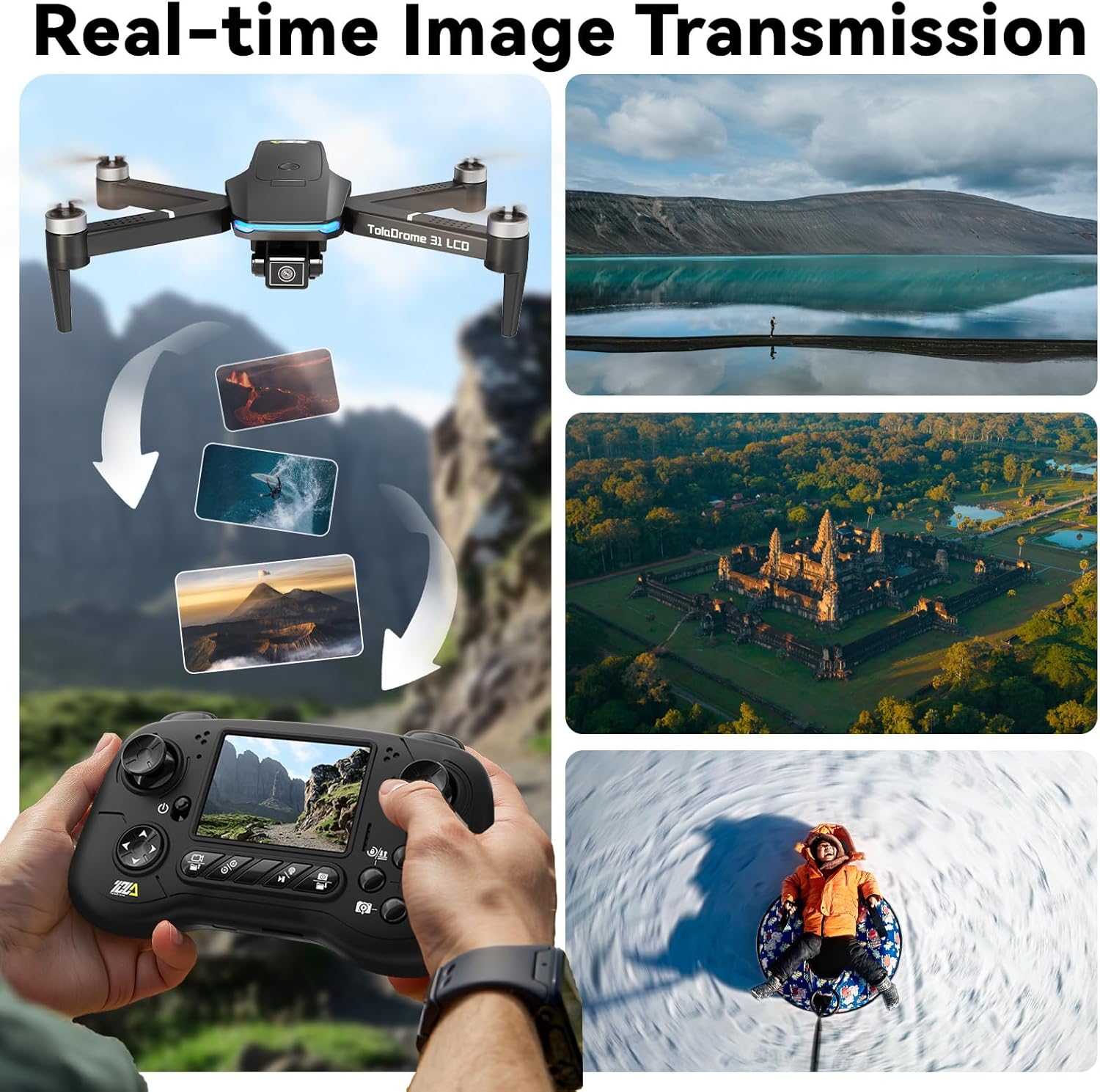
Image: The drone flying and wirelessly sending its camera feed to the remote control's LCD screen, with examples of captured aerial views.
5.7 Fine-Tuning
If the drone drifts during hover, use the fine-tuning keys to stabilize its flight.
- If the drone drifts forward, press the backward fine-tuning key.
- If the drone drifts backward, press the forward fine-tuning key.
- Adjust similarly for left/right drift.

Image: A hand operating the remote control, with arrows indicating the fine-tuning adjustments for correcting drone drift.
5.8 360° Flip
Perform an aerial stunt with the 360° flip function.
- Ensure the drone is flying at a sufficient height (at least 3 meters).
- Press the 3D Flip button.
- Immediately push the Right Joystick in the desired flip direction (forward, backward, left, or right).
6. Maintenance
Proper maintenance ensures the longevity and performance of your drone.
- Cleaning: Regularly clean the drone and remote control with a soft, dry cloth. Avoid water or harsh chemicals.
- Propeller Inspection: Check propellers for damage (cracks, bends) before each flight. Replace damaged propellers immediately using the provided spares and screwdriver.
- Battery Care:
- Store batteries in a cool, dry place.
- Do not fully discharge batteries. Charge them to about 50% for long-term storage.
- If a battery swells or shows signs of damage, discontinue use and dispose of it properly.
- Storage: When not in use, fold the drone and store it in its carrying case to protect it from dust and damage.
7. Troubleshooting
Refer to this section for solutions to common issues.
| Problem | Possible Cause | Solution |
|---|---|---|
| Drone does not respond to remote. | Not paired; low battery; out of range. | Re-pair drone and remote; charge batteries; fly within operational range. |
| Drone drifts during flight. | Not calibrated; environmental factors (wind); unbalanced propellers. | Perform fine-tuning adjustments; avoid flying in strong winds; check and replace damaged propellers. |
| Poor image/video quality or no transmission. | Weak signal; camera lens dirty; SD card issue. | Ensure drone is within range; clean camera lens; check SD card insertion or try a different card. |
| Short flight time. | Battery not fully charged; old battery; cold weather. | Fully charge battery; consider replacing old batteries; flight time may be reduced in cold temperatures. |
| Drone crashes frequently. | Pilot inexperience; damaged propellers; strong winds. | Practice in low speed mode; replace damaged propellers; fly in calm conditions. |
8. Specifications
| Feature | Detail |
|---|---|
| Model Number | TD31LCD |
| Brand | Toladrone |
| Connectivity Technology | Wi-Fi (for internal transmission to remote) |
| Battery Capacity | 1800 Milliamp Hours (3.7V) |
| Battery Type | Lithium Polymer |
| Material | Plastic |
| Product Dimensions | 8.5"L x 7.3"W x 2.4"H |
| Item Weight | 1.37 pounds |
| Max SD Card Support | 32GB (Micro SD, not included) |
| Motor Type | Brushless |
| Flight Time | Approximately 15 minutes |
9. Warranty and Customer Support
Toladrone is committed to providing professional and friendly service. If you encounter any problems or have questions regarding your TD31LCD Drone, please do not hesitate to contact our customer support team.
Contact Information:
- Email: Toladrone_support@163.com
- Our professional technicians are available to answer your questions and provide technical support.
Warranty: Please refer to the product packaging or contact customer support for specific warranty details and terms.

Image: A customer support representative ready to assist, symbolizing Toladrone's commitment to service.