
Introduction
This manual provides detailed instructions for the setup, operation, maintenance, and troubleshooting of your HOMPOW Mini Projector. Please read this manual thoroughly before using the product to ensure optimal performance and longevity.
What's in the Box
- Remote Control
- User Manual
- Power Adapter
- HDMI Cable
- Warranty Card
Product Features
- High-Definition Resolution: Supports 1080P Full HD with a native resolution of 720P (1280x720) for clear and vibrant images.
- Eye-Protective Technology: Features low-blue-light technology and reflected imaging to reduce eye strain.
- Screen Mirroring: Easy screen mirroring from Android phones (Micro USB/Type-C to HDMI adapter required, sold separately) and iPhones/iPads (Lightning to HDMI adapter required, sold separately). Supports TV sticks (sold separately) for HDCP-compliant streaming.
- Two-Way Bluetooth: Bidirectional Bluetooth 5.1 allows connection to external Bluetooth speakers for enhanced sound or using the projector as a Bluetooth speaker.
- Compact and Portable: Weighs just 0.7 kg, offering a projection size of 40 to 120 inches for indoor and outdoor use.
- Low Noise & Kid-Friendly: Whisper-quiet operation and an auto-off timer for screen time management.
- Efficient Connectivity: Includes USB 2.0 and HDMI 2.0 ports for seamless connections with smartphones, TV sticks, PS4, PS5, tablets, and laptops.
- Built-in Stereo Speakers: Features built-in 5W high-powered speakers for rich, clear sound.
- Kids’ Bedtime Stories: Ideal for creating an engaging atmosphere for bedtime stories.
Setup
Follow these steps to set up your HOMPOW Mini Projector for the first time.
- Unboxing: Carefully remove all components from the packaging. Verify that all items listed in the 'What's in the Box' section are present.
- Power Connection: Connect the power adapter to the projector's DC input port and then plug it into a power outlet.
- Placement: Place the projector on a stable, flat surface. Ensure there are no obstructions in front of the lens. The optimal projection distance will vary based on desired screen size (40 to 120 inches).
- Power On: Press the power button on the projector or the remote control to turn on the device.
- Focus Adjustment: Rotate the focus ring around the lens until the projected image is clear and sharp.

Image: The HOMPOW Mini Projector, showcasing its compact and portable design, measuring approximately 4.9 x 4.9 x 2.1 inches.
Video: An unboxing and initial setup guide for the HOMPOW Mini Projector, demonstrating its compact size and included accessories.
Operating Instructions
Connecting Devices
The projector offers multiple connectivity options for various devices:
- HDMI Connection: Use the provided HDMI cable to connect your laptop, TV stick, gaming console (PS4, PS5), or other HDMI-enabled devices to the projector's HDMI port. Select 'HDMI' as the input source using the remote control.
- USB Connection: Insert a USB drive into the USB 2.0 port to play media files directly. Navigate through the 'Movie', 'Music', or 'Photo' menus to select your content.
- Bluetooth Connection (Two-Way):
- To connect external Bluetooth speakers: Go to 'Settings' -> 'BT Setting' and select 'Send'. The projector will search for available Bluetooth speakers. Pair with your desired speaker.
- To use the projector as a Bluetooth speaker: Go to 'Settings' -> 'BT Setting' and select 'Receive'. On your smartphone or tablet, search for 'Project_BT' in your Bluetooth settings and connect.
- Screen Mirroring (Wired): For Android phones, use a Micro USB/Type-C to HDMI adapter (sold separately). For iPhones/iPads, use a Lightning to HDMI adapter (sold separately). Connect the adapter to your phone and then to the projector's HDMI port. Select 'HDMI' as the input source.
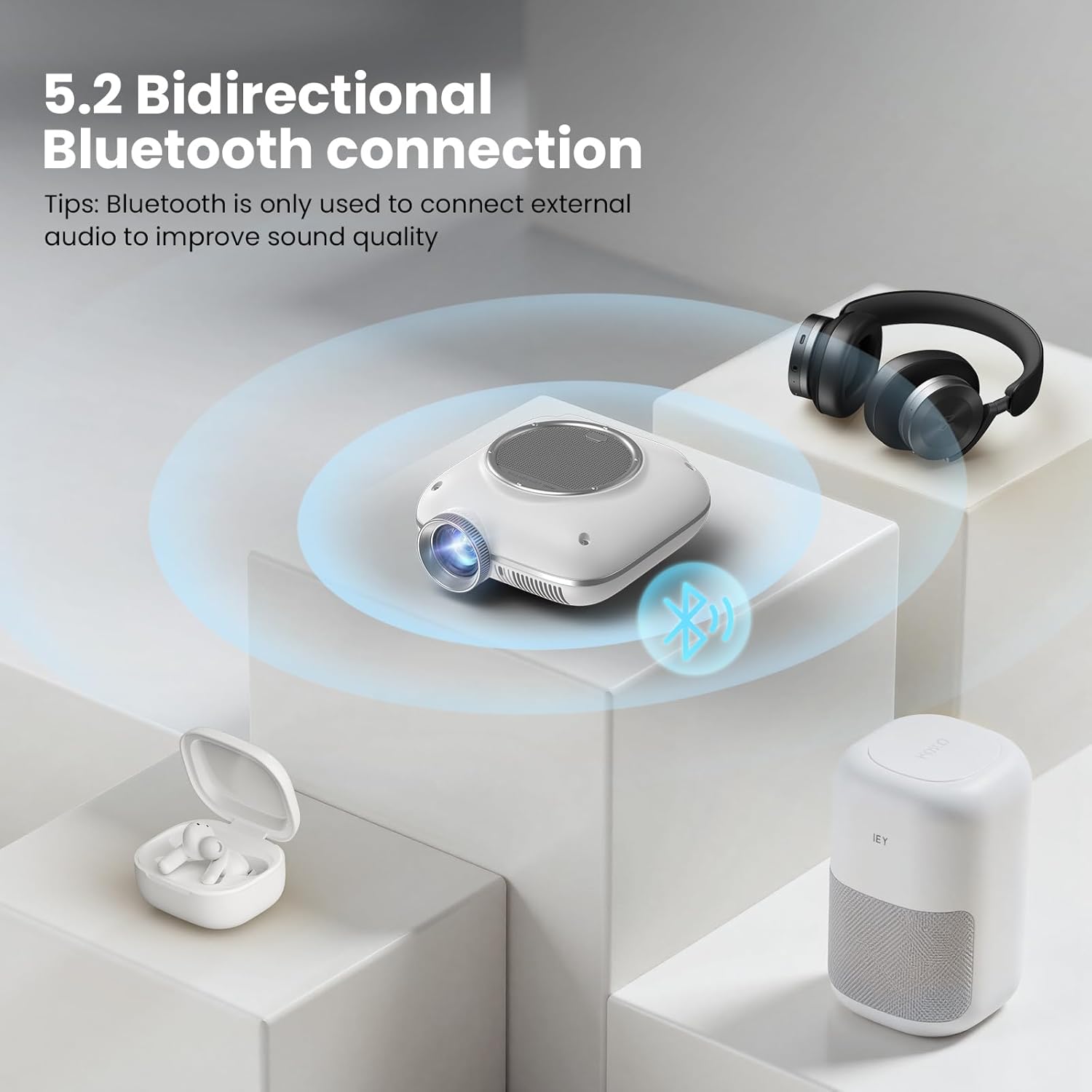
Image: The HOMPOW Mini Projector connected to various devices including a laptop, smartphone, gaming controller, and headphones, illustrating its versatile input options.

Image: A diagram showing how to connect smartphones and tablets to the projector using Micro USB/Type-C to HDMI or Lightning to HDMI adapters.

Image: An illustration of the projector's bidirectional Bluetooth capability, connecting to external headphones and a Bluetooth speaker.
Video: A demonstration of connecting a smartphone to the HOMPOW Mini Projector via Bluetooth to play music, highlighting the two-way Bluetooth functionality.
Projection Settings
Adjust the projection to suit your viewing environment and preferences.
- Screen Size: The projector supports a projection size from 40 to 120 inches. Adjust the distance of the projector from the wall or screen to achieve your desired size.
- Picture Mode: Access the 'Settings' menu to adjust picture parameters such as Contrast, Brightness, Sharpness, and Color Temperature.
- Eye Protection: The projector incorporates eye-protective technology. For optimal eye comfort, especially during extended viewing, ensure the room lighting is appropriate and avoid direct viewing of the lens.
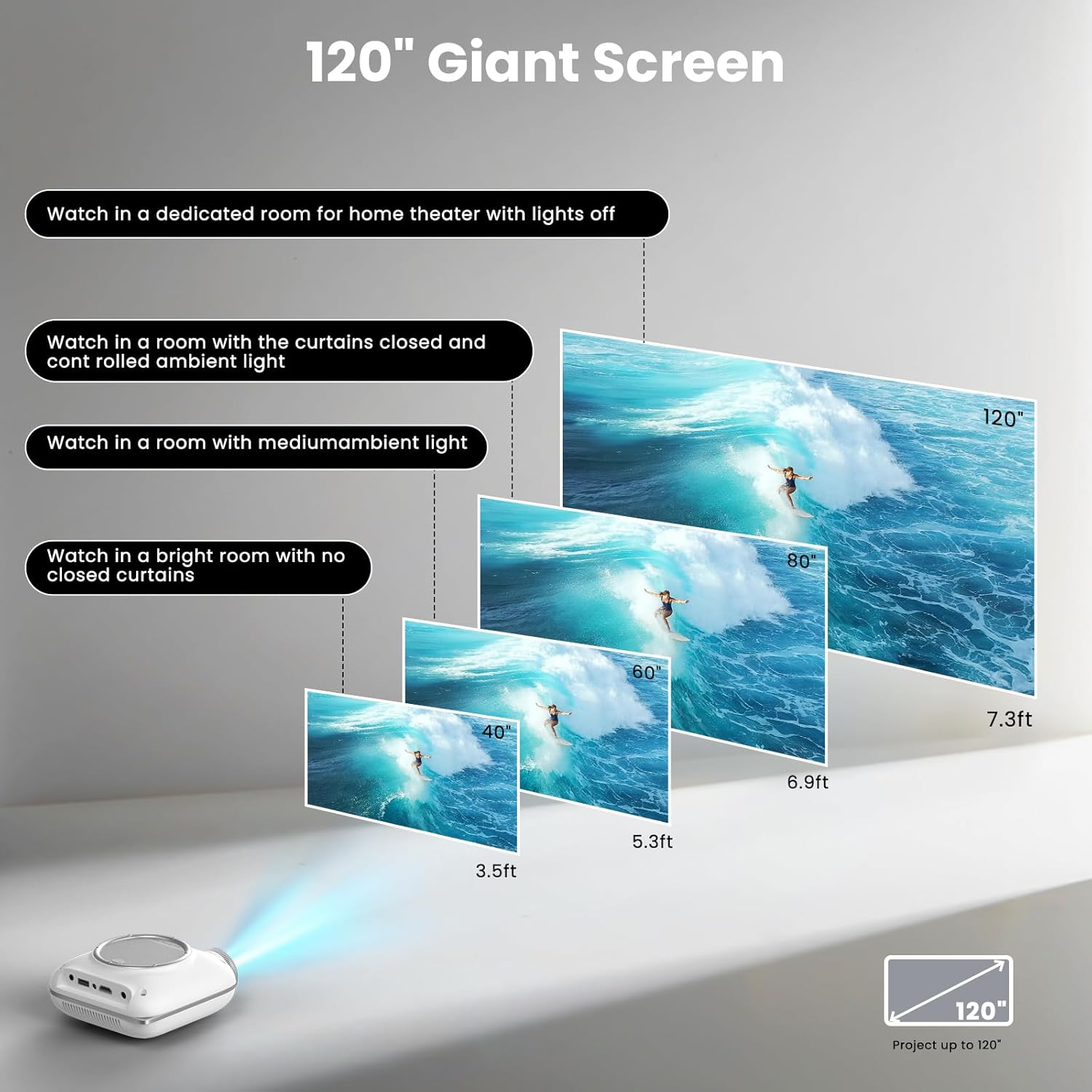
Image: Visual representation of the projector's capability to display screen sizes from 40 to 120 inches, suitable for various room conditions.
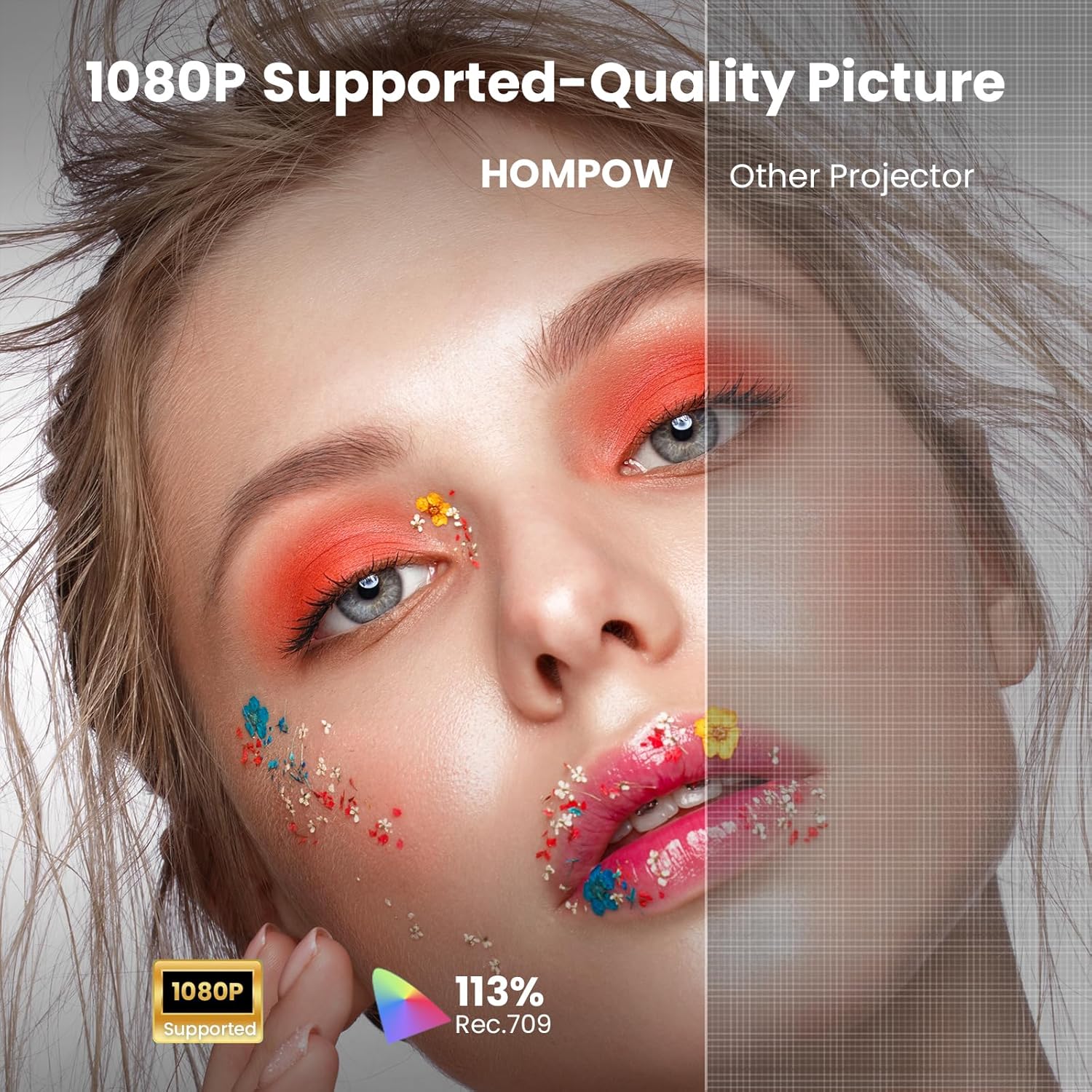
Image: A split image demonstrating the 1080P supported quality picture of the HOMPOW projector compared to a standard projector.
Maintenance
Proper maintenance ensures the longevity and performance of your projector.
- Lens Cleaning: Use a soft, lint-free cloth or the provided cleaning tool to gently wipe the projector lens. Avoid using abrasive cleaners or excessive force.
- Dust Removal: Regularly clean the ventilation openings to prevent dust buildup, which can affect cooling and performance.
- Storage: When not in use, store the projector in a cool, dry place, away from direct sunlight and extreme temperatures. Use the lens cap to protect the lens from dust and scratches.
Troubleshooting
If you encounter issues with your projector, refer to the following common problems and solutions:
- Blurry Image: Adjust the focus ring on the projector lens. Ensure the projector is placed at an appropriate distance from the screen.
- No Image: Check all cable connections (HDMI, USB). Ensure the correct input source is selected on the projector. Verify the power adapter is securely connected.
- No Sound: Check the volume settings on both the projector and the connected device. If using external speakers via Bluetooth, ensure they are properly paired and powered on.
- Bluetooth Connectivity Issues: Ensure both the projector and the external device are in Bluetooth pairing mode. Try restarting both devices.
For further assistance, please contact customer support.
Specifications
| Feature | Specification |
|---|---|
| Brand | HOMPOW |
| Model | B0F43KV5L5 |
| Item Weight | 1.43 pounds |
| Product Dimensions | 4.9 x 4.9 x 2.1 inches |
| Color | White |
| Connectivity Technology | 3.5mm Jack, Bluetooth, HDMI, IR, USB |
| Display Resolution | 1280 x 720 (Supports 1080P Full HD) |
| Special Features | Two-way Bluetooth 5.1 & Built-In Speaker, Compact and Portable, Low Noise, Kid-Friendly, Eye-Protective, Built-In Cooling System, 50%-100% Zoom |
| Recommended Uses | Home Cinema, Gaming, Business, Education |
Warranty and Support
HOMPOW is committed to providing excellent customer service and product support.
- 30-Day Replacement Window: Enjoy a 30-day replacement period for any product defects or issues.
- 2-Year Repair Coverage: Your projector is covered by a 2-year repair warranty.
- Lifetime Technical Support: Benefit from 24/7 technical assistance for any questions or optimization needs.
For support, please refer to the contact information provided on your Warranty Card or visit the official HOMPOW website.

