
Jedel KL69
Jedel KL69 60% Mechanical Gaming Keyboard User Manual
Model: KL69 | Brand: Jedel
1. Introduction
This user manual provides comprehensive instructions for the Jedel KL69 60% Mechanical Gaming Keyboard. It covers setup, operation, maintenance, troubleshooting, and detailed specifications to help you maximize your keyboard's performance and lifespan. The Jedel KL69 is a compact, wired mechanical keyboard featuring a 61-key layout, rainbow LED backlighting, and durable blue mechanical switches, designed for an optimal gaming and typing experience.

Figure 1: Jedel KL69 60% Mechanical Gaming Keyboard. This image displays the compact keyboard with its vibrant rainbow LED backlighting and black/red keycap design.
2. Setup
The Jedel KL69 keyboard is designed for simple plug-and-play setup. Follow these steps to connect your keyboard:
- Unpack the keyboard and its USB cable from the packaging.
- Locate an available USB Type-A port on your computer (desktop or laptop).
- Insert the USB connector of the keyboard cable firmly into the USB port on your computer.
- Your operating system (Windows, Android, Linux, etc.) will automatically detect and install the necessary drivers. This process may take a few moments.
- Once the drivers are installed, the keyboard's LED backlight will illuminate, indicating it is ready for use.

Figure 2: Connecting the Jedel KL69 Keyboard. This image shows the keyboard with its attached USB cable, ready for connection to a computer.
3. Operating Instructions
3.1 Key Features
- 60% Compact Design: The KL69 features a space-saving 61-key layout, ideal for gaming setups and smaller desks.
- Arabic/English Layout: Keycaps are designed with both Arabic and English characters for versatile use.
- Blue Mechanical Switches: Provides tactile feedback and an audible click, preferred by many for typing and gaming precision.
- Rainbow LED Backlight: Offers vibrant, customizable lighting effects to enhance your experience.
- Double-Shot Keycaps: Ensures legends never fade, providing long-lasting durability.
- Full Anti-Ghosting: All 61 keys support N-key rollover, ensuring every keystroke is registered accurately, even during intense gaming sessions.
- Wired USB Connectivity: Provides a stable and reliable connection with minimal latency.

Figure 3: Overview of the 60% Mechanical Gaming Keyboard. This image emphasizes the compact size and key features like RGB backlight, ABS double injection keycaps, 50 million switch lifespan, and ergonomic design.
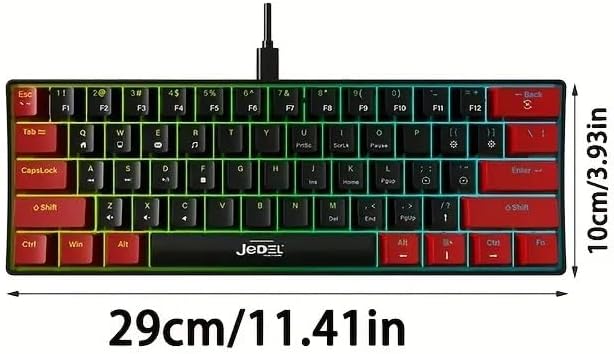
Figure 4: Blue Switches and Double-Shot Keycaps. This close-up view shows the transparent housing of the blue mechanical switches and the durable double-shot keycaps, designed for fast response and longevity.
3.2 Lighting Adjustment Function
The Jedel KL69 keyboard offers 10 distinct rainbow LED lighting modes. Use the following key combinations to adjust the lighting effects:
- Fn + \: Switch between 19 stunning LED lighting effects. (Note: The product description states 10 modes, while the image indicates 19. Please refer to the image for the most accurate number of effects.)
- Fn + [: Decrease the brightness of the backlight.
- Fn + ]: Increase the brightness of the backlight.
- Fn + ": Slow down the lighting effect speed.
- Fn + .: Speed up the lighting effect speed.

Figure 5: Introduction to Light Adjustment Functions. This diagram illustrates the Fn key combinations for controlling LED lighting effects, brightness, and speed.
3.3 Special Key Functions
The 60% layout utilizes the Function (Fn) key to access secondary functions of certain keys. Refer to the keycap legends for specific Fn combinations. For example, multimedia controls or F-keys (F1-F12) are typically accessed by holding down the Fn key and pressing the corresponding key.
4. Maintenance
Proper maintenance will ensure the longevity and optimal performance of your Jedel KL69 keyboard. Follow these guidelines for cleaning and care:
- Regular Cleaning: Use a soft brush or compressed air to remove dust and debris from between the keycaps.
- Keycap Cleaning: For deeper cleaning, you can carefully remove keycaps using a keycap puller (if included or purchased separately). Clean the keycaps with a damp cloth and mild soap, then ensure they are completely dry before reattaching.
- Surface Cleaning: Wipe the keyboard surface with a soft, slightly damp cloth. Avoid using harsh chemicals or abrasive materials.
- Liquid Spills: In case of a liquid spill, immediately unplug the keyboard from your computer. Invert the keyboard to drain as much liquid as possible. Allow it to air dry completely for at least 24-48 hours before plugging it back in. Do not use a hairdryer as excessive heat can damage components.
- Storage: When not in use for extended periods, store the keyboard in a dry, dust-free environment.
5. Troubleshooting
If you encounter issues with your Jedel KL69 keyboard, refer to the following common problems and solutions:
| Problem | Possible Cause | Solution |
|---|---|---|
| Keyboard is not responding. | Loose USB connection, faulty USB port, driver issue. |
|
| LED backlight is not working or is dim. | Lighting mode off, brightness set too low, software conflict. |
|
| Certain keys are not working. | Dust/debris under keycap, switch malfunction, software issue. |
|
6. Specifications
Below are the detailed technical specifications for the Jedel KL69 Mechanical Gaming Keyboard:
| Feature | Detail |
|---|---|
| Model Number | KL69 |
| Brand Name | Jedel |
| Keyboard Description | Mechanical |
| Number of Keys | 61 |
| Connectivity Technology | USB (Wired) |
| Special Features | Backlit (Rainbow LED) |
| Color | Black / Red |
| Compatible Devices | Desktop, Laptop (Windows, Android, etc.) |
| Recommended Uses | Gaming |
| Material | Acrylonitrile Butadiene Styrene (ABS) |
| Included Components | USB Cable |
| Key Lifespan | 50 Million Presses |
| Keyboard Dimensions (L x W x H) | 290 x 101 x 38 mm (11.41 x 3.93 x 1.49 inches) |
| Weight | Approx. 404 ±5 grams |
| Anti-Ghosting | Full N-Key Rollover |

Figure 6: Keyboard Dimensions. This image provides a visual representation of the keyboard's length (29 cm / 11.41 in) and width (10 cm / 3.93 in).
7. Warranty and Support
For warranty information and technical support, please refer to the documentation provided with your purchase or visit the official Jedel website. Keep your proof of purchase for any warranty claims.
Related documentsKL69


Ask a question about this manual
Ask about setup, troubleshooting, compatibility, parts, safety, or missing instructions. Manuals+ will review the question and use this page’s manual context to help answer it.