
1. Introduction
The Oticon ConnectClip is a versatile wireless device designed to enhance your hearing experience. It functions as both a remote microphone and a streaming device, allowing seamless audio transmission to your compatible Oticon hearing aids. This manual provides detailed instructions for setting up, operating, and maintaining your ConnectClip.
2. Product Overview
The ConnectClip offers multiple functionalities to improve communication and audio enjoyment. It is compatible with Oticon Intent, Real, More, OPN, Engage, Siya, Xceed, Own, Zircon, Play, and One Hearing Aids.
Key Features:
- Compatible with a wide range of Oticon hearing aids.
- Allows pairing with up to 8 devices.
- Features LED indicator lights for status updates.
- Includes a rotating clip for convenient attachment.
- Provides volume control for streamed audio.
- Mute mode available for the microphone.
- Enables control of incoming calls using reject/accept buttons.
- Offers a generous operating range of up to 20 meters.
- Compatible with the Oticon ON app.
Product Images:

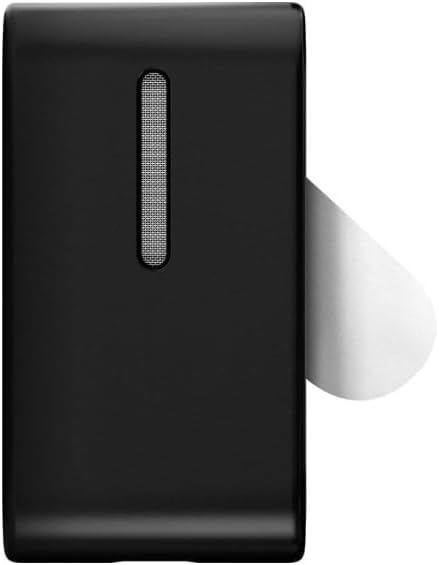
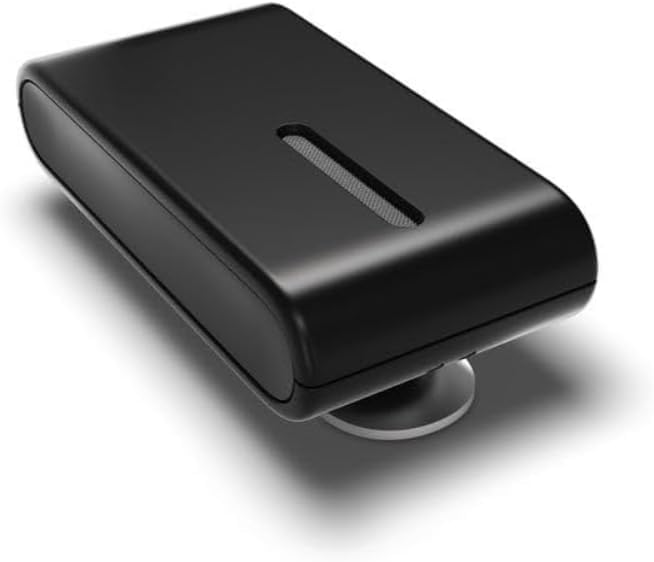
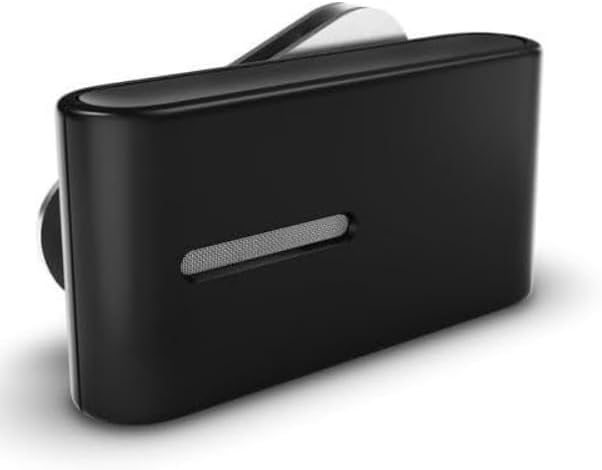

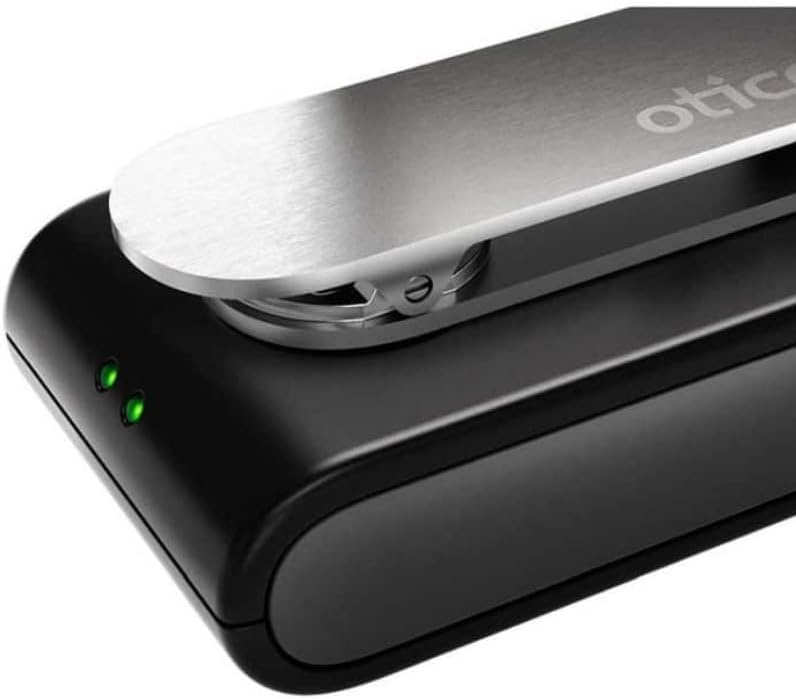

3. What's in the Box
- 1 x ConnectClip
4. Setup
4.1 Pairing with Oticon Hearing Aids
To use your ConnectClip, you must first pair it with your Oticon hearing aids. This process only needs to be done once. After initial pairing, the ConnectClip will automatically connect to your hearing aids when both devices are powered on and within range.
- Power Off ConnectClip: Press and hold the multi-button on the ConnectClip for approximately 6 seconds until the power indicator light turns off.
- Power Off Hearing Aids: Open the battery doors of both your hearing aids completely to turn them off.
- Power On Hearing Aids: Close the battery doors of both hearing aids to turn them back on. Wait for 10-15 seconds for the startup jingle. Your hearing aids are now ready for pairing for the next 3 minutes.
- Power On ConnectClip: Press and hold the multi-button on the ConnectClip for 3 seconds until the power LED turns a steady green.
The ConnectClip will now search for your hearing aids. While searching, the status indicator will blink yellow. Ensure the ConnectClip and both hearing aids are placed no more than 20 cm apart during this process. Once a connection is established, the status indicator will turn yellow. Your ConnectClip is now paired with your Oticon hearing aids.
Video: Pairing ConnectClip with Oticon Opn Hearing Aids
This video demonstrates the step-by-step process of pairing your Oticon ConnectClip with Oticon Opn hearing aids, including powering devices on and off and observing indicator lights.
5. Operation
5.1 Using as a Wireless Headset
The ConnectClip allows you to stream audio from your smartphone, Bluetooth-enabled laptop, or tablet directly to both of your hearing aids. This includes music, phone calls, and other high-quality audio.
- Audio Streaming: Once paired with a Bluetooth device, audio will automatically stream to your hearing aids.
- Phone Calls: Answer or reject incoming calls using the dedicated buttons on the ConnectClip. Your voice will be picked up by the ConnectClip's microphone, and the call audio will be streamed to your hearing aids.
5.2 Using as a Remote Microphone
In situations where you need to hear speech over a distance, the ConnectClip can function as a remote microphone. Place the ConnectClip near the person speaking, and their voice will be streamed directly to your hearing aids.
5.3 Volume Control and Mute
The ConnectClip features buttons for adjusting the volume of streamed audio and for muting the microphone. Refer to the device's physical buttons for these controls.
6. Maintenance
To ensure the longevity and optimal performance of your ConnectClip, follow these maintenance guidelines:
- Keep the device clean and dry. Wipe with a soft, dry cloth.
- Avoid exposing the ConnectClip to extreme temperatures, humidity, or direct sunlight.
- Store the device in a protective case when not in use.
- Do not attempt to open or repair the device yourself, as this will void the warranty.
7. Troubleshooting
If you encounter issues with your ConnectClip, try the following basic troubleshooting steps:
- Device Not Pairing: Ensure both the ConnectClip and your hearing aids are fully charged and powered on. Repeat the pairing process as described in Section 4.1. Make sure devices are within 20 cm during pairing.
- No Audio Streaming: Check that the ConnectClip is successfully paired with your audio source (smartphone, tablet, PC) and that the audio source's Bluetooth is enabled. Verify that the volume on both the ConnectClip and your audio source is turned up.
- Poor Audio Quality: Ensure there are no obstructions between the ConnectClip and your hearing aids or the audio source. Move closer to the audio source if necessary.
- Short Battery Life: Ensure the ConnectClip is fully charged before use. Battery performance can degrade over time.
If problems persist, contact your hearing care professional or Oticon customer support for further assistance.
8. Specifications
| Feature | Specification |
|---|---|
| Power Source | Battery Powered |
| Material | Metal, Plastic |
| Hardware Platform | Laptop, PC, Smartphone |
| Number of Channels | 1 |
| Manufacturer | Audique |
| Product Dimensions (L x W x H) | 2.5 x 1.5 x 0.5 inches |
| Item Model Number | NA-0001 |
| Color | Black |
| Connectivity Technology | Bluetooth |
| Special Features | Bluetooth, Clip, Easy Setup, Pairs with up to 8 hearing aids, Up to 20M range |
| Recommended Uses | Speech, Video Conference |
| Microphone Form Factor | Lavalier |
9. Warranty and Support
For information regarding product warranty, returns, or technical support, please refer to the official Oticon website or contact your authorized Oticon dealer. Keep your proof of purchase for warranty claims.


