Introduction
This manual provides essential information for the safe and efficient use of your Offgridtec Smart Power Strip. It covers setup, operation, maintenance, troubleshooting, and product specifications. Please read this manual thoroughly before using the device and retain it for future reference.
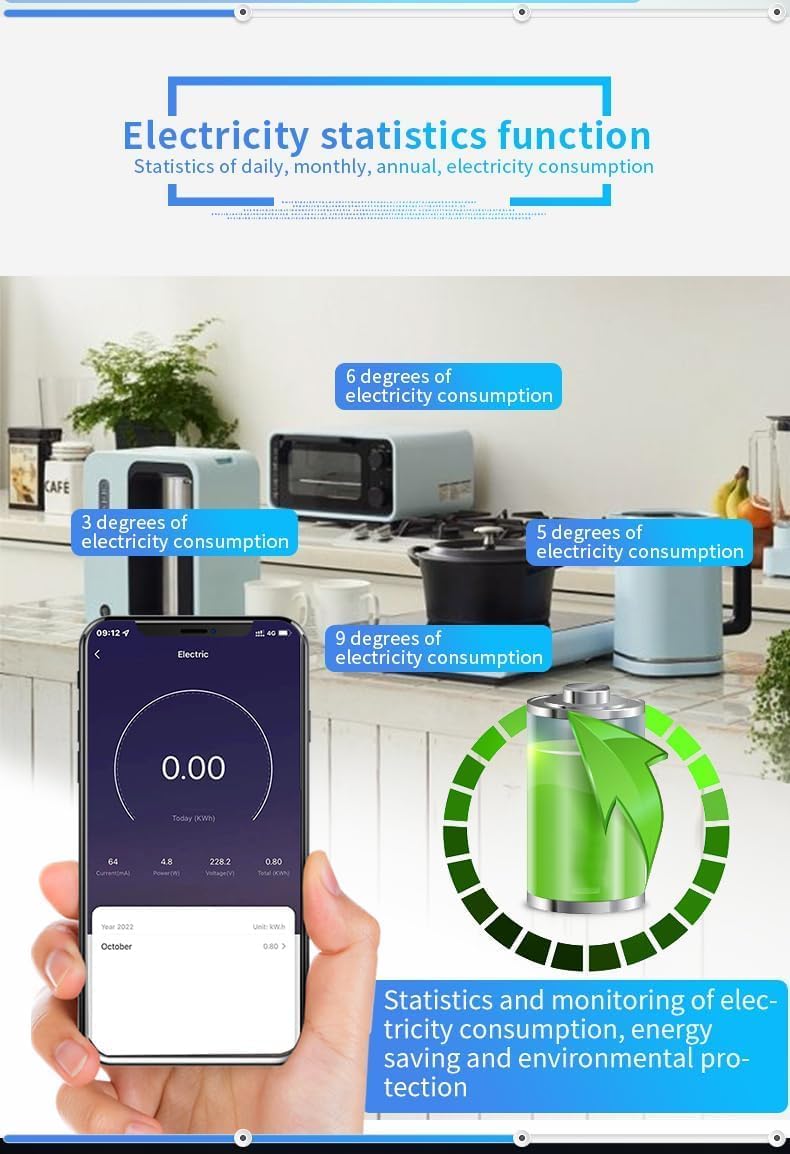
Image: The Offgridtec Smart Power Strip, featuring four AC outlets and four USB ports (2 USB-A, 2 USB-C).
Safety Information
For your safety and to prevent damage to the device, observe the following precautions:
- The power strip is constructed from flame-retardant PC materials to protect against fire hazards.
- Do not exceed the maximum load capacity of 16 A.
- Avoid exposing the device to water or high humidity.
- Do not disassemble or modify the device.
- Ensure the power strip is placed on a stable surface and away from heat sources.
- Keep out of reach of children.
Setup
1. Physical Connection
- Unpack the Offgridtec Smart Power Strip.
- Plug the power strip into a standard wall outlet (Type E – 2 pins, France compatible).
- Connect your devices to the AC outlets and USB ports.
2. App Installation and Device Pairing
The smart power strip operates with the Smart Life or Tuya app.
- Download the Smart Life or Tuya Smart app from your smartphone's app store (iOS or Android).
- Register or log in to your account.
- Ensure your smartphone is connected to a 2.4 GHz Wi-Fi network.
- Open the app and tap 'Add Device' or the '+' icon.
- Follow the on-screen instructions to put the power strip into pairing mode (usually by pressing and holding the power button until an indicator light flashes).
- Select the device type (e.g., 'Power Strip' or 'Socket') and complete the pairing process.

Image: A smartphone screen showing the Smart Life app, used for controlling the Offgridtec Smart Power Strip's individual outlets.
Operating Instructions
The Offgridtec Smart Power Strip offers various smart control features:
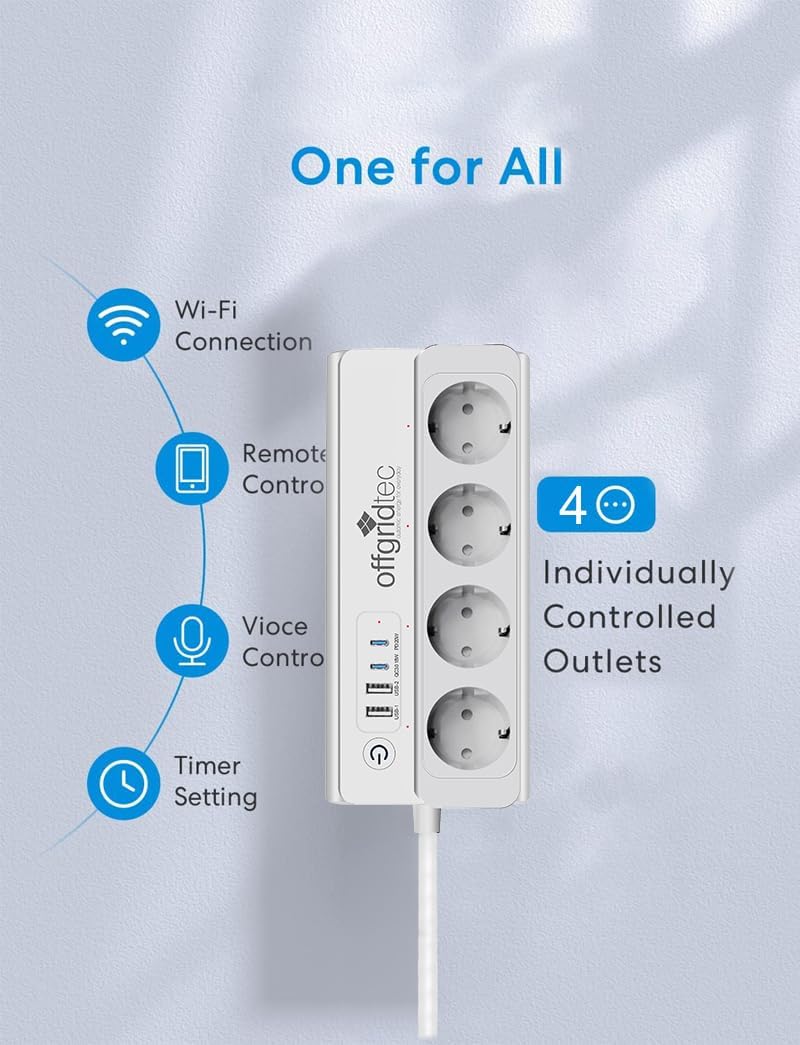
Image: An overview of the smart power strip's capabilities, including Wi-Fi connectivity, remote control, voice control, and timer functions.
1. Individual Outlet Control
Each of the four AC outlets can be controlled independently via the Smart Life or Tuya app. The USB ports are typically controlled as a group.
- Open the app and select your smart power strip.
- Tap on the icon corresponding to each outlet to toggle its power on or off.
2. Timer Function and Scheduling
Set specific times for automatic power-on and power-off of your connected devices.
- In the app, navigate to the timer or schedule settings for the power strip or individual outlets.
- Configure daily or weekly schedules for your devices. This is useful for automating lights at dusk or turning off appliances at night, contributing to energy savings.
- Schedules can still perform even if the internet connection is temporarily down.
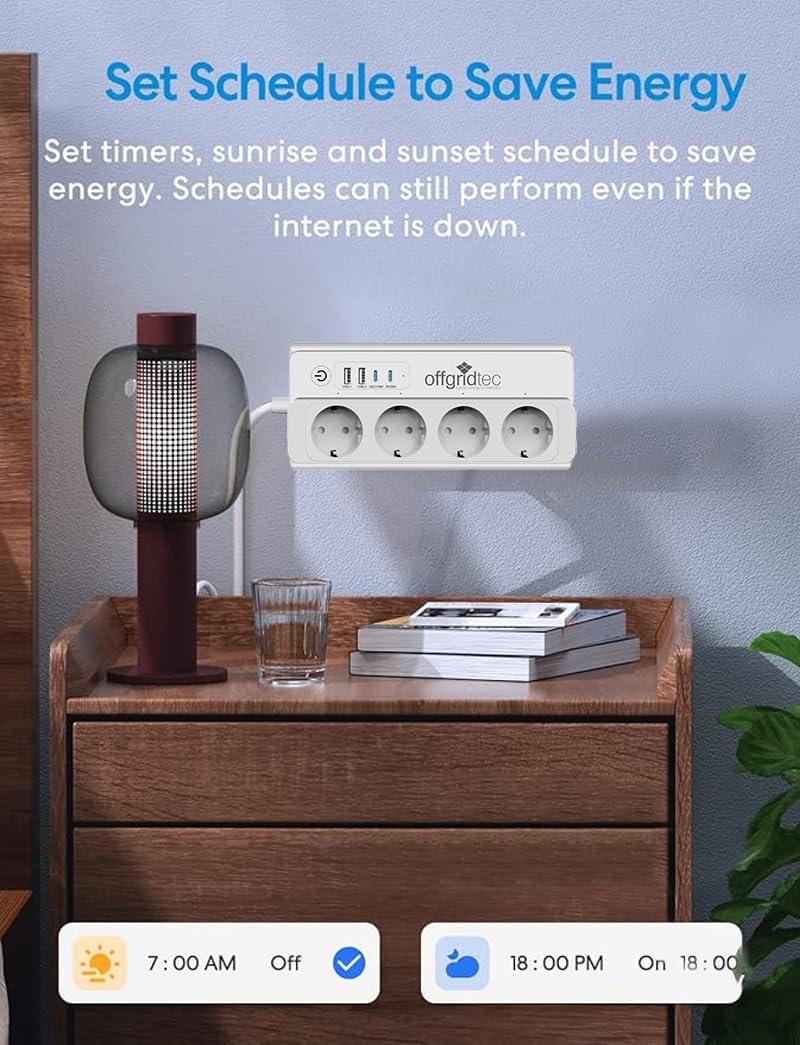
Image: The smart power strip in a bedroom setting, illustrating how to set timers and schedules via the app to save energy, such as turning off at 7:00 AM and on at 6:00 PM.
3. Voice Control
Integrate your smart power strip with voice assistants like Amazon Alexa, Google Assistant, and Apple Siri for hands-free control.
- Link your Smart Life/Tuya account to your preferred voice assistant app (e.g., Alexa app, Google Home app).
- Discover devices within the voice assistant app.
- Use voice commands such as: "Hey Siri, turn on my living room TV," "Alexa, turn on my living room TV," or "Hey Google, turn on my living room TV."

Image: The smart power strip integrated with voice control systems like Siri, Alexa, and Google, demonstrating how to control devices using simple voice commands.
4. Scene Control and Automation
Create custom scenarios to control multiple devices simultaneously with a single command or based on specific conditions.
- In the app, go to the 'Smart' or 'Scene' section.
- Combine different devices (e.g., lamps, TVs) into predefined scenarios like 'Movie Night' or 'Holiday Mode'.
- Set up automation rules based on time, weather, or other device states.
5. Energy Monitoring
Monitor and reduce your household energy consumption by viewing insights into connected device power usage.
- Access the energy statistics feature within the app to see daily, monthly, and annual electricity consumption.
- Identify high-consumption devices and make strategic decisions to limit their use during peak times, leading to energy savings and reduced electricity bills.

Image: A smartphone screen showing the electricity statistics function, providing data on daily, monthly, and annual power consumption for connected devices.
6. Device Sharing
Share control of the smart power strip with family members or friends.
- In the app, find the device sharing option.
- Invite others to control the device while maintaining your exclusive permissions.
7. Offline Control
Even when the internet is down, you can still control your devices within your home Wi-Fi network via the Smart Life app, provided your smartphone and the smart device are on the same local network.

Image: An illustration demonstrating offline control, where smart devices within a home Wi-Fi network can still be controlled via the app even without an active internet connection.
Maintenance
To ensure the longevity and proper functioning of your smart power strip:
- Cleaning: Disconnect the power strip from the wall outlet before cleaning. Use a soft, dry cloth to wipe the surface. Do not use liquid cleaners or abrasive materials.
- Storage: Store the power strip in a cool, dry place when not in use for extended periods.
- Inspection: Periodically check the power cord and plug for any signs of damage. If damaged, discontinue use and contact customer support.
Troubleshooting
If you encounter issues with your Offgridtec Smart Power Strip, refer to the following common solutions:
| Problem | Possible Cause | Solution |
|---|---|---|
| Device not powering on. | No power from wall outlet; Power strip switch off; Overload protection triggered. | Check wall outlet with another device; Press the power strip's main switch; Unplug some devices and reset the power strip. |
| Cannot connect to Wi-Fi. | Incorrect Wi-Fi password; Not on 2.4 GHz network; Device too far from router; Pairing mode not active. | Verify Wi-Fi password; Ensure connection to a 2.4 GHz network; Move device closer to router; Re-enter pairing mode. |
| App control unresponsive. | Internet connection issue; App glitch; Device offline. | Check internet connection; Restart the app; Verify device status in app; Ensure smartphone and power strip are on the same local network for offline control. |
| Voice control not working. | Voice assistant not linked; Device not discovered; Incorrect commands. | Ensure Smart Life/Tuya account is linked to voice assistant; Redo device discovery; Use correct voice commands as specified by the voice assistant. |
If the problem persists after trying these solutions, please contact customer support.
Specifications
| Feature | Detail |
|---|---|
| Brand | Offgridtec |
| Model | B0F3ZS1YMR |
| Color | White |
| Total AC Outlets | 4 (individually controllable) |
| Total USB Ports | 4 (2 USB-A, 2 USB-C) |
| AC Adapter Current | 16 A |
| Power Plug Type | Type E – 2 pins (France compatible) |
| Special Features | Energy Optimization, Guaranteed Safety and Durability (Flame-retardant PC materials) |
| Compatible Apps | Smart Life, Tuya Smart |
| Voice Assistant Compatibility | Amazon Alexa, Google Assistant, Apple Siri |
| Compatible Devices | Smartphone, Tablet, Smartwatch, Laptop, TV, Light, Printer, Fan, Cell phone, Set-top box, Toaster, Radio, DVD player, Lamp, Audio system |
Warranty Information
Specific warranty details for the Offgridtec Smart Power Strip are not provided in the product data. Please refer to the product packaging or contact Offgridtec customer support for warranty terms and conditions.
Customer Support
For further assistance, technical support, or inquiries regarding your Offgridtec Smart Power Strip, please contact the manufacturer directly. Contact information can typically be found on the product packaging, the manufacturer's official website, or through your retailer.


