
1. Product Overview
The Offgridtec Smart WiFi Power Strip (Model 021615) is designed to provide intelligent control over your connected devices. It features three individually controllable sockets and three USB ports, allowing for remote management, voice control, and energy monitoring via the Smart Life or Tuya application. This power strip integrates seamlessly with smart home ecosystems like Amazon Alexa and Google Home.
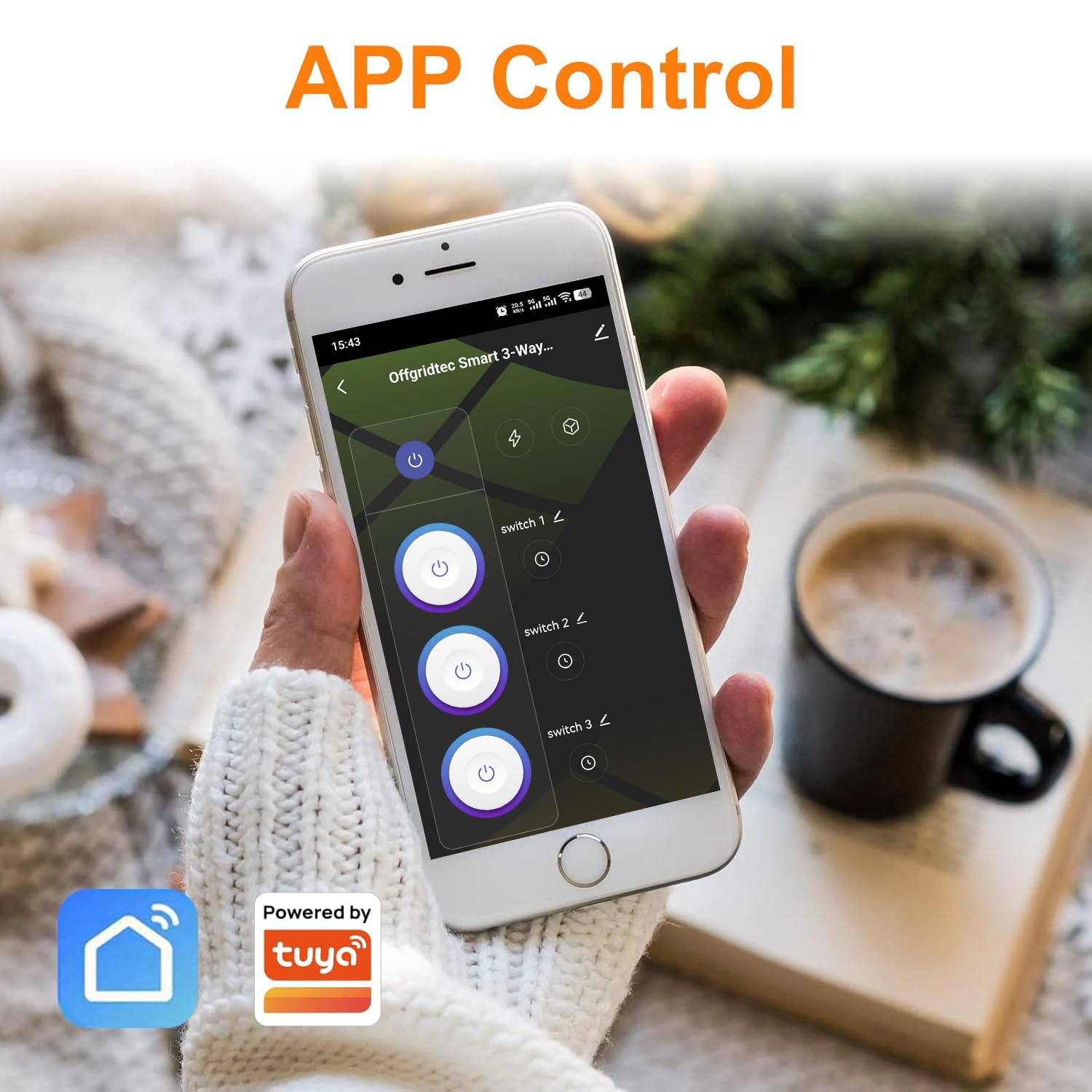
Image 1.1: The Offgridtec Smart WiFi Power Strip, showcasing its compact design with three power outlets and three USB ports.

Image 1.2: Key features of the Offgridtec Smart WiFi Power Strip, including Wi-Fi connectivity, remote control, voice control, timer settings, and three individually controllable outlets.
2. Setup Instructions
2.1 Package Contents
- Offgridtec Smart WiFi Power Strip (Model 021615)
- User Manual (this document)
2.2 App Download and Installation
- Download the Smart Life or Tuya Smart app from the Apple App Store (for iOS devices) or Google Play Store (for Android devices).
- Register for a new account or log in if you already have one.
2.3 Device Pairing
- Plug the Offgridtec Smart WiFi Power Strip into a standard wall outlet.
- Press and hold the power button on the power strip for approximately 5 seconds until the indicator light starts blinking rapidly. This indicates the device is in pairing mode.
- Open the Smart Life or Tuya Smart app on your smartphone.
- Tap the "+" icon in the top right corner to add a device.
- Select "Power Strip (Wi-Fi)" or allow the app to auto-discover the device.
- Confirm that the indicator light is blinking rapidly.
- Enter your 2.4 GHz Wi-Fi network password. Note: The power strip only supports 2.4 GHz Wi-Fi networks.
- Follow the on-screen instructions to complete the pairing process. Once connected, the indicator light will stop blinking and remain solid.

Image 2.1: A smartphone displaying the Smart Life app, illustrating the interface for controlling the individual switches of the Offgridtec Smart WiFi Power Strip.
3. Operating Instructions
3.1 App Control
Once paired, you can control the power strip using the Smart Life or Tuya Smart app:
- Individual Socket Control: Each of the three sockets can be turned on or off independently from anywhere using the app.
- USB Port Control: The USB ports are typically controlled as a single unit or are always on, depending on the model. Refer to the app interface for specific control options.
- Real-time Energy Monitoring: Monitor the energy consumption of connected devices in real-time for each socket and USB port. This feature helps identify power usage patterns and optimize energy savings.
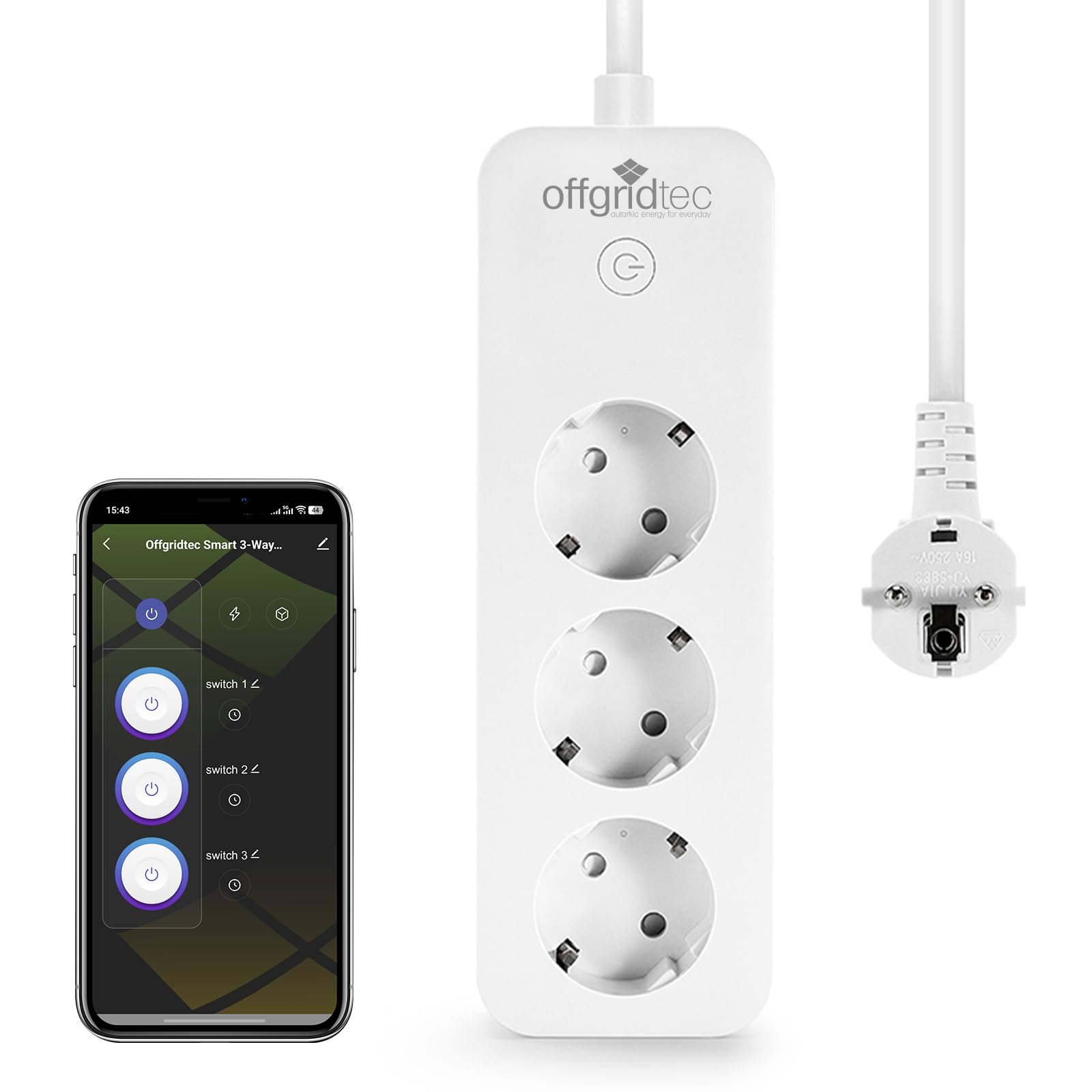
Image 3.1: A smartphone displaying the electricity statistics function within the app, showing daily, monthly, and annual energy consumption data for connected devices.
3.2 Voice Control
The power strip is compatible with Amazon Alexa and Google Home for hands-free voice control. To enable voice control:
- Link your Smart Life/Tuya Smart account to your Alexa or Google Home app.
- Discover new devices in your smart assistant app.
- You can then use voice commands such as:
- "Alexa, turn on Socket 1."
- "Hey Google, turn off the living room power strip."
- "Siri, turn on my living room TV." (Requires Apple HomeKit integration via Tuya/Smart Life scenes)
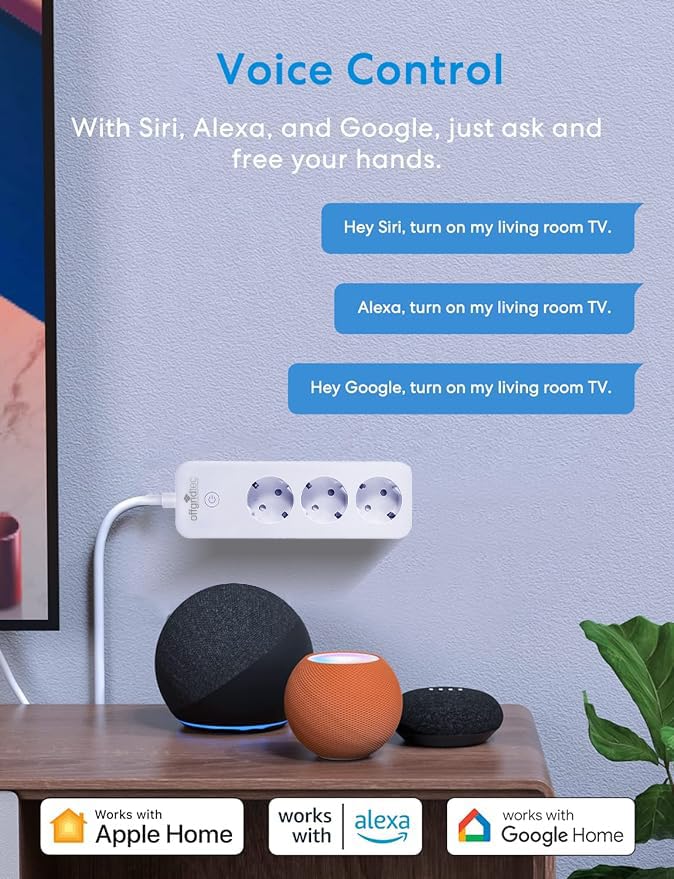
Image 3.2: An illustration demonstrating voice control capabilities with Siri, Alexa, and Google Home, showing example commands to operate devices connected to the smart power strip.
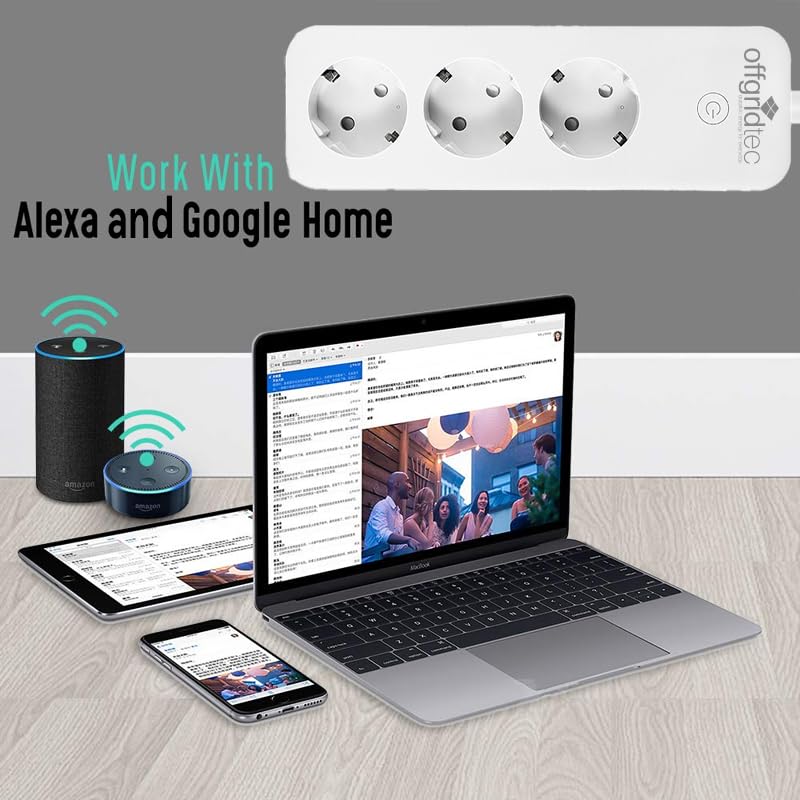
Image 3.3: The Offgridtec power strip integrated with Alexa and Google Home, depicted alongside smart speakers and a laptop, highlighting its compatibility with these voice assistants.
3.3 Timers, Schedules, and Scenes
Utilize the app to set up automated routines:
- Timers: Set countdown timers for devices to turn on or off after a specified duration.
- Schedules: Create daily or weekly schedules for each socket to automate power on/off times. This is useful for lights, coffee makers, or charging devices.
- Scenes: Combine multiple actions into a single command or schedule. For example, a "Good Morning" scene could turn on your lamp and coffee machine simultaneously.
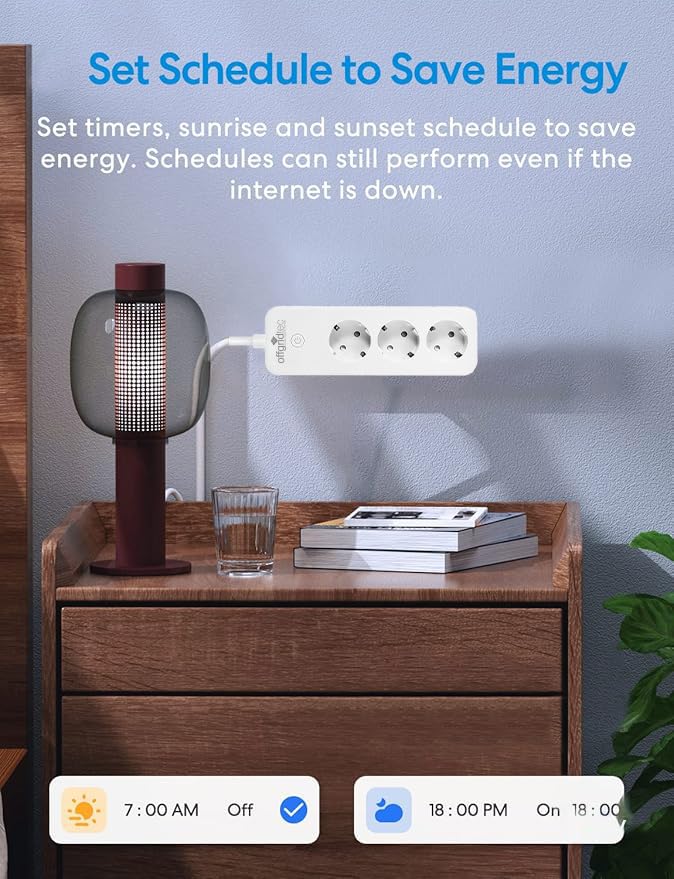
Image 3.4: The app interface demonstrating how to set timers and schedules, such as turning a device off at 7:00 AM and on at 6:00 PM, to save energy.
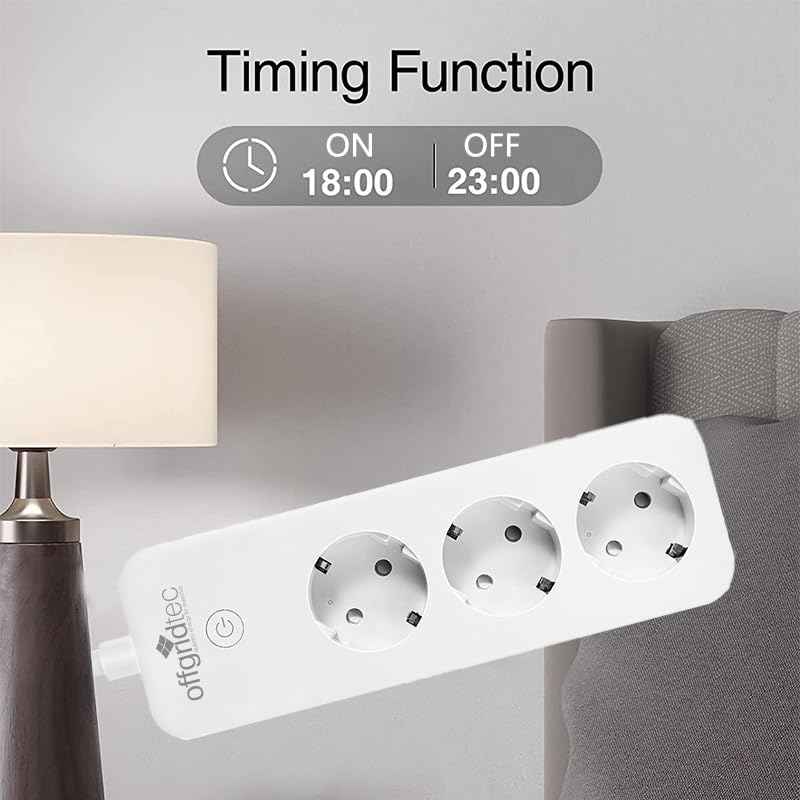
Image 3.5: The Offgridtec power strip with a visual representation of its timing function, set to turn on at 6:00 PM and off at 11:00 PM.
3.4 Offline Control
Even if your internet connection is down, you can still control your devices via the Smart Life app, provided your smartphone and the smart power strip are connected to the same local Wi-Fi network.

Image 3.6: A diagram showing how the Offgridtec Smart WiFi Power Strip can still be controlled locally via the Smart Life app within your home Wi-Fi network, even if the external internet connection is unavailable.
4. Maintenance
To ensure the longevity and safe operation of your Offgridtec Smart WiFi Power Strip, follow these maintenance guidelines:
- Cleaning: Disconnect the power strip from the wall outlet before cleaning. Use a dry, soft cloth to wipe the surface. Do not use liquid cleaners or abrasive materials.
- Environment: Keep the power strip away from water, moisture, and high temperatures. Avoid placing it in direct sunlight or near heat sources.
- Cable Inspection: Regularly inspect the power cord and plug for any signs of damage. Do not use the power strip if the cord is frayed or damaged.
- Load Management: Do not exceed the maximum load capacity (16A/3680W) of the power strip to prevent overheating and potential damage.
5. Troubleshooting
If you encounter issues with your Offgridtec Smart WiFi Power Strip, refer to the following troubleshooting steps:
5.1 Device Not Connecting to Wi-Fi
- Ensure your Wi-Fi network is 2.4 GHz. The power strip does not support 5 GHz networks.
- Check if your Wi-Fi password is entered correctly in the app.
- Make sure the power strip is within range of your Wi-Fi router.
- Reset the power strip by unplugging it for 10 seconds and then plugging it back in. Try pairing again.
- Ensure the indicator light is blinking rapidly when attempting to pair. If not, press and hold the power button for 5 seconds to enter pairing mode.
5.2 Sockets Not Responding to App/Voice Commands
- Verify that the power strip is connected to Wi-Fi (solid indicator light).
- Check your internet connection if controlling remotely.
- Ensure the Smart Life/Tuya Smart app is updated to the latest version.
- For voice control, confirm that your Smart Life/Tuya Smart account is correctly linked to Alexa or Google Home.
- Try restarting the power strip and your router.
5.3 Energy Monitoring Data is Incorrect or Missing
- Ensure the device is properly connected and actively drawing power.
- Check the app for any pending updates or data synchronization issues.
- Restart the app and the power strip.
5.4 Overload Protection Triggered
- If the power strip automatically shuts off, it may be due to an overload. Disconnect some devices and reduce the total power draw.
- Ensure the total wattage of connected devices does not exceed 3680W (16A).
6. Specifications
| Feature | Specification |
|---|---|
| Brand | Offgridtec |
| Model | 021615 |
| Total Power Outlets | 3 |
| Total USB Ports | 3 |
| Max Current | 16A |
| Max Power | 3680W |
| Wi-Fi Standard | 2.4 GHz (IEEE 802.11 b/g/n) |
| App Compatibility | Smart Life / Tuya Smart |
| Voice Assistant Compatibility | Amazon Alexa, Google Home |
| Cable Length | 1.8m |
| Material | Flame retardant PC V0 |
| Safety Features | Overvoltage protection, Short circuit protection, Overload protection |
| Item Weight | 490 g |
7. Warranty and Support
7.1 Warranty Information
Offgridtec products are manufactured to high-quality standards. For specific warranty terms and conditions, please refer to the warranty card included with your purchase or visit the official Offgridtec website. Keep your proof of purchase for warranty claims.
7.2 Customer Support
If you require further assistance or have questions not covered in this manual, please contact Offgridtec customer support through their official website or the contact information provided with your product packaging. You can also find helpful resources and FAQs within the Smart Life or Tuya Smart app.

