
HONOR 5109BUUQ
Honor 400 Dual-SIM 5G Smartphone User Manual
Model: 5109BUUQ
1. Product Overview
The Honor 400 is a high-performance 5G smartphone designed for global use. It features a powerful 2.63 GHz Octa-core processor, 8GB of RAM, and 256GB of internal storage. Running on Android 15, it is equipped with a long-lasting 5300mAh non-removable battery. The device supports advanced camera capabilities and a vibrant display, built with durability in mind.
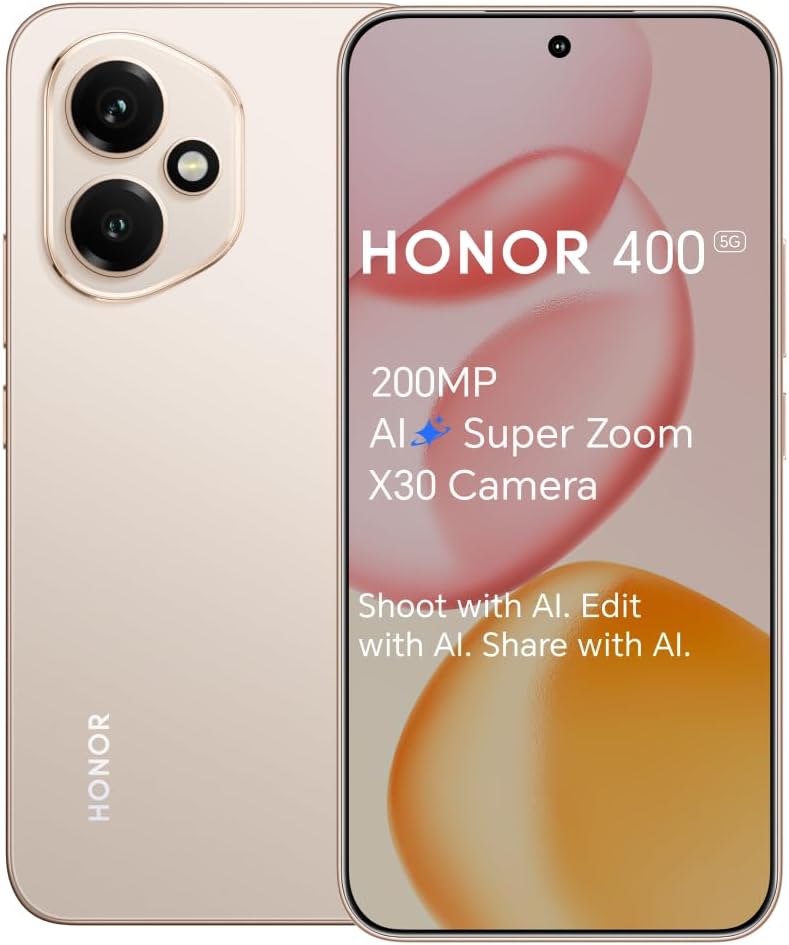
Figure 1.1: Front and back view of the Honor 400 smartphone, highlighting its design and key features like the 200MP AI Super Zoom X30 Camera.
Key Features:
- Display: 6.55 inches AMOLED display with 1B colors and 1264 x 2736 pixels resolution.
- Performance: Powered by Qualcomm SM7550-AB Snapdragon 7 Gen 3 (4 nm) Octa-core processor, with 8GB RAM and 256GB storage.
- Camera System: Rear: 200 MP (wide) with OIS, 12 MP (ultrawide); Front: 50 MP (wide) selfie camera.
- Battery: 5300mAh non-removable battery for extended usage.
- Connectivity: Dual-SIM support (Nano-SIM + ESIM OR Nano-SIM + Nano-SIM) with 5G cellular technology.
- Durability: IP65 Water and Dust Resistance, 5-stars Drop resistance certified by SGS.
2. Setup Guide
2.1 Unboxing and Initial Inspection
Upon opening the package, ensure all contents are present and undamaged. The standard package includes the Honor 400 smartphone and a USB Cable.
- Honor 400 Smartphone
- USB Cable
2.2 Inserting SIM Cards
The Honor 400 supports Dual-SIM functionality, allowing for two Nano-SIM cards or one Nano-SIM and one eSIM. Ensure the device is powered off before inserting or removing SIM cards.
- Locate the SIM card tray on the side of the device.
- Insert the SIM ejector tool (not included) into the small hole next to the tray and press firmly until the tray pops out.
- Place your Nano-SIM card(s) into the designated slots on the tray, ensuring the gold contacts face downwards and the cut corner aligns correctly.
- Carefully push the tray back into the device until it is flush with the side.
- For eSIM activation, follow the instructions provided by your network carrier.
Important: Before purchasing, verify network compatibility with your service provider. This device supports GSM networks only and does not support CDMA.
2.3 Charging the Device
Before first use, it is recommended to fully charge the Honor 400. Connect the provided USB cable to the phone's charging port and the other end to a compatible USB power adapter (not included) or a computer's USB port.
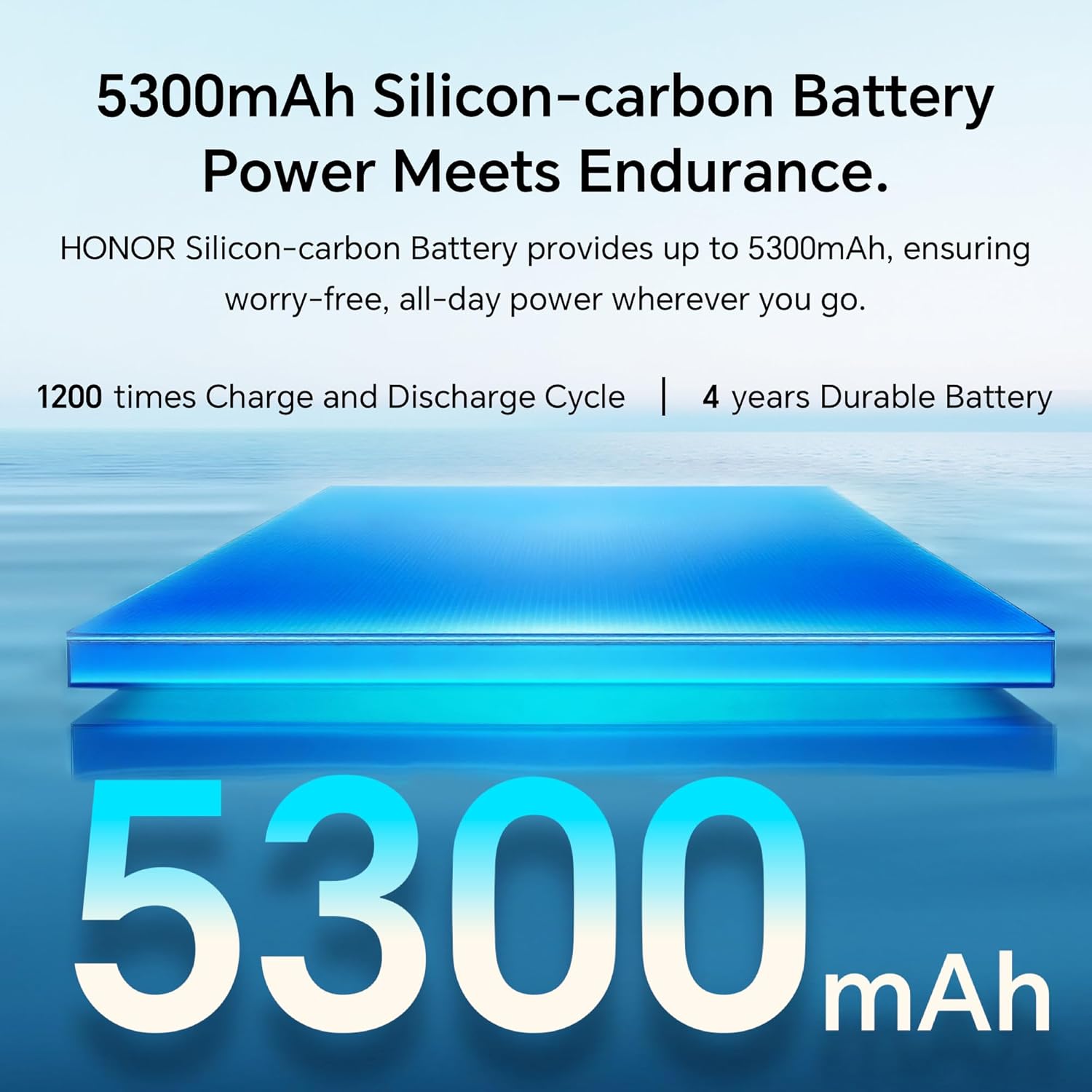
Figure 2.1: The Honor 400 is equipped with a 5300mAh Silicon-carbon Battery, designed for endurance with 1200 charge/discharge cycles and up to 4 years of durable battery life.
2.4 Powering On and Initial Setup
Press and hold the Power button (located on the side) until the Honor logo appears. Follow the on-screen instructions to complete the initial setup, including language selection, Wi-Fi connection, Google account setup, and security settings.
3. Operating the Device
3.1 Basic Navigation
The Honor 400 features a responsive touchscreen interface. Use gestures such as tapping, swiping, pinching, and spreading to navigate through menus, open applications, and interact with content.
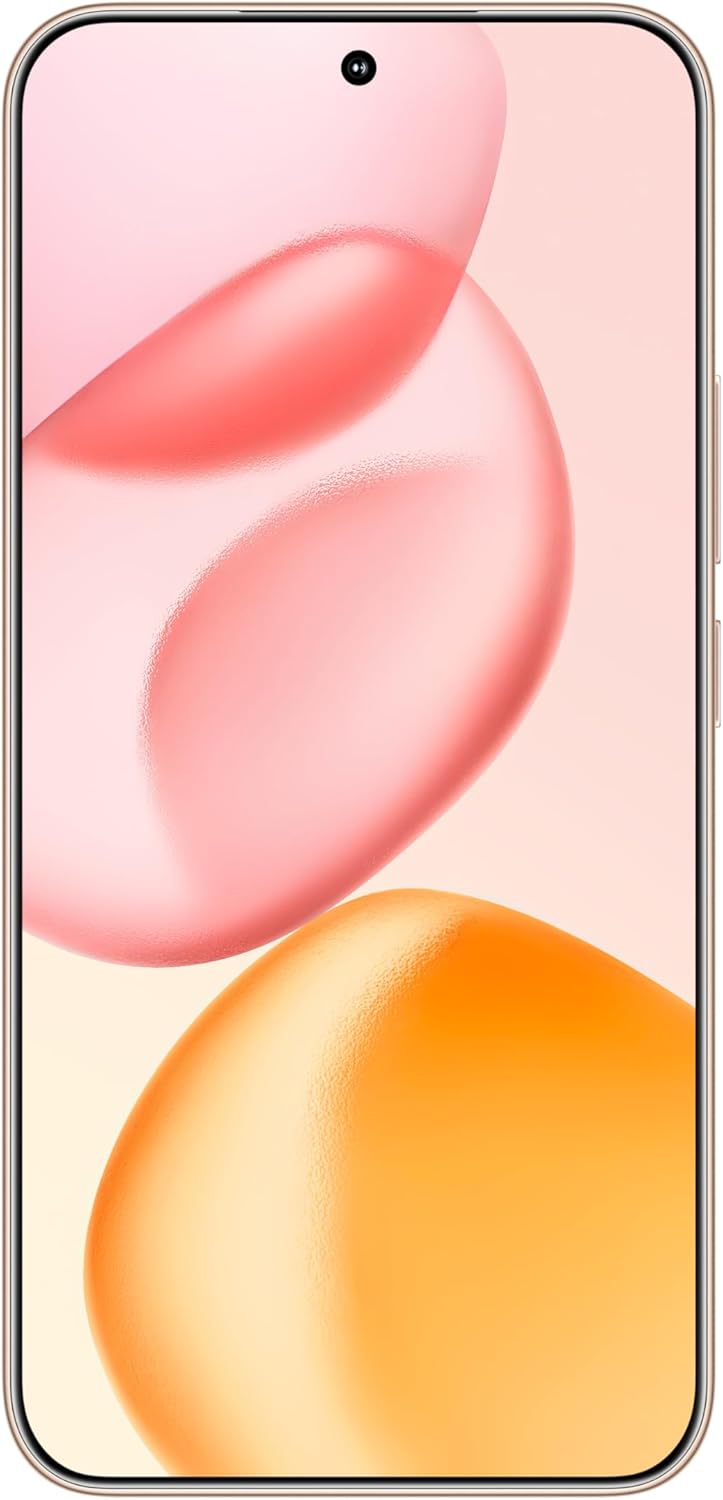
Figure 3.1: Front view of the Honor 400 smartphone, showcasing its full-screen display and front camera.
3.2 Camera Features
The Honor 400 is equipped with an advanced camera system, including a 200MP Ultra-clear AI Camera, a 12MP ultrawide lens, and a 50MP portrait selfie camera. It supports various modes and AI enhancements for optimal photo and video capture.
- 200MP Main Camera: Capture incredibly detailed photos with the high-resolution main sensor, featuring OIS (Optical Image Stabilization) for steady shots.
- AI Super Zoom: Utilize AI capabilities for enhanced zoom performance.
- AI Editing Features: The device supports AI-powered editing functions such as 'Erase passers-by', 'Upscale', 'Outpanting', 'Cutout and Edit', and 'Eyes Open' for refining your photos directly on the device.
- HD Moving Photo: Capture 3-second live moments and stitch cinematic photos seamlessly.

Figure 3.2: Detailed view of the Honor 400's camera system, highlighting the 200MP Ultra-clear AI Camera, 12MP 112° Ultra Wide Camera, and 50MP Portrait Selfie Camera.

Figure 3.3: Illustration of the Honor 400's AI-powered photo editing capabilities, such as erasing unwanted elements, upscaling images, and advanced cutout features.

Figure 3.4: The HD Moving Photo feature allows capturing clarity and stitching cinematic photos seamlessly, preserving vibrant live moments.
3.3 Display Technology
Experience stunning visuals on the Honor 400's 5000nits Ultra Bright Display. This AMOLED screen offers vibrant colors, deep blacks, and excellent visibility even in bright sunlight.
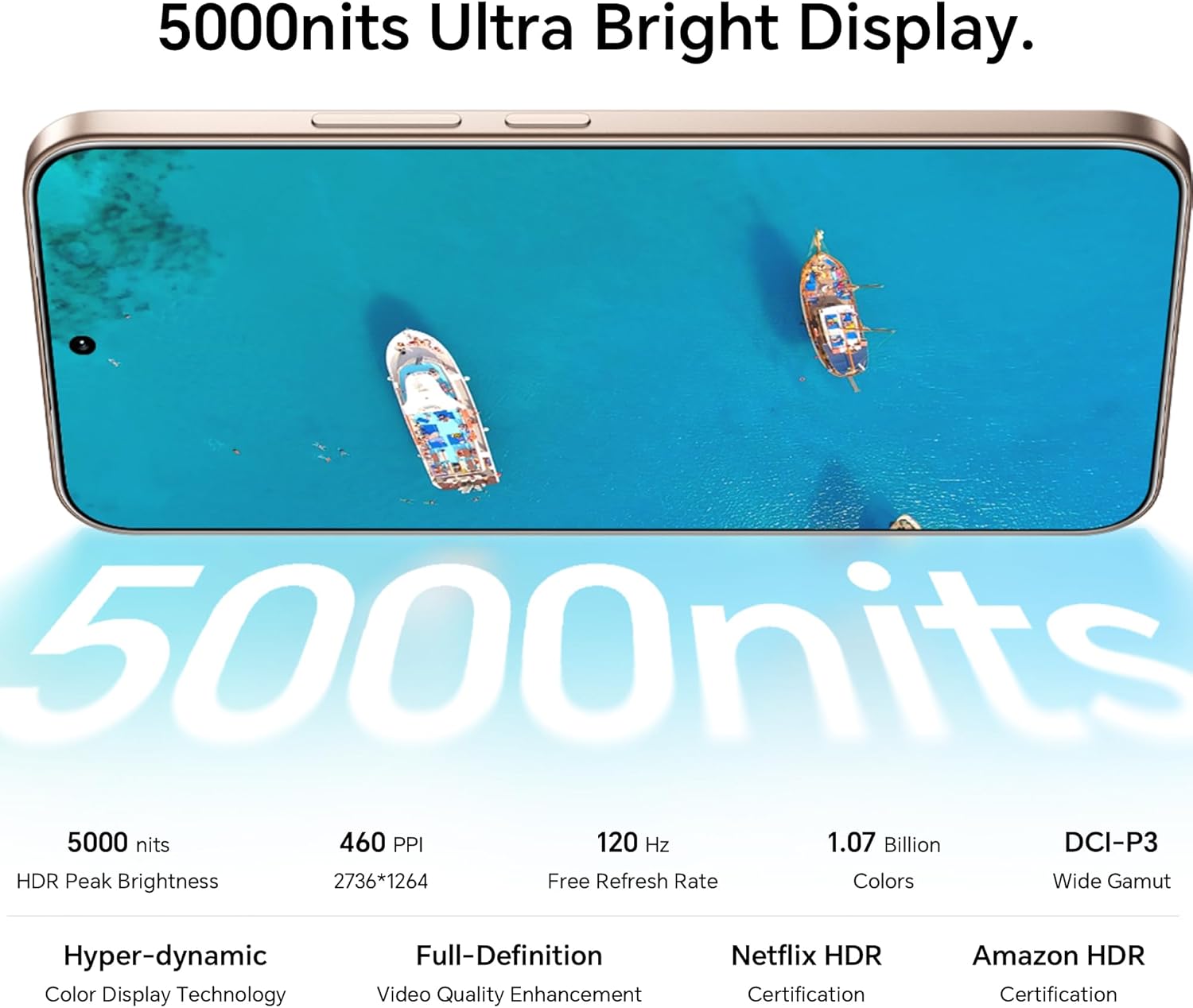
Figure 3.5: The Honor 400 features a 5000nits Ultra Bright Display with AMOLED technology, 120 Hz refresh rate, and support for 1.07 Billion colors, ensuring a superior viewing experience.
4. Maintenance and Care
4.1 Cleaning Your Device
To maintain the appearance and functionality of your Honor 400, regularly clean it with a soft, lint-free cloth. Avoid using abrasive materials, solvents, or aerosol sprays.
4.2 Water and Dust Resistance
The Honor 400 is rated IP65 for water and dust resistance. This means it is protected against low-pressure water jets from any direction and is dust tight. While it offers protection, avoid intentionally submerging the device in water or exposing it to high-pressure water jets.

Figure 4.1: The Honor 400 is built to last, featuring IP65 Water and Dust Resistance and 5-stars Drop resistance certified by SGS, ensuring durability against everyday mishaps.
4.3 Software Updates
Regularly check for and install software updates to ensure your device has the latest features, security patches, and performance improvements. You can usually find this option in the device's settings under 'System & updates' or 'About phone'.
5. Troubleshooting
This section provides solutions to common issues you might encounter with your Honor 400.
5.1 Device Not Powering On
- Ensure the battery is sufficiently charged. Connect the device to a charger and wait a few minutes before attempting to power it on again.
- Press and hold the Power button for at least 10-15 seconds to perform a forced restart.
5.2 Network Connectivity Issues
- Check if your SIM card is properly inserted and activated.
- Verify that mobile data is enabled in your phone's settings.
- Restart the device.
- Contact your network provider to confirm service availability in your area and check for any account issues.
5.3 Apps Crashing or Freezing
- Close and reopen the problematic app.
- Clear the app's cache and data from the device settings.
- Ensure the app is updated to its latest version.
- If the issue persists, consider uninstalling and reinstalling the app.
6. Specifications
| Feature | Detail |
|---|---|
| Model Name | Honor 400 |
| Item Model Number | 5109BUUQ |
| Operating System | Android 15.0 |
| Processor | Qualcomm SM7550-AB Snapdragon 7 Gen 3 (4 nm) Octa-core (1x2.63 GHz Cortex-A715 & 3x2.4 GHz Cortex-A715 & 4x1.8 GHz Cortex-A510) |
| RAM Memory | 8 GB |
| Storage Capacity | 256 GB (non-expandable) |
| Screen Size | 6.55 Inches |
| Display Type | AMOLED, 1B colors, 1264 x 2736 pixels, 5000 nits peak brightness |
| Rear Camera | 200 MP, f/1.9 (wide), 1/1.4", PDAF, OIS; 12 MP, f/2.2, 112° (ultrawide), AF |
| Front Camera | 50 MP, f/2.0 (wide) |
| Battery Capacity | 5300 mAh (Lithium Polymer, non-removable) |
| Dimensions (L x W x H) | 6.16 x 2.94 x 0.29 inches (156.5 x 74.6 x 7.3 mm) |
| Item Weight | 6.49 ounces (184 g) |
| Color | Desert Gold |
| SIM Type | Dual-SIM (Nano-SIM + ESIM OR Nano-SIM + Nano-SIM) |
| Cellular Technology | 5G (SA/NSA), LTE, UMTS, GSM |
| Wireless Network Technology | Wi-Fi |
| Special Features | Dual SIM, IP65 Water and Dust Resistance |
| What's in the Box | USB Cable |
7. Warranty and Support
For detailed warranty information and customer support, please refer to the official HONOR website or contact your point of purchase. Keep your proof of purchase for warranty claims.
You can find more information and support resources by visiting the official HONOR support page or by contacting their customer service directly.
Related documents5109BUUQ


Ask a question about this manual
Ask about setup, troubleshooting, compatibility, parts, safety, or missing instructions. Manuals+ will review the question and use this page’s manual context to help answer it.